> For the complete documentation index, see [llms.txt](https://docs.buildings.ability.abb/collection/llms.txt). Markdown versions of documentation pages are available by appending `.md` to page URLs; this page is available as [Markdown](https://docs.buildings.ability.abb/collection/academy/set-up-2fa-in-eliona.md).
# Set up 2FA in BuildingPro Suites
## What is TOTP?
**TOTP** stands for *Time-based One-Time Password*. It is a time-limited one-time password that is newly generated every 30 seconds. Authentication is performed via an app on your smartphone (e.g., *Google Authenticator*, *Authy*) and ensures that only you have access to your user account—even if someone knows your password.
### **Advantages of TOTP/2FA:**
* Higher security for sensitive tenant data
* Protection against unauthorized access
* One-time passwords also work offline
## Activate Two-Factor Authentication (TOTP)
**How to start the setup:**
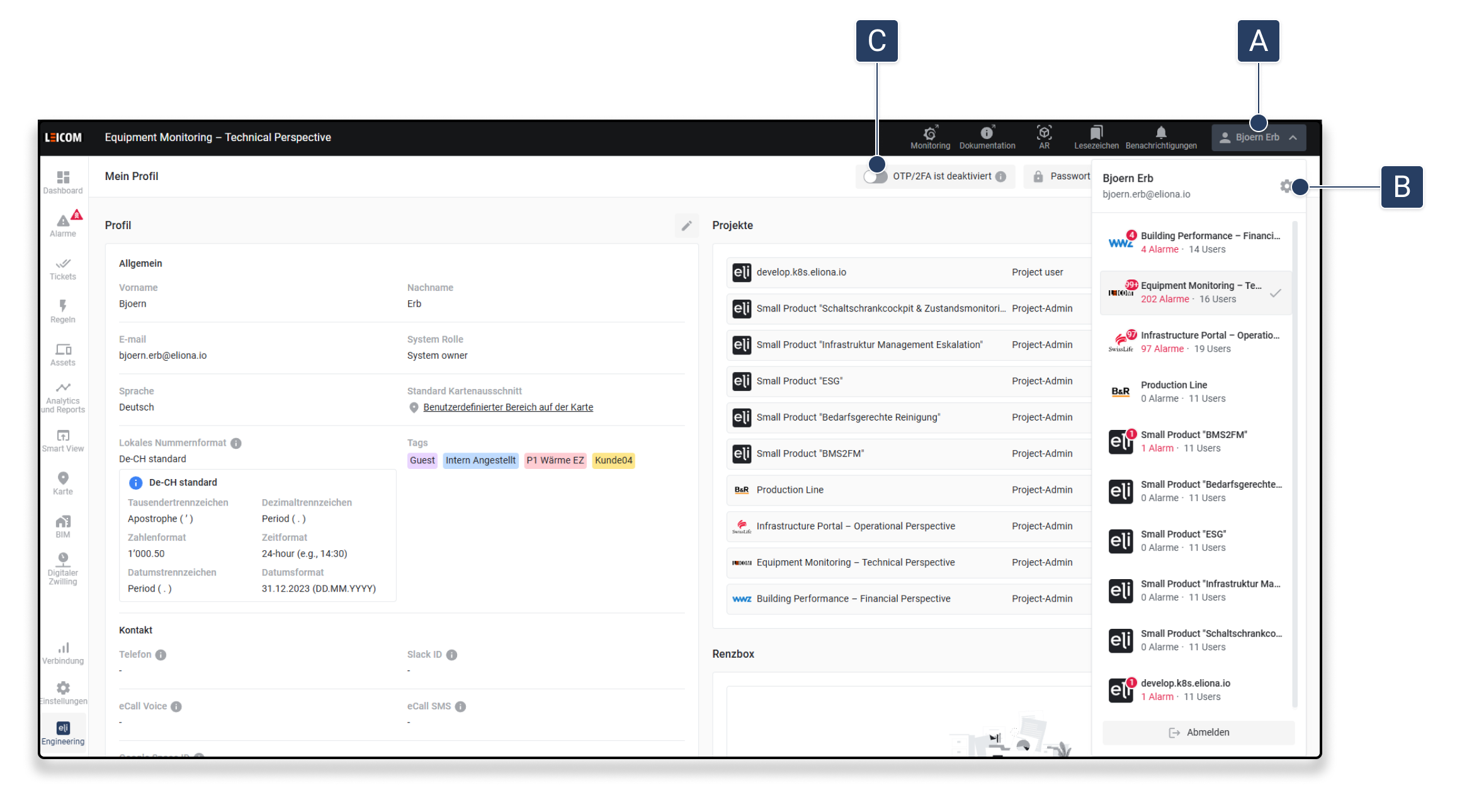
1. Click on the user profile in the top right \[A]
2. Click on the gear in the dropdown menu \[B]
3. In the *Profile* section, activate the switch \[C]\
▷ The setup for TOTP-based two-factor authentication begins
### Turn on OTP/2FA
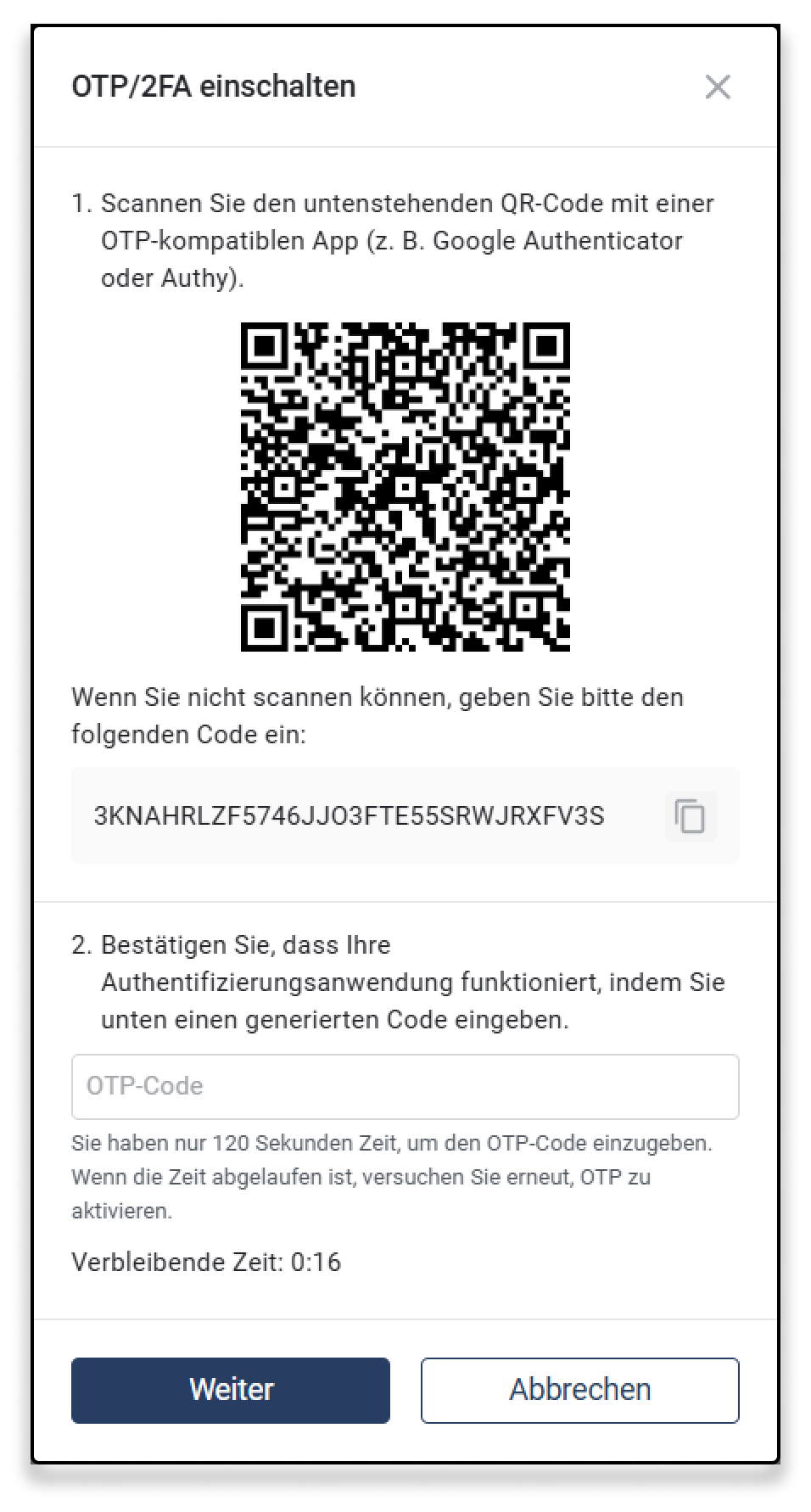
After clicking the switch to activate two-factor authentication, the configuration window opens.
**1. Connect Authenticator App**
* Scan the **QR code** with an OTP-compatible app (e.g., *Google Authenticator* or *Authy*)
* Alternatively: Copy the displayed **setup code** and manually paste it into your app
**2. Confirm OTP Code**
* Enter a **currently generated code** from your authenticator app into the *OTP Code* field
* You have **120 seconds** for this step
* Click **Next** to proceed
{% hint style="info" %}
If the time has expired, restart the process by reactivating OTP/2FA.
{% endhint %}
### Save Recovery Codes
After successfully activating two-factor authentication, ten recovery codes are displayed once.
These codes serve as a backup in case you lose access to your authenticator app.
* Each code can be used **only once**
* The codes allow you to log in or reset your 2FA
* Save the codes securely in a protected location
To proceed, you must confirm that you have saved the codes. To do this, activate the checkbox and click **Confirm**.
If you lose the codes, access to your account can only be restored by an administrator.
***
## Login with OTP Code
If OTP/2FA is activated, you must authenticate with a one-time password (OTP) from your authenticator app when logging in.
* Open your authenticator app and enter the current 6-digit code
* You have 60 seconds to enter the code
* Click **Verify** to complete the login
If you do not have access to the app, you can use one of your **recovery codes**. If the code is invalid or the time has expired, restart the login process.
**Problems with login?**
* Make sure your device's time and time zone are set correctly
* If necessary, use one of your saved recovery codes
* If access is permanently impossible, contact your tenant administration
***
## Deactivate OTP/2FA
1. Go back to your profile
2. Deactivate the **OTP/2FA** switch
3. To confirm:
* Enter a valid OTP code
4. Click **"Confirm and Deactivate"**\
▷ Two-factor authentication will be removed
---
# Agent Instructions
This documentation is published with GitBook. GitBook is the documentation platform designed so that both humans and AI agents can read, navigate, and reason over technical content effectively. Learn more at gitbook.com.
## Querying This Documentation
If you need additional information that is not directly available in this page, you can query the documentation by asking a question.
Perform an HTTP GET request on the following URL with the `ask` and `goal` query parameters:
```
GET https://docs.buildings.ability.abb/collection/academy/set-up-2fa-in-eliona.md?ask=&goal=
```
`ask` is the immediate question: it should be specific, self-contained, and written in natural language.
`goal` is what the user is ultimately trying to achieve, the reason they need the answer. Sharing it helps GitBook give you a better, more relevant answer. A goal is most helpful when it describes the outcome the user wants rather than restating the question. For example, with `ask=how do I create an API token`, a goal like `automate deployments from our CI pipeline` lets GitBook tailor the answer to that use case.
The response will contain a direct answer to the question and relevant excerpts and sources from the documentation.
Use this mechanism when the answer is not explicitly present in the current page, you need clarification or additional context, or you want to retrieve related documentation sections.