# Global Dashboards
## Also known as Public or Project Dashboards
## About Global Dashboards
With "Global Dashboards," you can create a single dashboard and then share this dashboard with any number of users. Changes to this dashboard can only be made by you.
## Create a Global Dashboard
#### Create a global dashboard
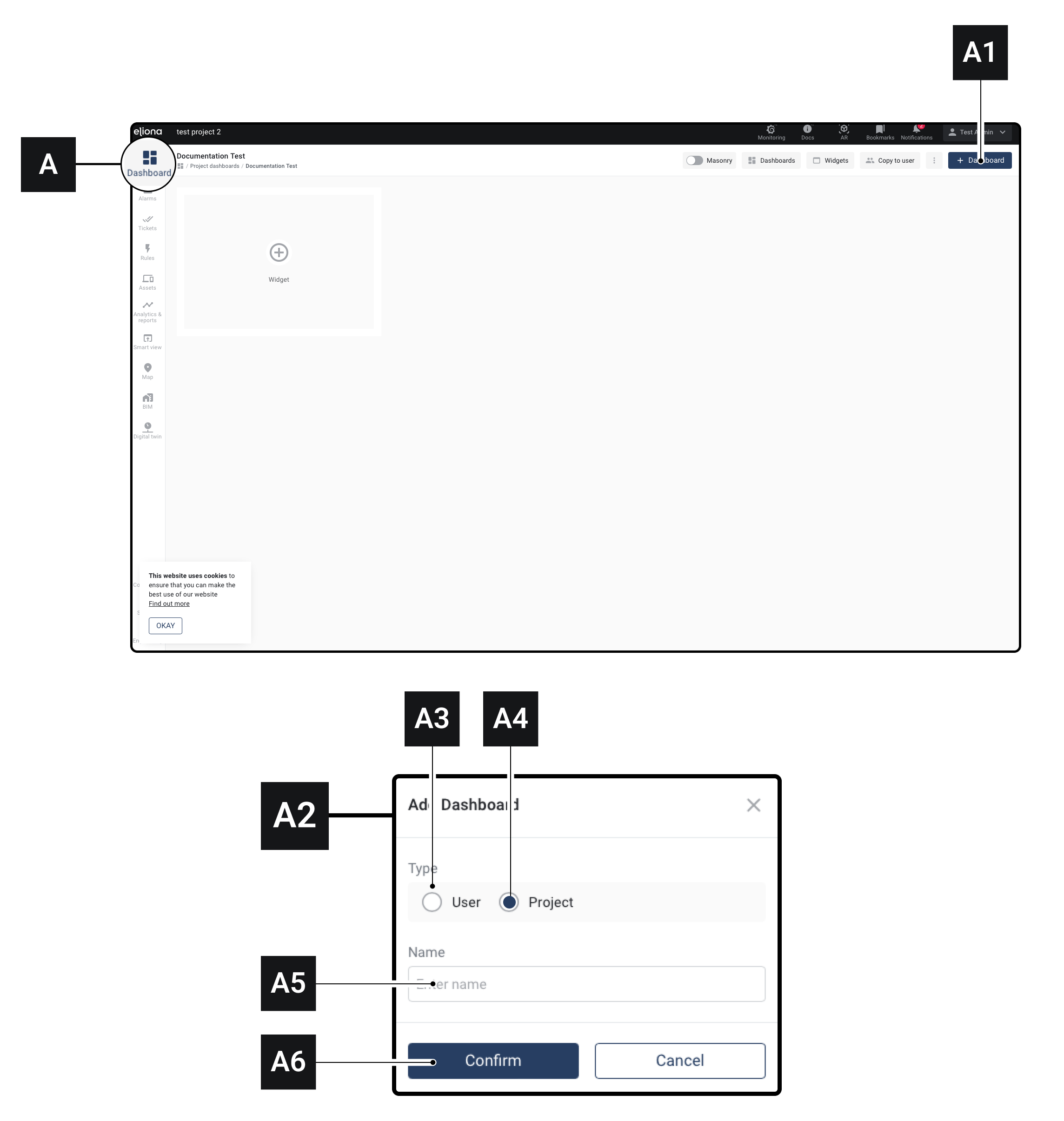
1. Make sure you are in the "Dashboards" menu
2. Click on **\[A1]**
▷ The "Add Dashboard **\[A2]**" window opens
3. Click on **\[A4]**
4. Give the dashboard a name in **\[A5]**
5. Click on **\[A6]**
▷ The Global Dashboard is created
## Manage Global Dashboards
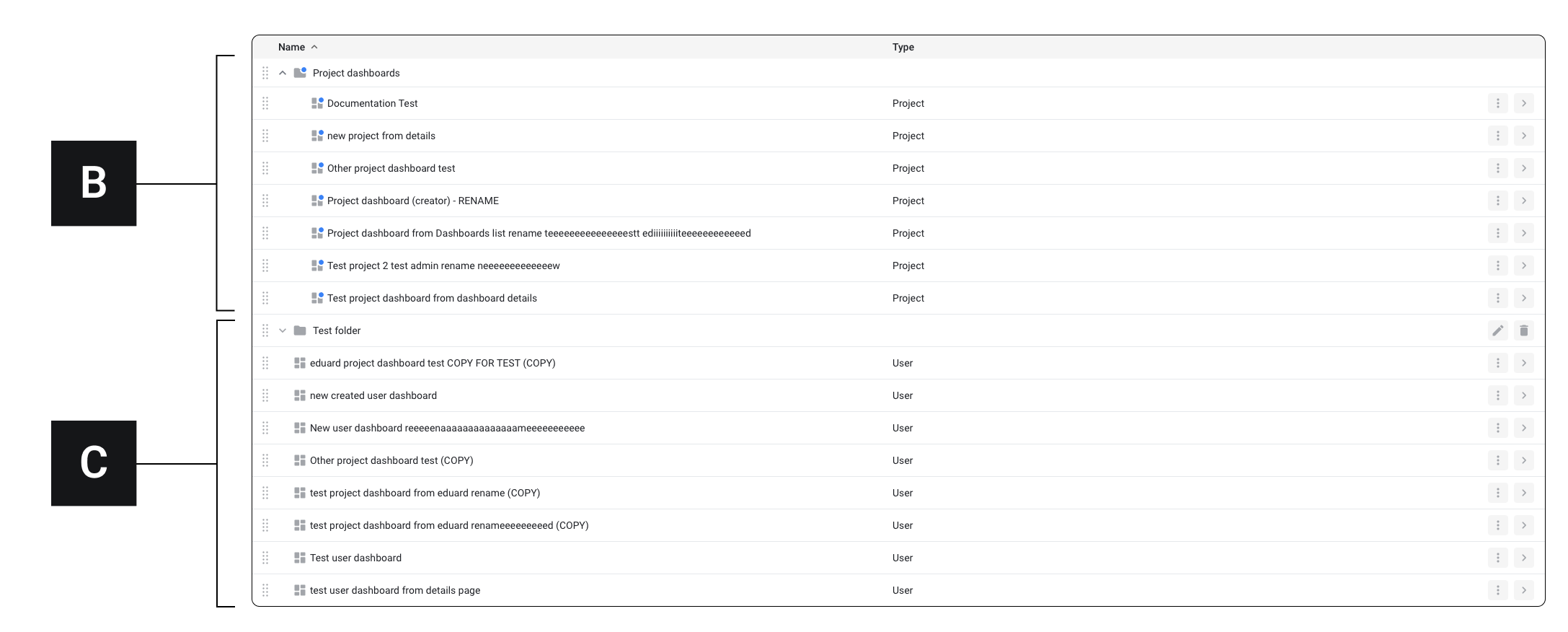
Global dashboards are saved in their own folder in the [↗ Dashboard collection](https://docs.buildings.ability.abb/collection/documentation/live-cockpit/organize-dashboards).
Global dashboards are marked with a blue dot.
**\[B]**: Global Dashboards
**\[C]**: Normal Dashboards