

Set up 2FA in Eliona
What is TOTP?
TOTP stands for Time-based One-Time Password. It is a time-limited one-time password that is regenerated every 30 seconds. Authentication takes place via an app on your smartphone (e.g. Google Authenticator, Authy) and ensures that only you have access to your user account — even if someone knows your password.
Advantages of TOTP/2FA:
Greater security for sensitive project data
Protection against unauthorized access
One-time passwords also work offline
Activate two-factor authentication (TOTP)
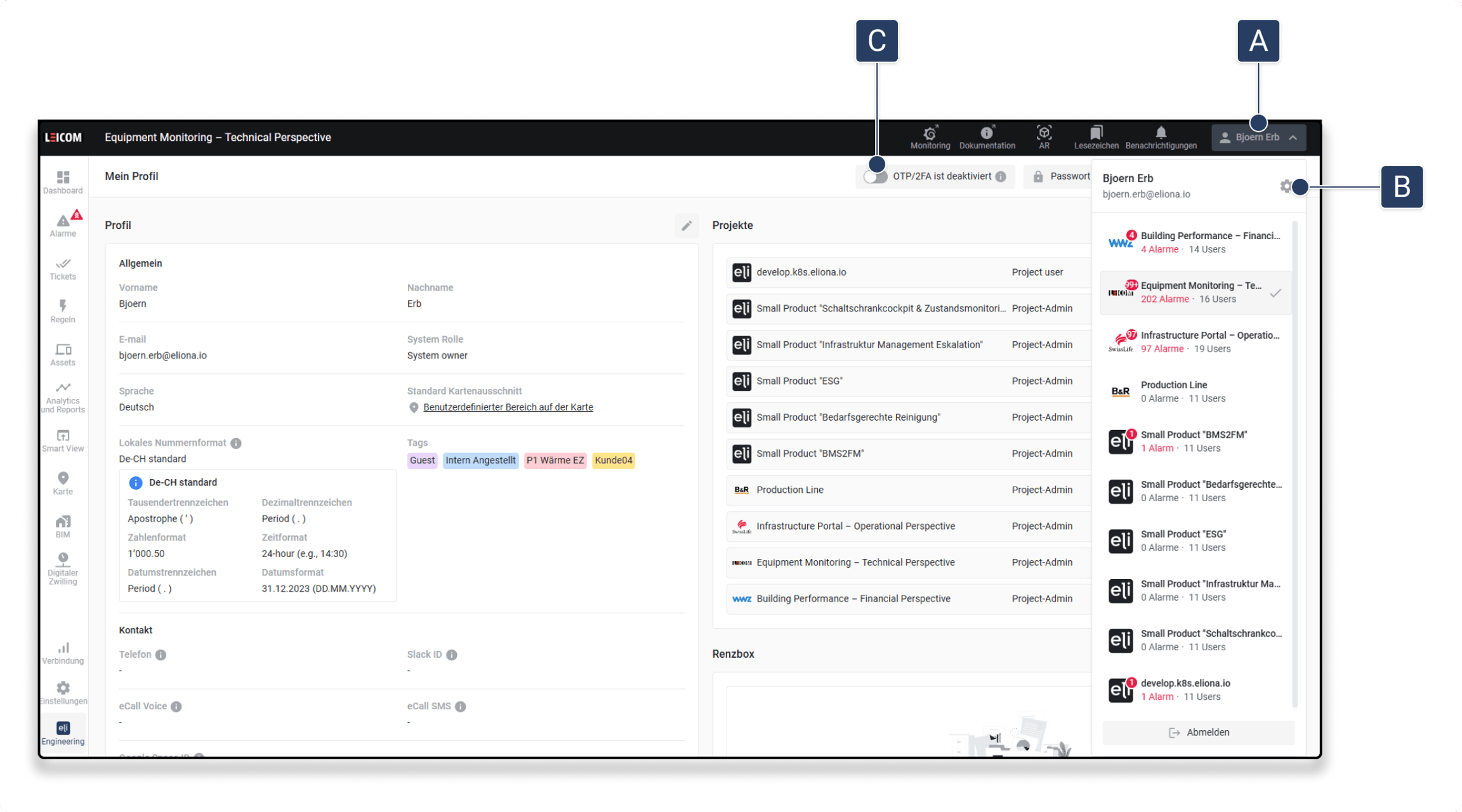
Here's how to start setup:
Click the user profile at the top right [A]
Click the gear in the dropdown menu [B]
In the section Profile the switch [C] ▷ The setup of TOTP-based two-factor authentication begins
Enable OTP/2FA
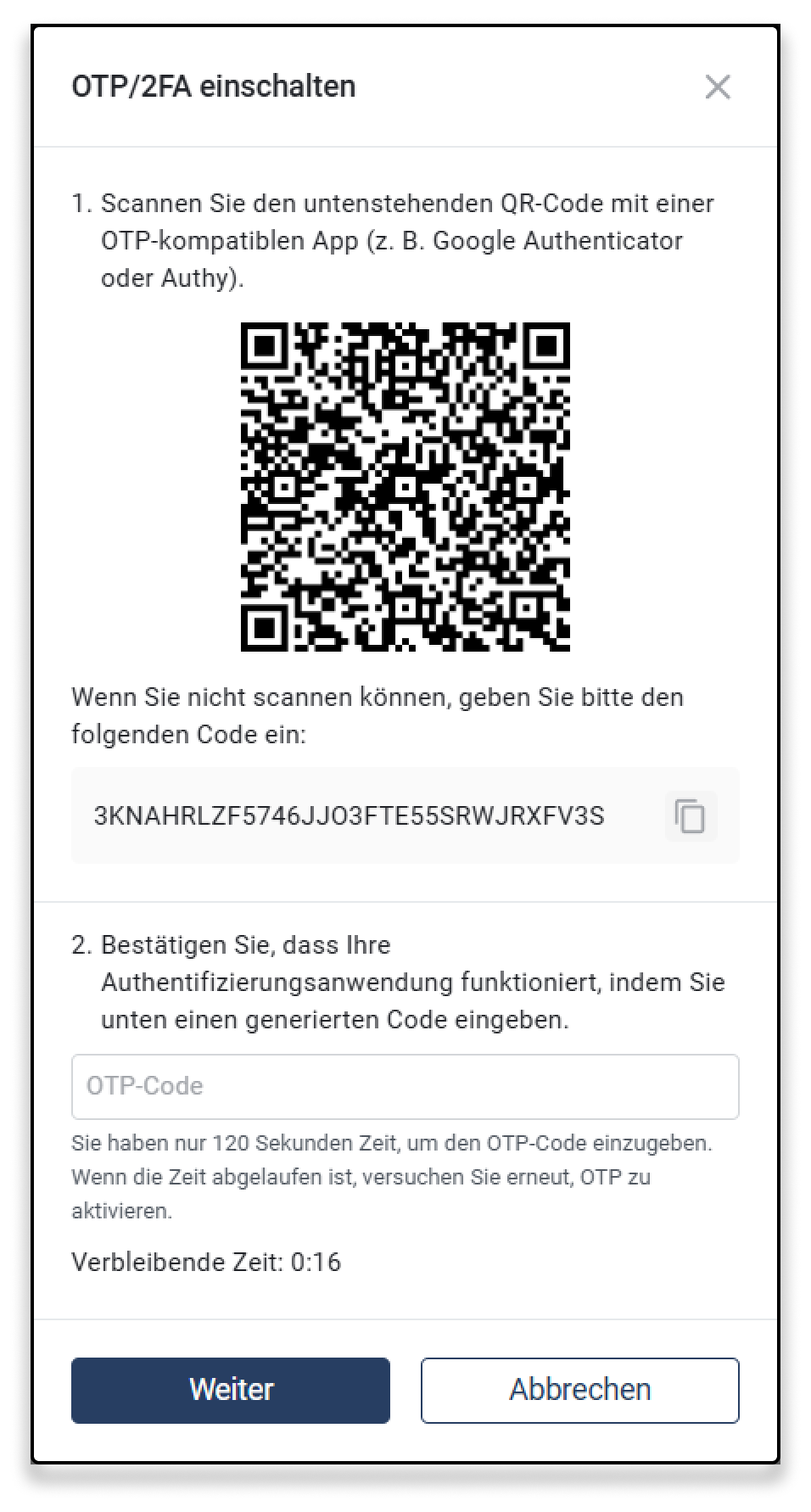
After clicking the switch to enable two-factor authentication, the configuration window opens.
1. Connect authenticator app
Scan the QR code with an OTP-compatible app (e.g. Google Authenticator or Authy)
Alternatively: Copy the displayed setup code and paste it manually into your app
2. Confirm OTP code
Enter a currently generated code from your authenticator app into the field OTP code in
You have 120 seconds to complete this step
Click on Continueto continue
Save recovery codes
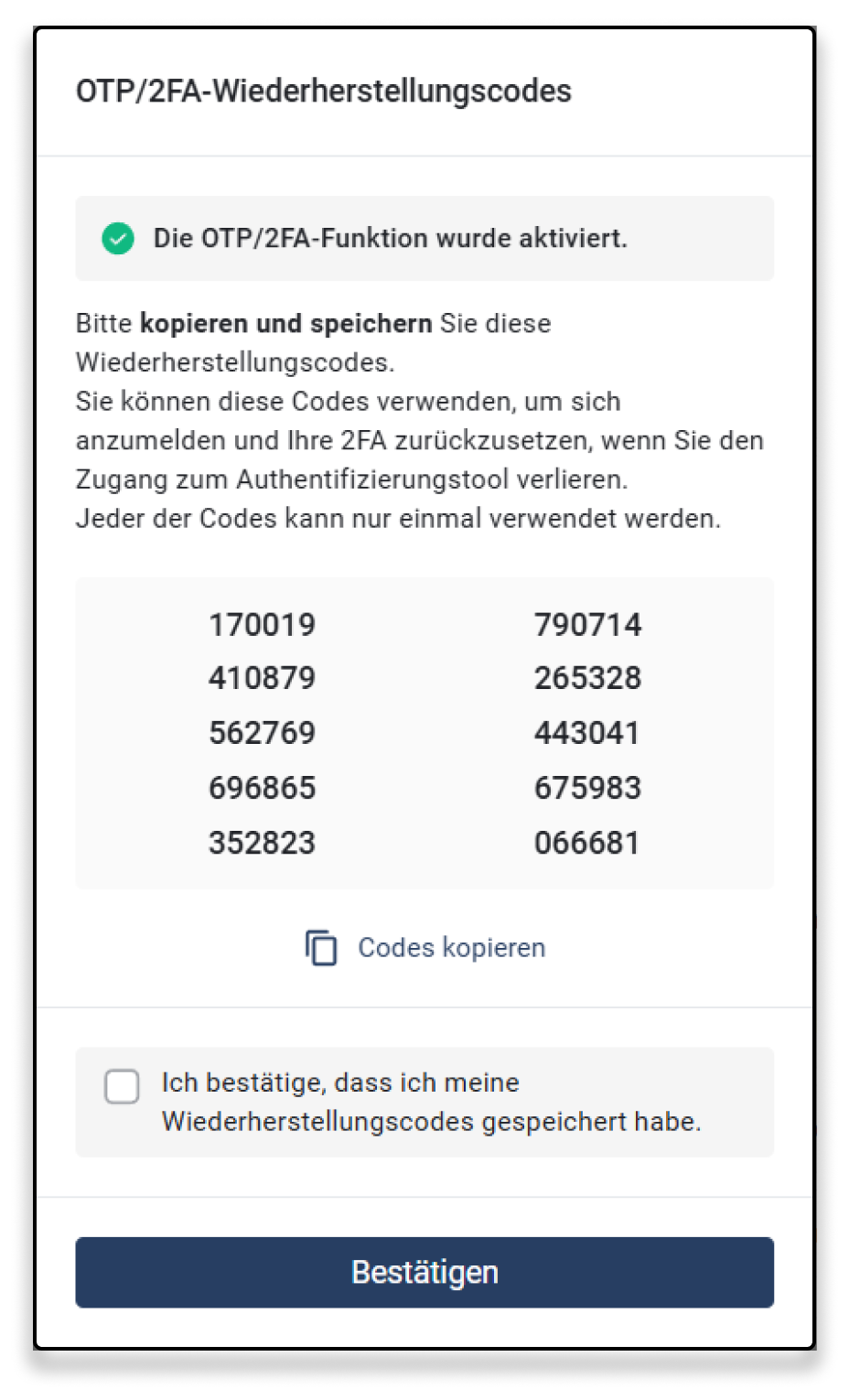
After successfully enabling two-factor authentication, ten recovery codes will be displayed once.
These codes serve as a backup in case you lose access to your authentication app.
Each code can only be used once be
The codes allow you to log in or reset your 2FA
Store the codes securely in a protected place
To continue, you must confirm that you have saved the codes. To do so, activate the checkbox and click Confirm.
If you lose the codes, access to your account can only be restored by an administrator.
Log in with OTP code
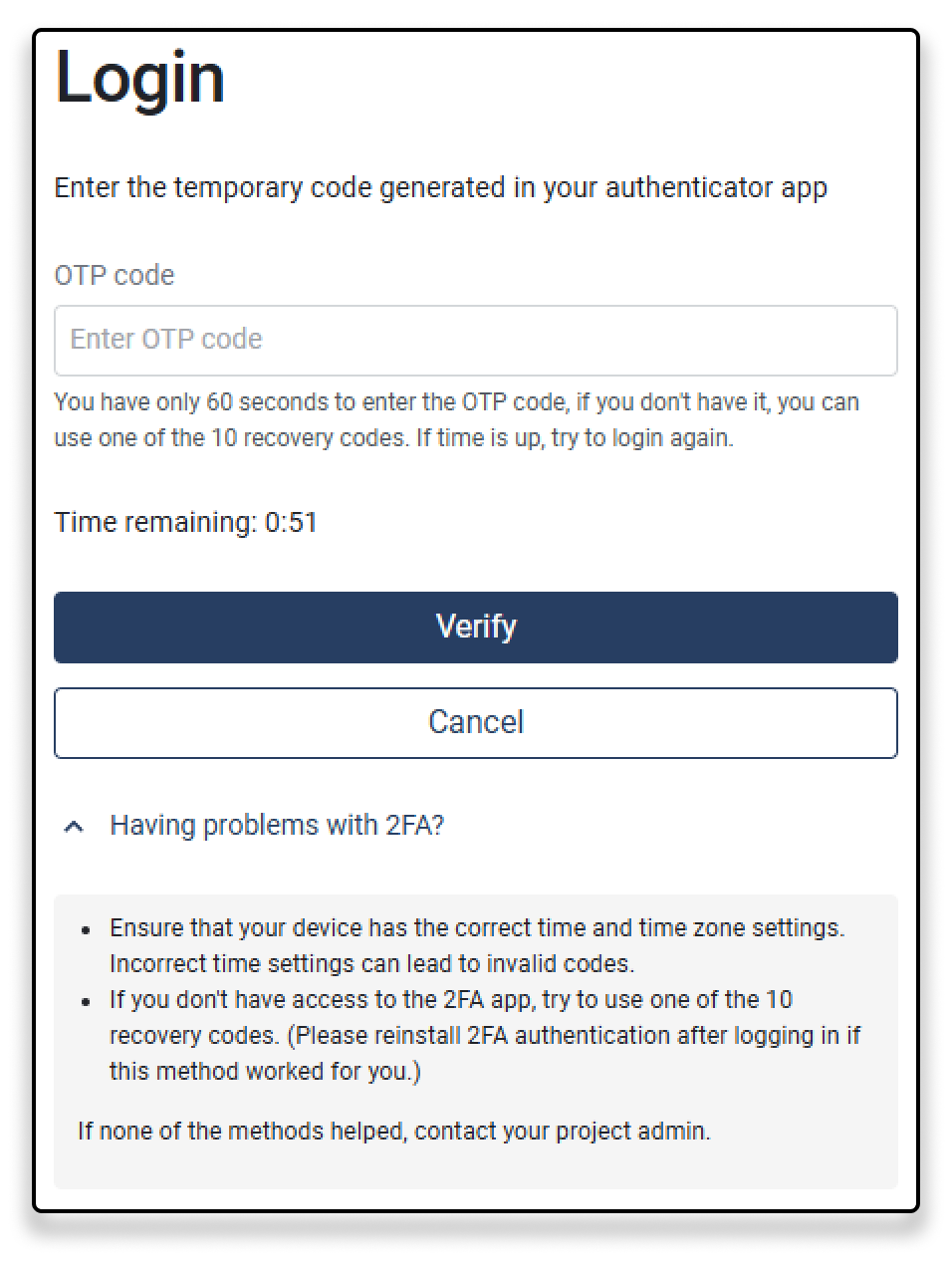
If OTP/2FA is enabled, you must authenticate when logging in with a one-time password (OTP) from your authenticator app.
Open your authenticator app and enter the current 6-digit code
You have 60 seconds to enter the code
Click on Verifyto complete the login
If you do not have access to the app, you can use one of your recovery codes use. If the code is invalid or time has expired, restart the sign-in process.
Problems logging in?
Make sure the time and time zone on your device are set correctly
If needed, use one of your saved recovery codes
If access is permanently not possible, contact your project administration
Disable OTP/2FA
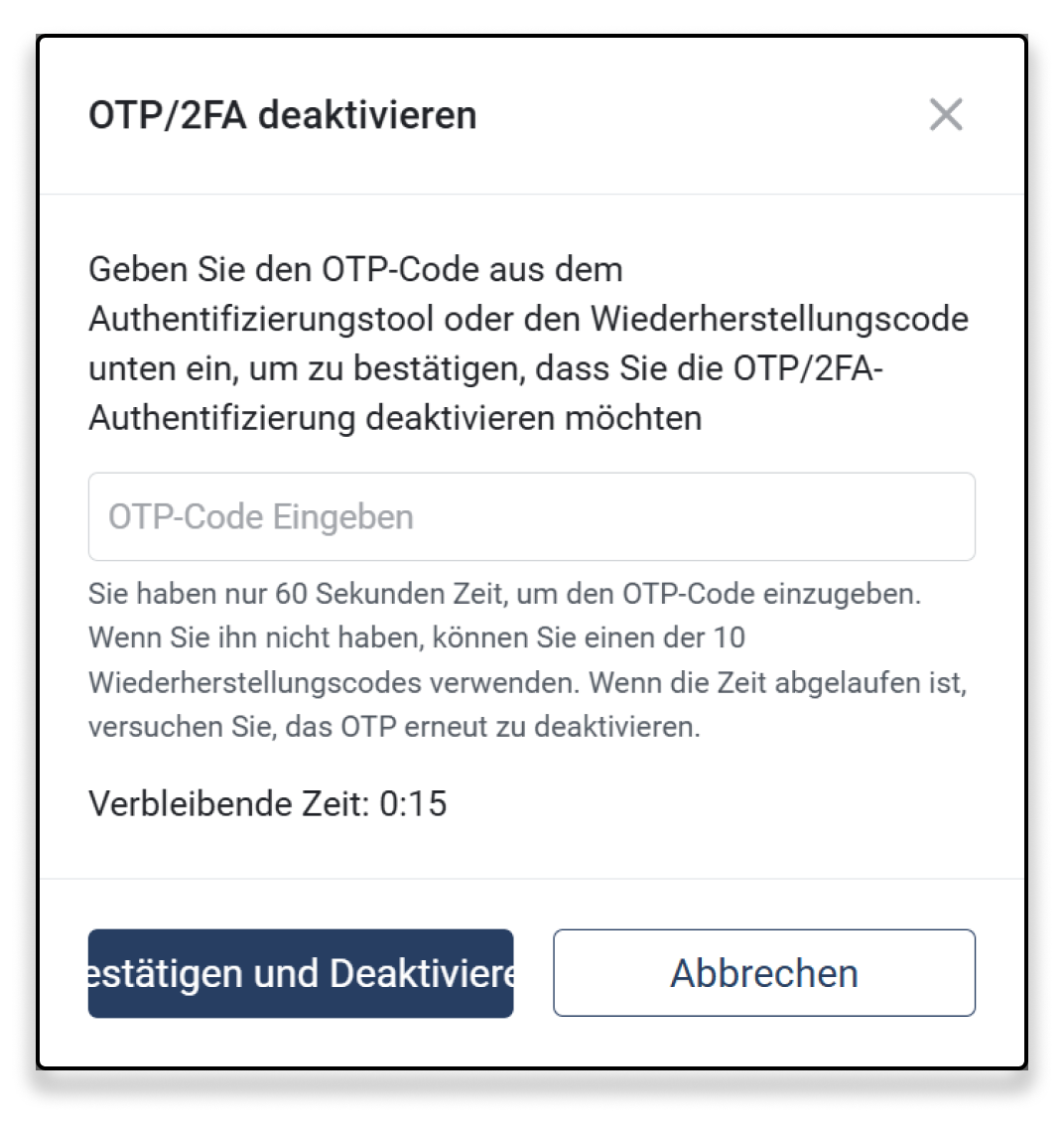
Go back to your profile
Turn off the switch OTP/2FA
To confirm:
Enter a valid OTP code
Click on "Confirm and disable" ▷ Two-factor authentication will be removed
Last updated
Was this helpful?