> For the complete documentation index, see [llms.txt](https://docs.buildings.ability.abb/collection/llms.txt). Markdown versions of documentation pages are available by appending `.md` to page URLs; this page is available as [Markdown](https://docs.buildings.ability.abb/collection/english-v14/academy/eliona-als-ticketing-plattform/anleitung-aus-sicht-service.md). Agents can also search and read this documentation through its [MCP server](https://docs.buildings.ability.abb/collection/~gitbook/mcp).
# Guide from the service perspective
The service is responsible for processing and resolving tickets. In addition, it maintains the information of the individual service objects and, if necessary, creates new ones.
## Users and notifications
The service uses a central service login, which is responsible for distributing tickets. Each service employee also has their own account to manage and close the assigned tickets. Although all tickets are visible to all service accounts, only the central service login receives a push notification when a new ticket comes in. However, it is important that all service employees enable push notifications in the browser so that changes and newly assigned tickets are noticed promptly.
## Manage tickets
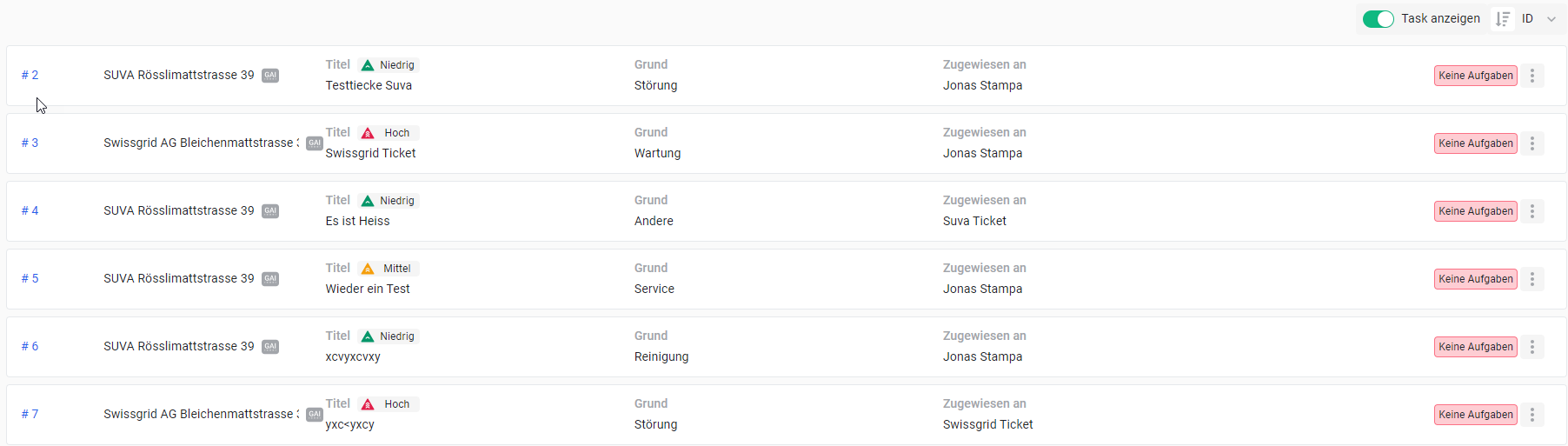
In the Tickets section in the sidebar, all open tickets are visible. The “Assigned to” column shows which employee is currently working on the ticket. The current status of the ticket or the associated task is shown in the last column. Clicking a ticket displays all details.
Ticket overview
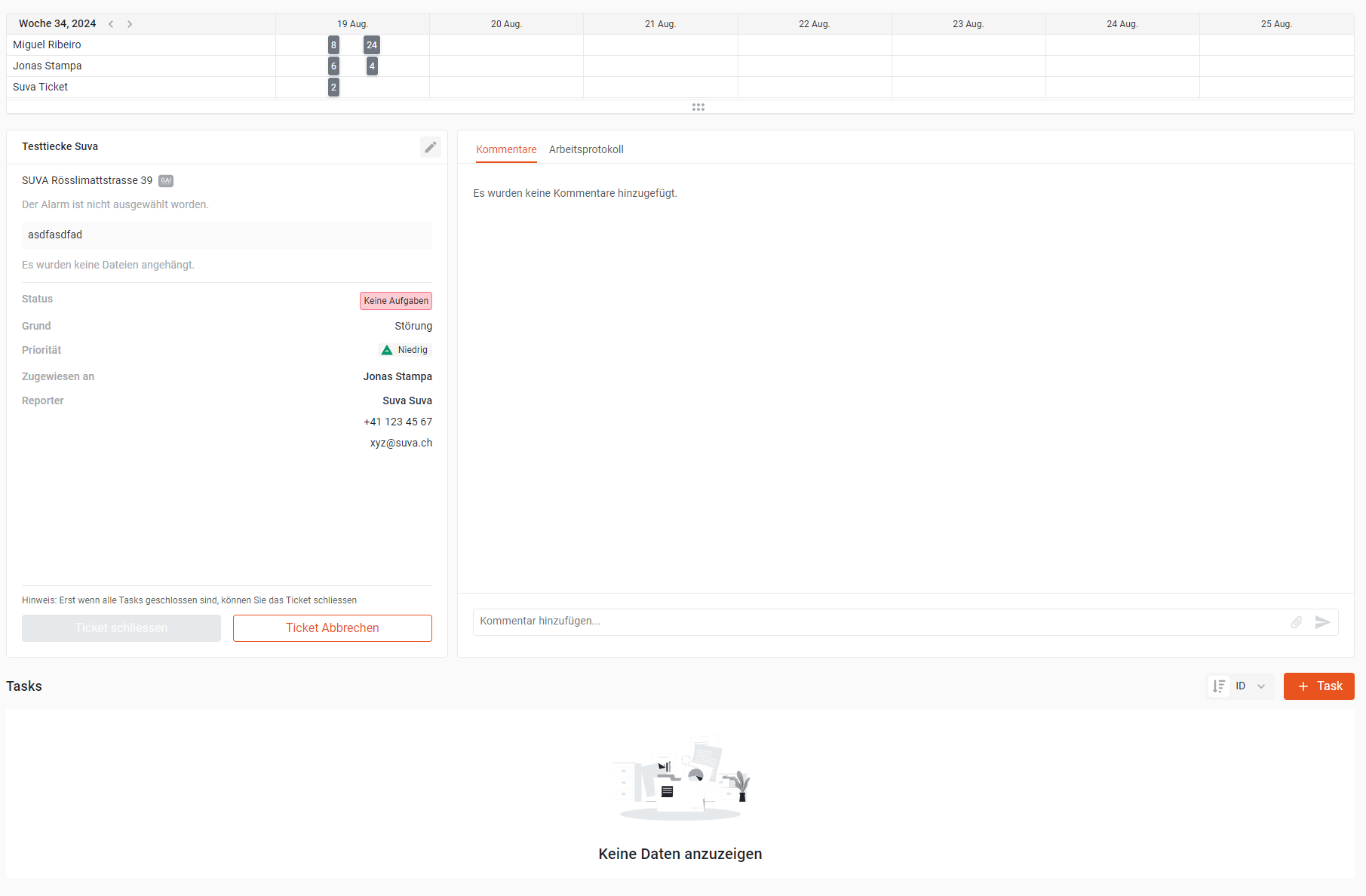
At the top you will find a timeline showing the ticket's progress, and on the right there is the comment window, where you can communicate with other team members. To close a ticket, use the “Close ticket” button once all active tasks are completed. Tasks can be created and managed in the lower part of the window.
Ticket details
## Assets
In Assets, new objects from customers can be recorded and existing ones supplemented. Clicking an asset displays all information about it. On the left, customer information can be entered. The “More info” arrow can be used to display additional information that was configured in “Asset Modeling”. On the right, documents for the customer can be placed or links entered.
Assets
---
# Agent Instructions
This documentation is published with GitBook. GitBook is the documentation platform designed so that both humans and AI agents can read, navigate, and reason over technical content effectively. Learn more at gitbook.com.
## Querying This Documentation
If you need additional information that is not directly available in this page, you can query the documentation by asking a question.
Perform an HTTP GET request on the following URL with the `ask` and `goal` query parameters:
```
GET https://docs.buildings.ability.abb/collection/english-v14/academy/eliona-als-ticketing-plattform/anleitung-aus-sicht-service.md?ask=&goal=
```
`ask` is the immediate question: it should be specific, self-contained, and written in natural language.
`goal` is what the user is ultimately trying to achieve, the reason they need the answer. Sharing it helps GitBook give you a better, more relevant answer. A goal is most helpful when it describes the outcome the user wants rather than restating the question. For example, with `ask=how do I create an API token`, a goal like `automate deployments from our CI pipeline` lets GitBook tailor the answer to that use case.
The response will contain a direct answer to the question and relevant excerpts and sources from the documentation.
Use this mechanism when the answer is not explicitly present in the current page, you need clarification or additional context, or you want to retrieve related documentation sections.