> For the complete documentation index, see [llms.txt](https://docs.buildings.ability.abb/collection/llms.txt). Markdown versions of documentation pages are available by appending `.md` to page URLs; this page is available as [Markdown](https://docs.buildings.ability.abb/collection/english-v14/academy/werte-mapping-in-eliona.md).
# Value mapping in Eliona
Value mapping makes it possible to translate raw data (e.g. numeric or boolean values) into meaningful colors, texts or categories. This function is used to present information more clearly visually – for example in widgets, floors or attributes.
## Value mapping for attributes
Value mapping for attributes automatically translates numeric values into descriptive texts. These texts can be displayed in many places in Eliona – e.g. in Smartview, in widgets or in the detail view of an asset – and help present technical measured values in an understandable way.
### Purpose
The value mapping in *Eliona* automatically translates numeric values of an attribute into descriptive texts. This representation makes technical measured values easier to understand and simplifies interpretation in everyday use. The texts appear, for example:
* in the *Smartview*,
* in widgets,
* in the detail view of an asset.
Configuration is done either directly in the attribute or centrally via the[ -> Asset modeling](/collection/english-v14/documentation/assets/asset-modellierung-templates-erstellen/ein-neues-template-erstellen.md).
### Configuration
In **\[A]** can add several mapping fields.
A mapping consists of pairs of **threshold value → result text**:
* **\[B]** Left field: The threshold value that serves as the upper limit for a value range
* **\[C]** Right field: The text to be displayed when the measured value is below the corresponding threshold value
The rule is:
> All values that **smaller** than the defined threshold value are assigned to the respective text.
**Note on order**\
The entries do not have to be sorted manually — *Eliona* interprets the mapping list correctly internally, from **highest to lowest threshold value** . Therefore, the order of the input lines is **not decisive** for the logic, but it does matter for clarity when configuring.
### Example evaluation
Assume the following configuration:
| Threshold | Result |
| --------- | ---------------- |
| 100 | Critical |
| 50 | Warning |
| 10 | Normal operation |
**Evaluation:**
* A value of **7** → Normal operation
* A value of **30** → *Warning*
* A value of **75** →Critical
* A value of **99.9** → Critical
* A value of **101 or more** → *No mapping*, the original value is displayed (if no higher threshold value is defined)
#### Notes
* The entries should be defined without gaps if every value is to be assigned a text.
* If no mapping applies, the original value is displayed.
***
## Value mapping in widgets
In widgets, a **Value mapping** can be used to interpret numeric data both **visually (color)** and **content-wise (text)** This assignment improves readability of values and supports faster assessment of the state.
### Purpose
The mapping enables a clear classification of numerical values into categories — such as “Normal operation”, “Warning” or “Critical”. In addition, each status can be assigned its own color, which is immediately recognizable in the display (e.g. progress bar or number field).
### Use case
#### Visualizing door status with value mapping
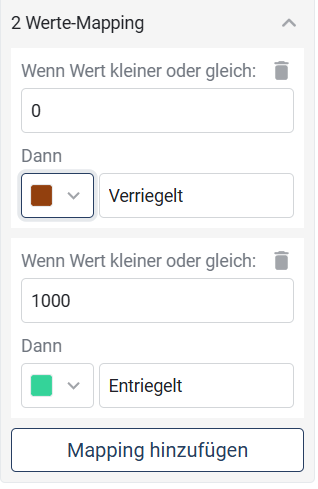
This mapping assigns the text to all values ≤ 0 *Locked* with brown display, while values up to 1000 are shown with *Unlocked* and green color. In practice, this means that:
* Sensor values such as `0` → *Locked*
* Sensor values `1` to `100` → *Unlocked*
{% hint style="info" %}
The mapping can be extended as desired by clicking on **“Add mapping”** clicking. Make sure the value ranges are covered without gaps if every possible value is to be assigned.
{% endhint %}
### Display in the widget
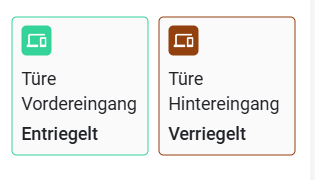
In a widget, e.g. in the overview of a building, the following then appears directly visible for each door (front or back entrance):
* **Text**: *Locked* or *Unlocked*
* **Color**: visual highlighting appropriate to the state
***
## **Value mapping in the floor (POIs and polygons)**
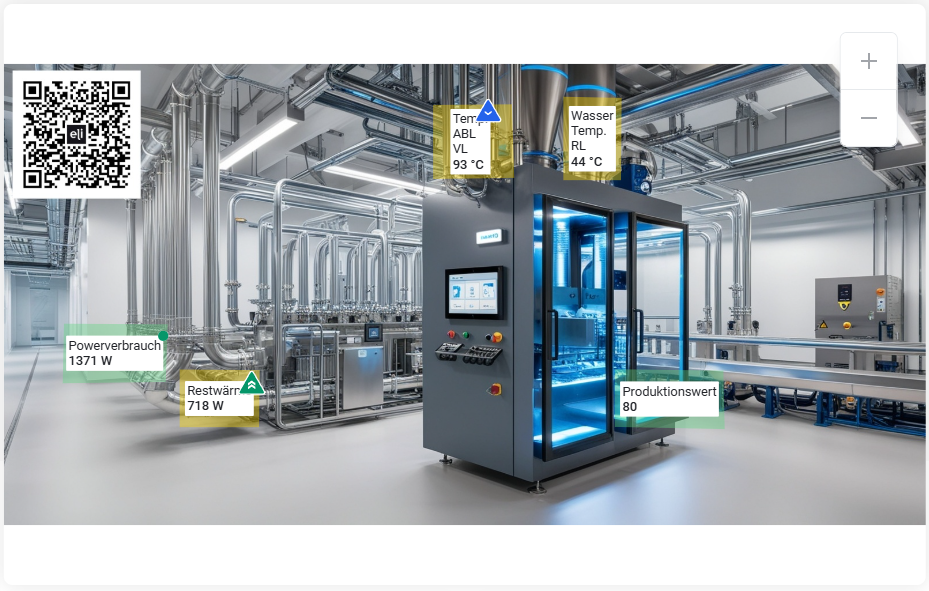
In the module *floor* areas of a digital plan — such as **Polygons** or **POIs** — can be automatically colored depending on the current attribute value. This is done via a **Value mapping**, where numeric values are assigned to certain **Colors** . The color visualization supports quick recognition of states directly in the spatial context.
### **Purpose**
With this function, states or measured values can be displayed directly in the context of a floor plan or building area. The color coding helps identify critical situations more quickly or visually confirm normal operating states.
Examples:
* Color-code temperature ranges in production plants
* Highlight power consumption of individual devices
* Clearly display door or window status
### **Configuration**
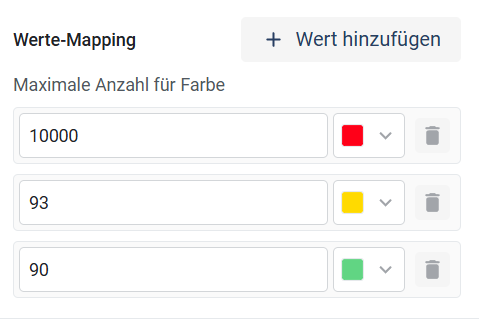
The configuration is done directly in the POI or polygon editor in the floor. Under the section *Value mapping* you can define value thresholds, each assigned a color:
* **Threshold value:** Defines the upper limit of a value range
* **Color:** Color applied when the measured value is less than or equal to the threshold value
### **Example configuration**
This configuration means:
* Values less than or equal to 90 → **Green**
* Values less than or equal to 93 → **Yellow**
* Values less than or equal to 10000 → **Red**
#### **Notes**
* Color mappings apply exclusively to numeric data.
* The color display does not replace numeric values, but complements them visually.
* If no matching threshold value is found, the selected **default color** displayed
---
# Agent Instructions
This documentation is published with GitBook. GitBook is the documentation platform designed so that both humans and AI agents can read, navigate, and reason over technical content effectively. Learn more at gitbook.com.
## Querying This Documentation
If you need additional information that is not directly available in this page, you can query the documentation dynamically by asking a question.
Perform an HTTP GET request on the current page URL with the `ask` query parameter, and the optional `goal` query parameter:
```
GET https://docs.buildings.ability.abb/collection/english-v14/academy/werte-mapping-in-eliona.md?ask=&goal=
```
`ask` is the immediate question: it should be specific, self-contained, and written in natural language.
`goal` is optional and describes the broader end goal you are ultimately trying to accomplish on behalf of the user. GitBook uses it to tailor the answer towards what is most useful for that goal.
The response will contain a direct answer to the question and relevant excerpts and sources from the documentation.
Use this mechanism when the answer is not explicitly present in the current page, you need clarification or additional context, or you want to retrieve related documentation sections.
.png)