> For the complete documentation index, see [llms.txt](https://docs.buildings.ability.abb/collection/llms.txt). Markdown versions of documentation pages are available by appending `.md` to page URLs; this page is available as [Markdown](https://docs.buildings.ability.abb/collection/english-v14/academy/wie-wayfinding-funktioniert.md).
# How “Wayfinding” works
“Wayfinding” was developed to help you quickly find the desired destination in the building.
## Sequence of actions
### 1. Find QR code
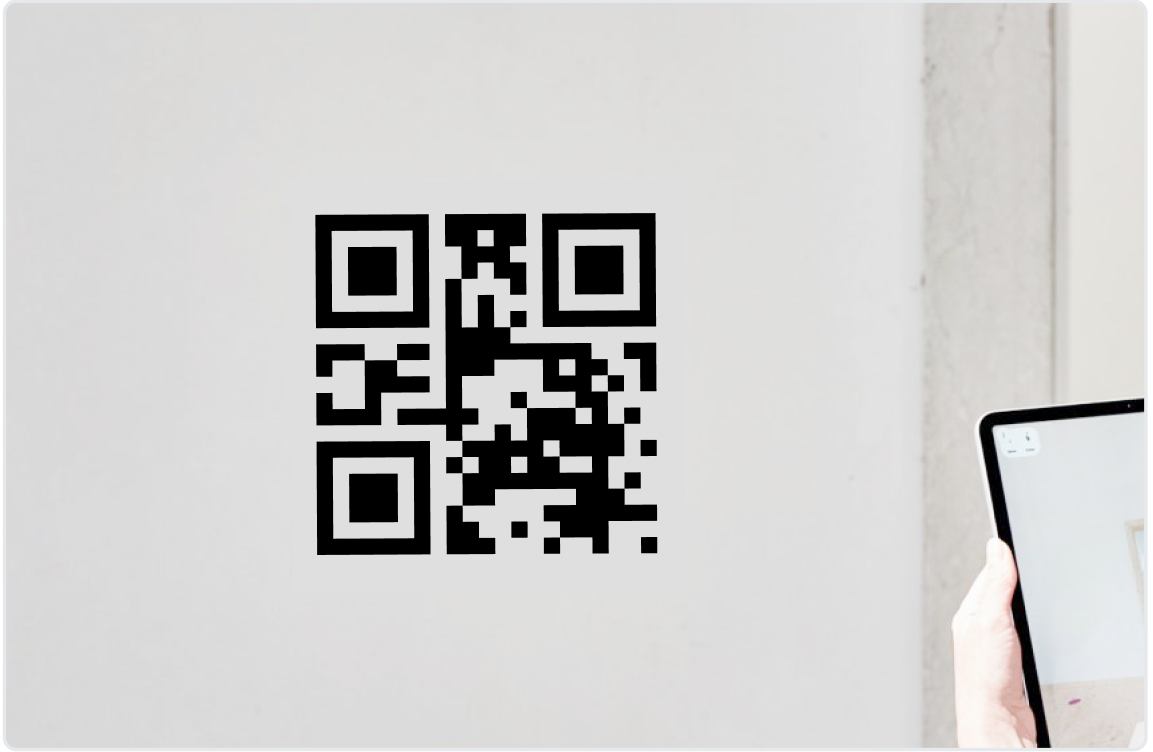
When you enter the building, look for the QR code. It is usually mounted on the wall. The QR code takes you to the directions with the starting point of your current position in the building.
***
### 2. Scan QR code
#### 2.1 Open camera
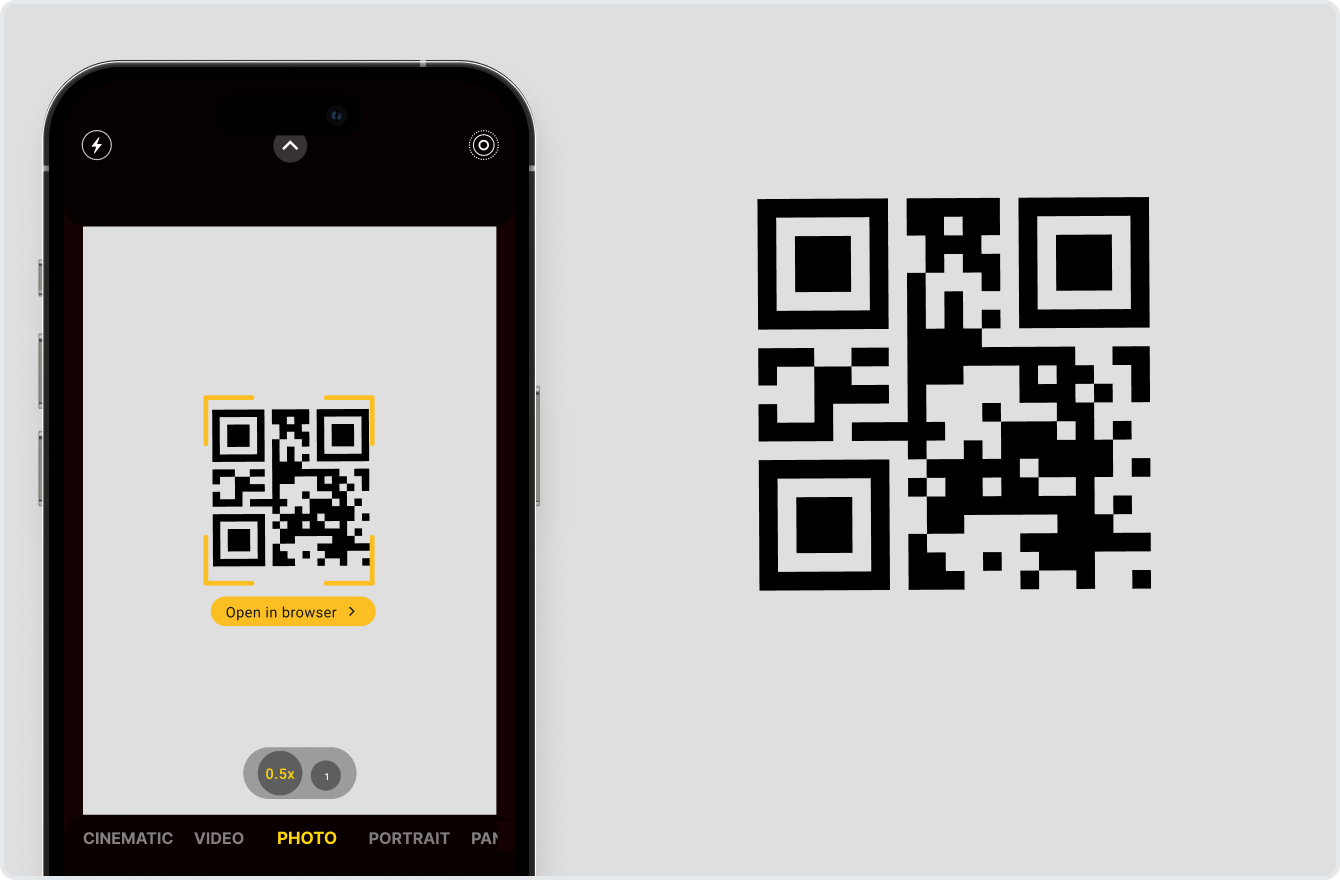
Open the camera on your smartphone.
{% hint style="info" %}
Make sure the QR code scanning function is enabled in your smartphone's settings.
{% endhint %}
#### 2.2 Scan QR code
Point the camera at the QR code and open it in the browser.
***
### 3. Home screen
#### 3.1 Home screen overview
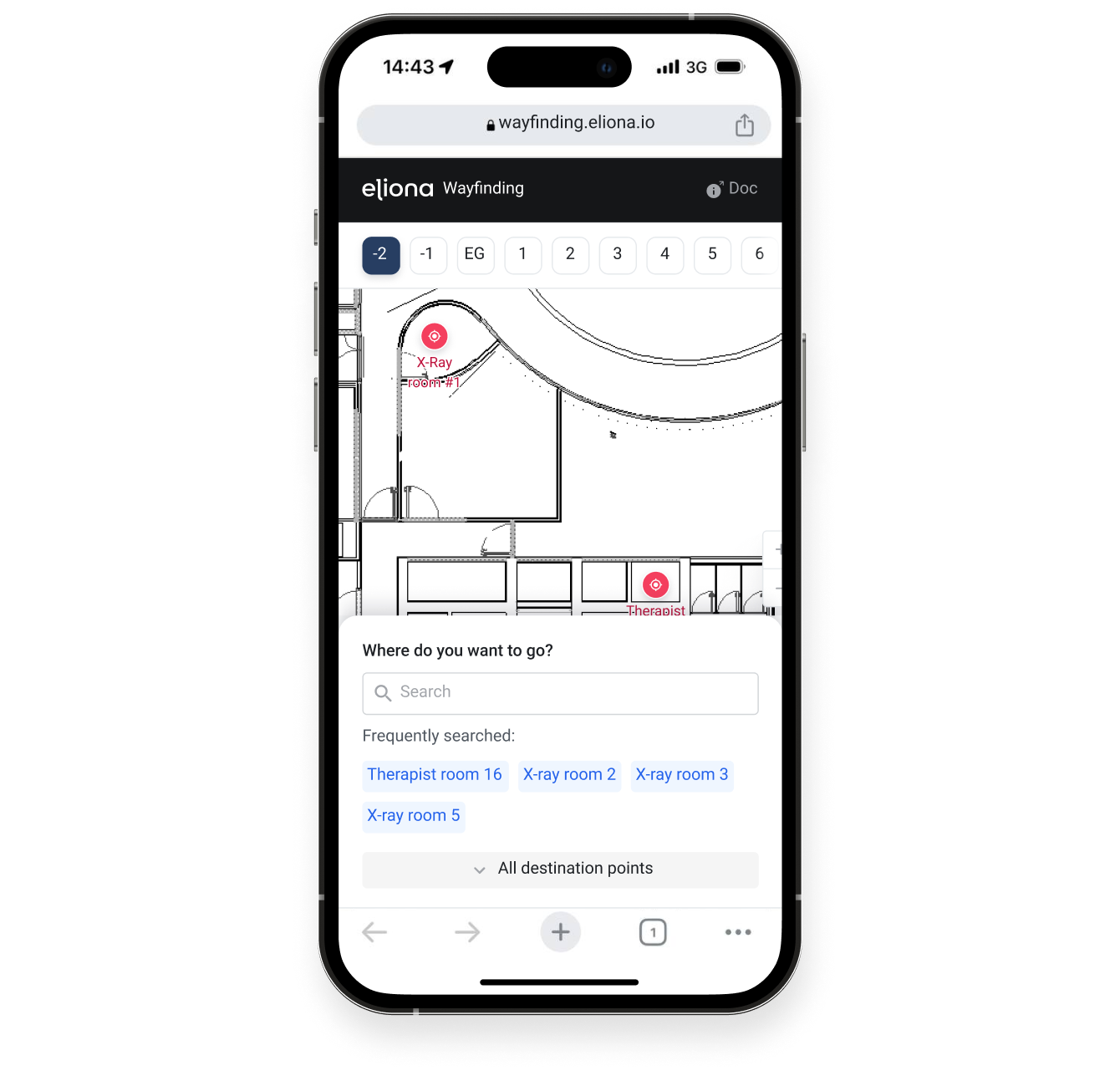
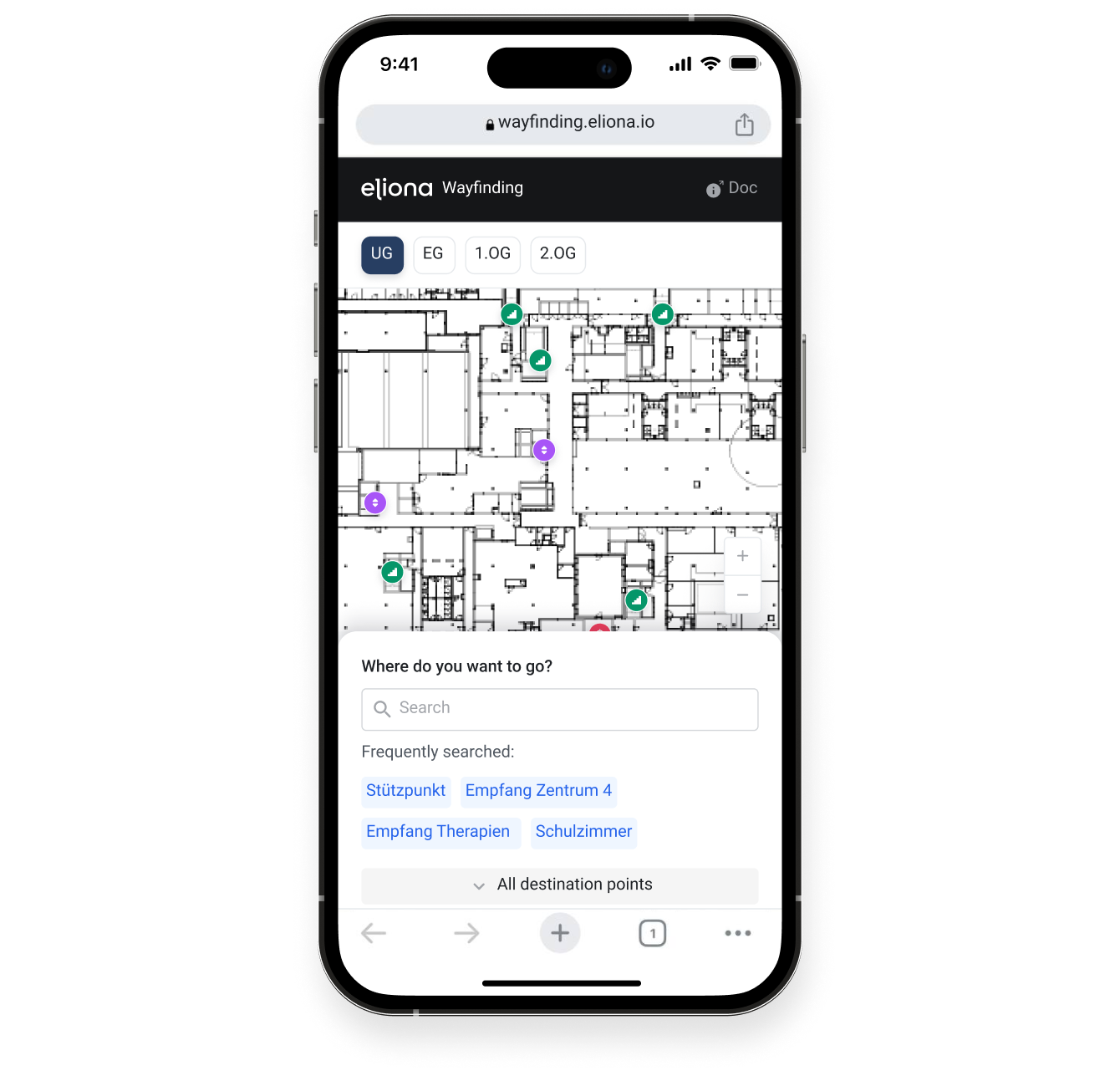
On the opened link, you will see the Wayfinding home screen.
#### 3.2 Building floors
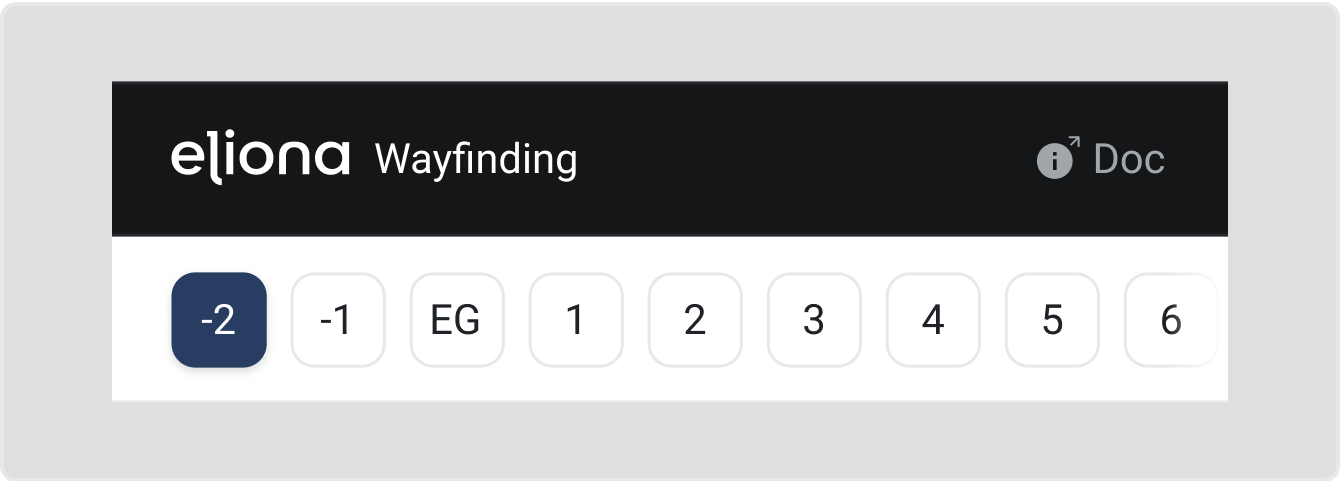
You can view all floors of the building at the top.
#### 3.3 Frequently searched destinations
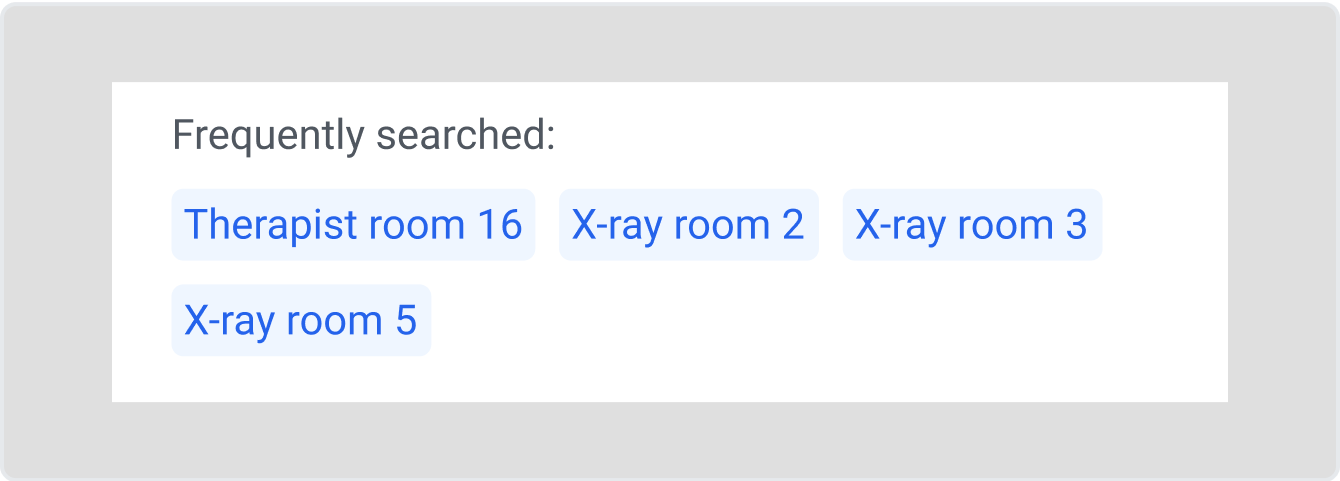
Review and select one of the most frequently searched destinations.
#### 3.4 All destinations
Open and review all destinations.
#### 3.5 Search
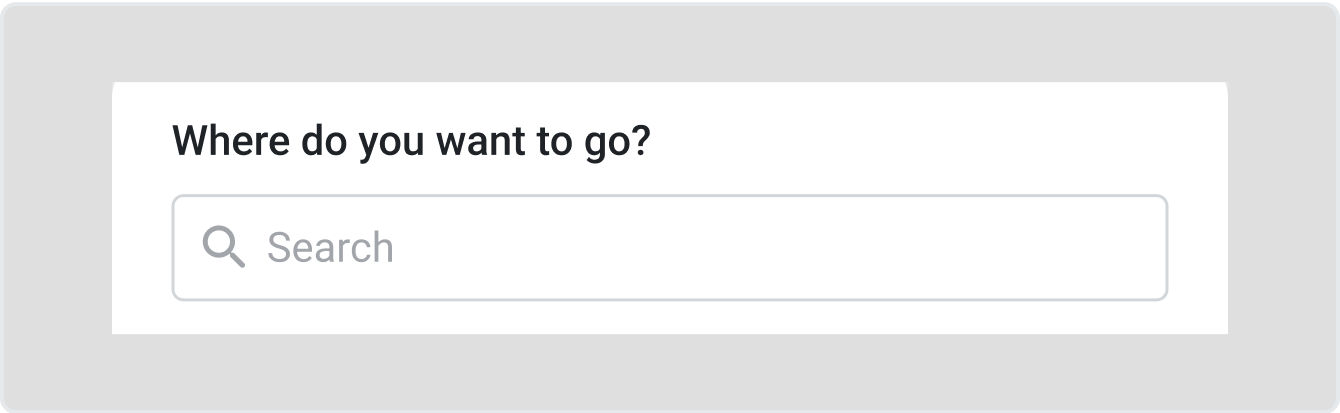
Search for the desired destination by keywords.
***
### 4. Start route
#### 4.1 Search by keyword
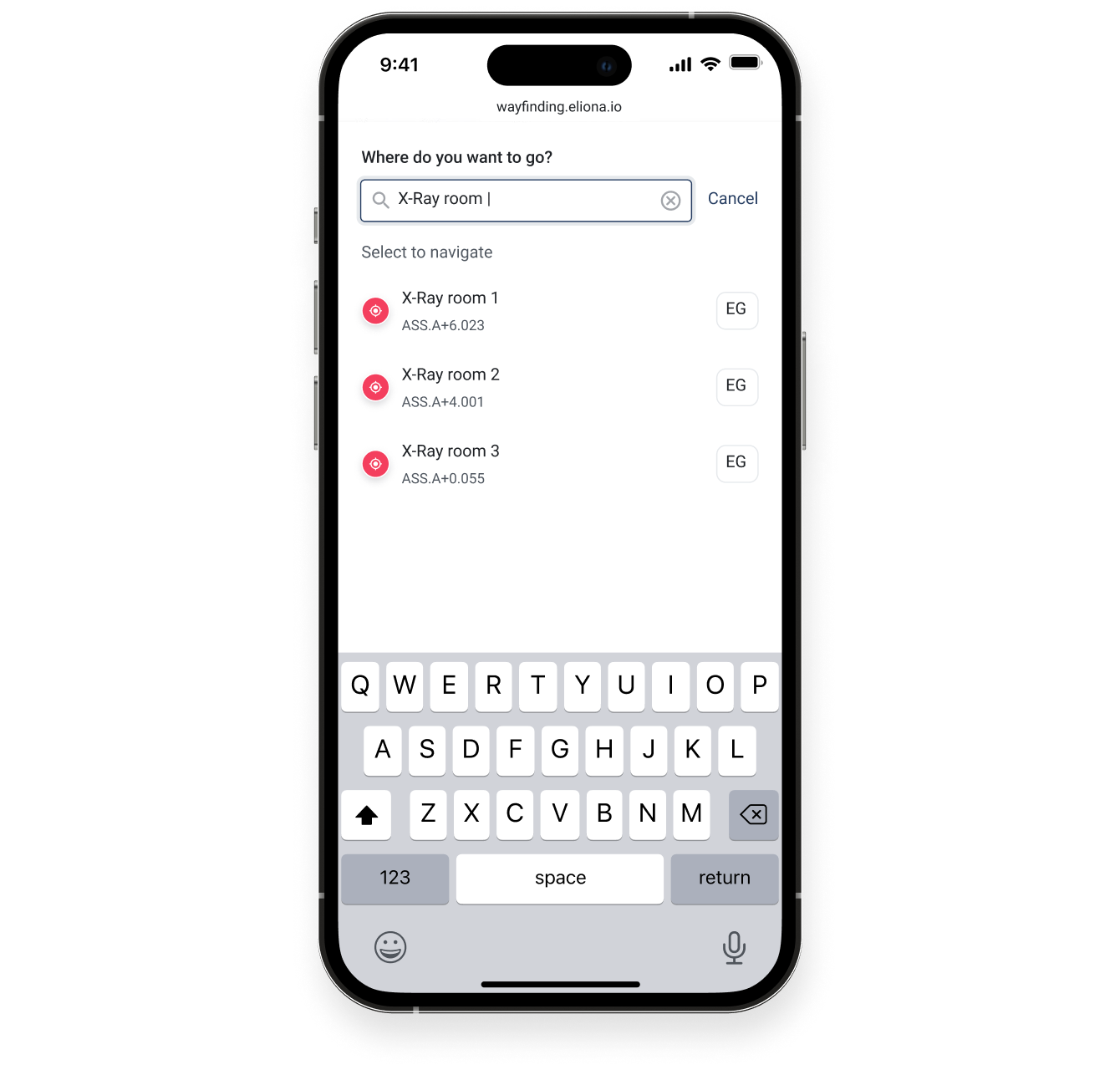
After tapping the search field, you can enter the name of the destination. The search result will be displayed below.
#### 4.2 Select destination
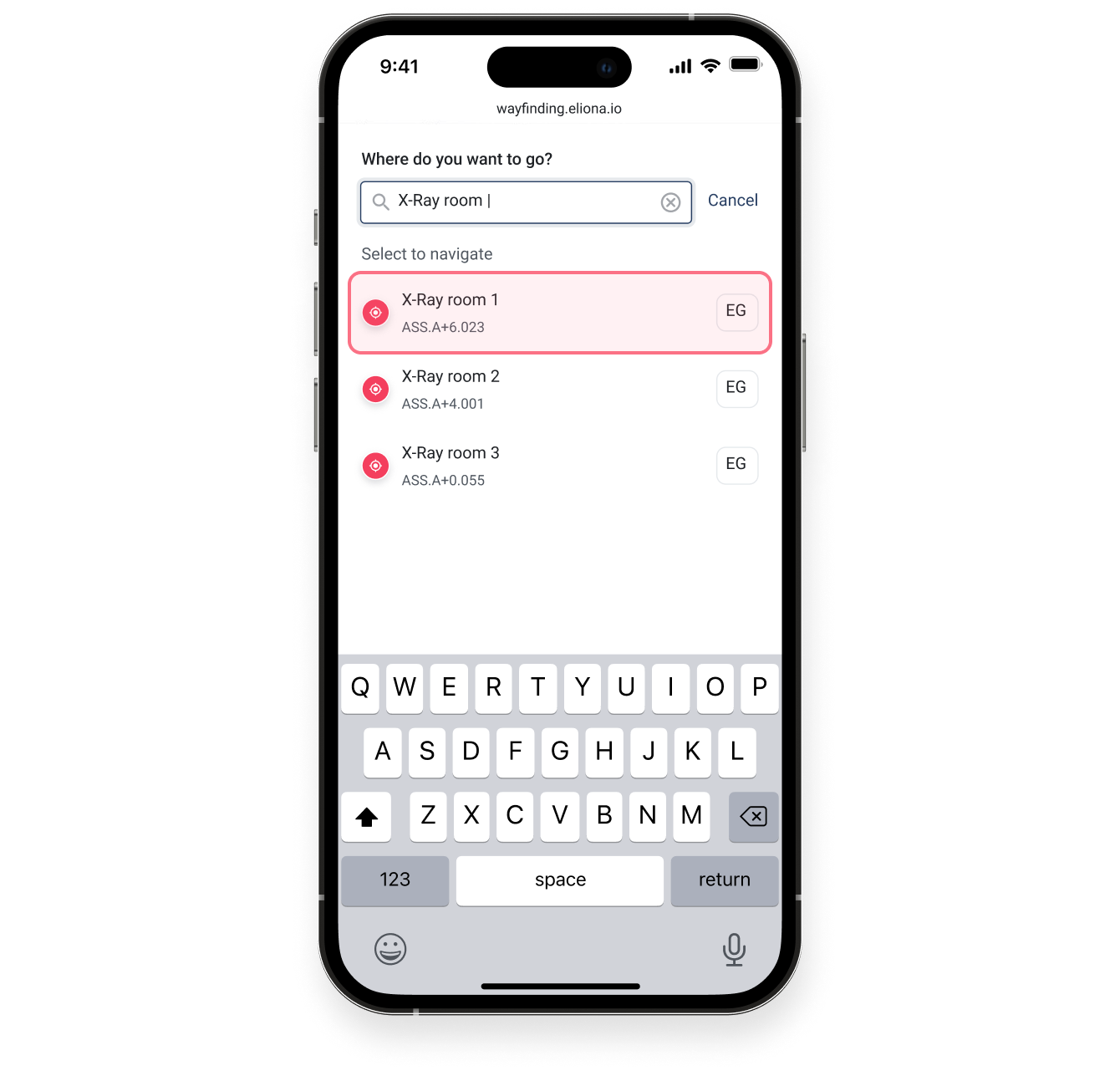
Once you have found the destination, you can tap it.
***
### 5. Search
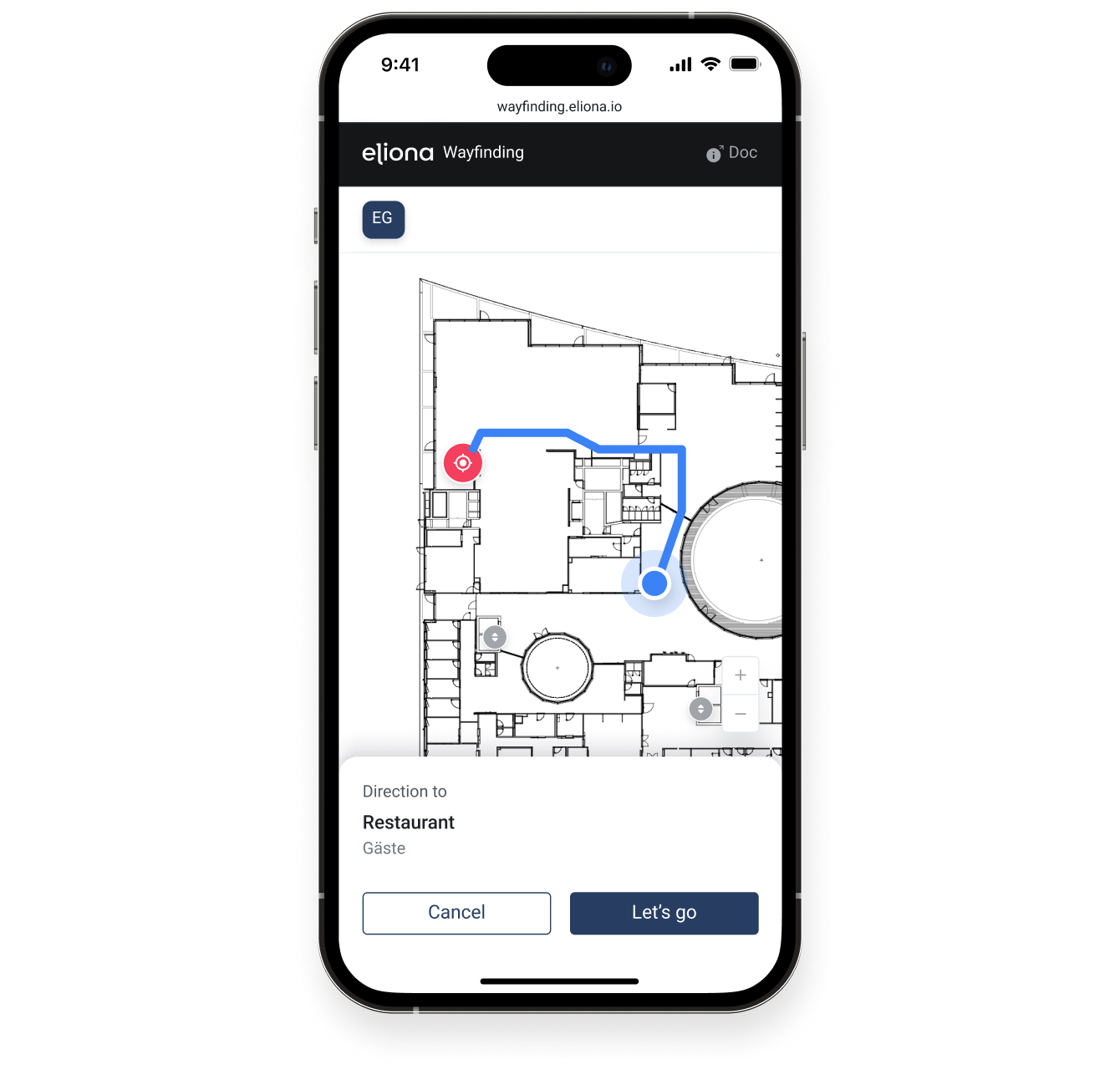
#### 5.1 Route overview
As soon as you click the desired point, you can review the route.
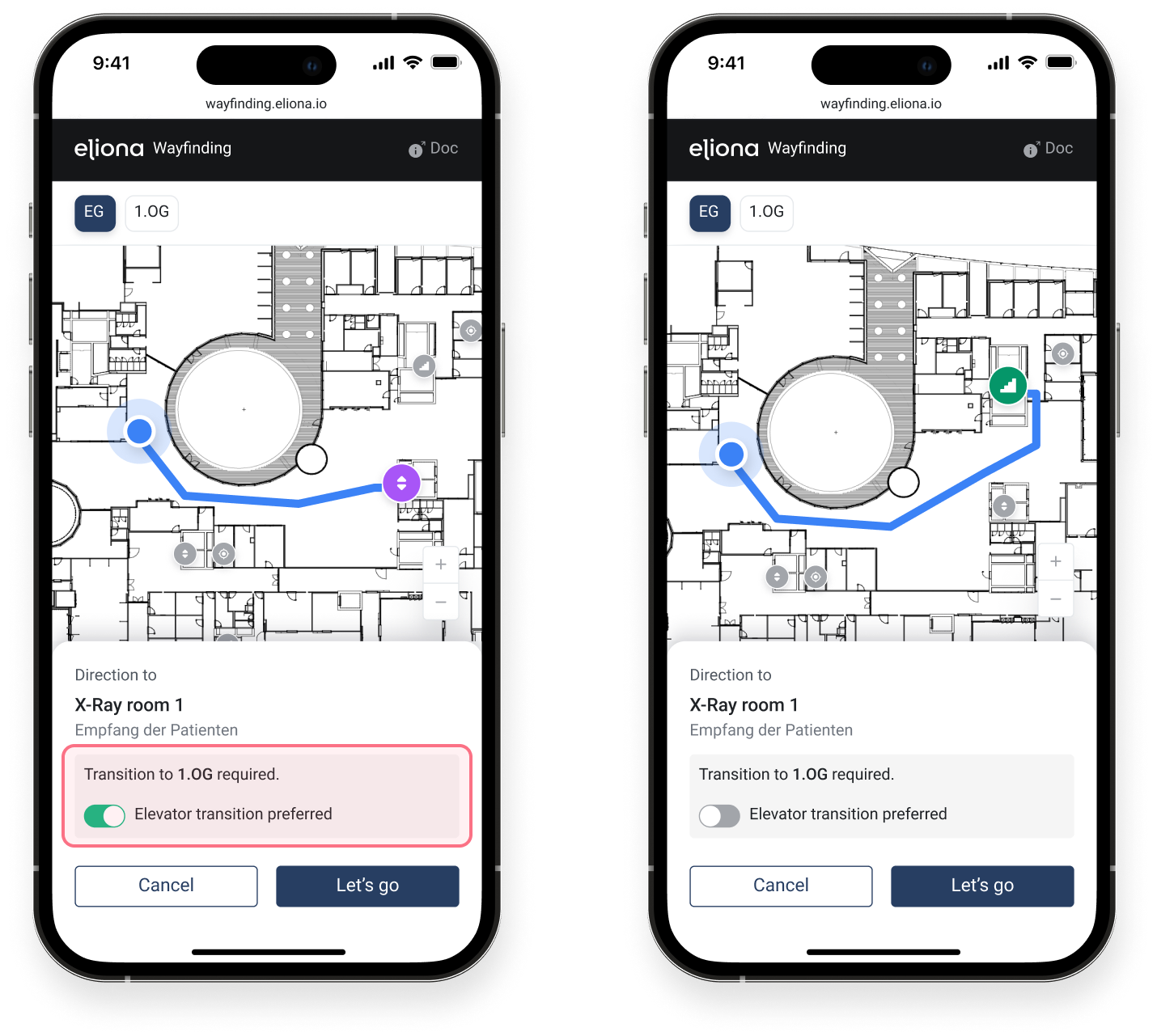
#### 5.2 Switch route between stairs and elevator
If the route requires a transfer between floors, the Wayfinding will suggest two routes: by elevator or by stairs. You can switch between them using a toggle.
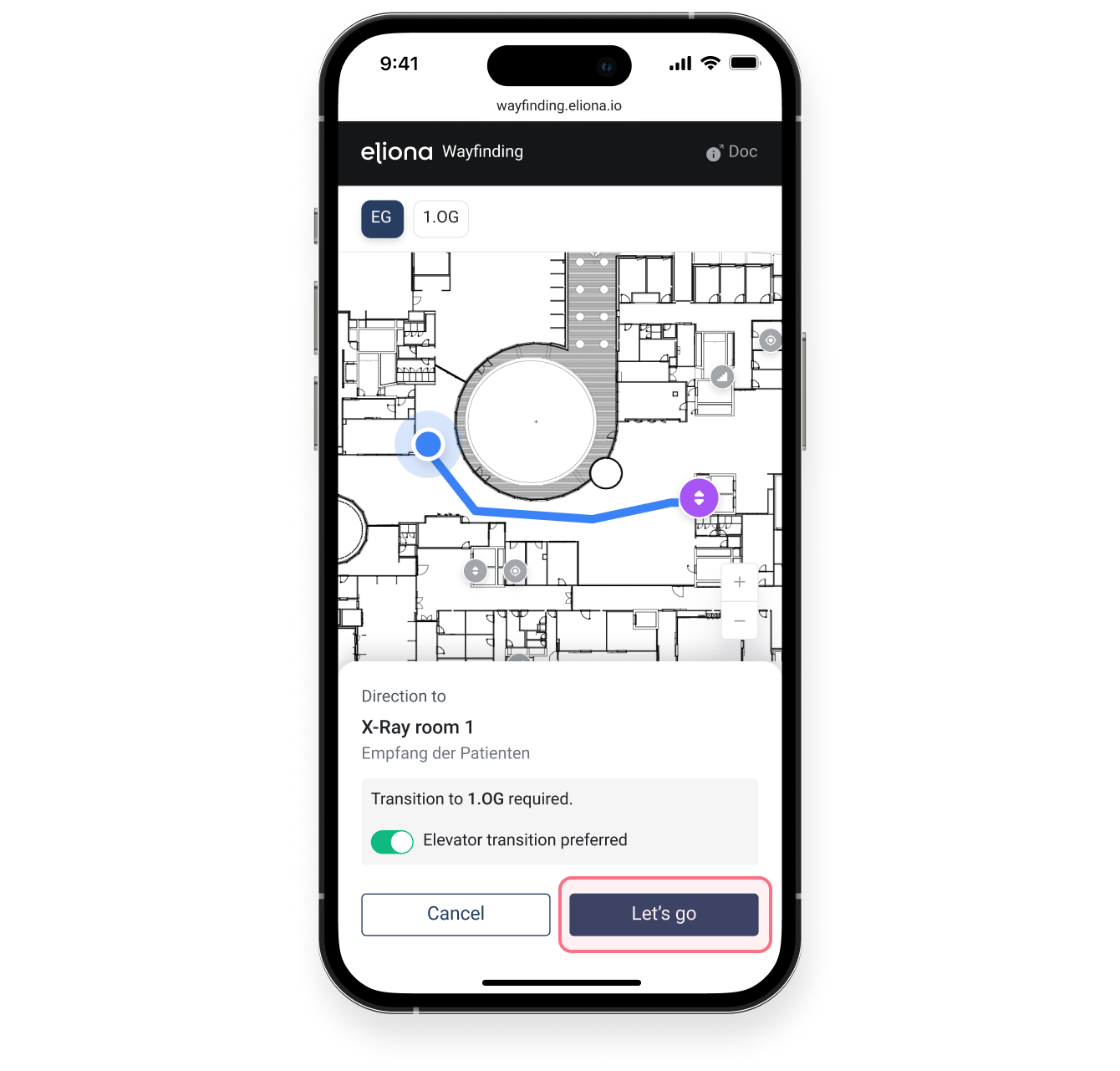
#### 5.3 Start route
When you are ready, tap the "Let's go" button.
***
### 6. Follow route
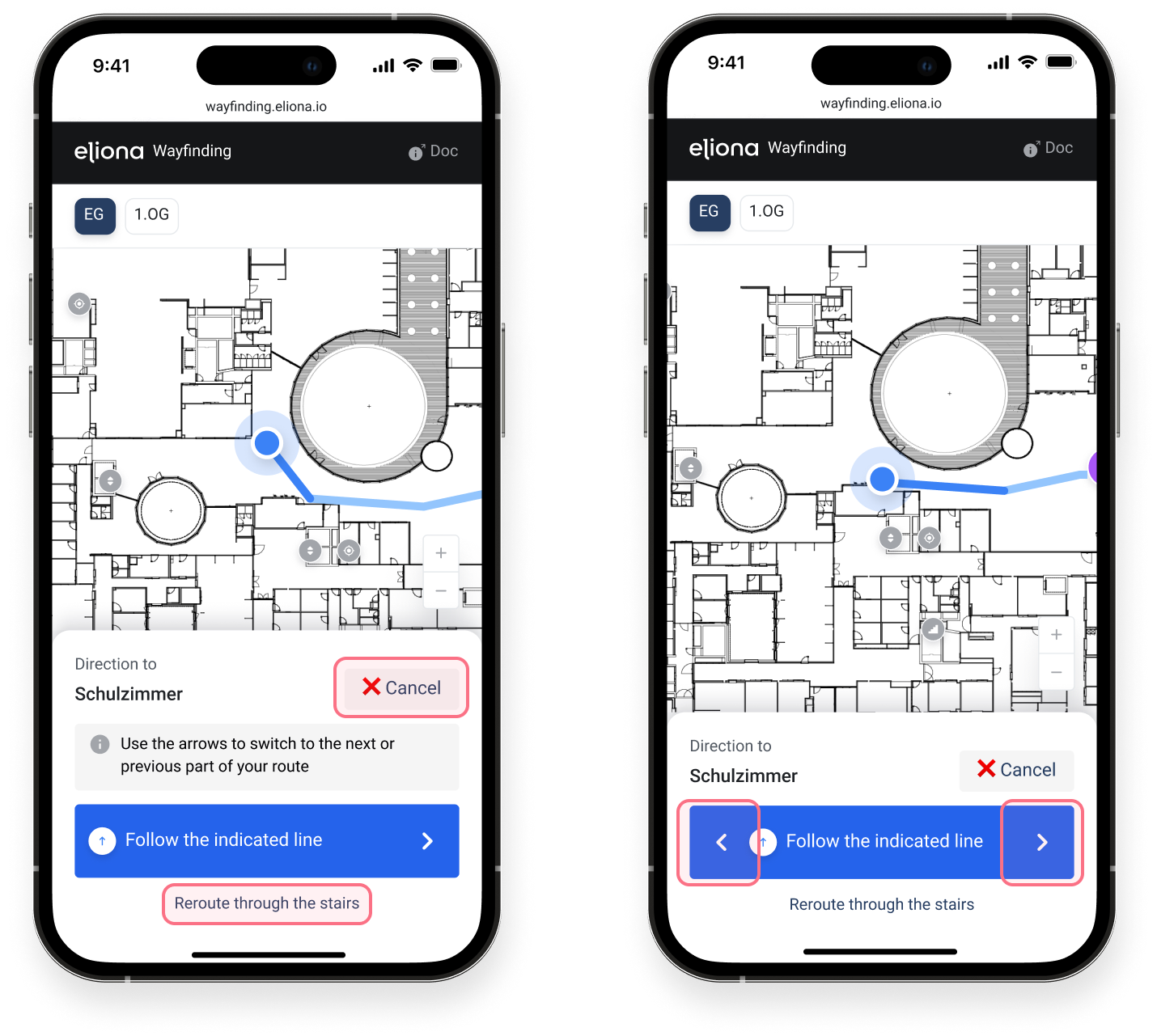
#### 6.1 The route
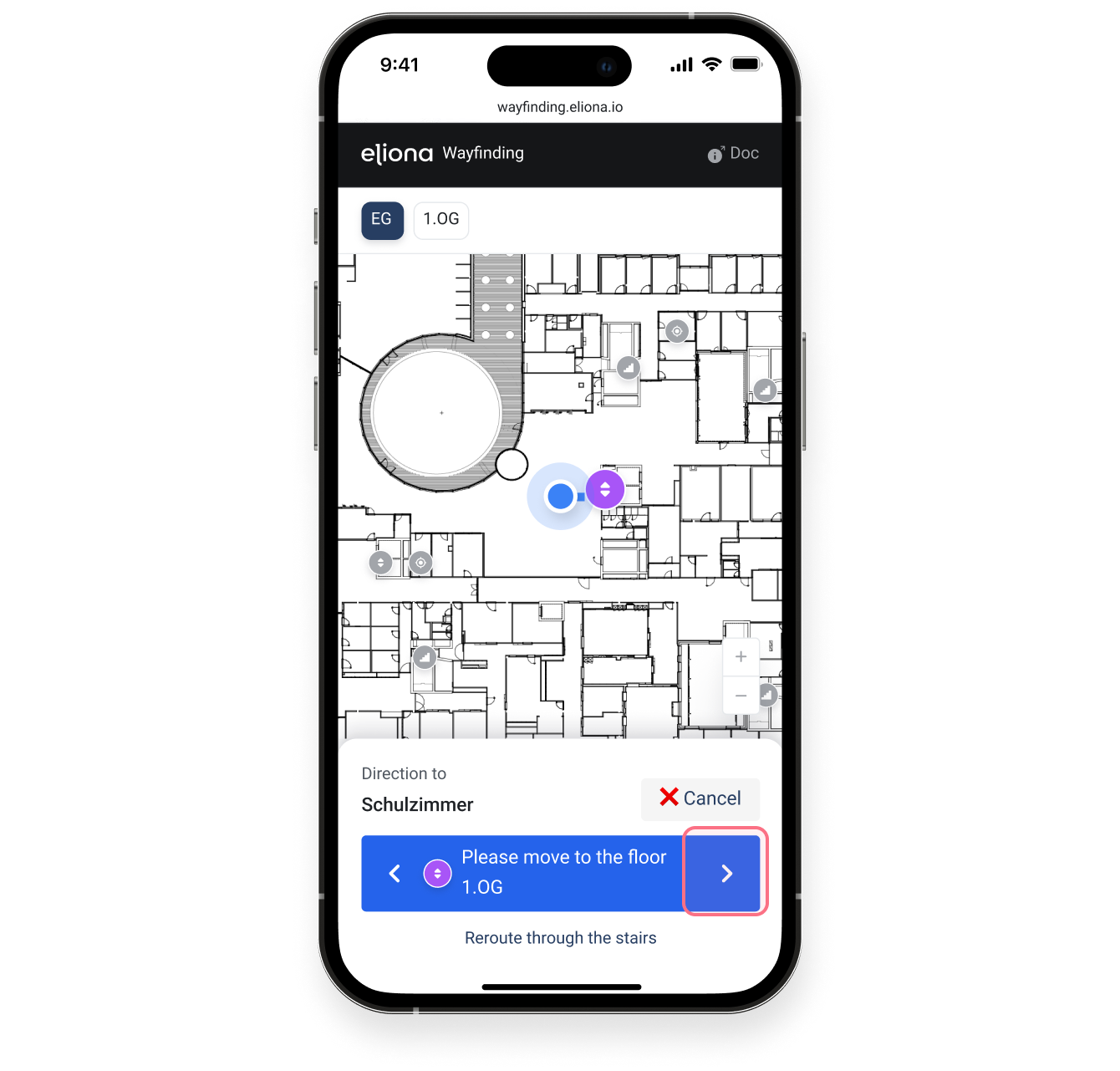
As soon as you click the "Let's go" button, your route starts. If you want to cancel the route, you can tap the "Cancel" button. You can recalculate your route via stairs or elevator at any time. The route is divided into sections. You can click the right arrow to go to the next section of the route, or the left arrow to go to the previous section.
#### 6.2 Switch to the next floor
Once you reach the stairs or the elevator, you will see the corresponding message in the blue navigation block. When you have reached the required floor, tap the right arrow to open the next floor plan and continue following your route.
***
### 7. End route
#### 7.1 End route
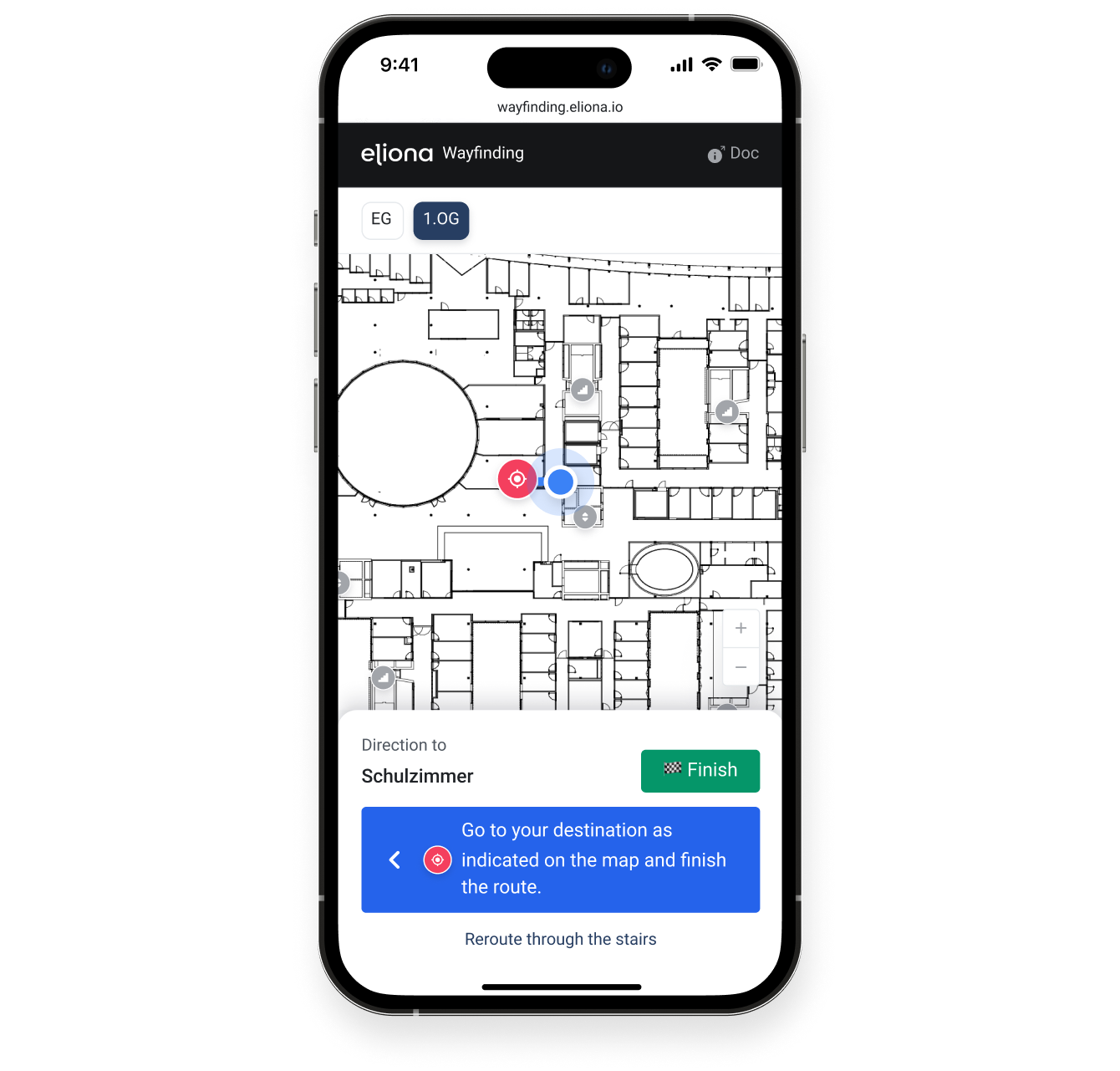
Once you have reached your destination, you will see the corresponding message in the blue navigation block. When you are ready to end the route, tap the "End" button.
#### 7.2 Confirm ending
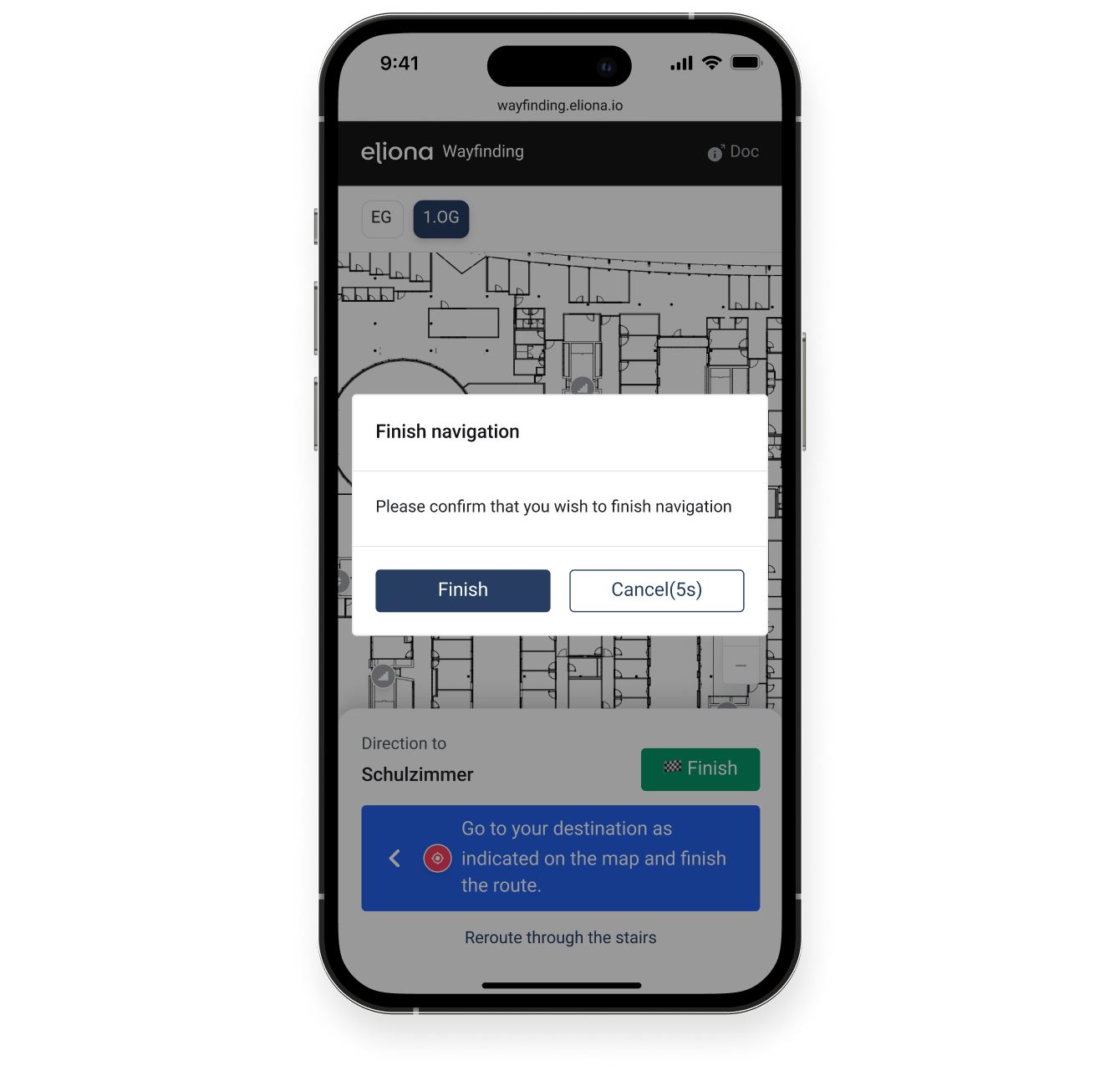
After tapping the "End" button, you must confirm it to avoid accidental taps.
#### 7.3 End
After you tap the "End" button again, you will be redirected to the Wayfinding home screen, where your last destination is specified as the starting point.
***
**We wish you a pleasant journey!** :smiley:
---
# Agent Instructions
This documentation is published with GitBook. GitBook is the documentation platform designed so that both humans and AI agents can read, navigate, and reason over technical content effectively. Learn more at gitbook.com.
## Querying This Documentation
If you need additional information that is not directly available in this page, you can query the documentation dynamically by asking a question.
Perform an HTTP GET request on the current page URL with the `ask` query parameter, and the optional `goal` query parameter:
```
GET https://docs.buildings.ability.abb/collection/english-v14/academy/wie-wayfinding-funktioniert.md?ask=&goal=
```
`ask` is the immediate question: it should be specific, self-contained, and written in natural language.
`goal` is optional and describes the broader end goal you are ultimately trying to accomplish on behalf of the user. GitBook uses it to tailor the answer towards what is most useful for that goal.
The response will contain a direct answer to the question and relevant excerpts and sources from the documentation.
Use this mechanism when the answer is not explicitly present in the current page, you need clarification or additional context, or you want to retrieve related documentation sections.