

Start forecast & training
Forecast Details
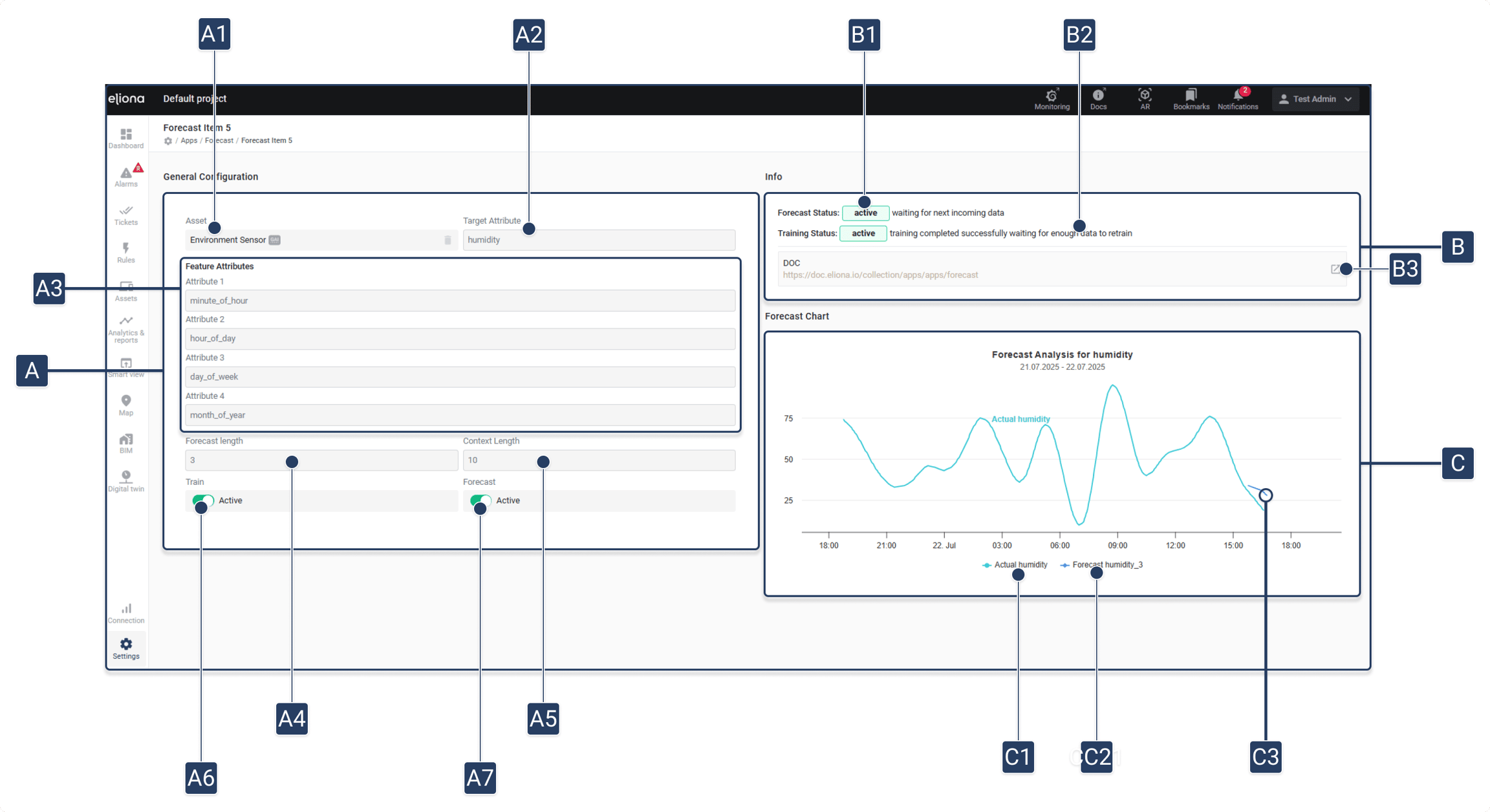
Element
Title
Details
[A]
General configuration
Parent block with all settings for the forecasting model.
[A1]
asset
The selected asset whose data is used for the forecast.
[A2]
Target Attribute
Attribute for which the prediction is calculated.
[A3]
Feature Attributes
List of additional attributes (minute, hour, day of week ...); they serve as input features for the model.
[A4]
Forecast length
Number of time steps to forecast into the future.
[A5]
Context length
Length of the historical context window that the model considers per forecast.
[A6]
start/stop training
Switch for starting/stopping the training run.
[A7]
start/stop forecasting
Switch for enabling/disabling the ongoing forecast.
[B]
Info
Status panel with runtime information.
[B1]
Forecast Status
Shows whether forecasting is active/inactive and, if active, in which state the forecast is.
[B2]
Training Status
Shows whether training is active/inactive and in which state the training is.
[B3]
DOC
Link to the online documentation of the Forecast-app.
[C]
Forecast Chart
Chart with actual and forecast values.
[C1]
Legend – actual value
Marks the measured sensor data (Actual humidity).
[C2]
Legend – forecast
Marks the calculated predictions (Forecast humidity).
[C3]
Forecast line
Shows the forecast as a line in the chart.
Start forecast & start training
The Forecast App allows model training and the ongoing forecast to be activated independently of each other. Both processes run in parallel in the background, but follow different tasks and workflows. The following sections explain how it works, dependencies, and the recommended procedure.
Start training
Goal: Trains a new LSTM model based on the currently available historical data.
Process:
The training process is started via the switch Train [A6] started.
The model is trained with the current settings for
forecast_length,context_lengthandfeature_attributestrained.During training, the best model each time (measured by the Validation Loss) is automatically saved in between.
Important:
The training status is shown in the Info panel displayed.
After successful completion, the notice appears: → Training completed successfully. Waiting for enough data to retrain.
Automatic retraining: After the initial training, the model is automatically retrained as soon as at least 10% more data points are available than in the last run. → Example: If a model was trained on 10 months of data, the next training starts as soon as another month of data has been added.
Start forecast
Goal: Creates ongoing predictions for new incoming data points based on the last trained model.
Process:
The forecast is activated via the switch Forecast [A7] activated.
The app checks whether a trained model is available. Only then can forecasting begin.
New forecast values are automatically generated and stored as an attribute in the asset (see → forecast output attribute).
Note: If no model yet is available (e.g. after initial creation), no forecast can be made. In this case, the status shows: → Waiting for model to be trained.
Recommended order
To achieve reliable results, it is recommended to:
First start training
After successful completion, then enable the forecast
This prevents the first forecasts from being based on an untrained or poorly converged model.
Technical terms in the status area
Epochs
Number of complete training passes over the entire dataset.
Validation Loss (val_loss)
Error metric on the validation data. Shows how well the model generalizes. The lower, the better.
These values help assess the quality of the training process.
forecast output attribute
When starting the forecast or training process, the Forecast App automatically creates a new attribute in the selected asset. This attribute contains the calculated forecast values and is available system-wide.
Naming scheme:
[target_attribute]_forecast_[forecast_length]
Example:
If the attribute temperature with a forecast_length of 12 is forecast, the name of the automatically generated output attribute is:
→ temperature_forecast_12
Note: This attribute can be used anywhere in Eliona — e.g. in dashboards, rules, visualizations or the Calculator. It behaves like a regular asset attribute and is automatically updated with the latest forecast values.
Last updated
Was this helpful?