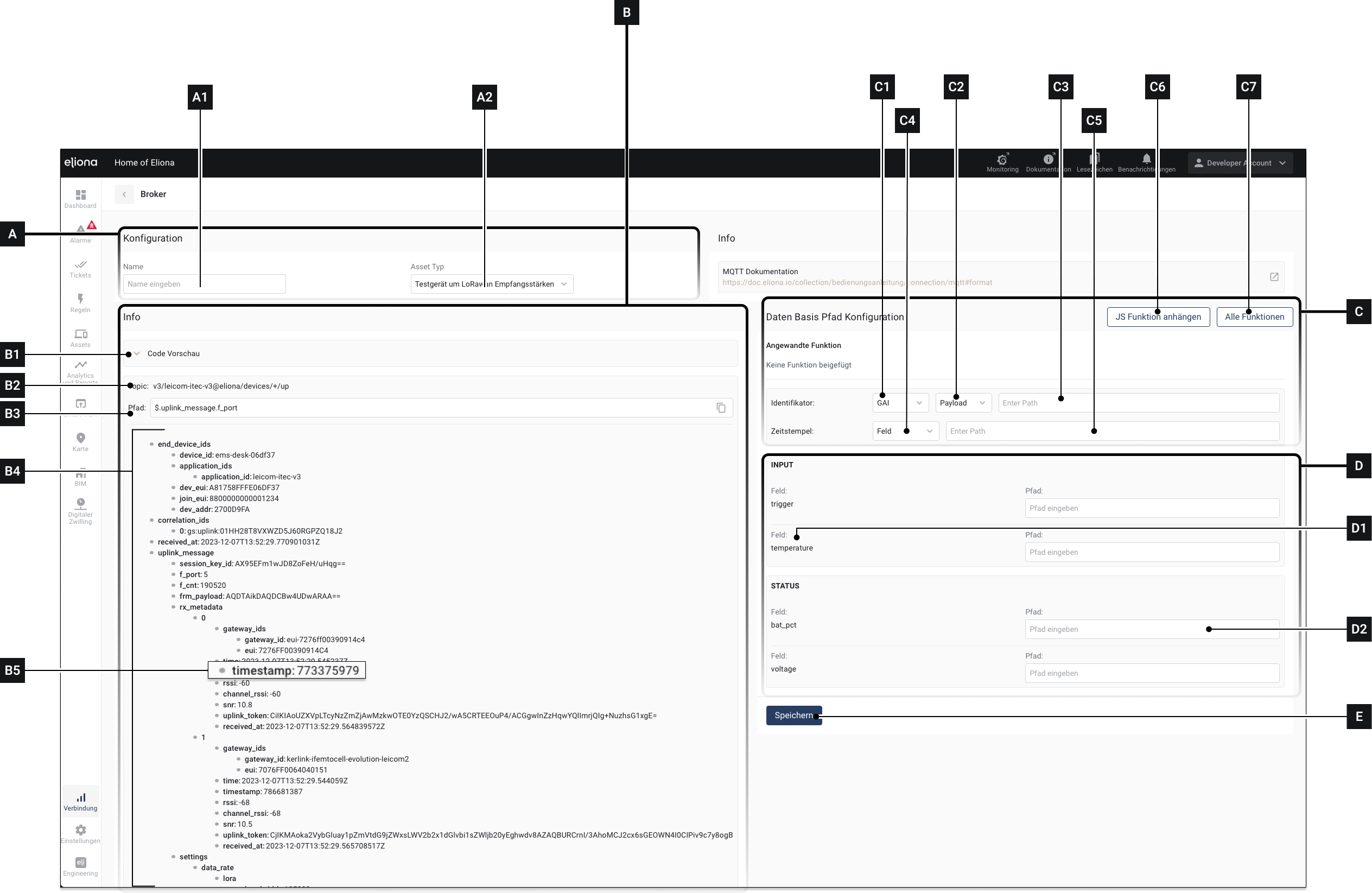
| Element | Title | Details |
|---|---|---|
| [A] | Section “Configuration” | In this section, details about the format are configured |
| [A1] | Name | Give the format a name in this field |
| [A2] | Asset type | Select which asset type this format applies to. This selection affects which values appear in section [D] appear |
| [B] | Section “Payload” | In this section, a preview of the incoming data is displayed. |
| [B1] | Code preview | Click here to open the code preview. The code preview presents the information from section [D] in the form of a payload. |
| [B2] | Topic | The topic |
| [B3] | Topic path | The path to the respective payload entry |
| [B4] | Payload | This is the transmitted payload. Drag values from the payload into the corresponding paths [D2]. If you create a format using option 1, the payload appears in this area. If you later edit a format, the content of the ↗ payload preview appears here |
| [B5] | Payload entry | A single component of the payload. You can drag and drop these components onto the paths in the attributes [D2] |
| [C] | Section “Path Configuration” | In this section, you specify which asset the incoming data are mapped to. |
| [C1] | Identifier | Here you select the individual asset to which the incoming data are mapped. The following are available for selection: - GAI: GAI is used to determine the asset to which the data are mapped - External: Instead of the GAI, the “Associated ID” of an asset is used. ↗ See [M1] in Asset -> Configure an asset -> Available settings |
| [C2] | Location of the identifier | Select here where the identifier should be taken from. The following are available:
|
| [C3] | Identifier | Enter the identifier here. If the identifier is to be the topic, "#" can simply be entered in the path |
| [C4] | Timestamp selection | Select how the timestamp should be detected. The following are available: - Auto: The timestamp is detected automatically - Field: Drag a payload entry into the field [C5] |
| [C5] | Field for timestamp entry | If you have selected in [C4] Field selected: Simply drag the timestamp [B5] into the field |
| [C6] | Append function | click to append a JavaScript function |
| [C7] | All functions | View all existing functions |
| [D] | Input | In this section, the payload entries are assigned to the individual attributes. |
| [D1] | Attribute | This is one of the attributes defined for this asset type. |
| [D2] | Path to payload entry | This is one of the attributes defined for this asset type. |
| [E] | Save | Click here to apply the settings |
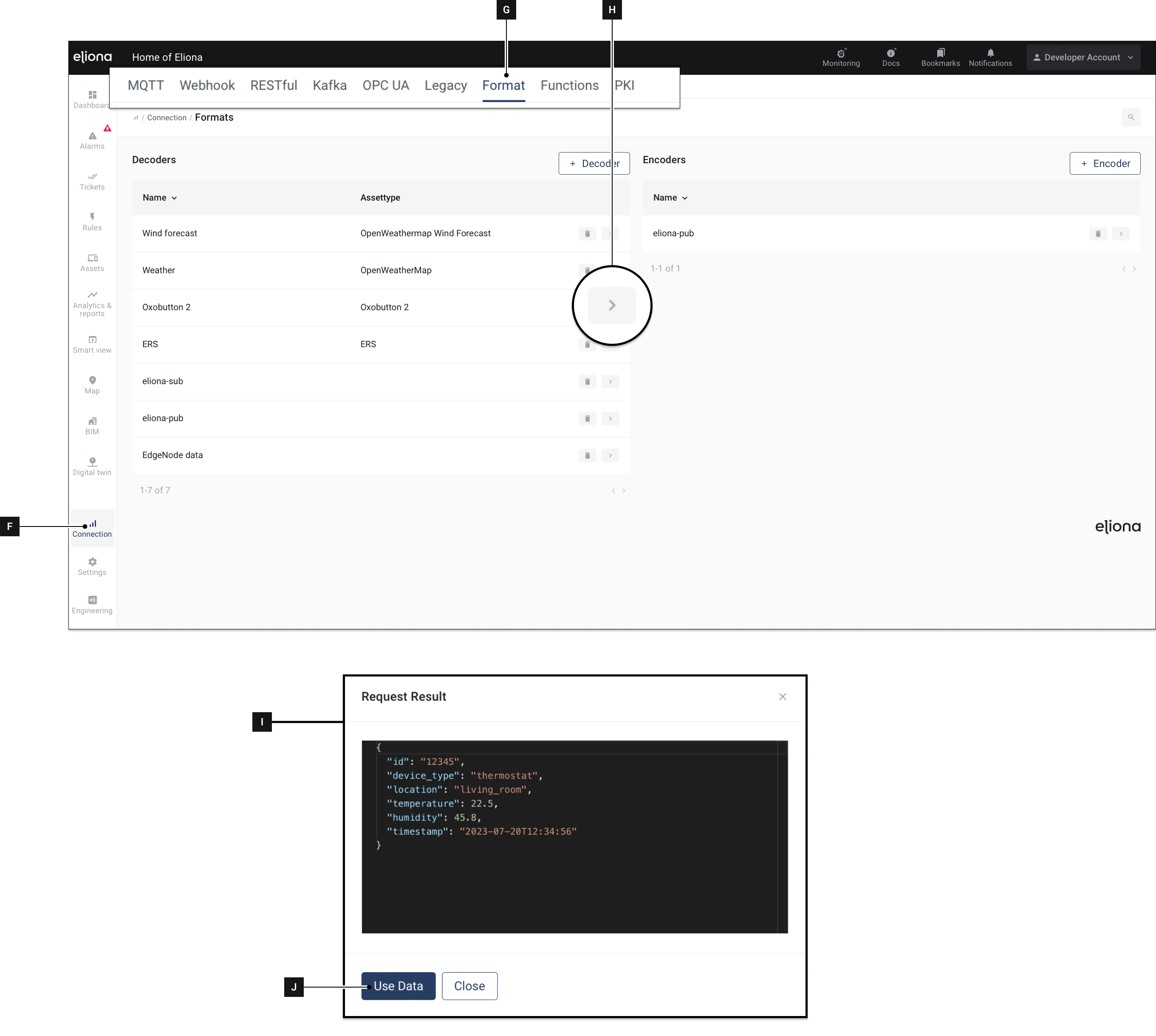
Fig. 2 - Payload preview at the bottom