> For the complete documentation index, see [llms.txt](https://docs.buildings.ability.abb/collection/llms.txt). Markdown versions of documentation pages are available by appending `.md` to page URLs; this page is available as [Markdown](https://docs.buildings.ability.abb/collection/english-v14/connectivity-as-a-service/gerate-mit-abb-buildingpro-verbinden/gerate-per-mqtt-verbinden/client-konfigurieren.md).

# Configure client

The broker is configured in the broker details

In the broker details you can:

* Establish a connection to a broker
* adjust the existing connection data of the selected broker
* [↗ Create a subscription](https://docs.buildings.ability.abb/collection/english-v14/connectivity-as-a-service/gerate-mit-abb-buildingpro-verbinden/gerate-per-mqtt-verbinden/eine-subscription-konfigurieren.md)

## Overview

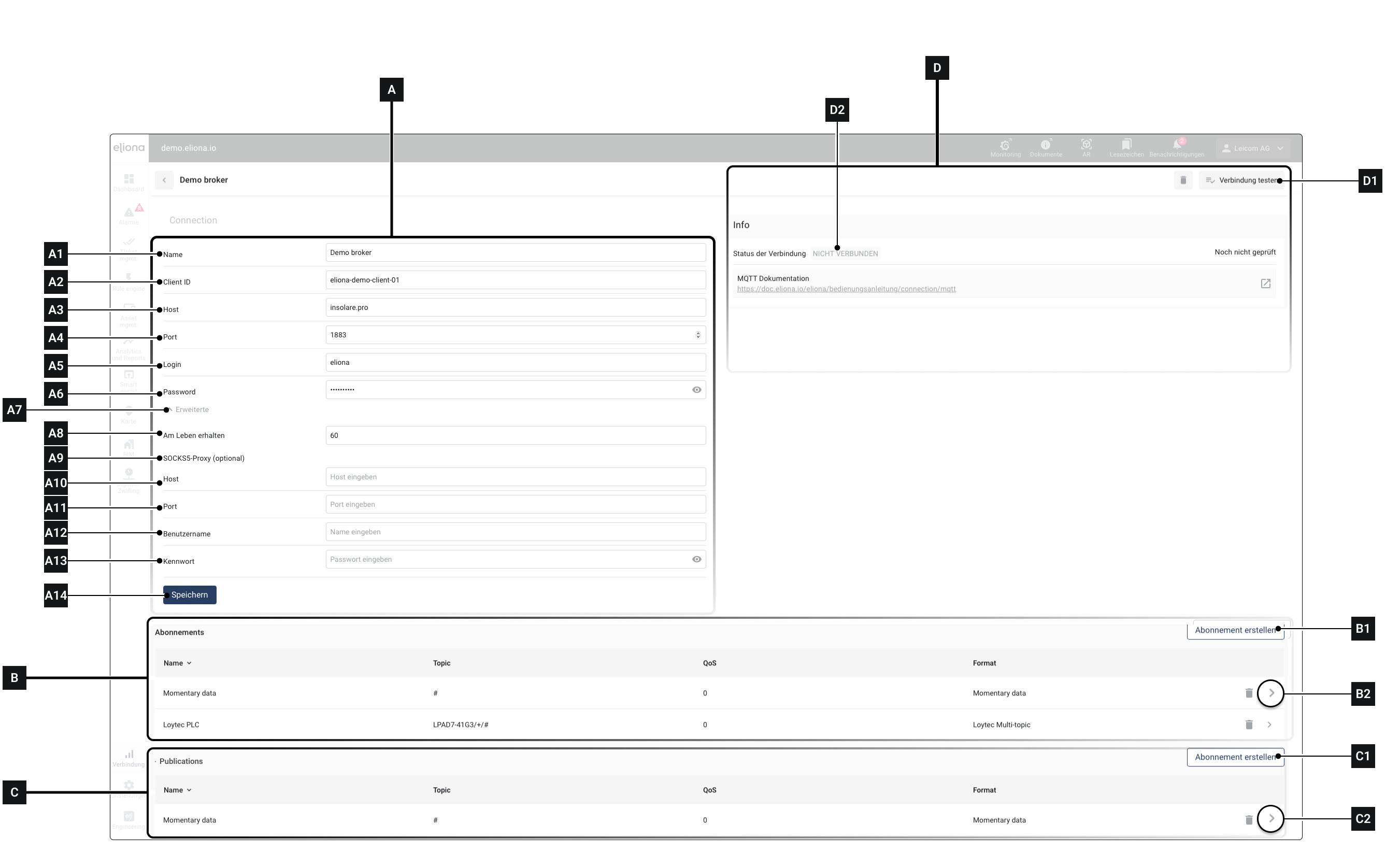
<div data-full-width="true"><figure><img src="https://content.gitbook.com/content/Nyvwhz1kEMXcHf4HLuZ8/blobs/DbSReGPZuPWfHI44MwMz/Docs_Verbindungen%20-%20MQTT%20Broker%20Details.png" alt=""><figcaption><p>Fig. 1 – The broker details</p></figcaption></figure></div>

<table><thead><tr><th width="95.33333333333331">Icon</th><th width="297">Description</th><th>Details</th></tr></thead><tbody><tr><td><strong>[A]</strong></td><td>Section “Connection”</td><td>In this section, the broker's connection data is configured</td></tr><tr><td><strong>[A1]</strong></td><td>Name</td><td>A name for the connection. This name is used to appear in the broker list</td></tr><tr><td><strong>[A2]</strong></td><td>Client ID</td><td>Enter a client ID. The MQTT broker uses the client ID to detect when a client reconnects and to close any existing TCP connections.</td></tr><tr><td><strong>[A3]</strong></td><td>Host</td><td>Enter the broker's host address here, to which you want to establish a connection</td></tr><tr><td><strong>[A4]</strong></td><td>Port</td><td>Enter the broker's port here. Usually (1883)</td></tr><tr><td><strong>[A5]</strong></td><td>Login</td><td>Enter the username for the broker here</td></tr><tr><td><strong>[A6]</strong></td><td>Password</td><td>Enter the broker's password here</td></tr><tr><td><strong>[A7]</strong></td><td>More options</td><td>Click to show or hide more options</td></tr><tr><td><strong>[A8]</strong></td><td>Keep alive</td><td>This value indicates how much time lies between two value transmissions until a client asks the broker whether it is still active.</td></tr><tr><td><strong>[A9]</strong></td><td>SOCKS5 proxy</td><td>You can configure a proxy server</td></tr><tr><td><strong>[A10]</strong></td><td>Host</td><td>Specify the SOCKS5 host</td></tr><tr><td><strong>[A11]</strong></td><td>Port</td><td>Specify the SOCKS5 port</td></tr><tr><td><strong>[A12]</strong></td><td>Username</td><td>Specify the SOCKS5 username</td></tr><tr><td><strong>[A13]</strong></td><td>Password</td><td>Specify the SOCKS5 password</td></tr><tr><td><strong>[A14]</strong></td><td>Save</td><td>Click to save</td></tr><tr><td><strong>[B]</strong></td><td>Subscriptions</td><td>In this area, all subscriptions available for the selected broker are displayed.</td></tr><tr><td><strong>[B1]</strong></td><td>Create subscription</td><td>Click this button to create a new subscription for this broker</td></tr><tr><td><strong>[B2]</strong></td><td>Edit subscription</td><td>Click this button to edit the corresponding subscription later</td></tr><tr><td><strong>[C]</strong></td><td>Publications</td><td>In this area, all publications available for the selected broker are displayed</td></tr><tr><td><strong>[C1]</strong></td><td>Create publication</td><td>Click this button to create a new publication for this broker</td></tr><tr><td><strong>[C2]</strong></td><td>Edit publication</td><td>Click this button to edit the corresponding publication later</td></tr><tr><td><strong>[D]</strong></td><td>Connection status</td><td>This area shows whether Eliona's connection status to the current broker is good</td></tr><tr><td><strong>[D1]</strong></td><td>Test connection</td><td>Click here to test the connection to the broker</td></tr><tr><td><strong>[D2]</strong></td><td>Connection status</td><td>The connection status to the current broker is displayed here</td></tr><tr><td></td><td></td><td></td></tr></tbody></table>

## Configure broker

If you have just created the broker, the data under **\[A]** is empty.

Fill in the data and click on **Save \[A14]**, to save the settings.

If necessary, check the connection (see next point).

## Check connection

You can check whether the connection to the selected MQTT broker is valid.

1. Click on **\[D1]**\
   ▷ Under **\[D2]** the current connection status is displayed

## Create new subscription

1. Click on **\[B1]** to create a new subscription\
   ▷ The window [↗ Configure subscription opens](https://docs.buildings.ability.abb/collection/english-v14/connectivity-as-a-service/gerate-mit-abb-buildingpro-verbinden/gerate-per-mqtt-verbinden/eine-subscription-konfigurieren.md) opens. Proceed as described there.

## Create new publication

1. Click on **\[C1]** to create a new publication\
   ▷ The window [↗ Configure publication](https://docs.buildings.ability.abb/collection/english-v14/connectivity-as-a-service/gerate-mit-abb-buildingpro-verbinden/gerate-per-mqtt-verbinden/eine-publication-konfigurieren.md) opens. Proceed as described there.


---

# Agent Instructions
This documentation is published with GitBook. GitBook is the documentation platform designed so that both humans and AI agents can read, navigate, and reason over technical content effectively. Learn more at gitbook.com.

## Querying This Documentation
If you need additional information that is not directly available in this page, you can query the documentation by asking a question.

Perform an HTTP GET request on the following URL with the `ask` and `goal` query parameters:

```
GET https://docs.buildings.ability.abb/collection/english-v14/connectivity-as-a-service/gerate-mit-abb-buildingpro-verbinden/gerate-per-mqtt-verbinden/client-konfigurieren.md?ask=<question>&goal=<user_goal>
```

`ask` is the immediate question: it should be specific, self-contained, and written in natural language.
`goal` is what the user is ultimately trying to achieve, the reason they need the answer. Sharing it helps GitBook give you a better, more relevant answer. A goal is most helpful when it describes the outcome the user wants rather than restating the question. For example, with `ask=how do I create an API token`, a goal like `automate deployments from our CI pipeline` lets GitBook tailor the answer to that use case.

The response will contain a direct answer to the question and relevant excerpts and sources from the documentation.

Use this mechanism when the answer is not explicitly present in the current page, you need clarification or additional context, or you want to retrieve related documentation sections.
