

Connection details
Overview
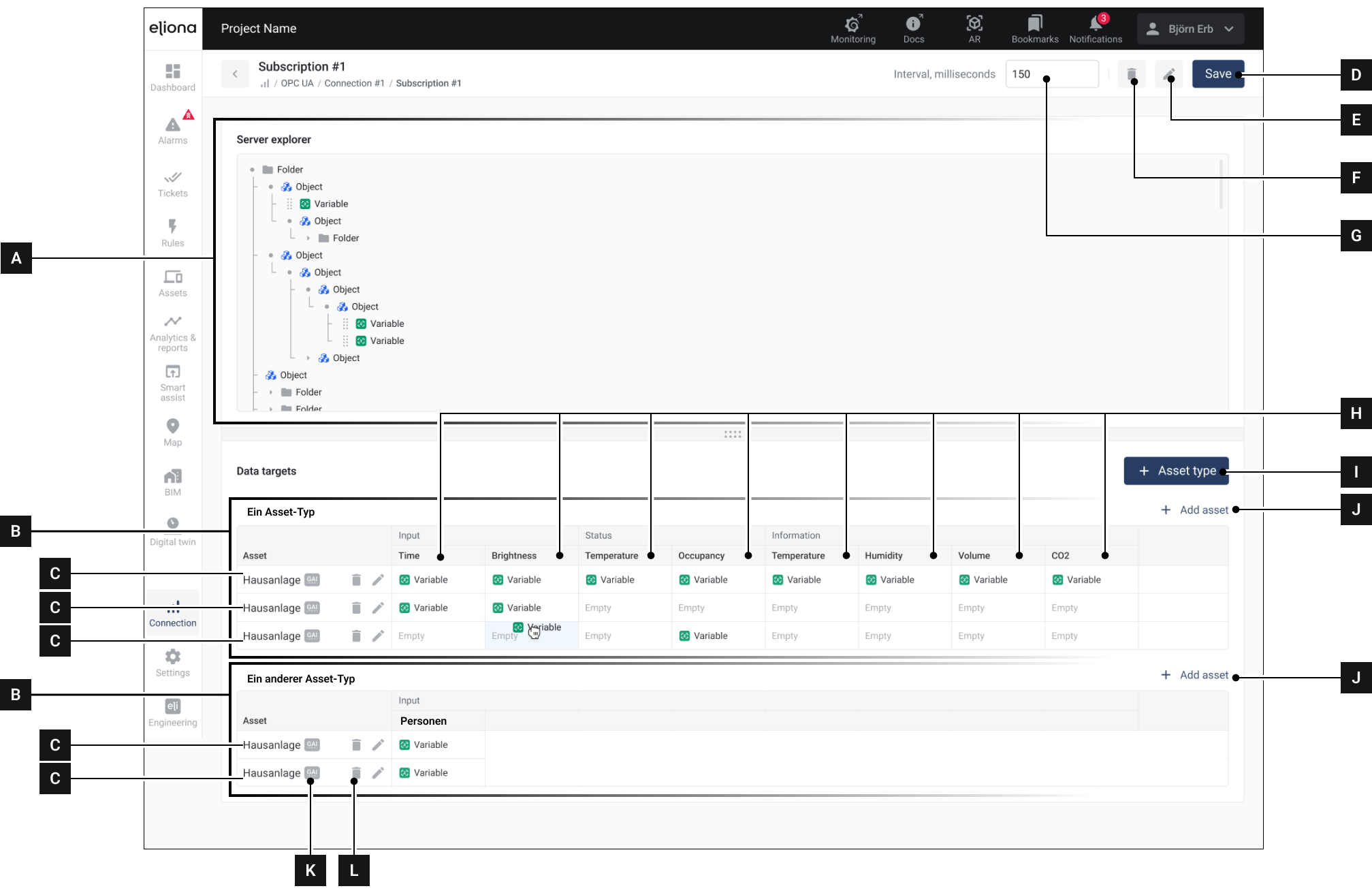
[A]
Server Explorer
Incoming data are displayed here.
[B]
Asset type
An added asset type
[C]
Assets
Custom assets.
[D]
Save
Apply and save inputs
[E]
Edit
Edit subscription name
[F]
Delete
Delete subscription
[G]
Interval
Specifies in milliseconds how often Eliona requests new data from the endpoint
[H]
Attributes
The asset attributes. Which attributes are displayed depends on which asset type was added
[I]
Add asset type
Add a new asset type
[J]
Add asset
Add a new asset of the respective asset type
[K]
Show GAI
Click to display an asset's GAI
[L]
Remove
Remove asset from the list
Procedure
Open the ↗ Connection details
Click on [I] to add a new asset type. The attributes of this asset type should match the incoming data.
Optional: Repeat step 1 to add more asset types
Click on [J], to add individual assets. Only assets that match the selected asset type are displayed.
Drag individual variables from the Server Explorer [A] onto the corresponding variables [H] of the respective assets [C]
Click on [D] to save.
Last updated
Was this helpful?