

Connect devices via RESTful
About RESTful
With RESTful, you can send HTTP requests (GET, POST, PUT, DELTE) to resources to query. A resource can be anything that contains information, e.g. documents, images, or services.
Each resource has its own URL. Clients (e.g. Eliona) send HTTP requests to this URL. In response, the clients receive status codes and representations of the requested data from the server, usually as .json or .xml.
In most cases, RESTful is used to integrate external devices or services into Eliona via GET request through their API.
What distinguishes RESTful from Webhook?
The most significant difference is the direction of the communication.
With RESTful, a client sends requests to a server. The server responds with a status code and (if possible) the requested data. For communication over RESTful, the exact address of the server, as well as the individual endpoints, must be known.
With a webhook, communication originates from the server. The server actively sends data to the client in real time. The client does not need to make any requests. For communication via webhooks, the server must know the client's address.
Procedure
The procedure for integrating devices via RESTful can be divided into the following steps:
First, a connection is created and configured. This connection contains the base URL to an API.
In this connection, individual requests are created. The individual parameters to be queried are entered into these requests.

Overview
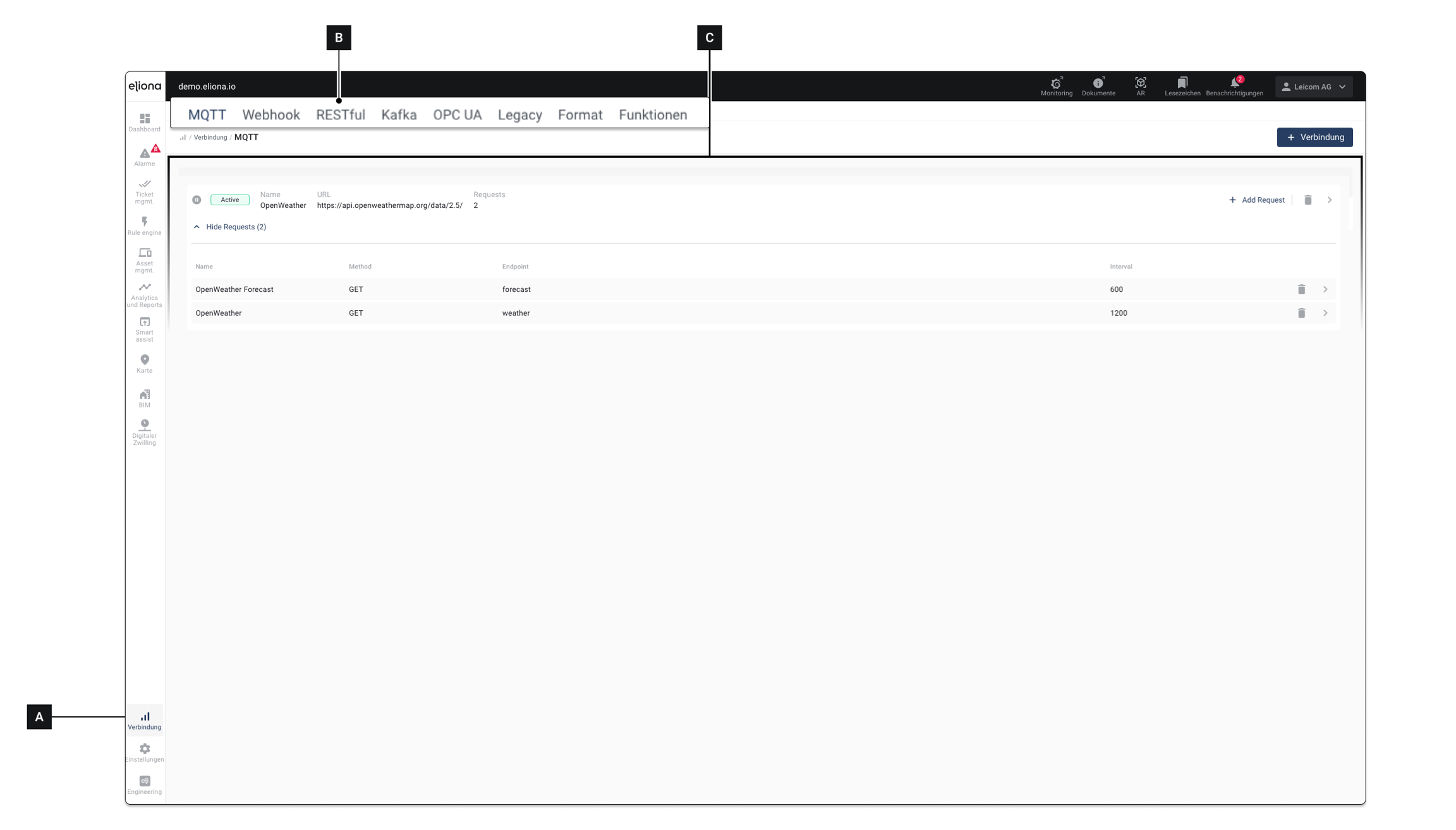
[A]
Menu “Connections”
Click to open the Connections menu
[B]
Tab
Access to the respective interfaces
[C]
Workspace
Shows a list of the existing connections (if any)
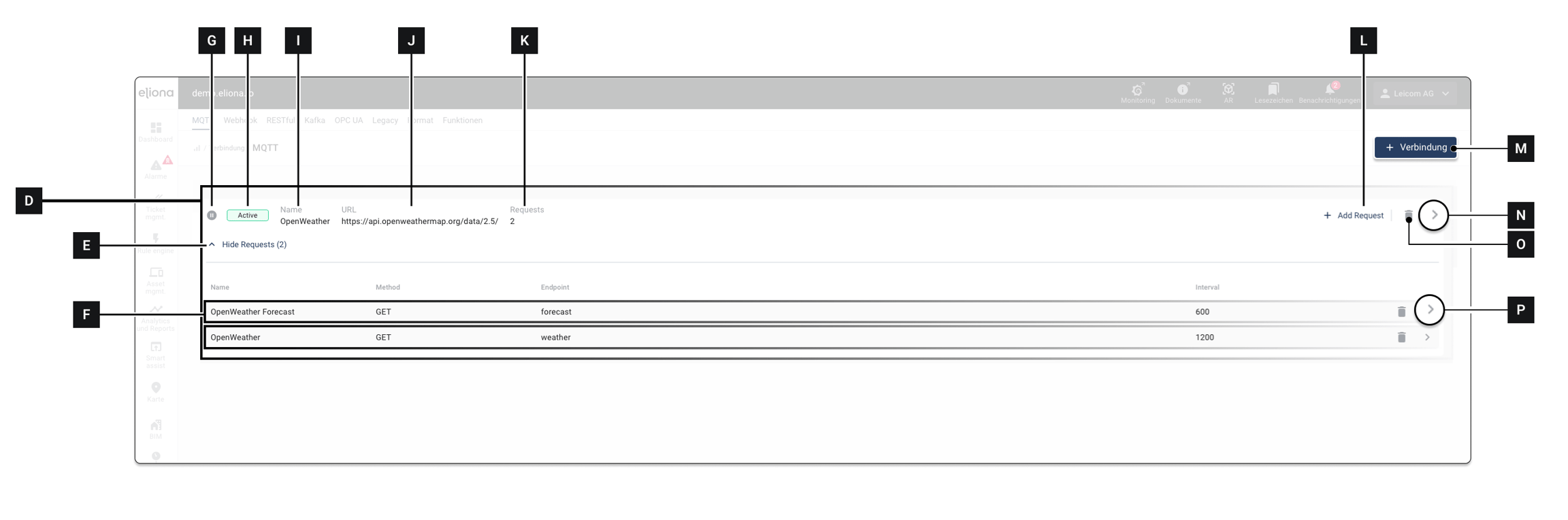
[D]
connection
An existing connection
[E]
Show/hide requests
Click to show or hide requests assigned to this connection
[F]
requests
Individual requests
[G]
Pause/resume connection
Click to pause or restart a connection
[H]
Connection status
Shows the current status of the connection
[I]
Name
Connection name
[J]
URL
The base URL of the respective connection
[K]
requests
Shows how many requests are assigned to this connection
[L]
Add request
Click to add a request to the respective connection
[M]
New connection
Click to create a new connection
[N]
Connection details
Click to open the details of the respective connection. Opens the ↗ connection details
[O]
Delete connection
Deletes the respective connection. ⚠ Attention: If the connection is also used in other projects, it will be deleted there as well.
[P]
Request details
Click to edit the details of the respective request.
Create new connection
Click in the sidebar on Connection [A] ▷ The "Connections" window opens
Select in the tab RESTful [B] from
In the workspace [C] a list of the existing connections [D] is displayed ◈ If you do not see any entries, there are no connections yet ◈ Connections configured in other projects are also displayed
Click on [M], to set up a new connection ▷ The window ↗ "Configure RESTful connection"
Continue in chapter ↗ "Configure RESTful connection"
Edit existing connection
Click in the sidebar on Connection [A] ▷ The "Connections" window opens
Select in the tab RESTful [B] from
In the workspace [C] a list of the existing connections [D] is displayed ◈ If you do not see any entries, there are no connections yet ◈ Connections configured in other projects are also displayed
Click on [M], to set up a new connection ▷ The window ↗ "Configure RESTful connection"
Continue in chapter ↗ "Configure RESTful connection"
Last updated
Was this helpful?