For the complete documentation index, see llms.txt. This page is also available as Markdown.

Configure an escalation

In this chapter you will learn how to configure an escalation

Overview

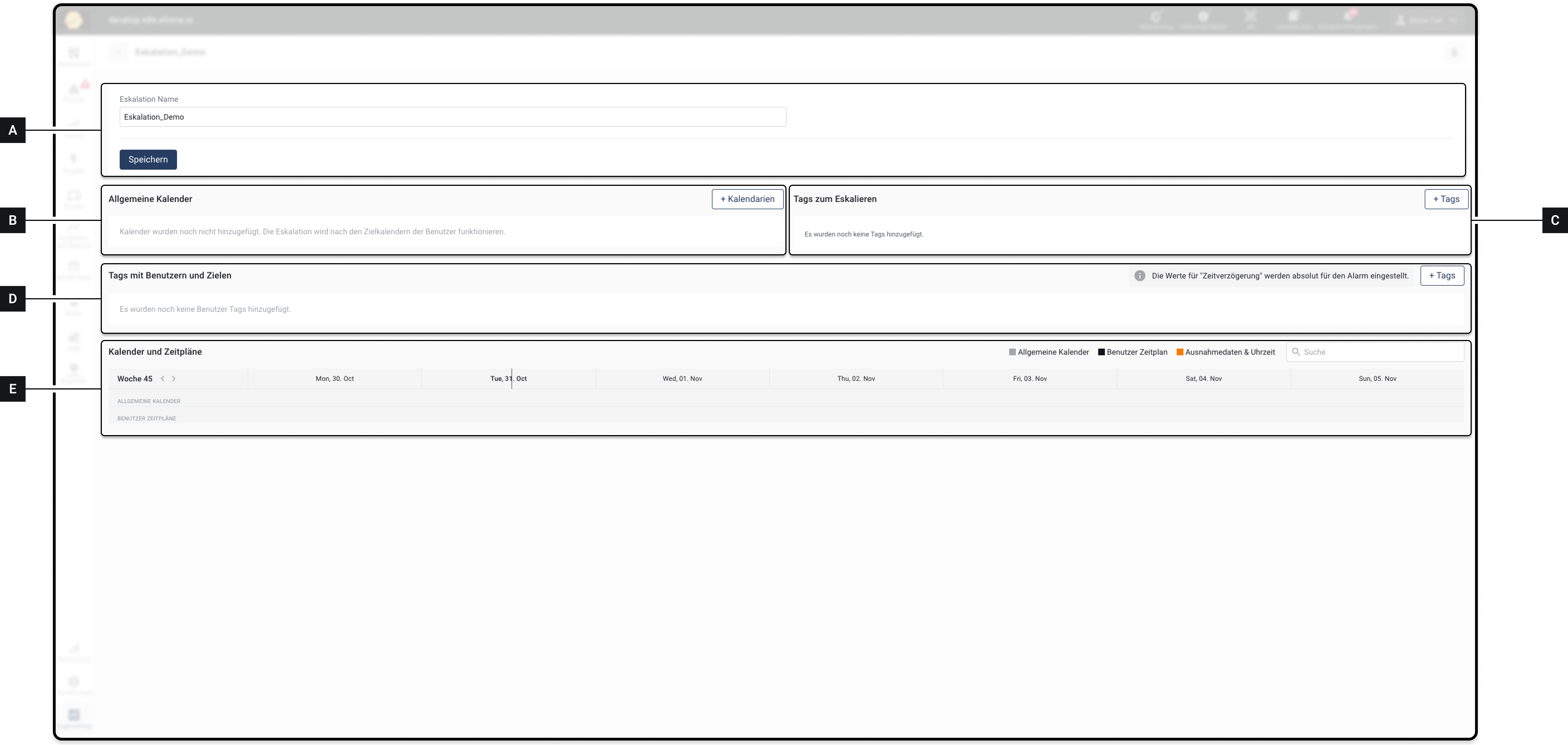
The "Configure escalation" menu is divided into 5 elements.

Fig. 1 – The "Configure escalation" menu in the empty state

[A]

Escalation name

Here you can subsequently adjust the name of the escalation

[B]

General calendar

Here you select the General calendar.

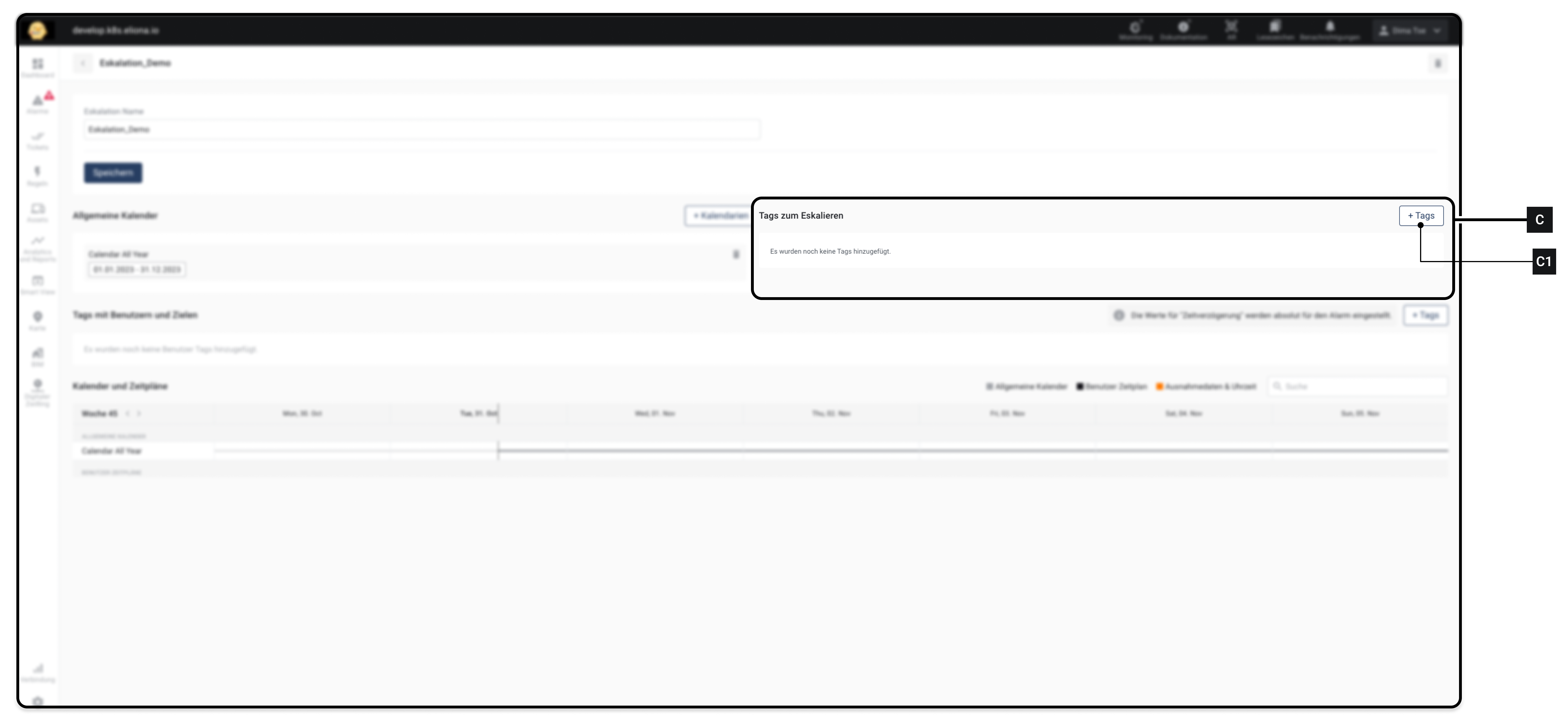
[C]

Tags for escalation

Here you specify which alarms are escalated.

[D]

Tags with users and targets

Here you specify to which users an alarm is escalated.

[E]

Calendars and schedules

Here you can see details and make further adjustments

1 – Add general calendar

1.1 – Overview

In this step you select WHEN an alarm should be escalated.

This is done by selecting 1 or more General calendar Only on dates selected in these calendars are alarms escalated.

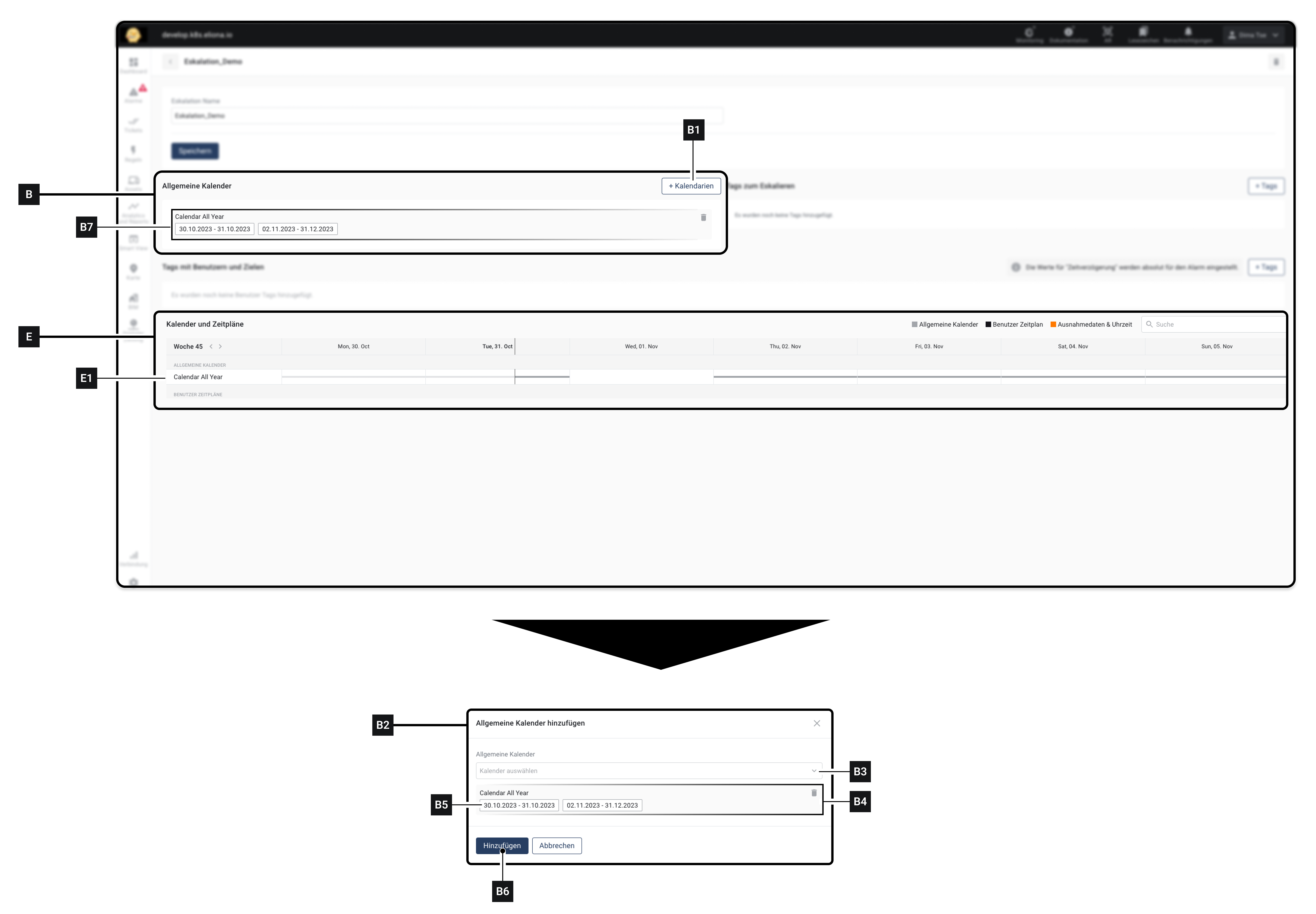
The General calendar are in Element [B] selected. In Fig. 2, 1 General calendar was [B7] added. The dates selected in the calendar are also displayed.

If no general calendar is available: Here you can learn how to -> create a general calendar.

After a calendar has been added, it appears in Element [E] in time bar [E1]. Using this time bar, you can also see when the alarm is escalated. In Fig. 2, for example, an interruption was inserted on November 1. This means that on November 1 no escalations would take place.

Fig. 2 – Selecting a general calendar
1.2 – Step-by-step instructions

  1. Click on [B1] to add a general calendar ▷ The window [B2] appears

  2. Select in [B3] a general calendar ▷ The selected calendar is in [B4] displayed ▷ In [B6] you can see the validity dates for the added general calendar

  3. Optional: Select additional general calendars

  4. Click on Add [B6]

Step 2 – Tags for escalation

2.1 – Overview

In this step you determine which alarms are escalated.

To do this, you use -> Tags.

As described in chapter -> Alarms each alarm is based on a -> rule. You can assign 1 or more tags to rules.

In window [C] you can specify 1 or more tags. Only alarms triggered by a rule that has the same tags as those specified in window [C] will be escalated.

2.2 – Step by step

  1. Click on [C1], to add one or more tags for escalation

  2. Added tags appear in the element [C]

Step 3 – Tags with users and targets

3.1 – Overview

In this step you select to which users the alarm should be escalated.

As with alarms, you use -> Tags.

In window [D] you can specify 1 or more tags. Users who have this tag assigned are then added.

Alarms are escalated to these users.

3.2 – Step by step

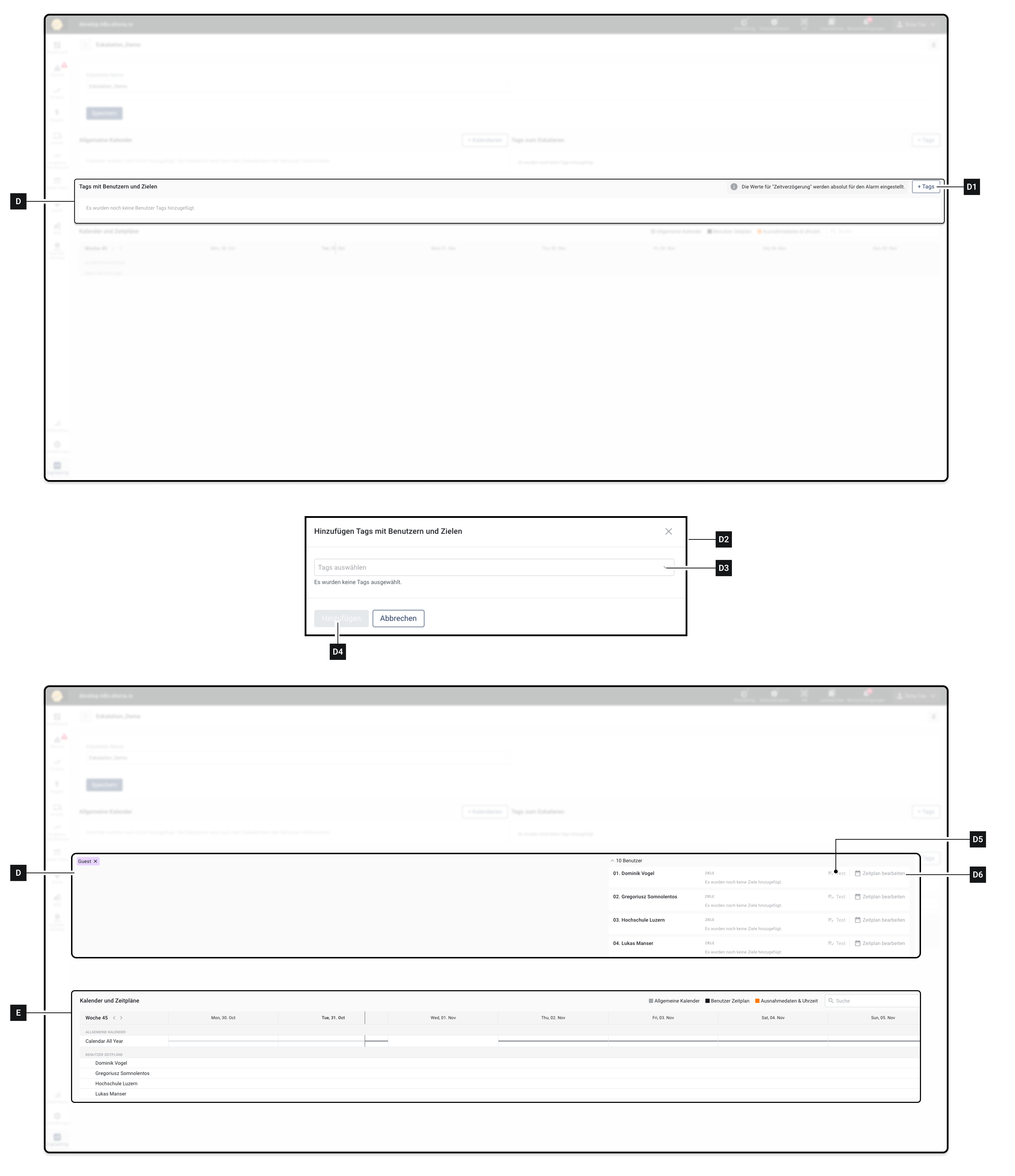
  1. Click on [D1] ▷ The window [D2] opens

  2. Under [D3] select tags

  3. Click on [D4] ▷ All users who have the selected tags appear in Element [D] ▷ All users who have the selected tags appear in Element [E]

Step 4 – Select escalation channel

4.1 – Overview

In this step you determine on which escalation channel alarms are escalated to a user.

This can be set individually for each user.

4.2 – Step by step

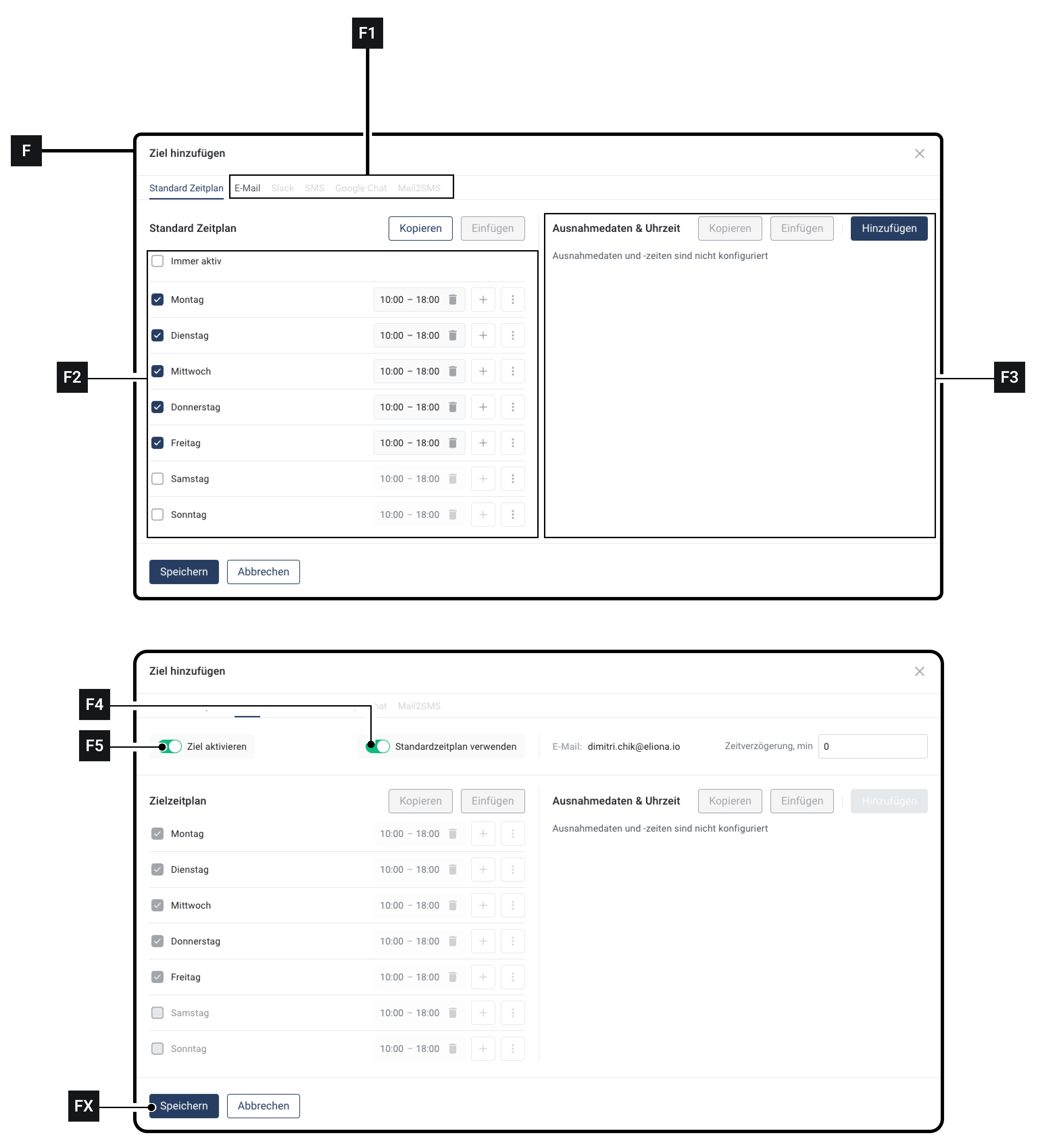
  1. For the user for whom you want to select the escalation channel: Click on Edit schedule [D6] ▷ The window [F] opens ▷ In the row [F1] You can see all escalation channels. Unavailable escalation channels are greyed out

  2. Click on the desired escalation channel

  3. Activate the switch [F5] ▷ The escalation will be enabled for the ones shown in [F2] displayed

  4. Click on Save [FX]

  5. Click on [D5] to test the escalation

Step 5 – Schedules

5.1 – Overview

You can adjust a detailed schedule for each user to whom an alarm is escalated. This schedule specifies the -> General calendar.

The schedules can be configured individually per user and per escalation channel.

This makes it possible, for example, to notify a user during normal working hours by both email and SMS, but after working hours only by email.

A separate schedule can be created for each escalation channel, or a default schedule can be used.

This is the default schedule for this user. This schedule applies ONLY TO THIS USER!

Must not be confused with the general calendar.

5.2 – Adjust default schedule

  1. For the user for whom you want to adjust the schedule: Click on Edit schedule [D6] ▷ The window [F] opens ▷ In the row [F1] the Default schedule tab is selected.

  2. In field [F2] you can adjust the default schedule.

  3. In field [F3] you can insert exceptions

  4. Click on Save [FX], to adopt the default schedule

5.3 – Apply default schedule to an escalation channel

  1. For the user for whom you want to apply the default schedule: Click on Edit schedule [D6] ▷ The window [F] opens ▷ In the row [F1] You can see all escalation channels. Unavailable escalation channels are greyed out

  2. Click on the desired escalation channel

  3. Make sure that the switch [F5] is enabled

  4. Activate the switch [F4] ▷ The area [F2] will be greyed out ▷ In the area [F2] the values appear that you configured in -> 5.2 Adjust default schedule configured

  5. Click on Save [FX]

  6. Repeat this process for each escalation channel to which you want to apply the default schedule

5.4 – Apply individual schedule for an escalation channel

You can use an individual schedule for each escalation channel.

  1. For the user for whom you want to apply the default schedule: Click on Edit schedule [D6] ▷ The window [F] opens ▷ In the row [F1] You can see all escalation channels. Unavailable escalation channels are greyed out

  2. Click on the desired escalation channel

  3. Make sure that the switch [F5] is enabled

  4. Make sure that the switch [F4] is disabled

  5. Configure in area [F2] the individual schedule ◈ This individual schedule applies only to the escalation channel in which it was configured!

  6. Optional: Repeat the process for all desired escalation channels

Last updated

Was this helpful?