> For the complete documentation index, see [llms.txt](https://docs.buildings.ability.abb/collection/llms.txt). Markdown versions of documentation pages are available by appending `.md` to page URLs; this page is available as [Markdown](https://docs.buildings.ability.abb/collection/english-v14/documentation/alarme-regeln-und-eskalationen/eskalationen/eine-eskalation-konfigurieren.md).

# Configure an escalation

In this chapter you will learn how to configure an escalation

## Overview

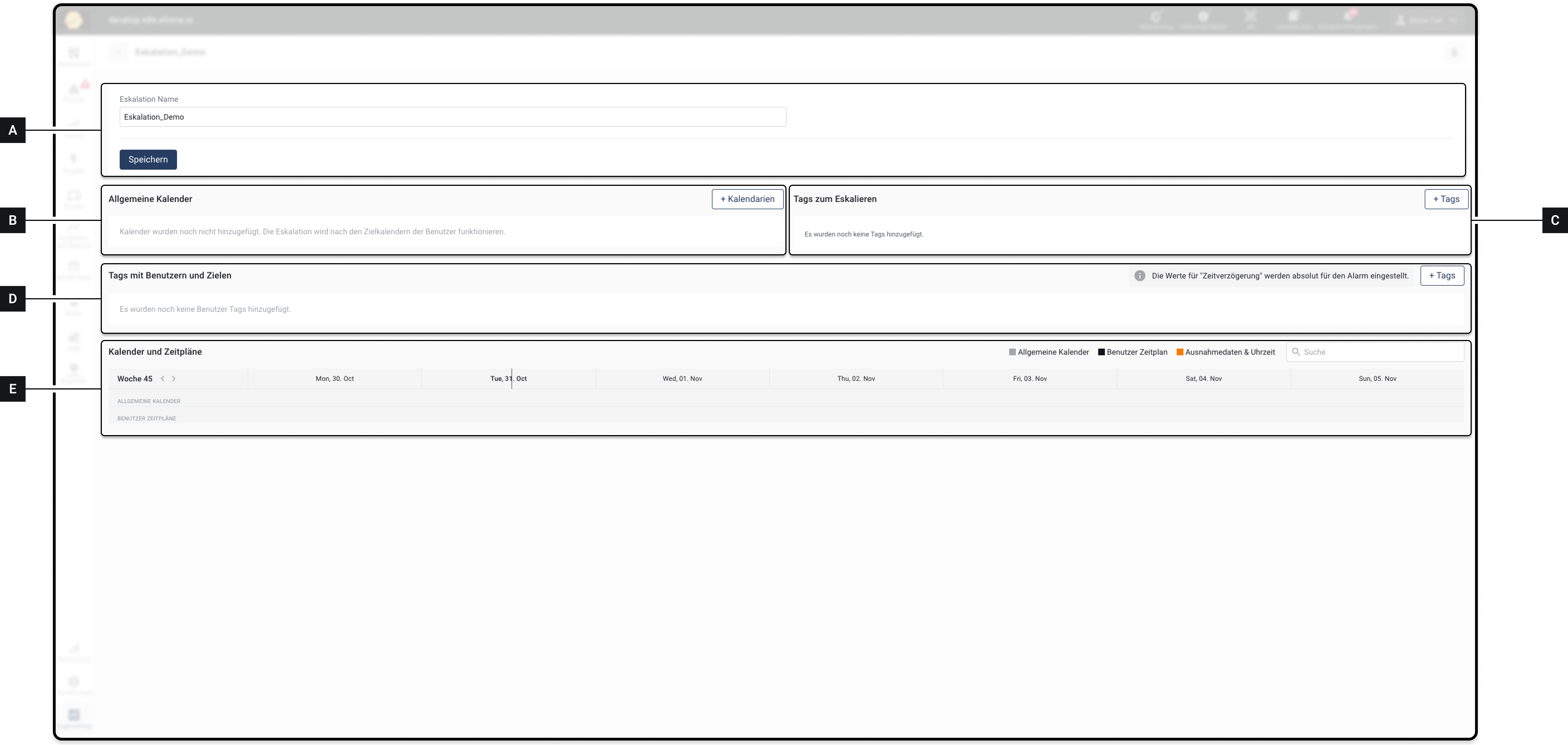
The "Configure escalation" menu is divided into 5 elements.

<div data-full-width="true"><figure><img src="https://content.gitbook.com/content/Nyvwhz1kEMXcHf4HLuZ8/blobs/TPFScaS3crLJYxE7ROv5/3D15FC22-AF8C-4714-A866-6168D307FF0C.png" alt=""><figcaption><p>Fig. 1 – The "Configure escalation" menu in its empty state</p></figcaption></figure></div>

<table data-full-width="true"><thead><tr><th width="110.33333333333331"></th><th width="170"></th><th></th></tr></thead><tbody><tr><td><strong>[A]</strong></td><td>Escalation name</td><td>Here you can later adjust the name of the escalation</td></tr><tr><td><strong>[B]</strong></td><td>General calendars</td><td>Here you select the general calendar.</td></tr><tr><td><strong>[C]</strong></td><td>Tags to escalate</td><td>Here you specify which alarms are escalated.</td></tr><tr><td><strong>[D]</strong></td><td>Tags with users and targets</td><td>Here you specify which users an alarm is escalated to.</td></tr><tr><td><strong>[E]</strong></td><td>Calendars and schedules</td><td>Here you can view details and make further adjustments</td></tr></tbody></table>

## 1 – Add general calendar

### 1.1 – Overview

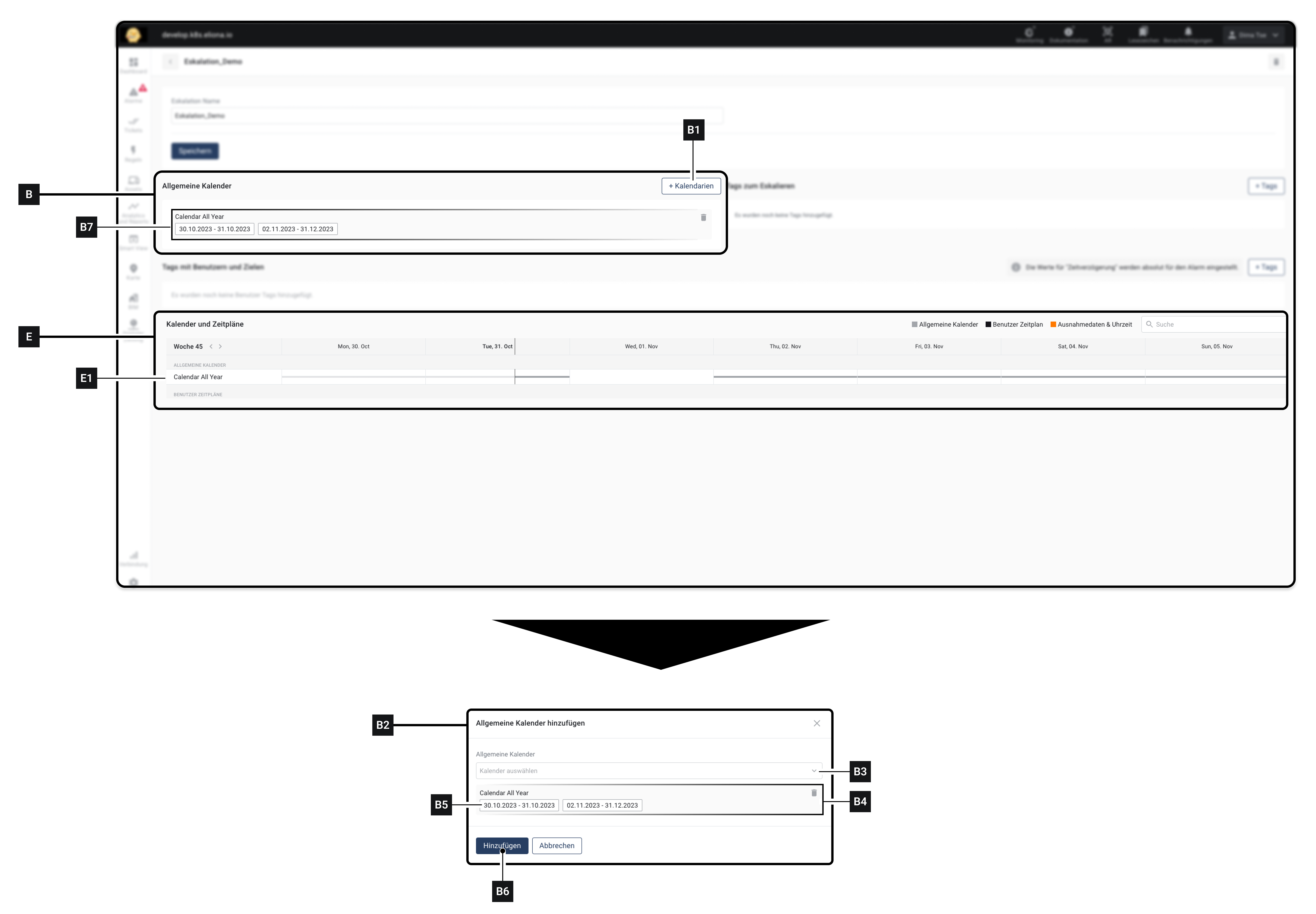
In this step you select, **WHEN** an alarm should be escalated.

This is done by selecting 1 or more *General calendars* . Alarms are escalated only on dates selected in these calendars.

The *general calendars* are selected in **element \[B]** selected. In Fig. 2, 1 general calendar was **\[B7]** added. The dates selected in the calendar are also displayed.

{% hint style="info" %}
If no general calendar is available: Here you can learn how to [-> create a general calendar](/collection/english-v14/documentation/alarme-regeln-und-eskalationen/eskalationen/allgemeinen-kalender-erstellen.md).
{% endhint %}

After a calendar has been added, a **element \[E]** a **timeline \[E1].** Using this timeline, you can also see when the alarm will be escalated. In Fig. 2, for example, an interruption was inserted on November 01. This means that no escalations would take place on November 01.

<div data-full-width="true"><figure><img src="https://content.gitbook.com/content/Nyvwhz1kEMXcHf4HLuZ8/blobs/eiw8zlHKE67F3ilGdh4c/1F5614EE-052E-41A4-B04C-AD4412B30D56.png" alt=""><figcaption><p>Fig. 2 – Selecting a general calendar</p></figcaption></figure></div>

### 1.2 – Step-by-step instructions

1. Click on **\[B1]** to add a general calendar\
   ▷ The window **\[B2]** appears
2. Select in **\[B3]** a general calendar\
   ▷ The selected calendar is displayed in **\[B4]** displayed\
   ▷ In **\[B6]** you can see the validity dates for the added general calendar
3. Optional: Select additional general calendars
4. Click on **Add \[B6]**

## Step 2 – Tags to escalate

<div data-full-width="true"><figure><img src="https://content.gitbook.com/content/Nyvwhz1kEMXcHf4HLuZ8/blobs/erK7PaOWQHC3TGhXo8HM/22E396DA-E034-4F48-A9D5-0C36D98531BD.png" alt=""><figcaption></figcaption></figure></div>

#### 2.1 – Overview

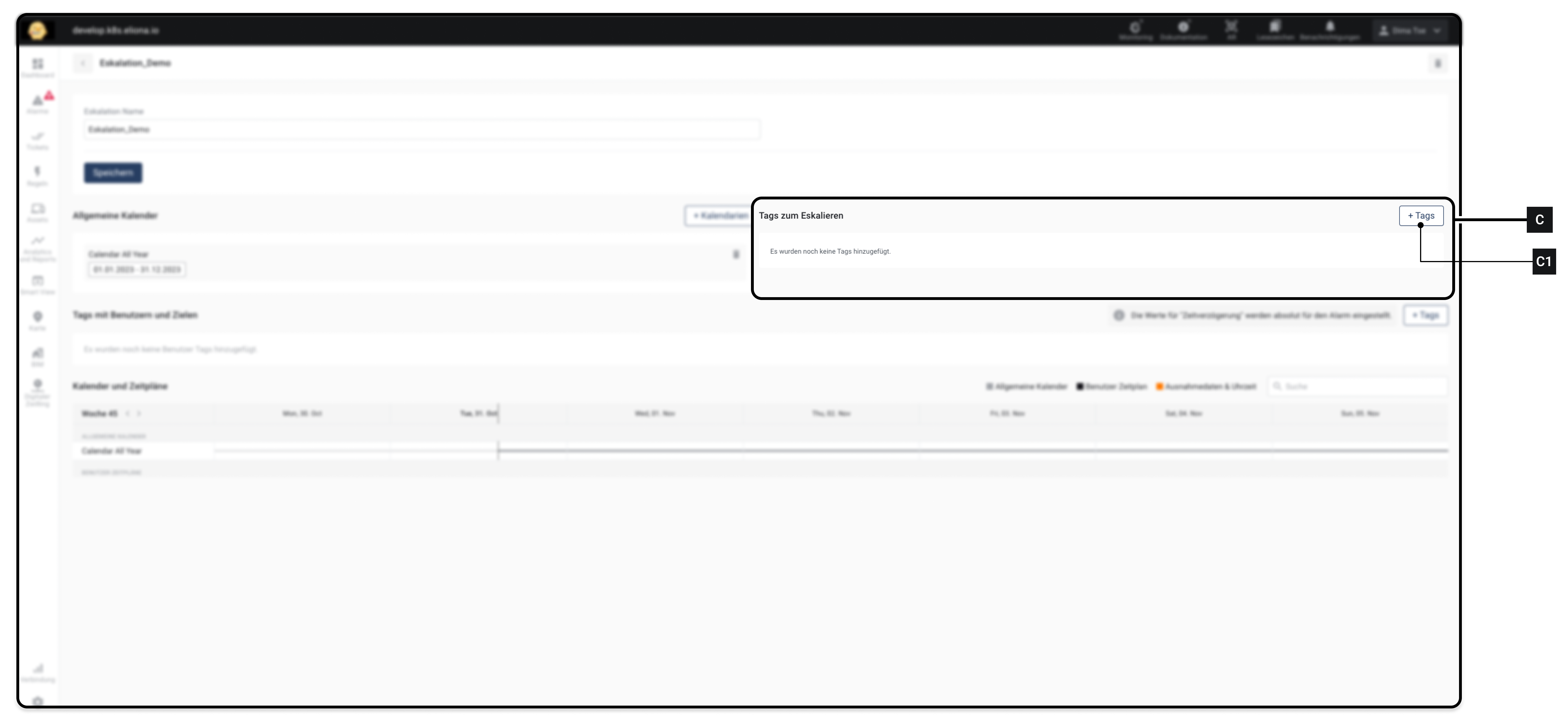
In this step you determine, **which** alarms are escalated.

To do this, you use [-> tags](/collection/english-v14/documentation/tags.md).

As described in chapter [-> Alarms](/collection/english-v14/documentation/alarme-regeln-und-eskalationen/alarme.md) , each alarm is based on a [-> rule](/collection/english-v14/documentation/alarme-regeln-und-eskalationen/regeln.md). You can assign one or more tags to rules.

In window **\[C]** you can specify one or more tags. Only alarms triggered by a rule that has the same tags specified in window **\[C]** were entered are escalated.

#### 2.2 – Step-by-step

1. Click on **\[C1]**, to add one or more tags for escalation
2. Added tags appear in element **\[C]**

## Step 3 – Tags with users and targets

<div data-full-width="true"><figure><img src="https://content.gitbook.com/content/Nyvwhz1kEMXcHf4HLuZ8/blobs/lFTju8BCOGFTDLbcDqkp/7A5D3F9E-B6E7-4AD2-AFCB-AC8312880EBE.png" alt=""><figcaption></figcaption></figure></div>

### 3.1 – Overview

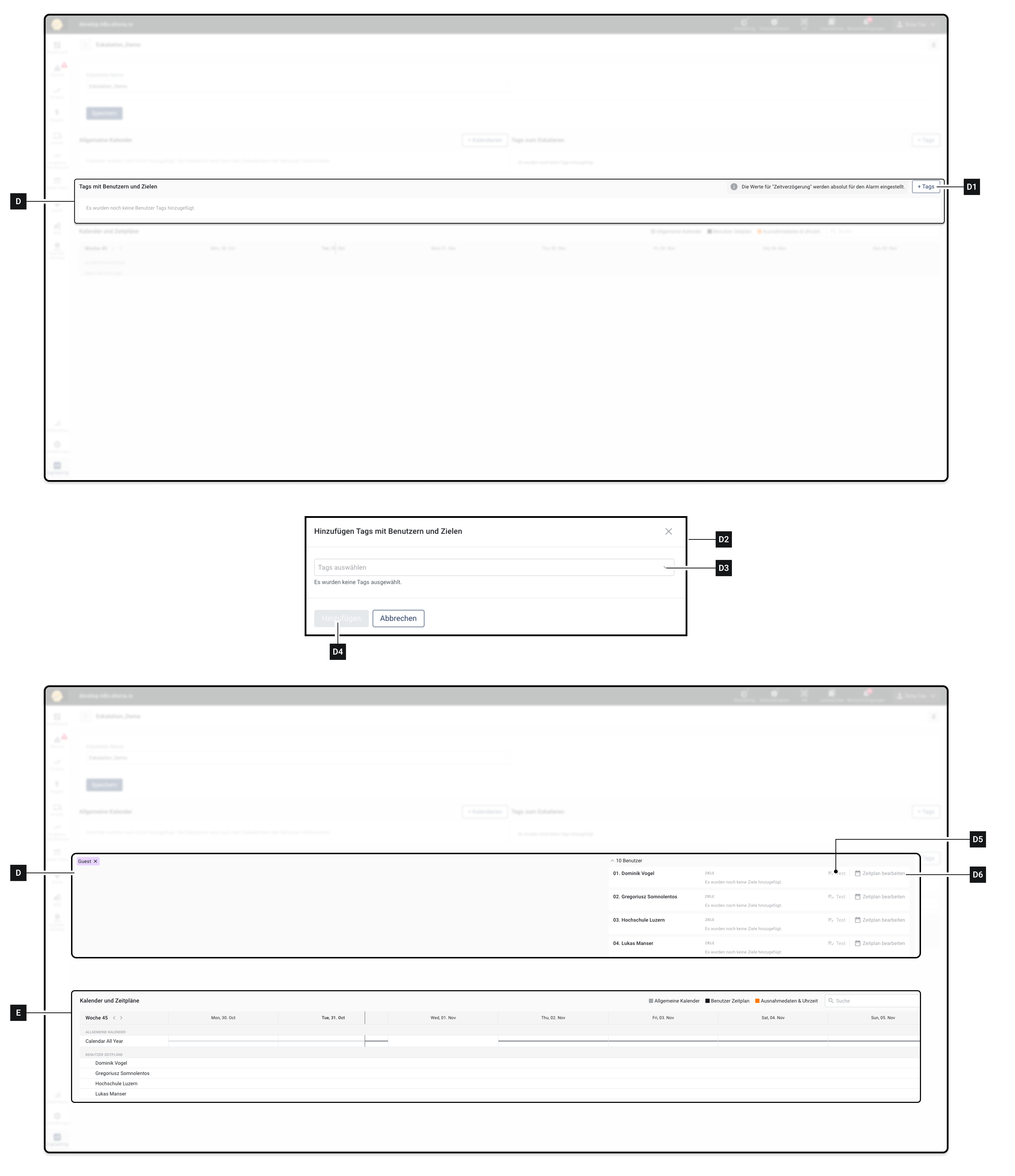
In this step you select which users the alarm should be escalated to.

Just like with alarms, you use [-> tags](/collection/english-v14/documentation/tags.md).

In window **\[D]** you can specify one or more tags. Users tagged with this tag will then be added.

Alarms are escalated to these users.

### 3.2 – Step-by-step

1. Click on **\[D1]**\
   ▷ The window **\[D2]** opens
2. Select under **\[D3]** tags
3. Click on **\[D4]**\
   ▷ All users who have the selected tags appear in **element \[D]**\
   ▷ All users who have the selected tags appear in **element \[E]**

## Step 4 – Select escalation channel

<div data-full-width="true"><figure><img src="https://content.gitbook.com/content/Nyvwhz1kEMXcHf4HLuZ8/blobs/VFBQqSgjO1VfnFu9JBRw/E42B8B62-AE5F-4C16-9B5E-CF70DFD69E93.png" alt=""><figcaption></figcaption></figure></div>

### 4.1 – Overview

In this step you determine via which escalation channel alarms are escalated to a user.

This can be set individually for each user.

### 4.2 – Step-by-step

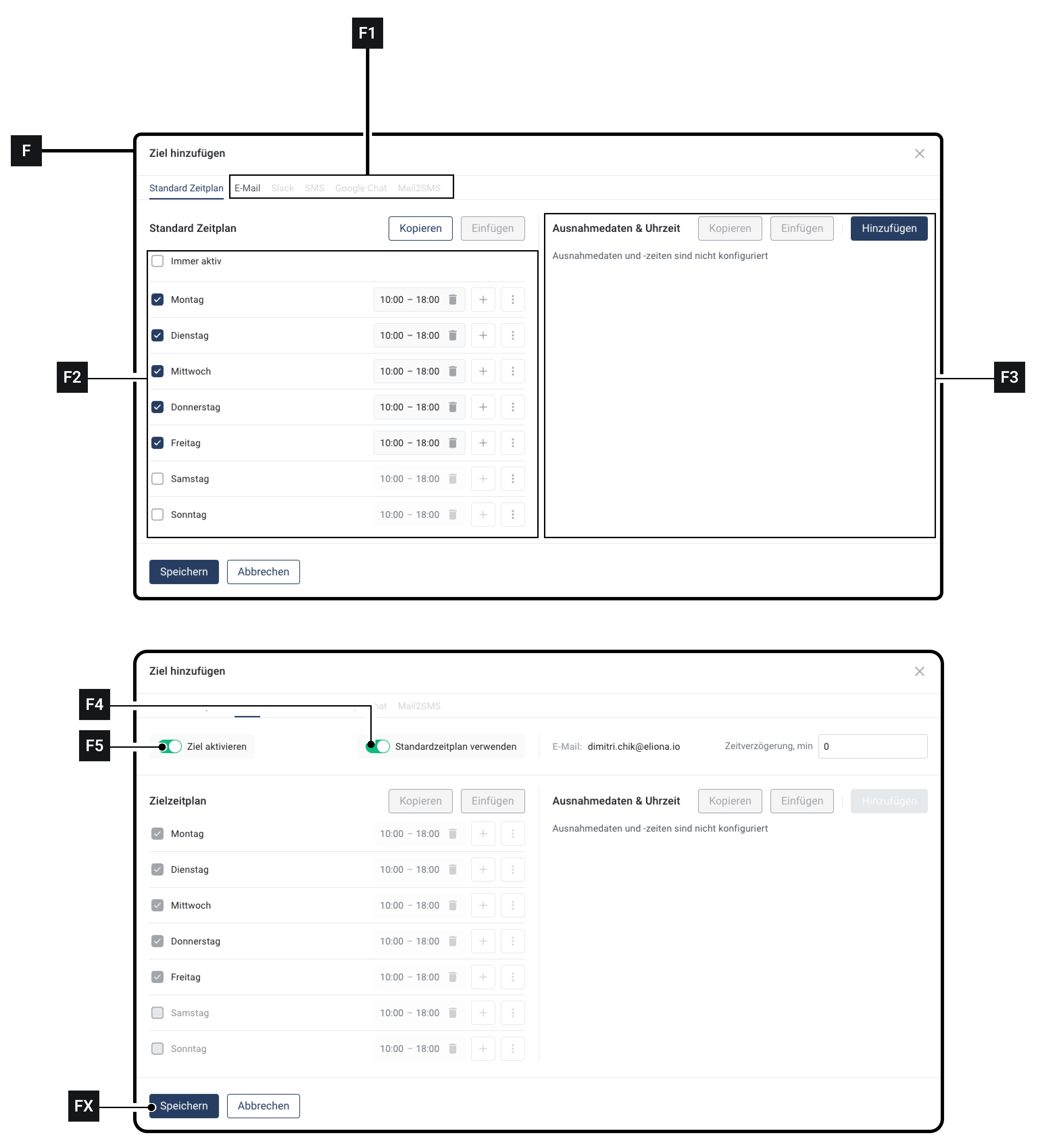
1. For the user for whom you want to choose the escalation channel: Click on **Edit schedule \[D6]**\
   ▷ The window **\[F]** opens\
   ▷ In the row **\[F1]** You can see all escalation channels. Unavailable escalation channels are greyed out
2. Click the desired escalation channel
3. Enable the switch **\[F5]**\
   ▷ Escalation is enabled for the **\[F2]** shown
4. Click on **Save \[FX]**
5. Click on **\[D5]** to test the escalation

## Step 5 – Schedules

### 5.1 – Overview

You can customize a specific schedule for each user to whom an alarm is escalated. This schedule refines the [-> general calendar](/collection/english-v14/documentation/alarme-regeln-und-eskalationen/eskalationen/allgemeinen-kalender-erstellen.md).

The schedules can be configured individually per user and per escalation channel.

This makes it possible, for example, to notify a user during regular working hours by email and SMS, but after working hours only by email.

A separate schedule can be created for each escalation channel, or a default schedule can be used.

This is the default schedule for this user. This schedule applies ONLY TO THIS USER!

Must not be confused with the general calendar.

### 5.2 – Adjust default schedule

1. For the user for whom you want to adjust the schedule: Click on **Edit schedule \[D6]**\
   ▷ The window **\[F]** opens\
   ▷ In the row **\[F1]** the Default schedule tab is selected.
2. In field **\[F2]** you can adjust the default schedule.
3. In field **\[F3]** you can add exceptions
4. Click on **Save \[FX]**&#x74;o apply the default schedule

### 5.3 – Apply default schedule to an escalation channel

1. For the user for whom you want to apply the default schedule: Click on **Edit schedule \[D6]**\
   ▷ The window **\[F]** opens\
   ▷ In the row **\[F1]** You can see all escalation channels. Unavailable escalation channels are greyed out
2. Click the desired escalation channel
3. Make sure that the switch **\[F5]** is enabled
4. Enable the switch **\[F4]**\
   ▷ The area **\[F2]** is greyed out\
   ▷ In the area **\[F2]** the values you configured in [-> 5.2 Adjust default schedule](#schritt-5-zeitplaene) configured
5. Click on **Save \[FX]**
6. Repeat this process for each escalation channel to which you want to apply the default schedule

### 5.4 – Apply individual schedule for an escalation channel

You can use an individual schedule for each escalation channel.

1. For the user for whom you want to apply the default schedule: Click on **Edit schedule \[D6]**\
   ▷ The window **\[F]** opens\
   ▷ In the row **\[F1]** You can see all escalation channels. Unavailable escalation channels are greyed out
2. Click the desired escalation channel
3. Make sure that the switch **\[F5]** is enabled
4. Make sure the switch **\[F4]** is disabled
5. Configure in **area \[F2]** the individual schedule\
   ◈ This individual schedule applies only to the escalation channel in which it was configured!
6. Optional: Repeat the process for all desired escalation channels

## Repeated notifications

If a pending alarm is not acknowledged, you can have the notification repeated for each user and channel target. Set the interval, number, and unlimited repetition directly on the respective target.

{% content-ref url="/pages/8afa5ecaa175fc5ab1662effe421485678be239b" %}
[Configure repeated escalations](/collection/english-v14/documentation/alarme-regeln-und-eskalationen/eskalationen/wiederholte-eskalationen-konfigurieren.md)
{% endcontent-ref %}


---

# Agent Instructions
This documentation is published with GitBook. GitBook is the documentation platform designed so that both humans and AI agents can read, navigate, and reason over technical content effectively. Learn more at gitbook.com.

## Querying This Documentation
If you need additional information that is not directly available in this page, you can query the documentation by asking a question.

Perform an HTTP GET request on the following URL with the `ask` and `goal` query parameters:

```
GET https://docs.buildings.ability.abb/collection/english-v14/documentation/alarme-regeln-und-eskalationen/eskalationen/eine-eskalation-konfigurieren.md?ask=<question>&goal=<user_goal>
```

`ask` is the immediate question: it should be specific, self-contained, and written in natural language.
`goal` is what the user is ultimately trying to achieve, the reason they need the answer. Sharing it helps GitBook give you a better, more relevant answer. A goal is most helpful when it describes the outcome the user wants rather than restating the question. For example, with `ask=how do I create an API token`, a goal like `automate deployments from our CI pipeline` lets GitBook tailor the answer to that use case.

The response will contain a direct answer to the question and relevant excerpts and sources from the documentation.

Use this mechanism when the answer is not explicitly present in the current page, you need clarification or additional context, or you want to retrieve related documentation sections.