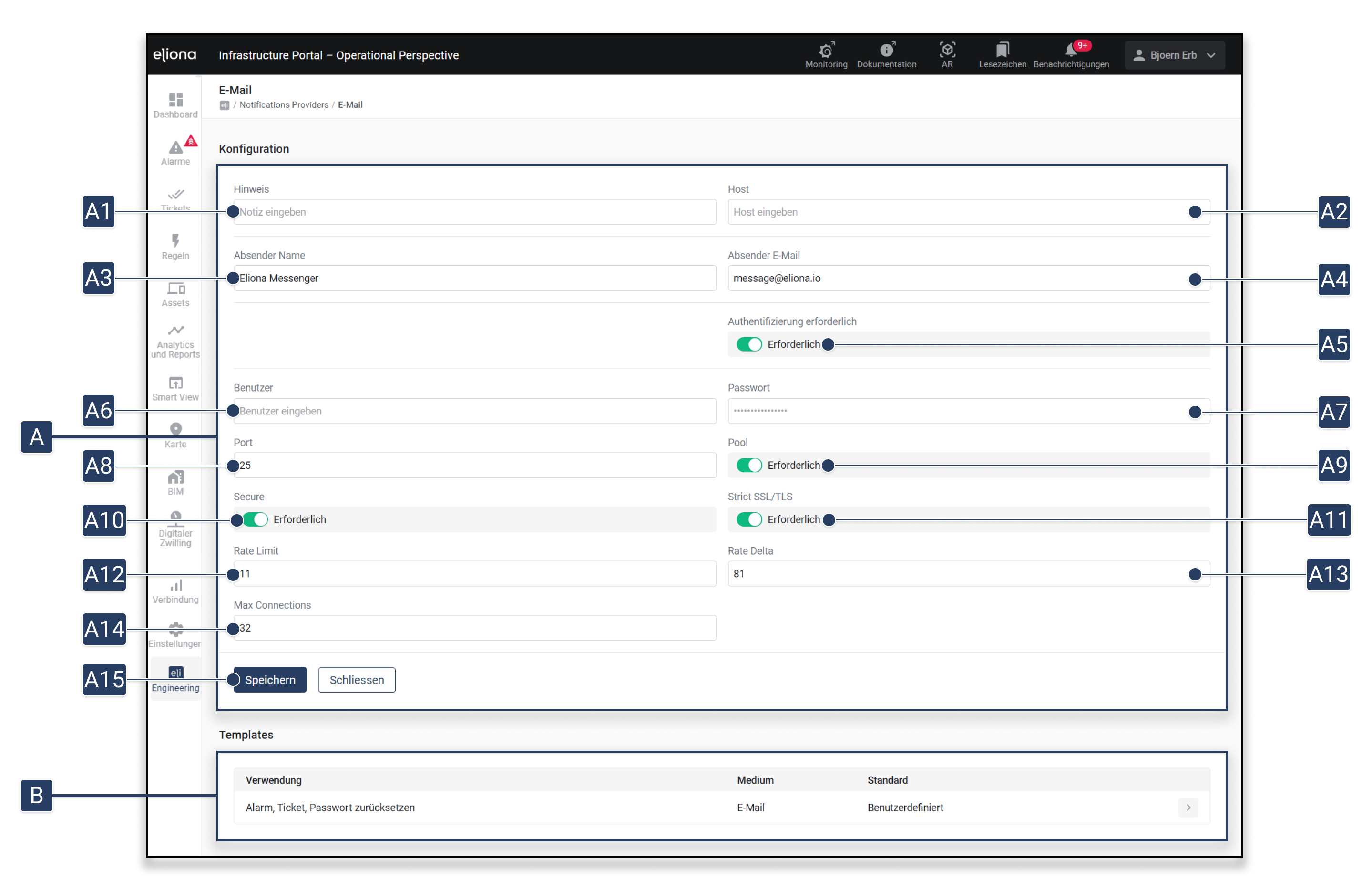
| No. | Field / Option | Description |
|---|---|---|
| A1 | Note | Internal note for this configuration. |
| A2 | Host | SMTP server through which emails are sent. |
| A3 | Sender Name | Name displayed as the sender in emails. |
| A4 | Sender Email | Email address used as the sender. |
| A5 | Authentication required | Enable/disable whether SMTP authentication is used. |
| A6 | Users | Username / email address for SMTP authentication. |
| A7 | Password | Password for SMTP authentication. |
| A8 | Port | SMTP server port (e.g. 25, 465, or 587). |
| A9 | Pool | Enables sending via an SMTP pool. |
| A10 | Secure | Enables the use of a secure connection (STARTTLS/SSL). |
| A11 | Strict SSL/TLS | Forces a strict SSL/TLS connection. |
| A12 | Rate Limit | Maximum allowed number of emails per defined interval. |
| A13 | Rate Delta | Time interval for the rate limit in seconds. |
| A14 | Max Connections | Maximum number of concurrent SMTP connections. |
| A15 | Save | Apply changes to the configuration. |
 on the right in the **template \[C]**, to edit a pre-made template.
{% content-ref url="/pages/8894b3c86580a6b6b9cdac807e96502026afb725" %}
[Twig templating in Eliona](/collection/english-v14/academy/twig-templating-in-eliona.md)
{% endcontent-ref %}
on the right in the **template \[C]**, to edit a pre-made template.
{% content-ref url="/pages/8894b3c86580a6b6b9cdac807e96502026afb725" %}
[Twig templating in Eliona](/collection/english-v14/academy/twig-templating-in-eliona.md)
{% endcontent-ref %}
.png)
An alarm was triggered at [Alarm Time].
Details: