> For the complete documentation index, see [llms.txt](https://docs.buildings.ability.abb/collection/llms.txt). Markdown versions of documentation pages are available by appending `.md` to page URLs; this page is available as [Markdown](https://docs.buildings.ability.abb/collection/english-v14/documentation/alarme-regeln-und-eskalationen/regelketten/regelkette-konfigurieren.md).

# Configure rule chain

## Overview

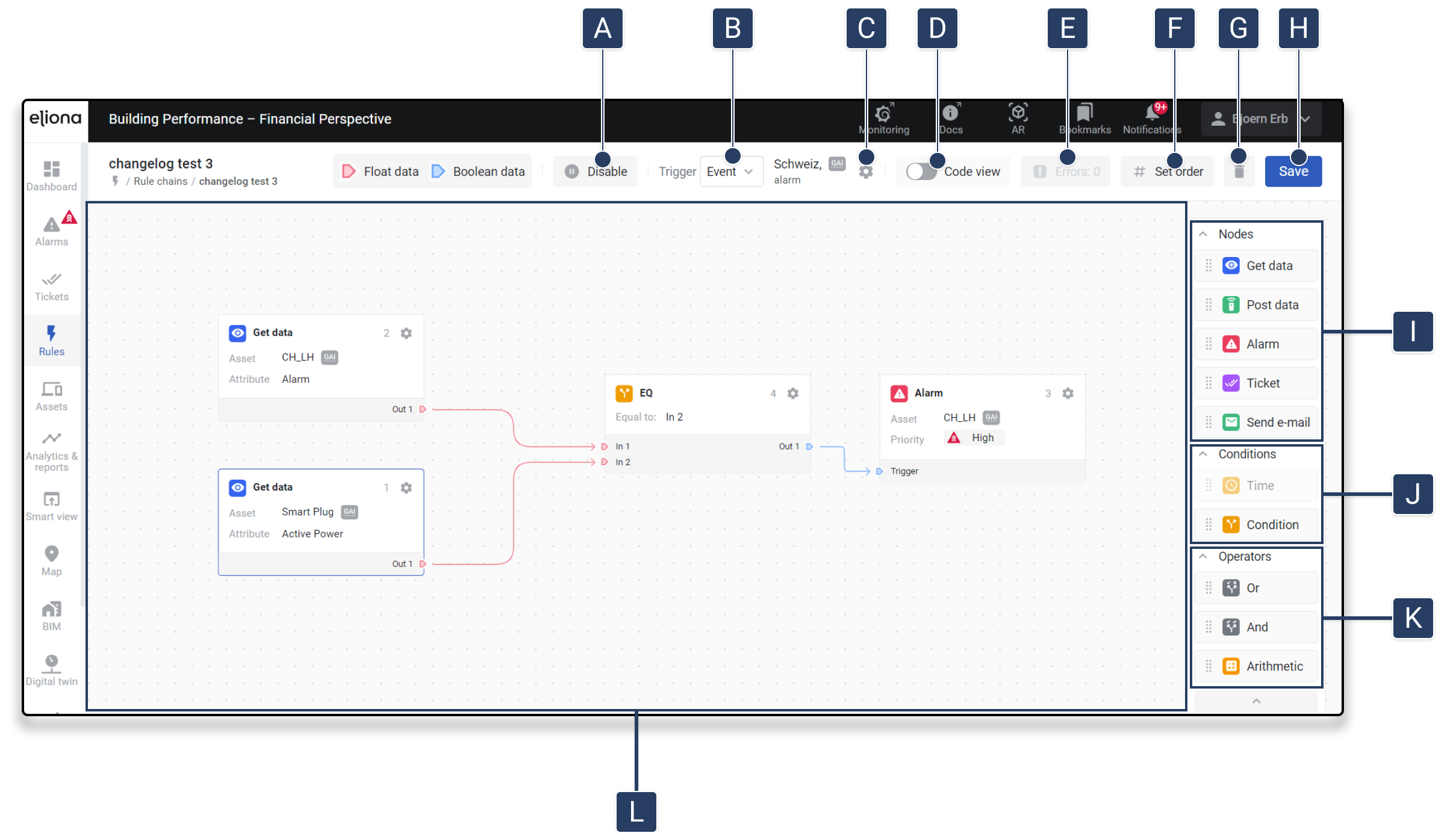
<div data-full-width="true"><figure><img src="https://content.gitbook.com/content/Nyvwhz1kEMXcHf4HLuZ8/blobs/vFN1Y1OCxVzsmvIglVTT/Rule%20chain%20konfig.png" alt=""><figcaption></figcaption></figure></div>

<table data-full-width="true"><thead><tr><th width="95"></th><th width="223"></th><th></th></tr></thead><tbody><tr><td><strong>[A]</strong></td><td>Start/Stop Chain</td><td><strong>Starts or stops</strong> the current rule chain.</td></tr><tr><td><strong>[B]</strong></td><td>Trigger</td><td>Select whether the trigger <strong>event-based</strong> or <strong>cycle-based</strong> should be. <a href="#trigger">-> Trigger</a></td></tr><tr><td><strong>[C]</strong></td><td>Trigger settings</td><td>Here the <strong>trigger can be configured</strong> in the app. <a href="#trigger">-> Trigger</a></td></tr><tr><td><strong>[D]</strong></td><td>Code view</td><td>Displays the <strong>Code view</strong> entered in "Asset Modeling".</td></tr><tr><td><strong>[E]</strong></td><td>errors</td><td>Shows how many <strong>errors</strong> are present. Clicking it opens a window that shows the errors in detail.</td></tr><tr><td><strong>[F]</strong></td><td>Set order</td><td>After clicking on <strong>Set order</strong> you can determine the <strong>[L]</strong> the <strong>sequence of the blocks</strong> by clicking the elements one after another in</td></tr><tr><td><strong>[G]</strong></td><td>Delete</td><td>Here the <strong>rule chain can be deleted</strong> in the app.</td></tr><tr><td><strong>[H]</strong></td><td>Save</td><td><strong>Save your changes</strong>.</td></tr><tr><td><strong>[I]</strong></td><td>Nodes</td><td><strong>Nodes</strong> are the <strong>interfaces to the Eliona system</strong>, which represent various actions or data links.</td></tr><tr><td><strong>[J]</strong></td><td>Conditions</td><td>With this, <strong>Conditions</strong> can be created between the nodes, including <strong>time conditions</strong>.</td></tr><tr><td><strong>[K]</strong></td><td>Operations</td><td>Performs <strong>logical operations</strong> (e.g. AND, OR) within the rule chain.</td></tr><tr><td><strong>[L]</strong></td><td>Linking field</td><td>Area in which the <strong>Nodes</strong> and <strong>Connections</strong> are placed and linked with each other.</td></tr></tbody></table>

## Create a rule chain step by step

1. Make sure that you are in the configuration of the desired rule chain.[ -> Open the configuration of an existing rule chain.](/collection/english-v14/documentation/alarme-regeln-und-eskalationen/regelketten/die-konfiguration-einer-bestehenden-regelkette-offnen.md)
2. **Select trigger**\
   Decide whether the rule is triggered event- or cycle-based and configure the *asset* or the time interval. [-> Trigger](#trigger)
3. **Add blocks**\
   Drag the required blocks by *drag and drop* onto the work area \[L]. [-> Add blocks](#bausteine-hinzufugen)
4. **Configure blocks**\
   Click the gear icon in the block to make specific settings such as *asset*, attribute or conditions. [-> Configure blocks](#baustein-konfigurieren)
5. **Connect blocks**\
   Connect the blocks by drawing a line from an **output pin** to an **input pin** and dragging it (pay attention to matching colors). [-> Connect blocks](#bausteine-verbinden)
6. **Check errors**\
   Use the error window to locate and fix errors. [-> Error](#fehler)
7. **Set order**\
   Determine the execution order of the blocks in 'Set order' mode. [-> Set order](#reihenfolge-festlegen)
8. **Save changes**

   Don't forget to save your changes **\[H]**

***

## Trigger

When **Trigger \[B]** you can choose whether the rule chain **event-based** or **cycle-based** should be triggered:

* **Event-based**: In this case, in **\[C]** in **asset and its attribute** must be selected. Every time new data is written to this attribute, the rule chain is triggered automatically.

  <div align="left"><figure><img src="https://content.gitbook.com/content/Nyvwhz1kEMXcHf4HLuZ8/blobs/CZr8xUaxy595zdND1epm/image.png" alt="" width="324"><figcaption></figcaption></figure></div>
* **Cycle-based**: If the rule chain is to be triggered cyclically, you can specify in **\[C]** the number of **seconds** after which the rule chain is executed at regular intervals.

  <div align="left"><figure><img src="https://content.gitbook.com/content/Nyvwhz1kEMXcHf4HLuZ8/blobs/tAMMMk7tkVmuqRa1ckdH/image.png" alt="" width="375"><figcaption></figcaption></figure></div>

{% hint style="info" %}
Output nodes are only triggered when the incoming value changes.
{% endhint %}

***

## Code view

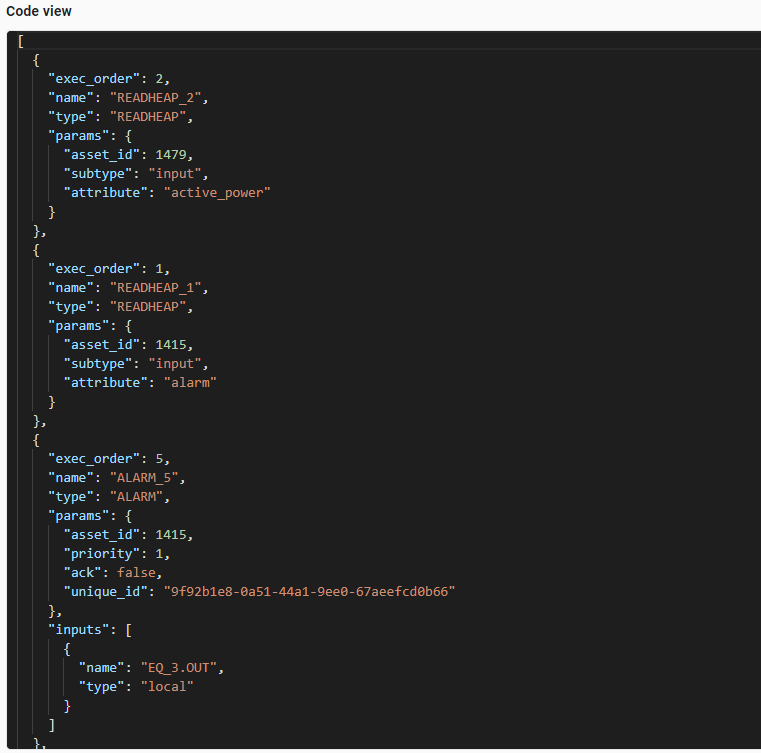
In the **Code view** you can view and edit the created **JSON code** of your rule chain. To **Code view** activate it, click on **\[D]**. Once activated, the JSON code of the rule chain is displayed, containing the configuration and sequence of the nodes and conditions. You have the option to modify the code directly to make specific adjustments instead of using the visual user interface.

<figure><img src="https://content.gitbook.com/content/Nyvwhz1kEMXcHf4HLuZ8/blobs/9NU1aTc5CB3qKV4yuNRl/image.png" alt="" width="563"><figcaption></figcaption></figure>

***

## errors

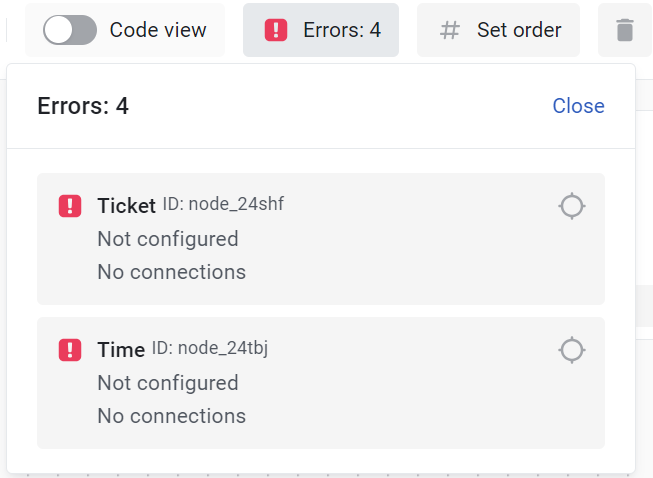
If you click on **Errors \[E]** a window opens that shows all existing errors in detail.

<figure><img src="https://content.gitbook.com/content/Nyvwhz1kEMXcHf4HLuZ8/blobs/yQL9oqZscuFXxcesQHp8/image.png" alt=""><figcaption></figcaption></figure>

By clicking on the **localization icon** <img src="https://content.gitbook.com/content/Nyvwhz1kEMXcHf4HLuZ8/blobs/UrWtInFESlG11Hanr1Rh/image.png" alt="" data-size="line"> you can directly in the **linking field \[L]** jump to the element that caused the error.

***

## **Set order**

Click on **Set order \[F]**, to display the **execution order** of the nodes in the rule chain.

* Once this mode is activated, you can click the nodes in the **linking field \[L]** one after the other to determine their order of execution.
* The **Order number** is automatically incremented and appears at the top right of each node. This lets you see immediately in which order the nodes are executed.

***

## Add blocks

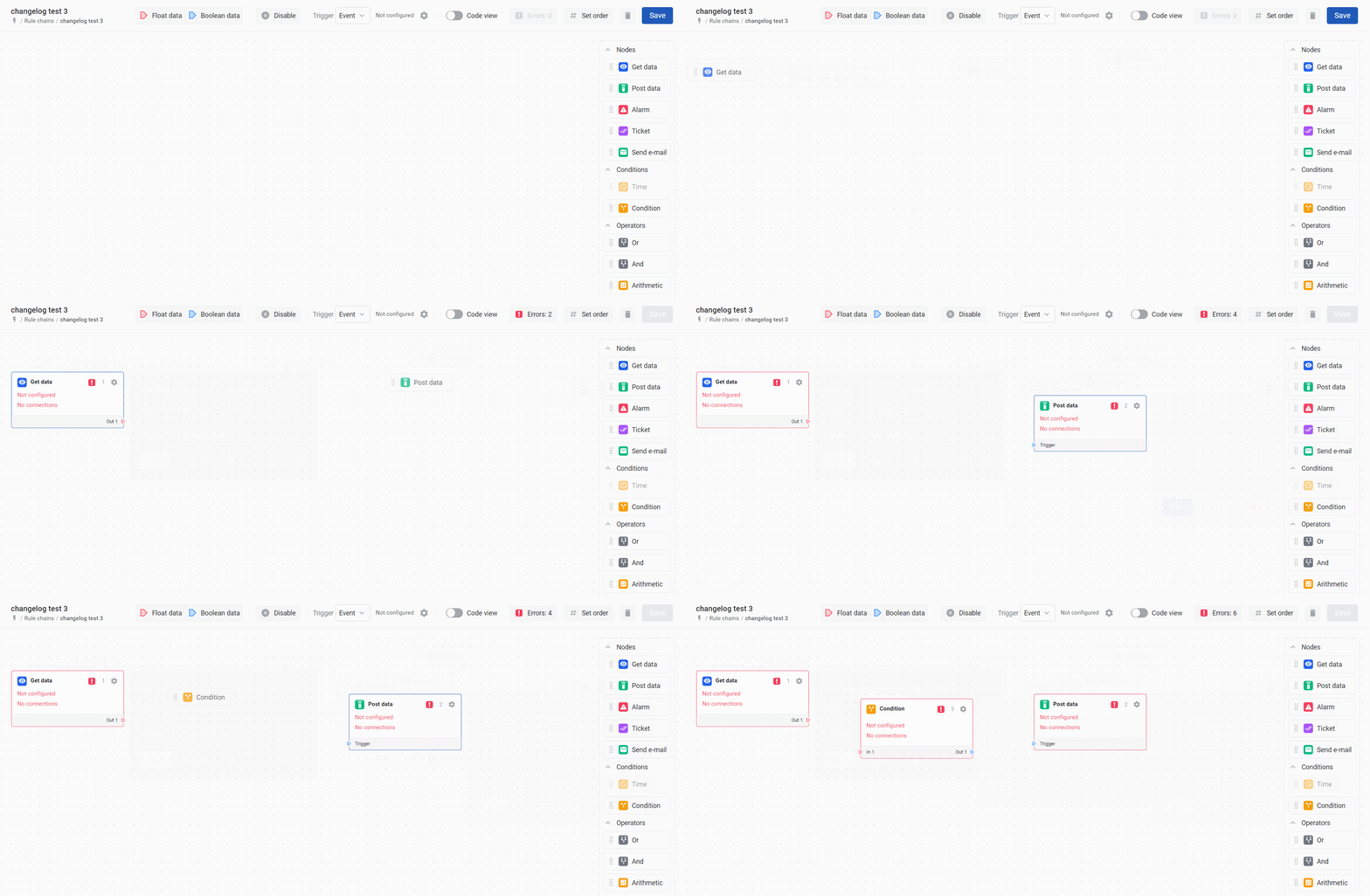
To create a rule, the desired blocks can be dragged by *drag and drop* from the right sidebar onto the field **\[L]** They can be dragged. Each block represents a specific function that can be used in the rule chain.
<figure><img src="https://content.gitbook.com/content/Nyvwhz1kEMXcHf4HLuZ8/blobs/nfZFLUC1rgannOsB5rJh/GIF%2014.10.2024%2007-47-15.gif" alt=""><figcaption></figcaption></figure>

## Configure block

To configure a block, click the gear icon at the top right of the block. This opens a window in which the individual settings of the block can be adjusted, e.g. the number of input and output pins, the *asset*, attributes or conditions to be used.

<figure><img src="https://content.gitbook.com/content/Nyvwhz1kEMXcHf4HLuZ8/blobs/gMsBxn1p40JKw1MAOoqx/Rule%20chain%20konfig%20(3).png" alt="" width="375"><figcaption></figcaption></figure>

## Connect blocks

Blocks are connected to each other by drawing a line by *drag and drop* from an output pin to an input pin of another block. Make sure that the output and input pins have the same color:

* **Red** stands for numerical values.
* **Blue** stands for boolean values (true/false).

Only pins with the same color can be connected to each other to ensure correct data transfer.

**Dynamic pin expansion**

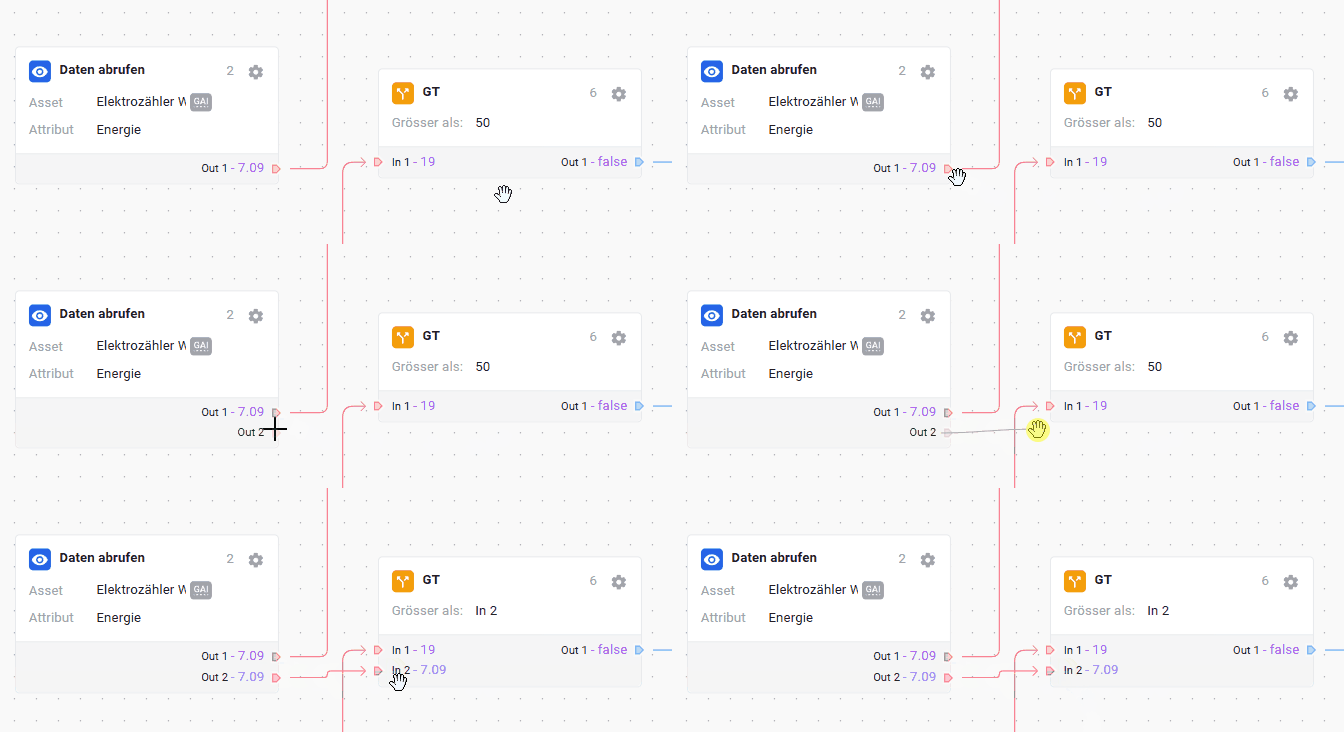
If all existing pins of a block are already occupied, a new pin appears when hovering over an occupied pin. This can be used to create a connection to another input. As soon as the connection has been created, the new pin is automatically activated and permanently added.

<figure><img src="https://content.gitbook.com/content/Nyvwhz1kEMXcHf4HLuZ8/blobs/brnoTMoklW7Sp3QHYEWj/DynamischePin-Erweiterung.gif" alt=""><figcaption></figcaption></figure>

### Visualization of values after execution

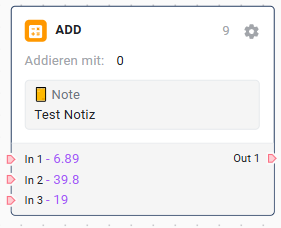
After a rule chain has been saved and executed at least once, the current values at the input and output pins of the blocks are visible in purple. These values show which data flow through the rule chain and enable a direct check of the logic.

{% hint style="info" %}
The displayed values are updated with every re-execution and help with troubleshooting as well as optimizing the rule chain.
{% endhint %}

***

## The blocks

Blocks are the basic elements of a rule chain. Each block performs a specific function, e.g. retrieving data, setting conditions or executing actions such as sending alarms or emails.

Blocks can be connected with each other to control complex processes. The data flow is regulated via input and output pins, whereby only compatible pins can be connected with each other.

In the configuration of a block, a **Note** can also be stored. This is used to document important information or explanations directly in the block and makes the rule chain easier to understand.

<div align="left"><figure><img src="https://content.gitbook.com/content/Nyvwhz1kEMXcHf4HLuZ8/blobs/kEpIsrYnxtSuO5beW4Ld/image.png" alt="" width="211"><figcaption></figcaption></figure></div>

### **Nodes**

#### **Retrieve data**

<div align="left"><figure><img src="https://content.gitbook.com/content/Nyvwhz1kEMXcHf4HLuZ8/blobs/kWyIwxpqZP3DgrWkh07y/image.png" alt=""><figcaption></figcaption></figure></div>

**Function**: This block reads heap data from a specific *asset* and its attribute.

**Configurable settings**:

* ***Output pins*****:** You can configure multiple output pins to send the data to various other blocks.
* ***Asset and attribute*****:** The specific *asset* and the associated attribute whose data is to be queried.

#### **Write data**

<div align="left"><figure><img src="https://content.gitbook.com/content/Nyvwhz1kEMXcHf4HLuZ8/blobs/FCuL25bHSRlKcpp1o6Z0/image.png" alt="" width="330"><figcaption></figcaption></figure></div>

**Function**: Sends data to a defined *asset* and writes the specified value to a particular attribute.

**Configurable settings**:

* **Input pins:**
  * **Trigger pin:** Triggers the writing of the value.
  * **Value pin (optional):** If this pin is used, the value is taken from the connected source. Otherwise, the value can be entered manually.
* **Asset, attribute:** Selection of the asset and the associated attribute to which the data should be written.
* **Value:** If no value pin is used, a fixed value can be defined here.

#### **Alarm**

<div align="left"><figure><img src="https://content.gitbook.com/content/Nyvwhz1kEMXcHf4HLuZ8/blobs/94K7fknRyjxZruZEHAvC/image.png" alt="" width="331"><figcaption></figcaption></figure></div>

**Function**: Triggers an alarm for a specific *asset* when certain conditions are met.

**Configurable settings**:

* ***asset*****:** The *asset*, for which the alarm is triggered.
* ***Priority*****:** The urgency of the alarm (e.g. high, medium, low).
* ***Acknowledgement*****:** It can be specified whether the alarm must be acknowledged manually.

### **Ticket**

<div align="left"><figure><img src="https://content.gitbook.com/content/Nyvwhz1kEMXcHf4HLuZ8/blobs/t39QUsouitl7m1HXIYUd/image.png" alt="" width="328"><figcaption></figcaption></figure></div>

**Function**: Creates a ticket for tracking issues or tasks associated with a *asset* associated with an

**Configurable settings**:

* **Asset:** Selection of the asset to which the ticket refers.
* **Priority:** Determination of the ticket's urgency (e.g. low, medium, high).
* **Assigned person:** Selection of the recipient responsible for processing the ticket.
* **Reason:** Selection of the reason for the ticket from predefined categories.
* **Title:** Enter a meaningful title for the ticket.
* **Description:** Detailed description of the issue or task.

#### **Send email**

<div align="left"><figure><img src="https://content.gitbook.com/content/Nyvwhz1kEMXcHf4HLuZ8/blobs/dNU9HyxJCPCUxuTD5Ola/image.png" alt=""><figcaption></figcaption></figure></div>

**Function**: Sends an email notification to a specific person or group.

**Configurable settings**:

* ***Subject*****:** The subject of the email.
* ***To*****:** The email address(es) of the recipient.
* ***Text*****:** The actual content of the email.

#### Script

<div align="left"><figure><img src="https://content.gitbook.com/content/Nyvwhz1kEMXcHf4HLuZ8/blobs/ewSQjzl8gRRU7YtCbxO2/image.png" alt=""><figcaption></figcaption></figure></div>

**Function:** The **Script block** allows the execution of a script from the [-> *Script Engine* ](/collection/english-v14/documentation/engineering/skript-engine.md)within the rule chain. Execution is controlled by a boolean input value.

**Configurable settings:**

* **Script:** Selection of the script to be executed from the *Script Engine*.

{% hint style="warning" %}
IMPORTANT: Script must be set to "Event triggered" in the grid
{% endhint %}

***

### **Conditions**

### **Condition**

<div align="left"><figure><img src="https://content.gitbook.com/content/Nyvwhz1kEMXcHf4HLuZ8/blobs/logpFQk6zVAaH8S4QHxn/image.png" alt="" width="329"><figcaption></figcaption></figure></div>

**Function**: Represents a condition that is checked before the rule chain continues to be executed and outputs the boolean result of the check. This can perform numerical comparisons between inputs.

**Configurable settings**:

* ***Number of input and output pins*****:** You can configure the number of pins to link multiple conditions.
* ***Comparison operations*****:** Choose from "equal", "greater than", "less than", "greater than or equal", "less than or equal".
* ***Value*****:** If only one input pin is used, a fixed value can be entered for comparison. With multiple input pins, the inputs are compared with each other.

#### **Time**

<div align="left"><figure><img src="https://content.gitbook.com/content/Nyvwhz1kEMXcHf4HLuZ8/blobs/JOWXGuPMZPNcfo0TeANn/image.png" alt="" width="327"><figcaption></figcaption></figure></div>

**Function**: Inserts delays into the rule chain to either execute or cancel events with a time delay.

**Configurable settings**:

* ***Number of input and output pins*****:** Determine how many delays can be set up.
* ***Condition*****:** TON (on-delay) and TOFF (off-delay).
* ***Delay time*****:** The delay in seconds to be applied.

#### Schedule

<div align="left"><figure><img src="https://content.gitbook.com/content/Nyvwhz1kEMXcHf4HLuZ8/blobs/7q3bPbwIdWqFRL1pPz1d/image.png" alt="" width="328"><figcaption></figcaption></figure></div>

**Function:** The **Schedule block** allows a rule chain to be triggered based on a defined schedule. Within the specified time window, the block outputs a **"true"** signal; outside this period, the output remains **"false"**.

**Configurable settings:**

* **Schedule type:** Selection of the schedule, e.g.
  * **Time Schedule** – control based on a defined time.
  * **Days Schedule** – control based on specific days of the week.
* **Begin time:** Start time of the active period (hh:mm) (*only for Time Schedule*).
* **End time:** End time of the active period (hh:mm) (*only for Time Schedule*).
* **Active days:** Selection of the days of the week on which the rule should be active (*only for Days Schedule*).

***

### **Operation**

#### **Or**

<div align="left"><figure><img src="https://content.gitbook.com/content/Nyvwhz1kEMXcHf4HLuZ8/blobs/hhCCZ1IBrYxxi9k4D4kH/image.png" alt="" width="329"><figcaption></figcaption></figure></div>

**Function**: Checks whether one of the input conditions is true or false and outputs the boolean result of this check.

**Configurable settings**:

* ***Number of input and output pins*****:** Determine the number of conditions to be checked.

#### **And**

<div align="left"><figure><img src="https://content.gitbook.com/content/Nyvwhz1kEMXcHf4HLuZ8/blobs/Zqi4IxdbsijNSfgOz5E1/image.png" alt="" width="329"><figcaption></figcaption></figure></div>

**Function**: Checks whether all input conditions are true and outputs the boolean result of this check.

**Configurable settings**:

* ***Number of input and output pins*****:** Determine the number of conditions that must be true simultaneously.

#### **Arithmetic**

<div align="left"><figure><img src="https://content.gitbook.com/content/Nyvwhz1kEMXcHf4HLuZ8/blobs/nMGrYtN2Tr65MydEF9d7/image.png" alt=""><figcaption></figcaption></figure></div>

**Function**: Performs mathematical calculations with the input parameters to generate a new value.

**Configurable settings**:

* ***Number of input pins*****:** Determine how many values go into the calculation.
* ***Operation*****:** Choose between addition, subtraction, multiplication and division.
* ***Value*****:** An optional fixed value to be included in the calculation.

### Other

#### Note

<div align="left"><figure><img src="https://content.gitbook.com/content/Nyvwhz1kEMXcHf4HLuZ8/blobs/1BsacWC1fhtcIvUs1OZC/image.png" alt=""><figcaption></figcaption></figure></div>

**Function:** The **Note block** serves as a pure information element within the rule chain. It allows notes or comments to be added to improve the clarity of the rule chain.

**Configurable settings:**

* **Text field:** Enter any note or description.


---

# Agent Instructions
This documentation is published with GitBook. GitBook is the documentation platform designed so that both humans and AI agents can read, navigate, and reason over technical content effectively. Learn more at gitbook.com.

## Querying This Documentation
If you need additional information that is not directly available in this page, you can query the documentation by asking a question.

Perform an HTTP GET request on the following URL with the `ask` and `goal` query parameters:

```
GET https://docs.buildings.ability.abb/collection/english-v14/documentation/alarme-regeln-und-eskalationen/regelketten/regelkette-konfigurieren.md?ask=<question>&goal=<user_goal>
```

`ask` is the immediate question: it should be specific, self-contained, and written in natural language.
`goal` is what the user is ultimately trying to achieve, the reason they need the answer. Sharing it helps GitBook give you a better, more relevant answer. A goal is most helpful when it describes the outcome the user wants rather than restating the question. For example, with `ask=how do I create an API token`, a goal like `automate deployments from our CI pipeline` lets GitBook tailor the answer to that use case.

The response will contain a direct answer to the question and relevant excerpts and sources from the documentation.

Use this mechanism when the answer is not explicitly present in the current page, you need clarification or additional context, or you want to retrieve related documentation sections.