| Element | Title | Details |
|---|---|---|
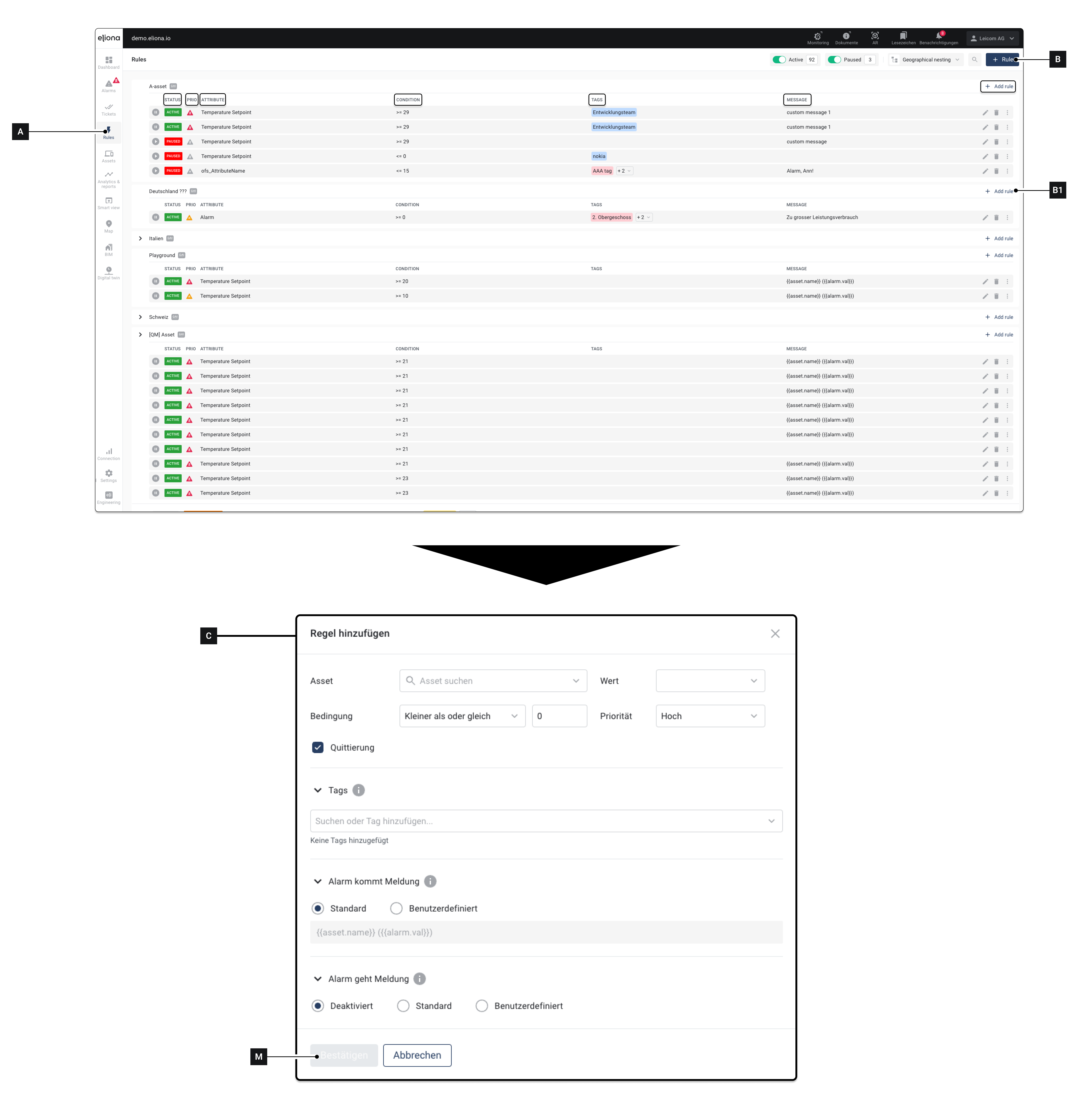
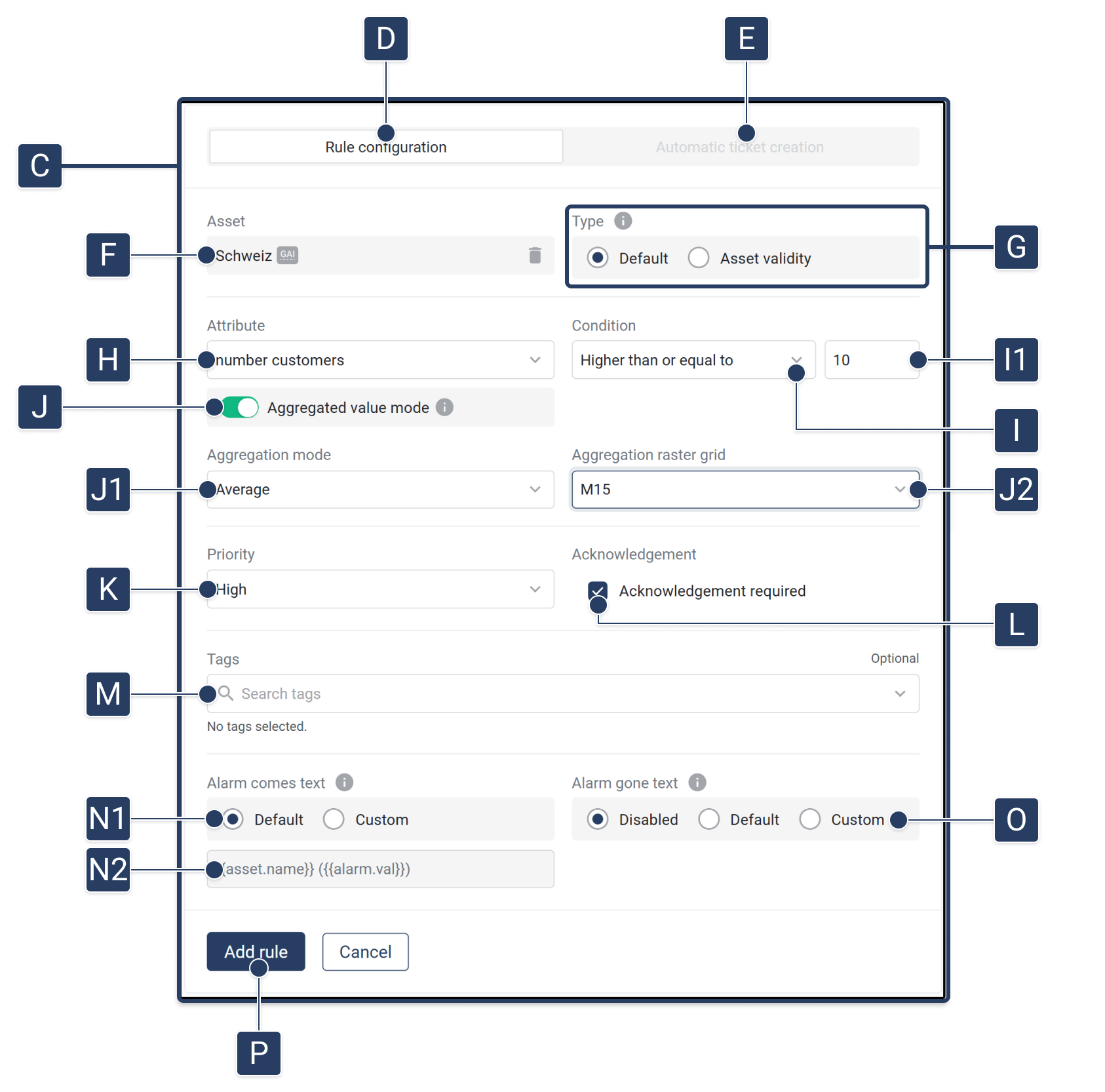
| [C] | Menu "Add Rule" | The rule is configured in this menu |
| [D] | Rule configuration | Configure a rule |
| [E] | Create tickets automatically | This feature will be available soon. |
| [F] | asset | Select the asset to which the rule should apply. If you created the rule via one of the fields [B1], this field is already filled in. |
| [G] | Type | Select the alarm type. Available options:
|
| [H] | Attribute | Select the attribute to which the rule applies |
| [I] | Condition | In this field and in field [I1], you define which condition must be met for an alarm to be triggered. |
| [I1] | Threshold | Enter the threshold here. |
| [J] | Enable aggregation | Enable this switch if the rule should be based on aggregated values This will show additional aggregation options. |
| [J1] | Aggregation mode | Choose how the values within the selected grid should be aggregated. For example: Average, Min, Max, Sum. |
| [J2] | Aggregation grid | Defines the time grid on which the aggregation is based (e.g. 15 minutes, 1 hour, 1 day). This grid determines the evaluation granularity of the rule. |
| [K] | Priority | Select the priority that an alarm triggered by this rule should have |
| [L] | Acknowledgement | If you enable this option: An alarm triggered by this rule is ↗ acknowledgement required. |
| [M] | Tags | Give the rule one or more tags |
| [N] | "Alarm coming" message | This message is displayed when the alarm is triggered |
| [N1] | Default | Use the message preset by Eliona. The value is displayed under [M3] |
| [N1] | Custom | You can define your own message. You can find out which variables are available there -> here |
| [N2] | Preview | Preview of the alarm coming message |
| [O] | "Alarm clears" message | This message is displayed when the alarm clears |
| [O] | "Alarm clears" message: Default | Use the message preset by Eliona. The value is displayed under [L3] |
| [NO] | "Alarm clears" message: Custom | Create a custom "alarm clears" message |
| [O] | "Alarm clears" input field | Displays the "alarm clears" message. If "Custom" [L3] is enabled: the custom message can be entered in this field |
| [P] | Add rule | Save entries and create rule |