> For the complete documentation index, see [llms.txt](https://docs.buildings.ability.abb/collection/llms.txt). Markdown versions of documentation pages are available by appending `.md` to page URLs; this page is available as [Markdown](https://docs.buildings.ability.abb/collection/english-v14/documentation/alarme-regeln-und-eskalationen/regeln/eine-regel-erstellen.md).

# Create a rule

## Procedure

<figure><img src="https://content.gitbook.com/content/Nyvwhz1kEMXcHf4HLuZ8/blobs/wQxG5bYcWUAuGfcYrYGY/A5F985CD-E74B-4172-8E96-10432F822958.png" alt=""><figcaption></figcaption></figure>

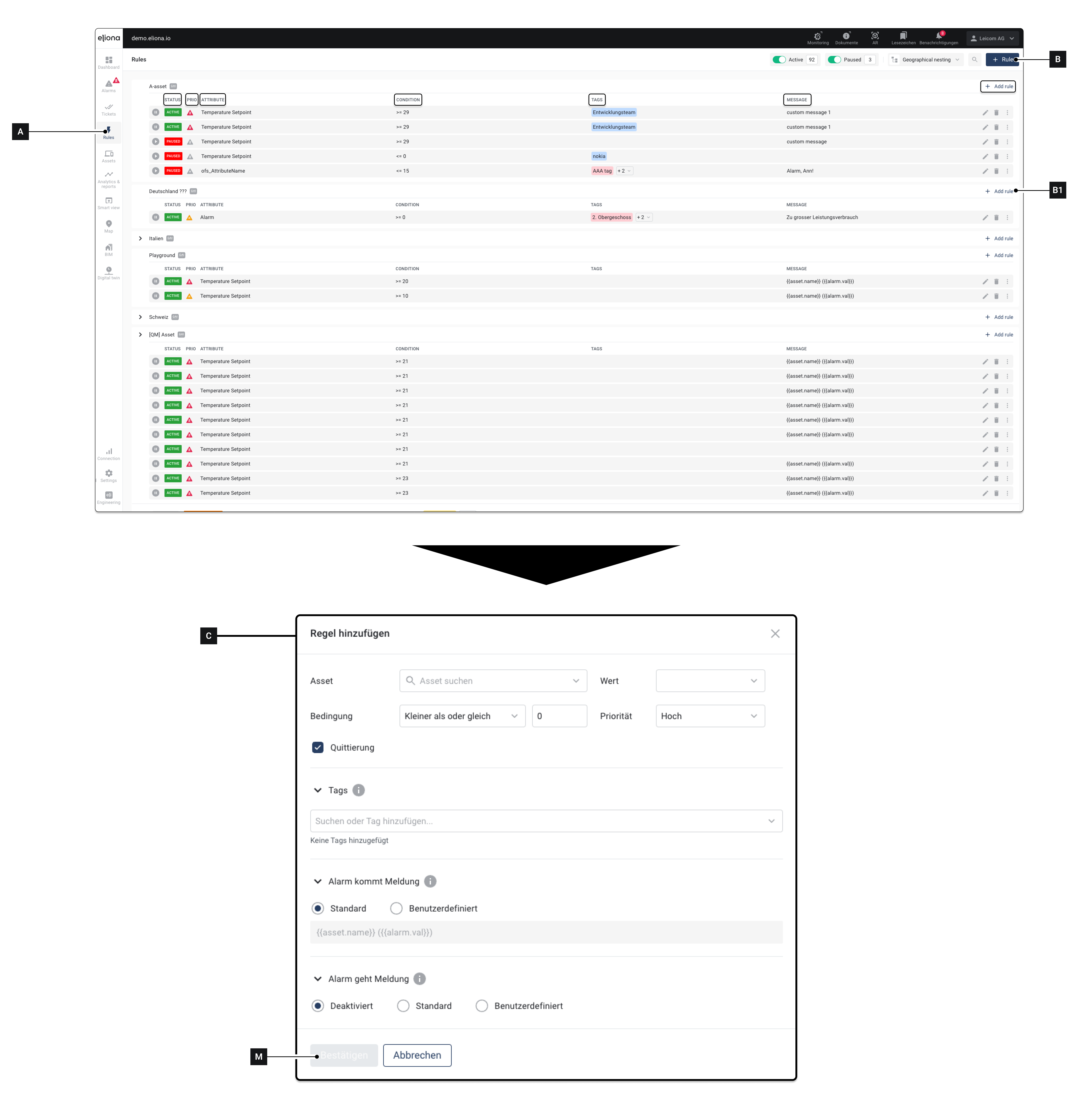
1. Click on **RULES \[A]**\
   ▷ The rule overview opens
2. Click on **\[B]**\
   ▷ The window **Add rules \[C]** opens\
   ◈ Alternatively, you can also click one of the fields **\[B1]** clic&#x6B;**.** In this case, the rule is created directly in the corresponding asset. The field **\[D]** then no longer needs to be filled in
3. Configure the rule\
   ◈ See [↗ Details](#details) for more information about the individual options
4. Click on **Confirm \[M]**, to save the rule

## Details

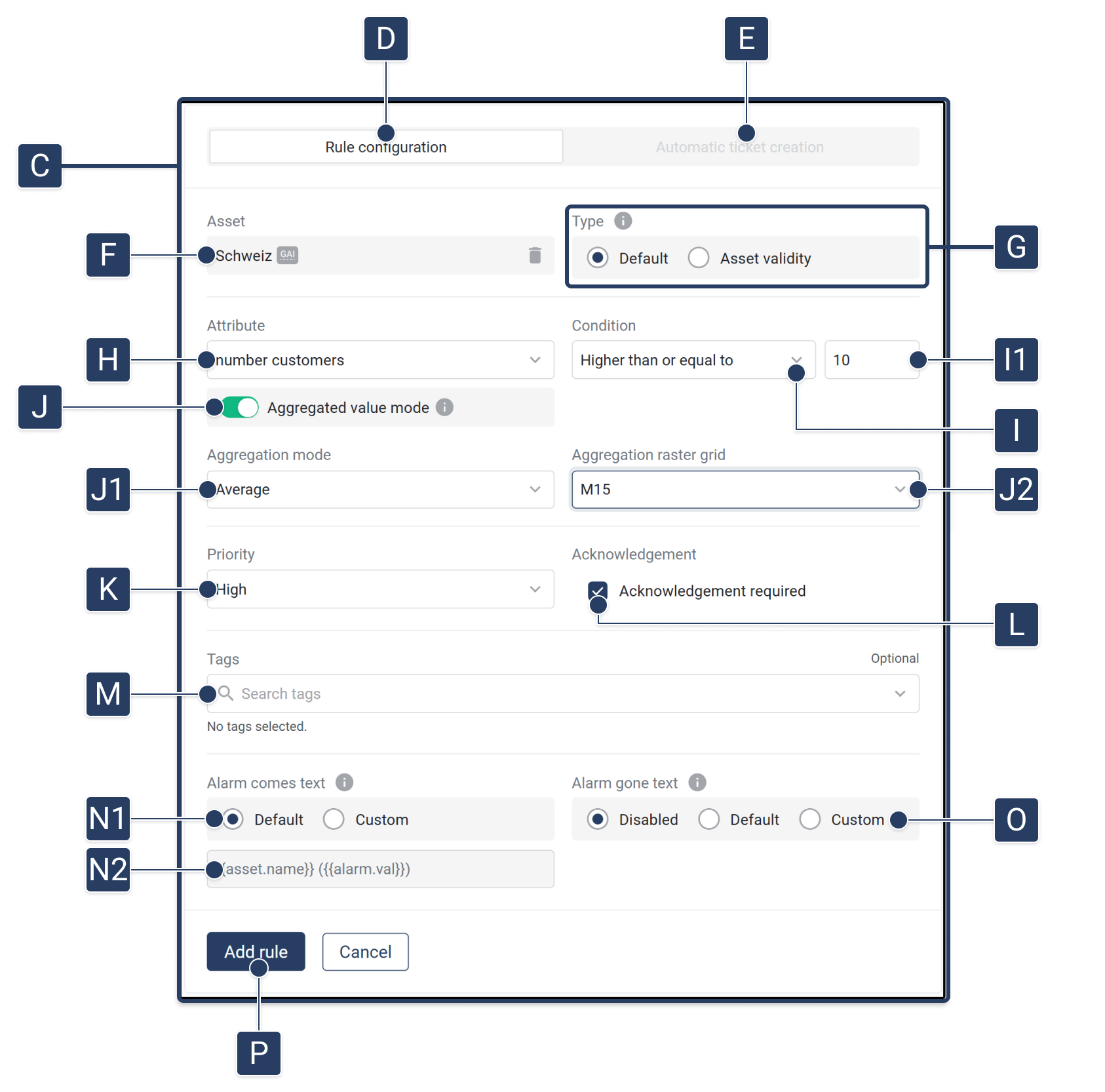
<figure><img src="https://content.gitbook.com/content/Nyvwhz1kEMXcHf4HLuZ8/blobs/U7xV8a3qJLIfAnSUpdnY/Regeln%20Rules.png" alt=""><figcaption></figcaption></figure>

<table data-full-width="true"><thead><tr><th width="92">Element</th><th width="323">Title</th><th>Details</th></tr></thead><tbody><tr><td><strong>[C]</strong></td><td>Menu "Add Rule"</td><td>The rule is configured in this menu</td></tr><tr><td><strong>[D]</strong></td><td>Rule configuration</td><td>Configure a rule</td></tr><tr><td><strong>[E]</strong></td><td>Create tickets automatically</td><td>This feature will be available soon.</td></tr><tr><td><strong>[F]</strong></td><td>asset</td><td>Select the asset to which the rule should apply. If you created the rule via one of the fields [B1], this field is already filled in.</td></tr><tr><td><strong>[G]</strong></td><td>Type</td><td><p>Select the alarm type. Available options:</p><ul><li>Standard: An alarm is created when an asset attribute meets a certain condition.</li><li><a href="/collection/english-v14/documentation/assets/asset-status-aktive-inaktive-nicht-uberwachte-assets.md">↗ Asset status</a>: an alarm is created when the asset has been inactive for a certain amount of time.</li></ul></td></tr><tr><td><strong>[H]</strong></td><td>Attribute</td><td>Select the attribute to which the rule applies</td></tr><tr><td><strong>[I]</strong></td><td>Condition</td><td>In this field and in field [I1], you define which condition must be met for an alarm to be triggered.</td></tr><tr><td><strong>[I1]</strong></td><td>Threshold</td><td>Enter the threshold here.</td></tr><tr><td><strong>[J]</strong></td><td>Enable aggregation</td><td>Enable this switch if the rule should be based on <strong>aggregated values</strong> This will show additional aggregation options.</td></tr><tr><td><strong>[J1]</strong></td><td>Aggregation mode</td><td>Choose how the values within the selected grid should be aggregated. For example: <em>Average</em>, <em>Min</em>, <em>Max</em>, <em>Sum</em>.</td></tr><tr><td><strong>[J2]</strong></td><td>Aggregation grid</td><td>Defines the time grid on which the aggregation is based (e.g. <em>15 minutes</em>, <em>1 hour</em>, <em>1 day</em>). This grid determines the evaluation granularity of the rule.</td></tr><tr><td><strong>[K]</strong></td><td>Priority</td><td>Select the priority that an alarm triggered by this rule should have</td></tr><tr><td><strong>[L]</strong></td><td>Acknowledgement</td><td>If you enable this option: An alarm triggered by this rule is <a href="#quittierungspflicht">↗ acknowledgement required</a>.</td></tr><tr><td><strong>[M]</strong></td><td>Tags</td><td>Give the rule one or more tags</td></tr><tr><td><strong>[N]</strong></td><td>"Alarm coming" message</td><td>This message is displayed when the alarm is triggered</td></tr><tr><td><strong>[N1]</strong></td><td>Default</td><td>Use the message preset by Eliona. The value is displayed under [M3]</td></tr><tr><td><strong>[N1]</strong></td><td>Custom</td><td>You can define your own message. You can find out which variables are available there <a href="/collection/english-v14/academy/twig-templating-in-eliona.md">-> here</a></td></tr><tr><td><strong>[N2]</strong></td><td>Preview</td><td>Preview of the alarm coming message</td></tr><tr><td><strong>[O]</strong></td><td>"Alarm clears" message</td><td>This message is displayed when the alarm clears</td></tr><tr><td><strong>[O]</strong></td><td>"Alarm clears" message: Default</td><td>Use the message preset by Eliona. The value is displayed under [L3]</td></tr><tr><td><strong>[NO]</strong></td><td>"Alarm clears" message: Custom</td><td>Create a custom "alarm clears" message</td></tr><tr><td><strong>[O]</strong></td><td>"Alarm clears" input field</td><td>Displays the "alarm clears" message. If "Custom" [L3] is enabled: the custom message can be entered in this field</td></tr><tr><td><strong>[P]</strong></td><td>Add rule</td><td>Save entries and create rule</td></tr></tbody></table>

## Acknowledgement required

You can enable the "acknowledgement required" option for rules. The acknowledgement requirement has the following effects:

As explained in the [↗ ](/collection/english-v14/documentation/alarme-regeln-und-eskalationen.md)[Introduction](/collection/english-v14/documentation/alarme-regeln-und-eskalationen.md) explained, an alarm is triggered when the conditions of a rule are met. The acknowledgement requirement governs what happens when the conditions of a rule are NO LONGER met.

{% hint style="info" %}
**Example**

A rule is created that triggers an alarm as soon as the temperature rises above 25 °C. The acknowledgement requirement governs what happens when the temperature drops back below 25 °C.
{% endhint %}

### Behavior of alarms *Without* Acknowledgement required

If the conditions for the alarm are no longer met, the alarm automatically disappears from the [↗ alarm overview](/collection/english-v14/documentation/alarme-regeln-und-eskalationen/alarme.md#die-alarm-uebersicht).

The disappeared alarm is recorded in the[ ↗ alarm history ](/collection/english-v14/documentation/alarme-regeln-und-eskalationen/alarme.md#alarm-historie)displayed.

### Behavior of alarms *With* Acknowledgement required

Even if the conditions for the alarm are no longer met, the alarm remains in the [↗ alarm overview](/collection/english-v14/documentation/alarme-regeln-und-eskalationen/alarme.md#die-alarm-uebersicht).

For an alarm with acknowledgement required to be removed from the alarm overview, the alarm must be acknowledged.

{% hint style="info" %}
See also: [↗ Acknowledgement-required and clearing alarms](/collection/english-v14/documentation/alarme-regeln-und-eskalationen/alarme/quittierpflichtige-und-gehende-alarme.md).

It explains there how alarms can be acknowledged.
{% endhint %}


---

# Agent Instructions
This documentation is published with GitBook. GitBook is the documentation platform designed so that both humans and AI agents can read, navigate, and reason over technical content effectively. Learn more at gitbook.com.

## Querying This Documentation
If you need additional information that is not directly available in this page, you can query the documentation dynamically by asking a question.

Perform an HTTP GET request on the current page URL with the `ask` query parameter, and the optional `goal` query parameter:

```
GET https://docs.buildings.ability.abb/collection/english-v14/documentation/alarme-regeln-und-eskalationen/regeln/eine-regel-erstellen.md?ask=<question>&goal=<endgoal>
```

`ask` is the immediate question: it should be specific, self-contained, and written in natural language.
`goal` is optional and describes the broader end goal you are ultimately trying to accomplish on behalf of the user. GitBook uses it to tailor the answer towards what is most useful for that goal.

The response will contain a direct answer to the question and relevant excerpts and sources from the documentation.

Use this mechanism when the answer is not explicitly present in the current page, you need clarification or additional context, or you want to retrieve related documentation sections.
