> For the complete documentation index, see [llms.txt](https://docs.buildings.ability.abb/collection/llms.txt). Markdown versions of documentation pages are available by appending `.md` to page URLs; this page is available as [Markdown](https://docs.buildings.ability.abb/collection/english-v14/documentation/analytics-and-reports/reports-nutzen.md).

# Use Reports

## How are reports structured?

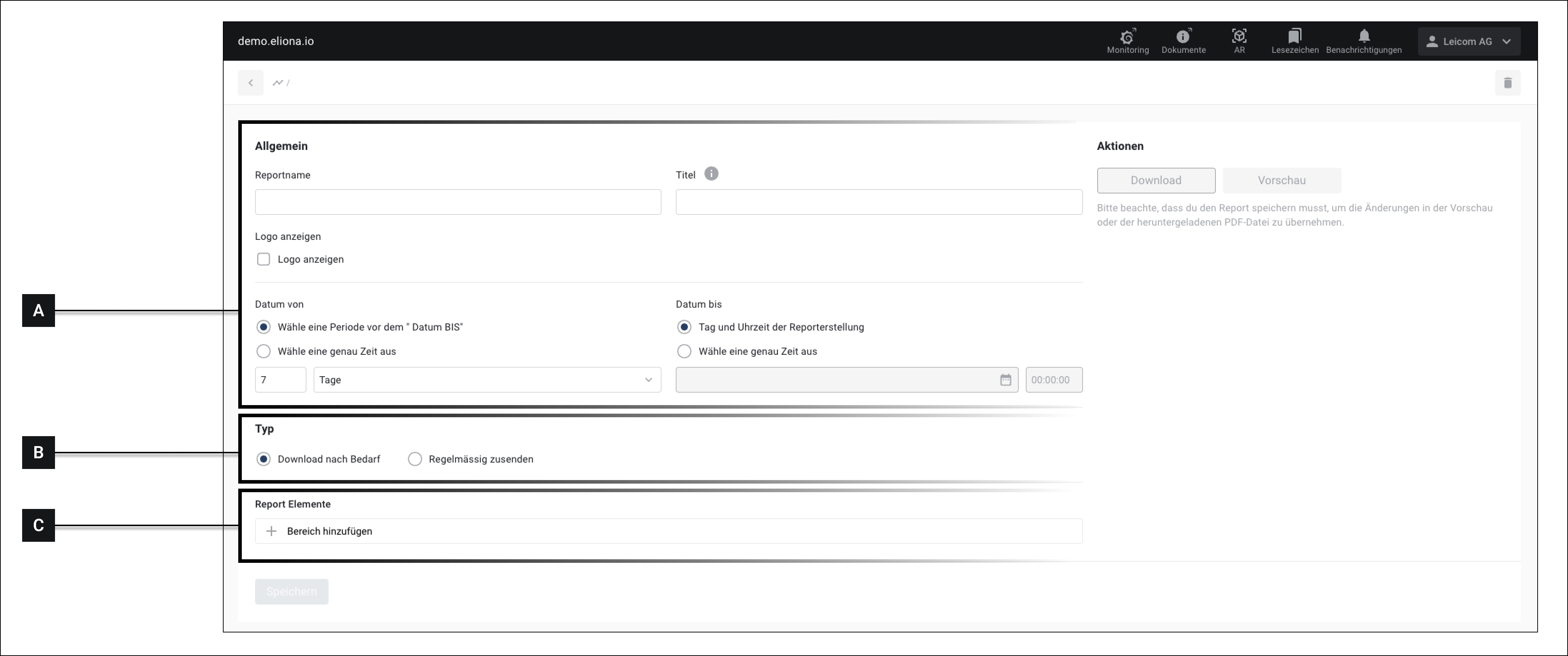
Reports consist of 3 sections:

* General
* Delivery
* Content

<div data-full-width="true"><figure><img src="https://content.gitbook.com/content/Nyvwhz1kEMXcHf4HLuZ8/blobs/LVHE1pMTDxBx0vtuV5xf/734ABD2A-A294-48B4-8339-71933B798F96.png" alt=""><figcaption><p>Fig. 1 - The "Create Report" menu<br>The 3 sections are marked respectively.</p></figcaption></figure></div>

### \[A] – General

The "General" section contains the name and title of the report. You can also select which period is covered in the report here.

How to configure this section, you can find out [-> HERE](#a-allgemein)

### \[B] – Delivery

In the "Delivery" section, you can choose how the report should be delivered. The following options are available:

* Download report immediately
* set up regular delivery.

How to configure this section, you can find out [-> HERE](#b-bereitstellung)

### \[C] – Content

This section specifies the actual content of the report. You select what will be included in the report.

You can put together the content of the report individually from various elements.

How to configure this section, you can find out [-> HERE](#c-inhalt)

## Add a new report

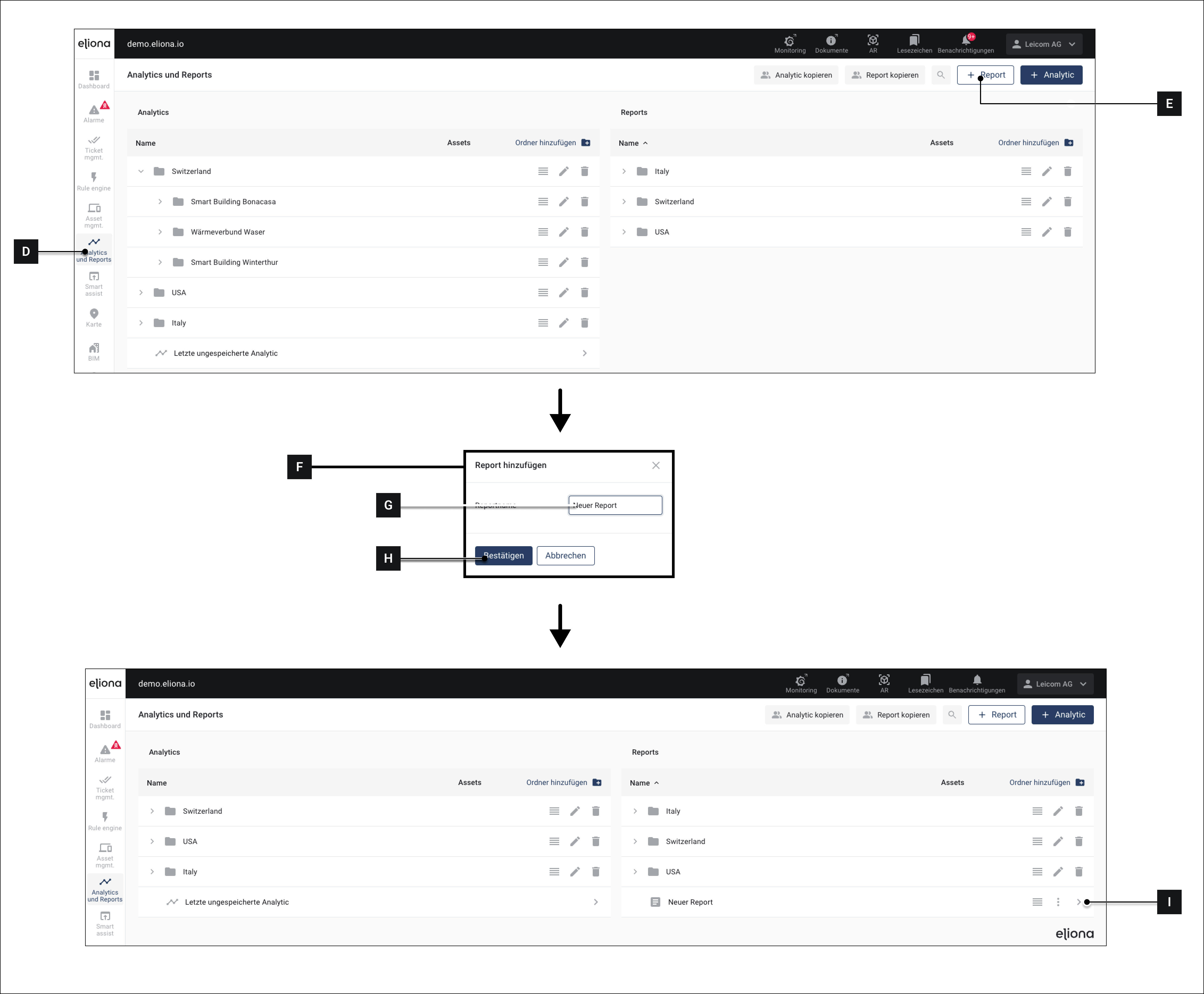
<figure><img src="https://content.gitbook.com/content/Nyvwhz1kEMXcHf4HLuZ8/blobs/zVLTbU03kn8fCew1svfT/A987FF40-EBBD-4E42-8A16-5629A4ACC525.png" alt=""><figcaption><p>Fig. 2</p></figcaption></figure>

1. Click on **Analytics and Reports \[D]**\
   ▷ The "Analytics and Reports overview" opens
2. Click on **\[E]**, to create a new report\
   ▷ The "Add report" window **\[F]** opens
3. Enter a name for the report **\[G]**
4. Click Confirm **\[H]**\
   ▷ The "Add Report" window closes\
   ▷ The new report appears in the "Reports" section of the "Analytics and Reports overview"
5. Click on **\[I]**\
   ▷ The "Create Report" menu opens

## Configure a report

### Section \[A] – General

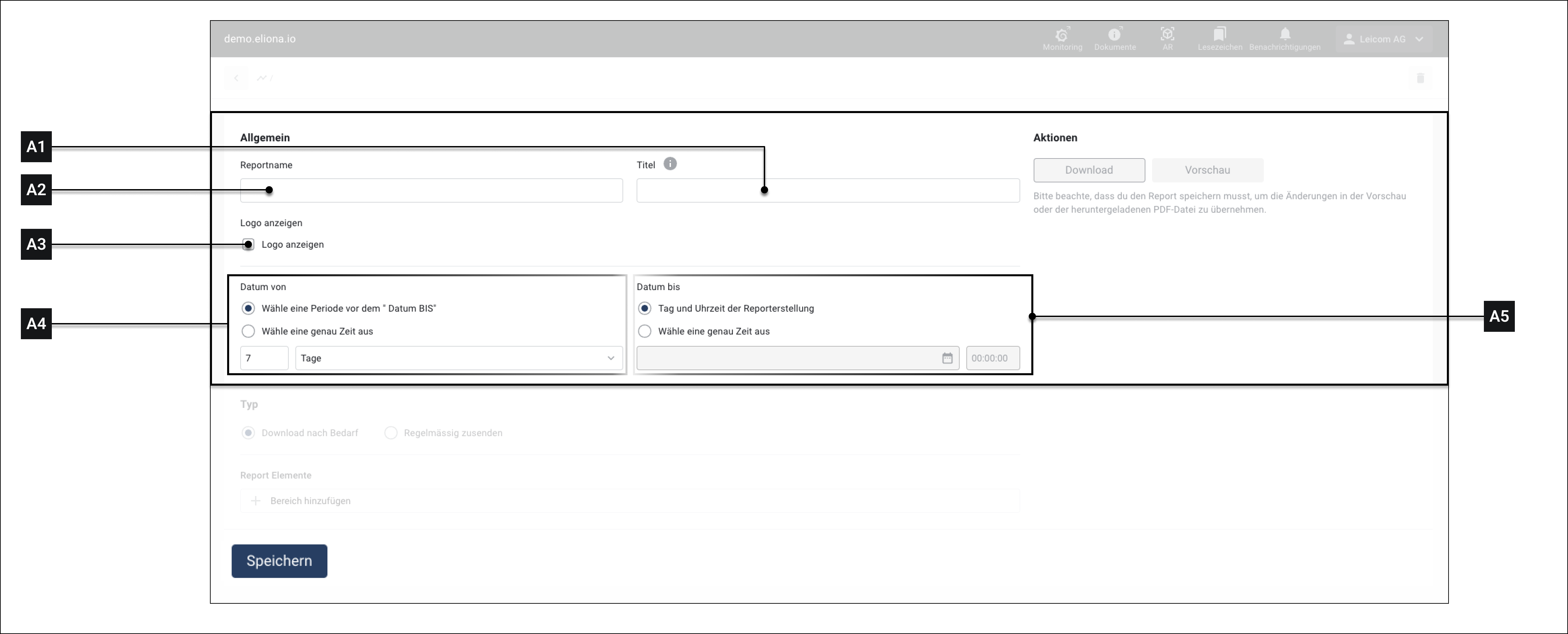
<div data-full-width="true"><figure><img src="https://content.gitbook.com/content/Nyvwhz1kEMXcHf4HLuZ8/blobs/RSXI8uzPqvYIroEKIelp/99E820BC-4699-4F12-AD50-04727D1BEBAB.png" alt=""><figcaption><p>Fig. 3</p></figcaption></figure></div>

<table><thead><tr><th width="113.33333333333331"></th><th width="133"></th><th></th></tr></thead><tbody><tr><td><strong>[A1]</strong></td><td>Title</td><td>The report title appears prominently at the beginning of the generated report. You can use variables in {{curly braces}} in the title</td></tr><tr><td><strong>[A2]</strong></td><td>Report name</td><td>The report name was assigned in <strong>[G]</strong> assigned. Here you can adjust the name. The report name appears unobtrusively in the footer of the generated report.</td></tr><tr><td><strong>[A3]</strong></td><td>Show logo</td><td>If this option is enabled, the generated report will be provided with the associated <a href="broken://pages/30b6c63794d12cf61cb0cf0ac396c77e6bd2643a#projekt-logo-veraendern">-> project logo</a> attached.</td></tr><tr><td><strong>[A4]</strong></td><td>Select time range</td><td>In this section, you can define which period the report should cover.</td></tr><tr><td><strong>[A5]</strong></td><td>Date "From"</td><td><p>Here you can choose the start date.<br>This is the earliest date that will be included in the generated report. The following options are available to you:</p><ul><li>Period before the "Date To": You can specify a period that is counted back from the <strong>end date [A6]</strong> backwards.</li><li>Exact time: You can freely define a specific point in time, including the time of day.</li></ul></td></tr><tr><td>[<strong>A6]</strong></td><td>Date "To"</td><td><p>Here you can choose the end date.<br>This is the last date that will be included in the generated report. The following options are available to you:</p><ul><li>Date and time the report is created: The moment when the report is generated. This function is particularly useful if you have automated reports.</li><li>Exact time: You can freely define a specific point in time, including the time of day.</li></ul></td></tr></tbody></table>

### Delivery

#### Download on demand

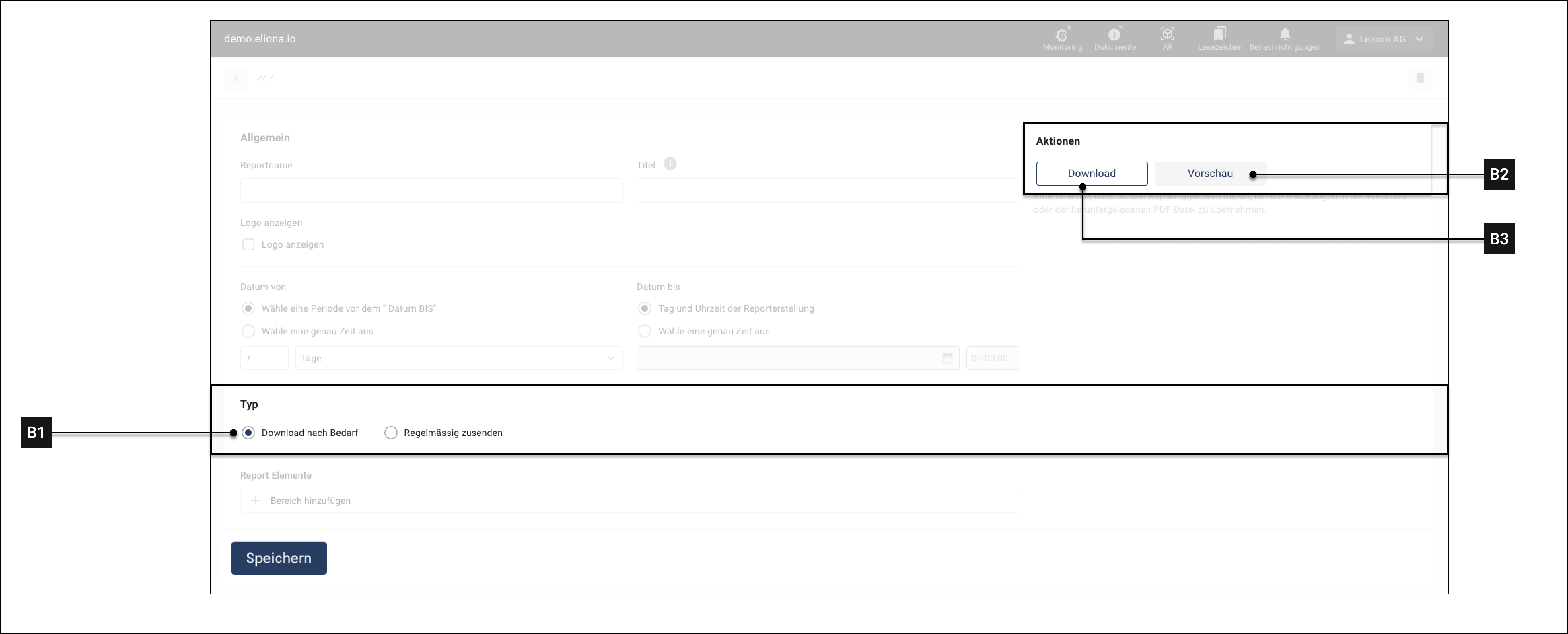
<div data-full-width="true"><figure><img src="https://content.gitbook.com/content/Nyvwhz1kEMXcHf4HLuZ8/blobs/L6aiXmRPUE2g0nNnZKNE/0FAE04F6-6D39-4524-8D14-B5DF0AEE6119.png" alt=""><figcaption><p>Fig. 4</p></figcaption></figure></div>

You can generate and download the report immediately.

{% hint style="info" %}
*Prerequisite:*

You have added [-> contents](#inhalt) to the report.
{% endhint %}

1. Select **\[B1]**
2. Click on **Save** **\[X]**
3. Click on **\[B2]**, to generate a preview
4. Click on **\[B3]**, to download the report

#### Regular delivery

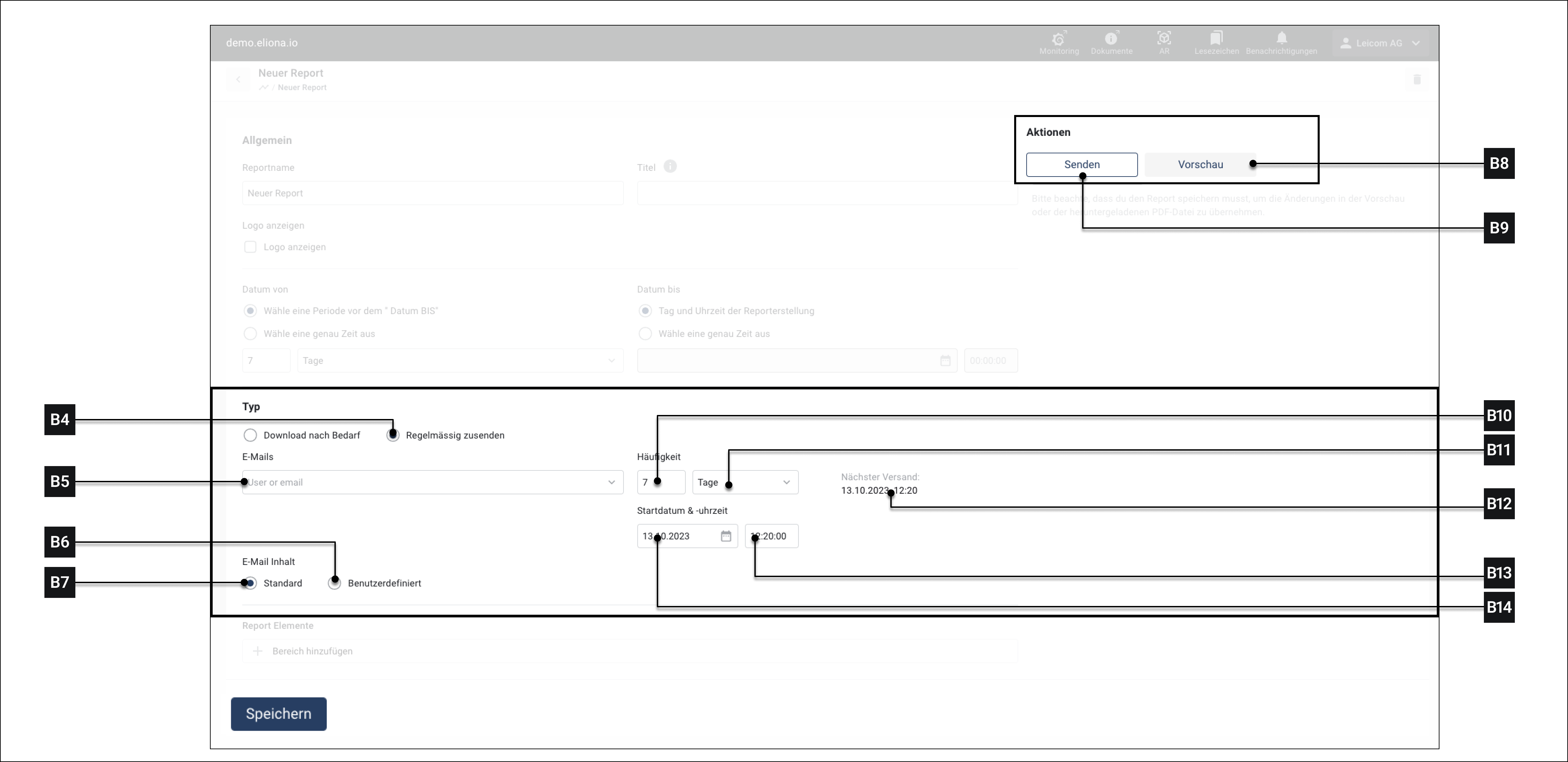
<div data-full-width="true"><figure><img src="https://content.gitbook.com/content/Nyvwhz1kEMXcHf4HLuZ8/blobs/Cf54PUquJqfgp5Va1pHA/412F7DFF-406F-4555-8F41-BBBA6506F5B1.png" alt=""><figcaption><p>Fig. 5 – Options for the regular delivery of reports</p></figcaption></figure></div>

{% hint style="info" %}
*Prerequisite:*

You have added [-> contents](#inhalt) to the report.
{% endhint %}

1. Click on **\[B4]**\
   ▷ Additional options appear, see Fig. 5
2. Select under **\[B5]**, select the email address to which the report should be sent.\
   ▷ The selected email address appears in the viewport.
3. Repeat step 2 to add more email addresses
4. Select under **\[B10]** and **\[B11]** select how often the report should be generated and sent
5. Select under **\[B13]** and **\[B14]** select when the first report should be sent.
6. Under **\[B12]** is displayed when the next report will be generated and sent.
7. Click on **Save** **\[Z]**
8. Optional: Click on **\[B8]**, to generate a preview of the report.
9. Click on **Send \[B9]**, to start delivery.

### Content

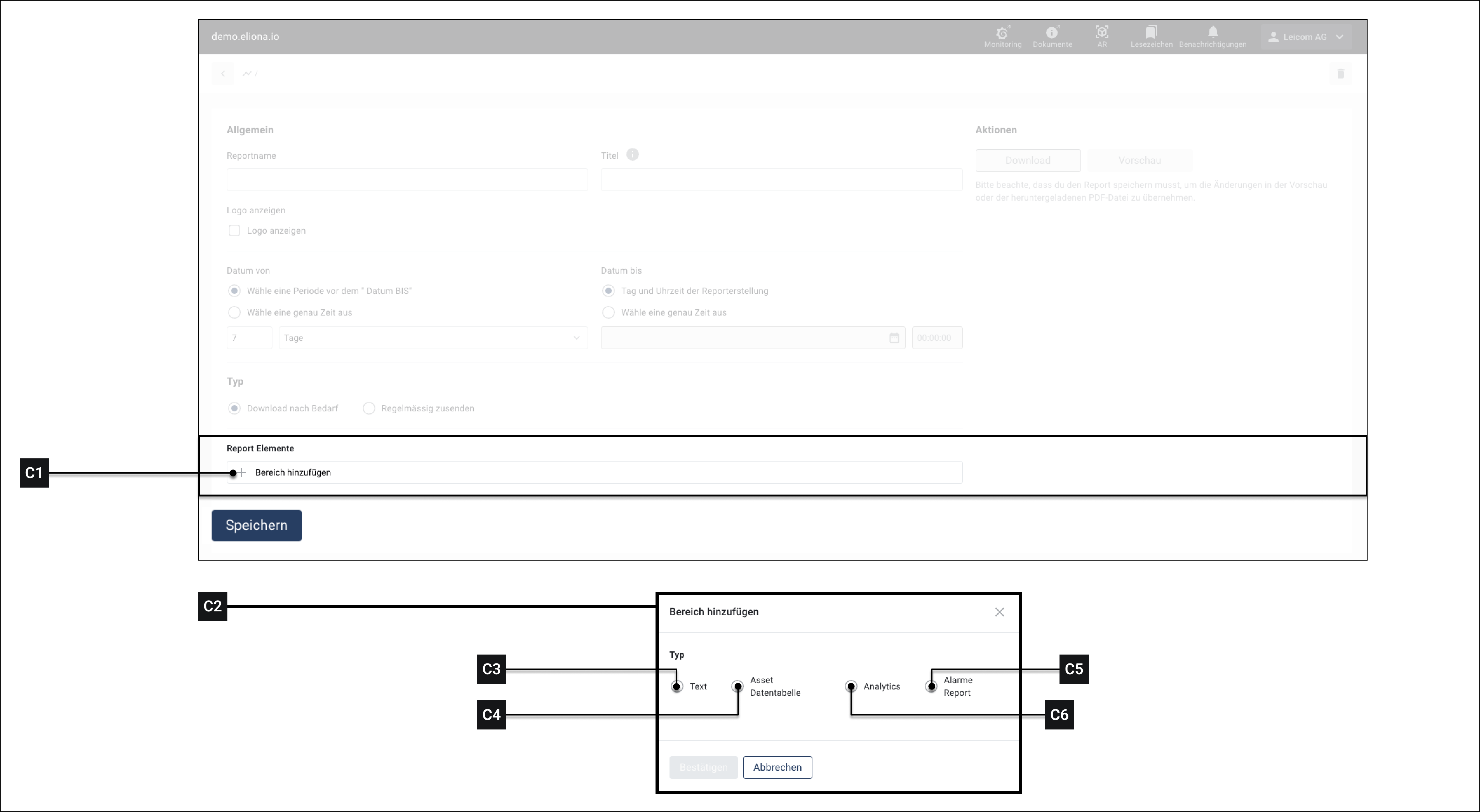
In this section, you can define which data and assets are included in the report.

<div data-full-width="true"><figure><img src="https://content.gitbook.com/content/Nyvwhz1kEMXcHf4HLuZ8/blobs/mtSq9lzr2Mre6BdO4ZVf/A62EC22E-96E2-4D0F-9E70-8AEA6509FF65.png" alt=""><figcaption></figcaption></figure></div>

1. Click on **\[C1]**\
   ▷ The window **Add section \[C2]** opens
2. Select via **\[C3]** / **\[C4]** / **\[C5]** / **\[C6]** select the element you want to add\
   ▷ The configuration menu for the respective option is displayed
3. Fill out the configuration menu (see below)
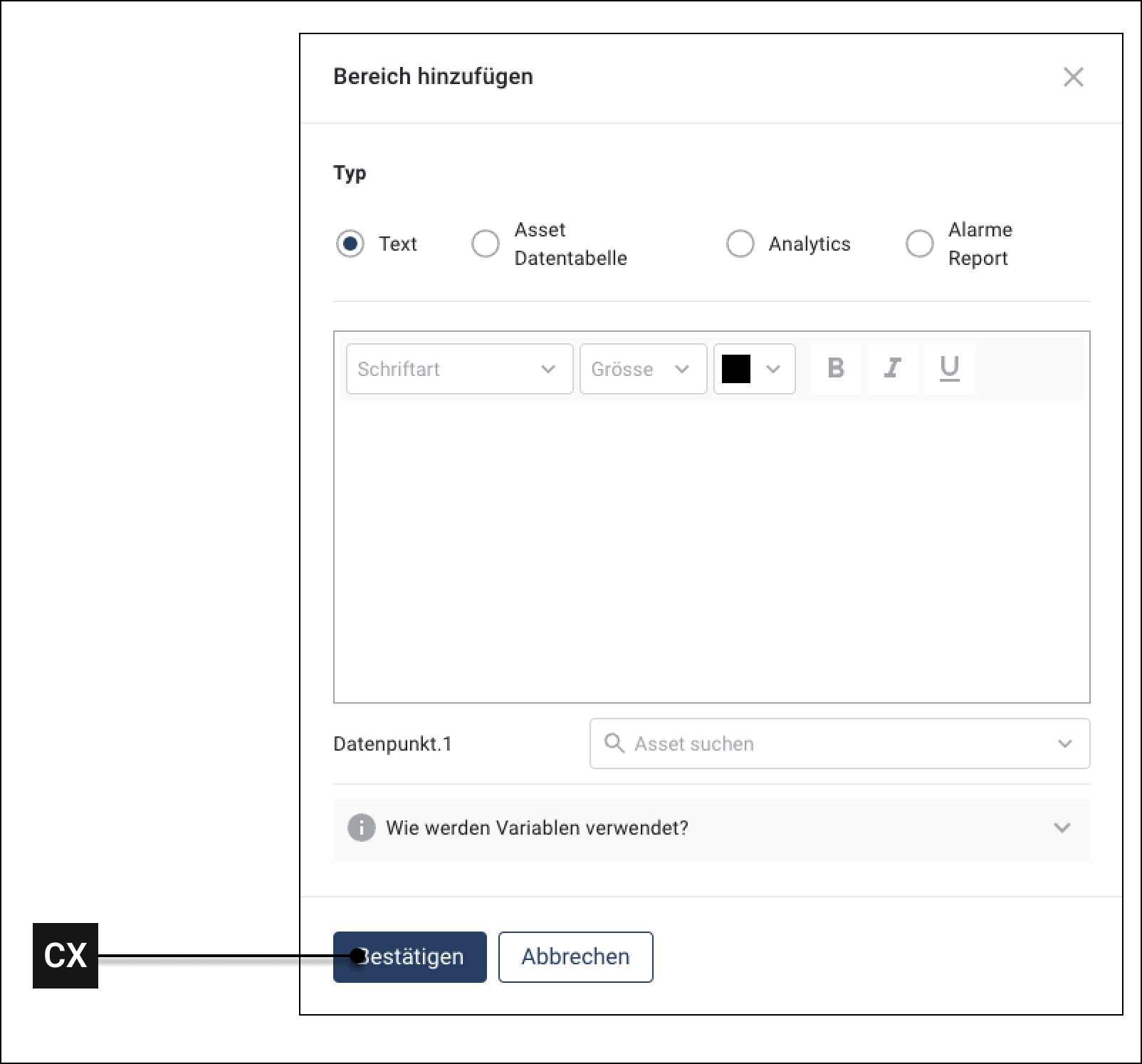
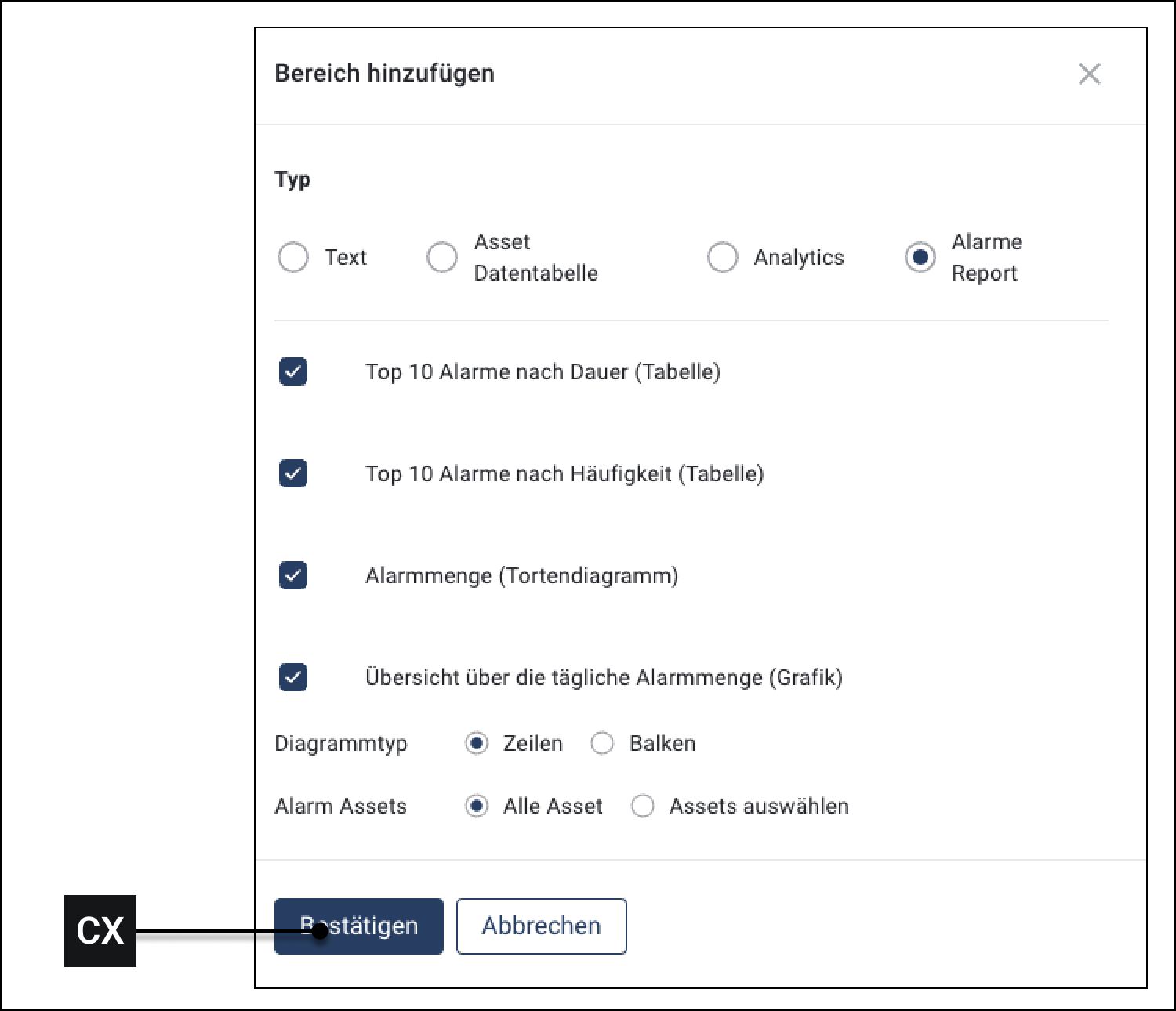
4. Click on **Confirm \[CX]**\
   ▷ The element is added
5. Optional: Repeat steps 1-4 to add more elements

#### Text

<figure><img src="https://content.gitbook.com/content/Nyvwhz1kEMXcHf4HLuZ8/blobs/YGCKbyxcmai2etoh2GaM/0D605C03-D4BB-4FD2-B559-4DBD3E86966E.png" alt=""><figcaption></figcaption></figure>

This field is intended for writing and formatting free text. This allows you to emphasize certain aspects of your reports.

You can insert variables in {{curly braces}}.

#### Data table

<figure><img src="https://content.gitbook.com/content/Nyvwhz1kEMXcHf4HLuZ8/blobs/gCoVVoLWJT3WyJ9dZ9Xm/17E8D80C-C490-44C0-B602-EEC80FFD85C2.png" alt=""><figcaption></figcaption></figure>

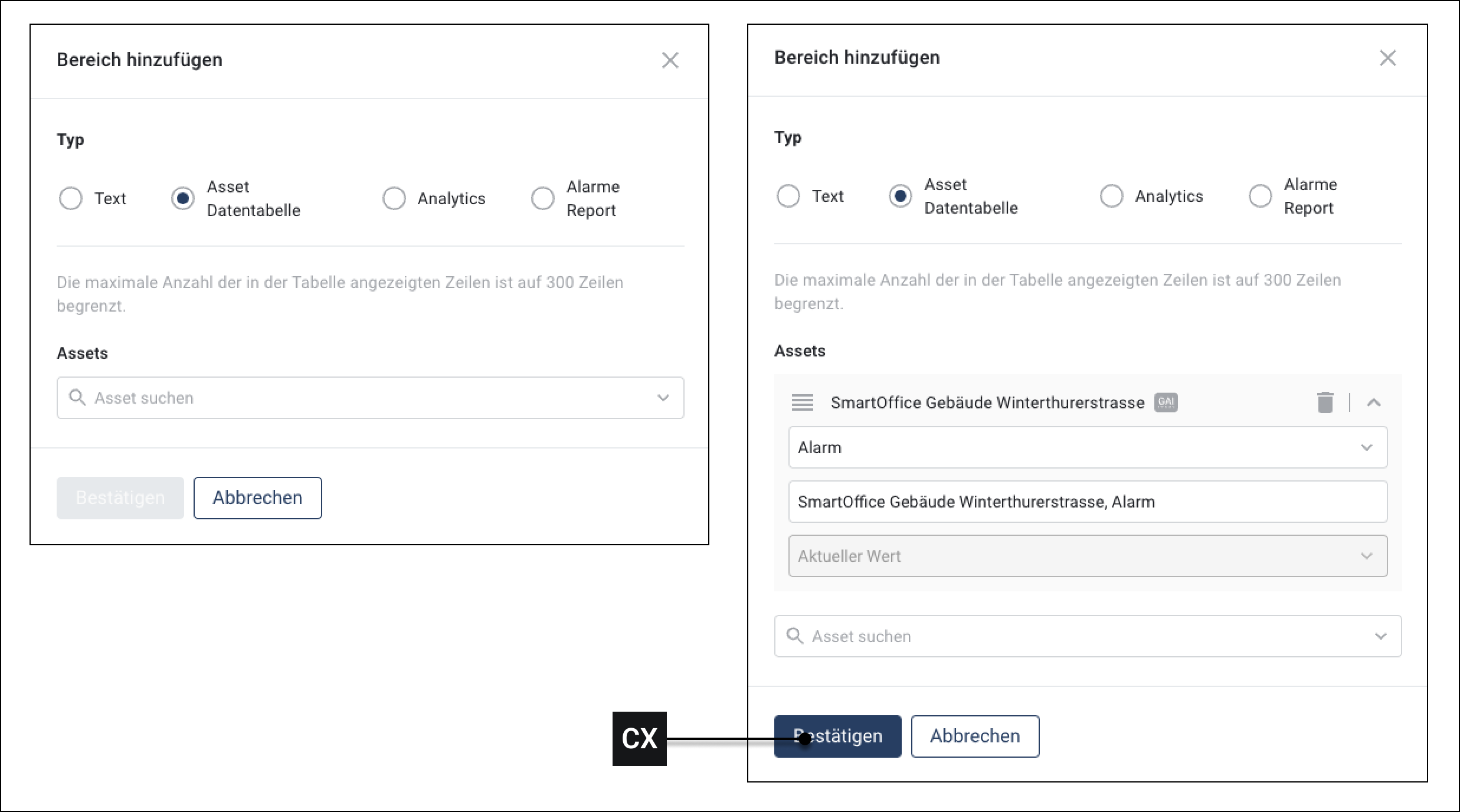
Data tables list all data for a selected asset. Select one or more assets, as well as the associated attributes.

#### Analytic

<figure><img src="https://content.gitbook.com/content/Nyvwhz1kEMXcHf4HLuZ8/blobs/NtE8X9UcVbiRrtrIb6yx/Report%20Analysis.png" alt=""><figcaption></figcaption></figure>

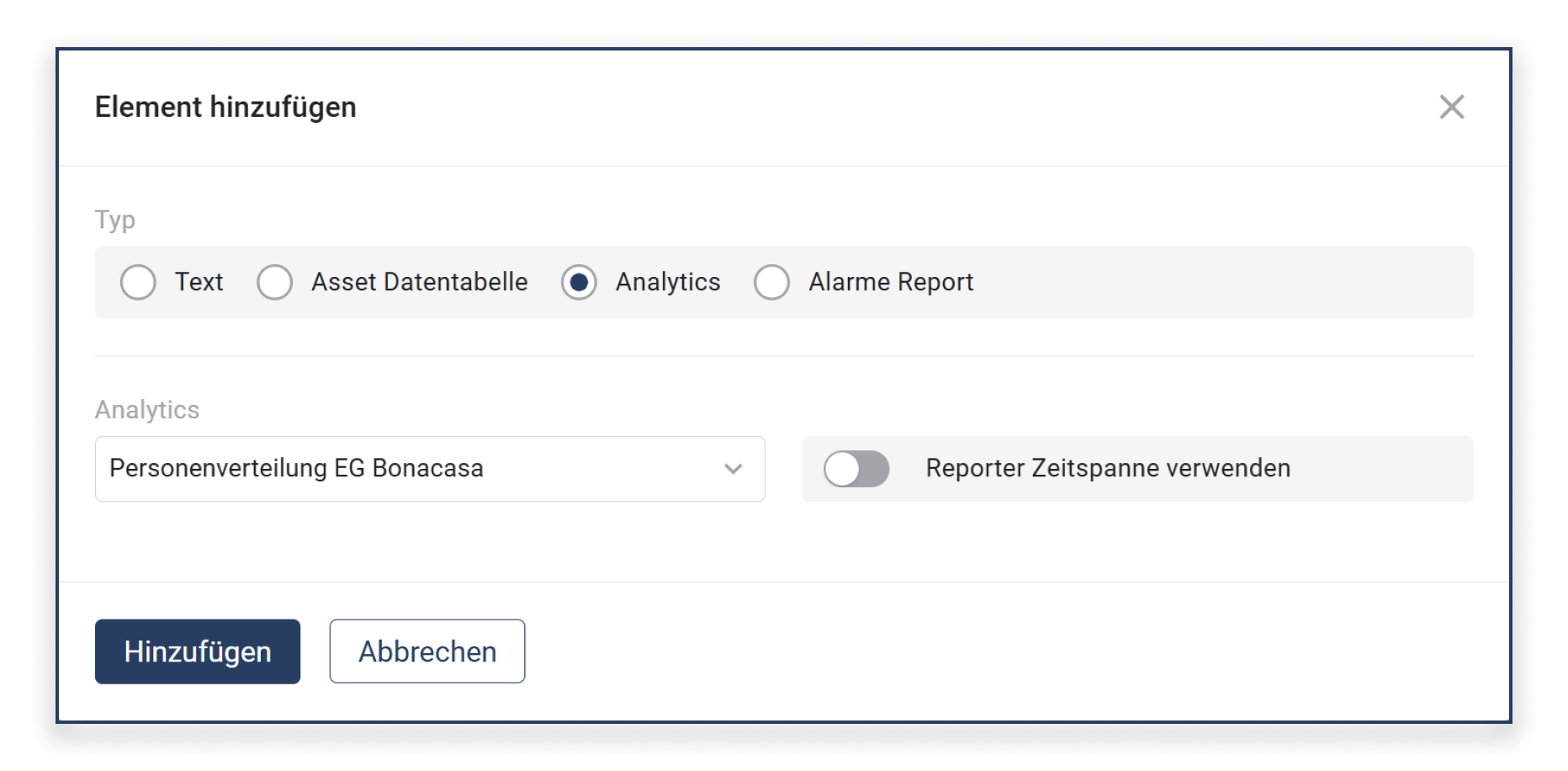
You can insert existing [→ Analytics](/collection/english-v14/documentation/widgets/vordefinierte-widgets/analyse.md) into a report to display their analysis directly in the report.

**Use report time period**

* **Enabled** → The analytic uses the time period defined in the report.
* **Disabled** → The analytic is displayed in the report with its own time period defined in the analytic configuration.

#### Alarm report

<figure><img src="https://content.gitbook.com/content/Nyvwhz1kEMXcHf4HLuZ8/blobs/BHQUEb3ZKt4Y2Wk6fKnq/98A36B77-50F0-4677-A204-614513FED973.png" alt=""><figcaption></figcaption></figure>

The *Alarm report* makes it possible to include a summary of the most important alarms in a report. Various display formats can be selected, such as:

* **Top 10 alarms by duration** (table)
* **Top 10 alarms by frequency** (table)
* **Alarm count as a pie chart**
* **Overview of daily alarm count** (chart)

You can also specify whether the alarms should be included for **all assets** or only for a **specific selection of assets** in the report.

▶ More information about alarm statistics and their analysis can be found in the documentation for the [→ *Alarm Statistics*](/collection/english-v14/documentation/alarme-regeln-und-eskalationen/alarme/alarmstatistik.md).


---

# Agent Instructions
This documentation is published with GitBook. GitBook is the documentation platform designed so that both humans and AI agents can read, navigate, and reason over technical content effectively. Learn more at gitbook.com.

## Querying This Documentation
If you need additional information that is not directly available in this page, you can query the documentation by asking a question.

Perform an HTTP GET request on the following URL with the `ask` and `goal` query parameters:

```
GET https://docs.buildings.ability.abb/collection/english-v14/documentation/analytics-and-reports/reports-nutzen.md?ask=<question>&goal=<user_goal>
```

`ask` is the immediate question: it should be specific, self-contained, and written in natural language.
`goal` is what the user is ultimately trying to achieve, the reason they need the answer. Sharing it helps GitBook give you a better, more relevant answer. A goal is most helpful when it describes the outcome the user wants rather than restating the question. For example, with `ask=how do I create an API token`, a goal like `automate deployments from our CI pipeline` lets GitBook tailor the answer to that use case.

The response will contain a direct answer to the question and relevant excerpts and sources from the documentation.

Use this mechanism when the answer is not explicitly present in the current page, you need clarification or additional context, or you want to retrieve related documentation sections.