# Assets

## About Assets

The Asset Management gives you an overview of all assets (e.g. sensors, devices, integrated systems, etc.). You have the option to view and edit asset details in order to store maintenance information or documents, for example.&#x20;

Every asset and every plant has its own expert system and thus its own documentation. With Eliona, any data can be attached to assets and stored with versioning. The data can be synchronized via SharePoint, providing access for a wide range of areas within the company (with or without an Eliona login).

With Eliona Asset Management, document management becomes accessible company-wide. This allows every employee to quickly and easily find the documents they need. Through standardized editing and storage, the company retains data sovereignty, a reliable *Single Point of Information* and saves time by avoiding tedious version searches.

In addition, external service personnel can access the documents of a plant directly online and have all information gathered in one overview.

In Asset Management, you get an overview of all assets in your project. You have the option to view and edit asset details.

*Example: A fault has occurred in your plant. In Asset Management, you will find all assets of your plant. You click on the relevant assets and see all data that is crucial for troubleshooting. In addition, you can take the information required for resolving the fault from the stored documents of the relevant asset. From your workplace, you were able to locate the fault, obtain the necessary data, and now initiate its resolution without having inspected the plant on site.* &#x20;

## What are assets?

Assets are a central part of Eliona Systems. You can think of assets as "containers" for data points and information. &#x20;

Assets include, for example,&#x20;

* Sensors (thermometers, smoke detectors, etc...)
* Objects (whiteboards, workstations, beds, etc...)
* Rooms&#x20;
* Buildings
* Floors
* Countries

### What are not assets?

Not assets are, for example:

* Users
* Projects
* Tags

## The asset menu

The asset menu shows you all assets present in the corresponding [-> project](https://docs.buildings.ability.abb/collection/english-v14/documentation/systems-and-projects) .

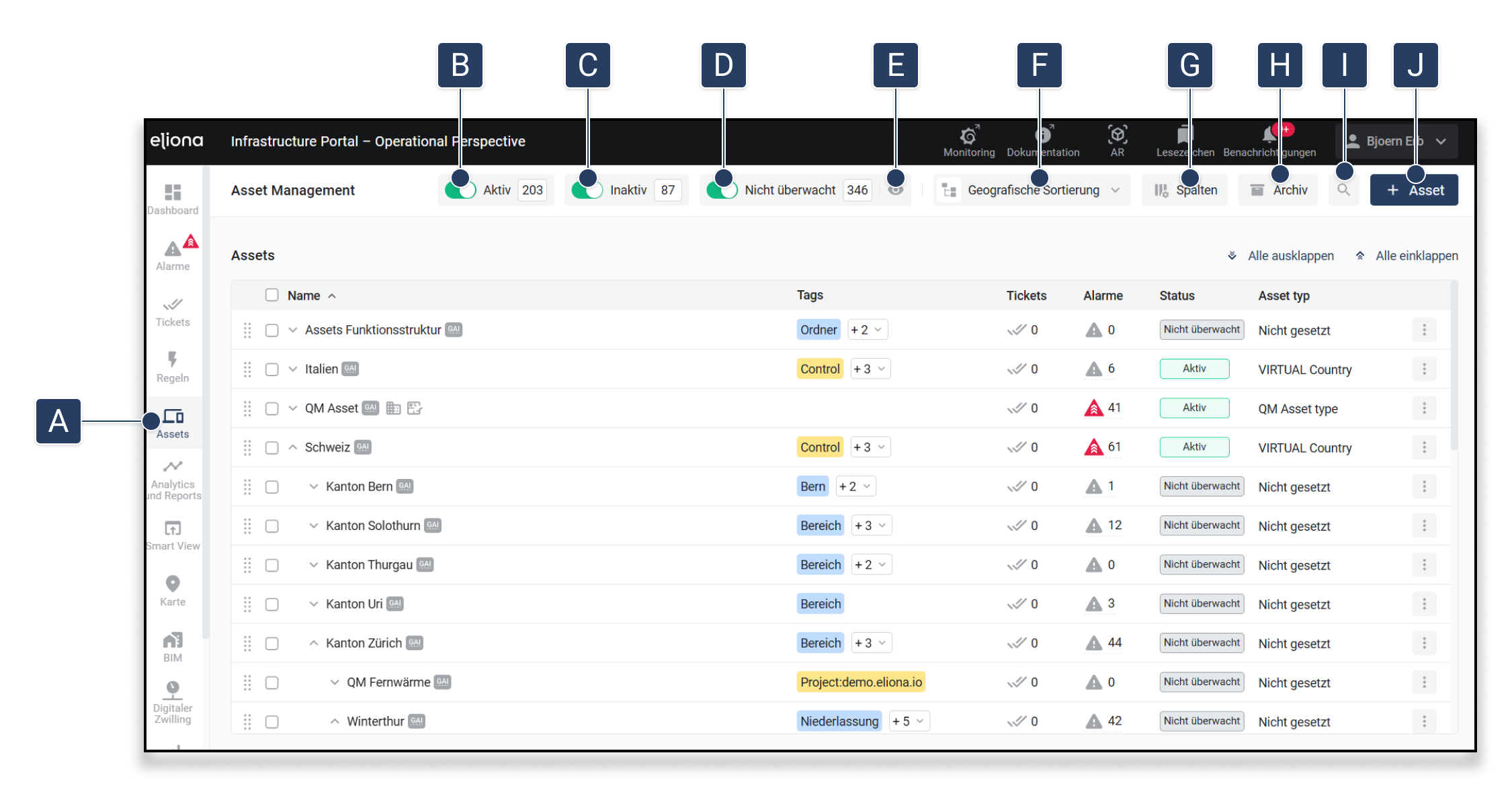
Click on **\[A]**, to open the asset menu.

<div data-full-width="true"><figure><img src="https://content.gitbook.com/content/Nyvwhz1kEMXcHf4HLuZ8/blobs/6gqQ82Z3xwS2g0nLu17K/Asset%20Management.png" alt=""><figcaption><p>Fig. 1 – The asset menu</p></figcaption></figure></div>

<table data-header-hidden data-full-width="true"><thead><tr><th width="78.99996948242188">Abbreviation</th><th width="333.79998779296875">Name</th><th>Description</th></tr></thead><tbody><tr><td><strong>[A]</strong></td><td>Menu item "Assets"</td><td>Opens the asset management.</td></tr><tr><td><strong>[B]</strong></td><td>Show/hide active assets</td><td>When this <a href="../../foreword/controls#schalter">↗ switch</a> is activated: Active assets are shown<br>When this switch is deactivated: Active assets are hidden<br><br>You can find more information about this function in the chapter <a href="assets/asset-status-active-inactive-unmonitored-assets">↗ Asset Status</a></td></tr><tr><td><strong>[C]</strong></td><td>Show/hide inactive assets</td><td>When this <a href="../../foreword/controls#schalter">↗ switch</a> is activated: Inactive assets are shown<br>When this switch is deactivated: Inactive assets are hidden<br><br>You can find more information about this function in the chapter <a href="assets/asset-status-active-inactive-unmonitored-assets">-> Monitoring Assets</a></td></tr><tr><td><strong>[D]</strong></td><td>Show/hide non-monitored assets</td><td>When this <a href="../../foreword/controls#schalter">↗ switch</a> is activated: Inactive assets are shown<br>When this switch is deactivated: Inactive assets are hidden<br><br>You can find more information about this function in the chapter <a href="assets/asset-status-active-inactive-unmonitored-assets">↗ Asset Status</a></td></tr><tr><td><strong>[E]</strong></td><td>Hide "Not monitored" tag</td><td>Hides the status tag "Not monitored" in the table without hiding the corresponding assets.</td></tr><tr><td><strong>[F]</strong></td><td>Switch between Geographical Sorting and Functional Sorting</td><td>Using this menu item, you can choose whether you want to sort assets geographically or functionally. <br><br>↗<a href="assets/structure-assets"> Learn more about sorting assets</a></td></tr><tr><td><strong>[G]</strong></td><td>Column configuration</td><td>Opens the menu for customizing the displayed columns.</td></tr><tr><td><strong>[H]</strong></td><td>Archive</td><td>Click here to <a href="assets/archive-assets">↗ archived assets</a> display.</td></tr><tr><td><strong>[I]</strong></td><td>Search</td><td>Opens the search function for assets.</td></tr><tr><td><strong>[J]</strong></td><td>Create new asset</td><td>Allows you to create a ↗<a href="assets/create-assets"> new asset</a></td></tr></tbody></table>

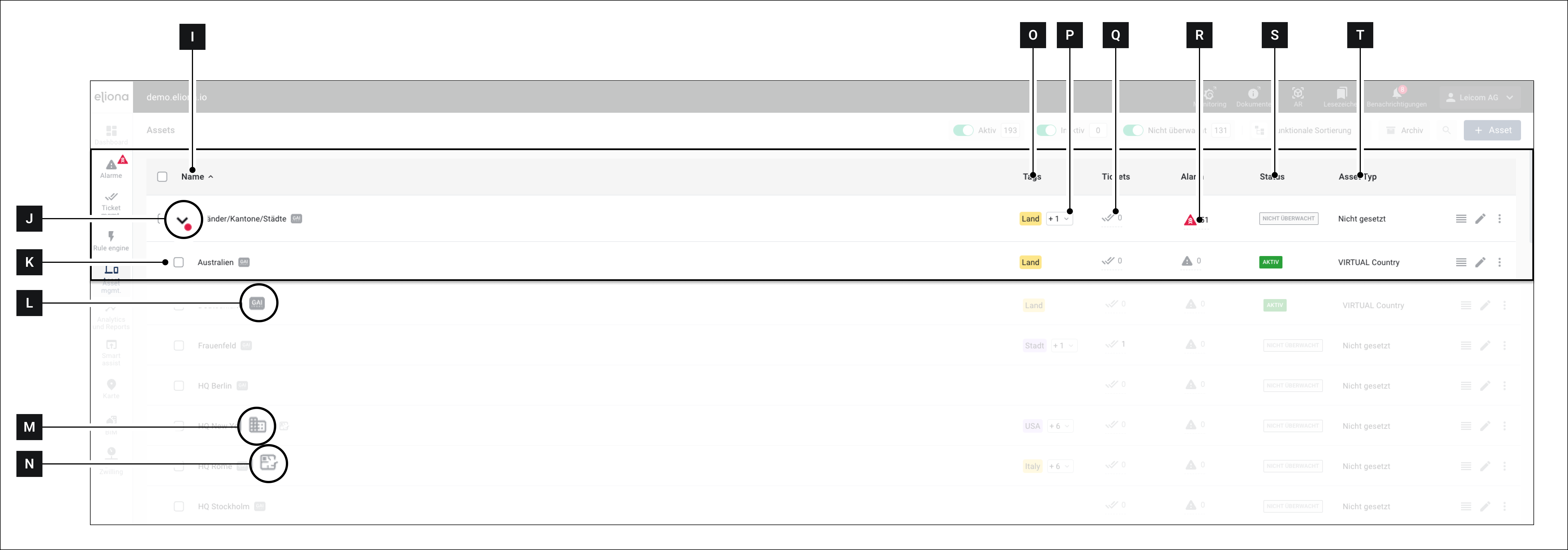
<div data-full-width="true"><figure><img src="https://content.gitbook.com/content/Nyvwhz1kEMXcHf4HLuZ8/blobs/IrURWrkylg02FIxjWmmS/0580EFBF-CDCC-46CD-9811-E2A59407A978.png" alt=""><figcaption><p>Fig. 2 – The asset menu (details)</p></figcaption></figure></div>

<table data-full-width="true"><thead><tr><th width="122.33333333333337"></th><th width="263"></th><th></th></tr></thead><tbody><tr><td><strong>[I]</strong></td><td>Name</td><td>This column displays the name of the asset. </td></tr><tr><td><strong>[J]</strong></td><td>Expand subordinate assets</td><td>Assets with this symbol contain additional subordinate assets. Click the symbol to expand the asset and display subordinate assets/folders. <br><br>The red circle indicates that one of the subordinate assets has an alarm.</td></tr><tr><td><strong>[K]</strong></td><td>Single asset</td><td>A single asset without subordinate assets</td></tr><tr><td><strong>[L]</strong></td><td>GAI</td><td>Click this field to display the <a href="../../foreword/glossary#gai">↗ GAI</a> as well as further information about the respective asset</td></tr><tr><td><strong>[M]</strong></td><td>Buildings</td><td>Indicates that the corresponding asset is a ↗<a href="wayfinding/edit-an-existing-building"> Buildings</a> . <br>Buildings are assets that have an ↗<a href="bim"> BIM</a> model assigned to them</td></tr><tr><td><strong>[N]</strong></td><td>floor</td><td>Indicates that the corresponding asset is a floor. <br><br>Floors are assets with special properties. <br>↗<a href="map-and-floor/floor"> Learn more in the Floors chapter</a></td></tr><tr><td><strong>[O]</strong></td><td>Tags</td><td>This column displays the name of the asset. </td></tr><tr><td><strong>[P]</strong></td><td>Show more tags</td><td>Indicates whether and how many additional tags are available for the respective asset. Click to expand the additional tags</td></tr><tr><td><strong>[Q]</strong></td><td>Tickets</td><td>Indicates whether tickets are available for this asset</td></tr><tr><td><strong>[R]</strong></td><td>Alarm</td><td>Shows existing alarms for this asset</td></tr><tr><td><strong>[S]</strong></td><td>Status</td><td>Shows the status of the asset</td></tr><tr><td><strong>[T]</strong></td><td>Asset type</td><td>Shows the type of the respective asset</td></tr></tbody></table>