For the complete documentation index, see llms.txt. This page is also available as Markdown.

Asset data

Data view

The Data view in Eliona offers a detailed overview of the raw data written into a asset written raw data. This includes, among other things, measurements, events or aggregated data from sensors or devices. Unlike in graphical representations (e.g. lines or charts), the Data view displays the values in tabular form, so that the numbers are directly visible.

The Data view is especially useful for:

  • Monitoring the status of a Assets using concrete measured values in real time.

  • Individual tracking data points precisely and checking them.

  • providing data foundations for reports and detailed analyses.

The chronological sorting of the data makes it easier to recognize time-based patterns and identify irregularities more quickly.

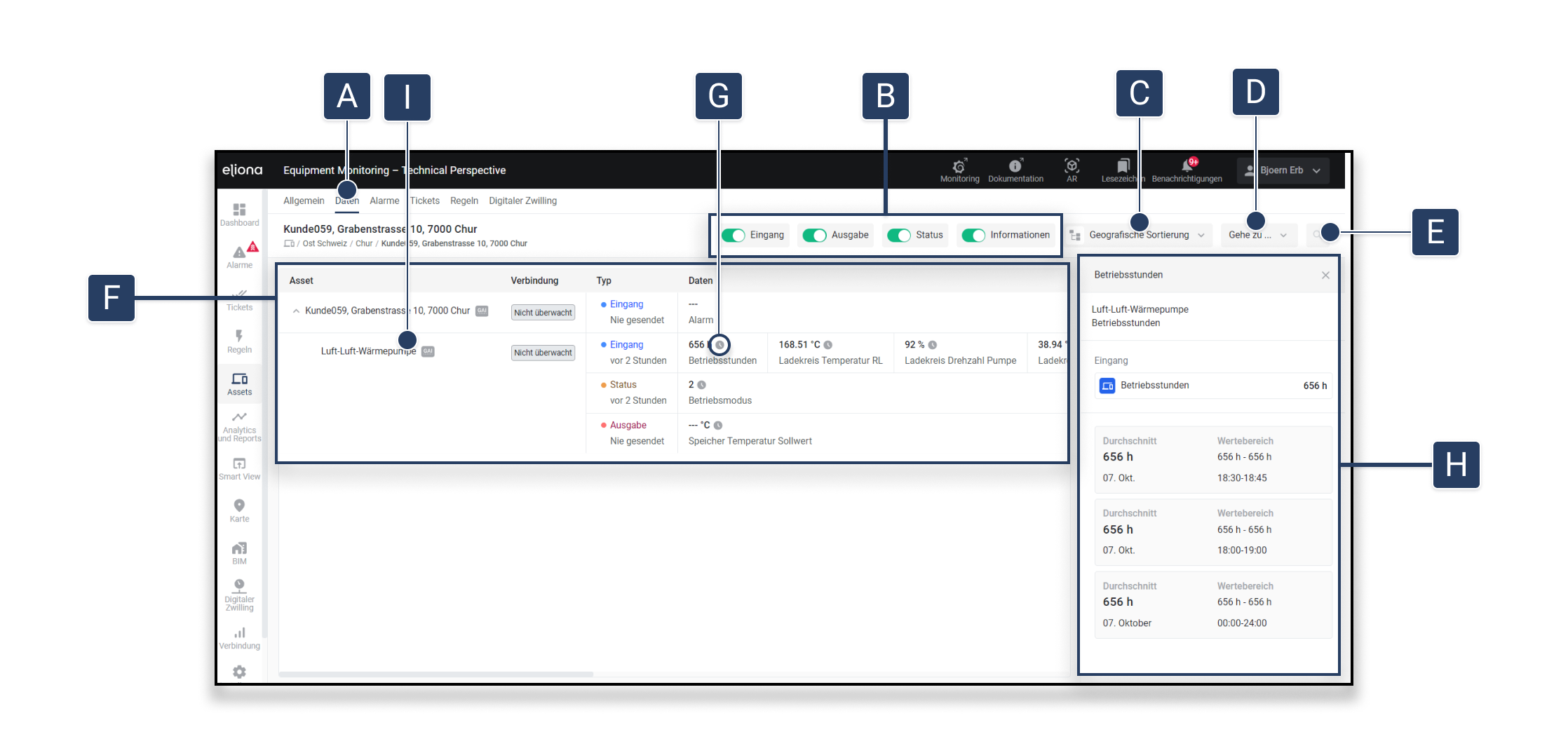
[A]

Data

After opening the -> asset details the data view can be opened via the "Data" tab.

[B]

Filter

Here you can select which data from which asset-types you want to see.

[C]

Sorting

Here you can select whether the subassets should be displayed in geological or functional sorting.

[D]

Go to...

Here you can jump to the map, to Tickets and Analytics of the Assets jumped to.

[E]

Search

Here can, as in the Asset list, after Assets search.

[F]

Current data

Here the data last written into the asset are displayed.

[G]

Show aggregated data

To see the aggregated data, click the small clock. Then, on the right, [H] the aggregated data open.

[H]

Aggregated data

Here you can see the aggregated data and their periods. -> Show aggregated data

[I]

to the details about the data

To see all data sorted by date, click the name of a Assets. Then the chronologically sorted Data view of the chosen Assets opens.

Details about the data

[J]

Data filter

Allows filtering the displayed data by various categories such as „All“, „Input“, „Output“ and „Status“.

[K]

Data table

Shows the raw data of the selected Assets in tabular form.

[L]

Aggregated data

Button for aggregated data in [K] display.

[M]

Export

Button to export the displayed data as CSV.

[O]

Time filter

Allows detailed searching of data by selecting a start and end date as well as the respective time. The filters can be applied or reset.

[P]

Add new entry

Add a new data entry at the current time. -> add new data entry

[Q]

bulk editing of data

Open the window to change past data for a value on a larger scale. -> bulk editing of data

[R]

Edit individual historical data

Click the pencil icon on the value you want to change to manually modify this data point. -> edit individual historical data


Show aggregated data

In Eliona, measured values can be displayed not only as raw data, but also in aggregated form displayed. Aggregations make it possible to present large amounts of data clearly and in different time intervals .

Enable aggregated data

  1. Click on [L], to display the aggregated data . ▷ The view switches from raw data to aggregation view.

  2. Set period: In [L1] you can define for which period the data should be aggregated.

  3. Select aggregation interval: Select in [L2] which time steps the data should be aggregated in (e.g. hourly, daily, weekly).

  4. Select attribute: In [L3] you can determine which attribute should be aggregated.

  5. Set aggregation mode: In [L4] there are various aggregation modes available:

    • Average

    • Sum counter

    • Cumulative counter

    • Minimum

    • Maximum

      ▷ more about this can be found -> here.

  6. Apply settings: Click on [L5], to apply the changes made.

  7. Reset settings: If necessary, you can reset the filters with [L6] .

  8. Show aggregated data: The calculated values appear in [L7] in a tabular view.

Aggregated data enable a better overview of long-term developments and help to analyze data flows efficiently.


Add new data entry

  1. Add new entry Click on Add new entry [P]. ▷ The "Add new data entry" window opens.

  2. Select attribute Select the desired Attribute from [S].

  3. Enter value Enter the desired value in the corresponding field [T].

  4. Confirm entry Click again on Add new entry, to confirm the entry. ▷ The entry for the attribute is written to the heap with the current timestamp.

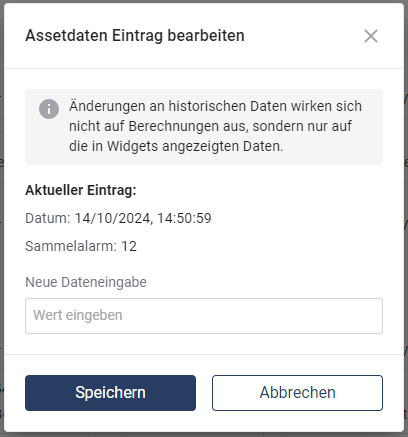
Edit individual historical data

  1. Show pencil icon Move the mouse over the desired data entry. ▷ A pencil icon appears next to the entry.

  2. Edit data entry Click on the Pencil icon [R], to edit the data entry. ▷ The "Edit asset data entry" window opens.

  3. Enter new value Enter the new value for the entry.

  4. Save changes Click on Save, to apply the changes. ▷ The new value replaces the old value in the data record

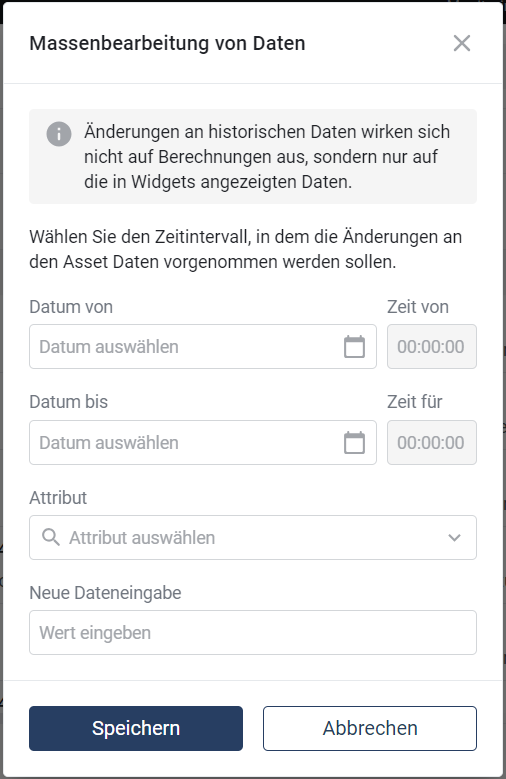
bulk editing of data

If you want to change data in bulk, e.g. because a device delivered incorrect data on a certain day, you can do this easily. With the bulk editing function, all data within a defined period can be set to a desired value.

  1. Open bulk editing window Click on [Q], to open the window bulk editing of data .

  2. Set period Enter the of- and to-date as well as the times, to define the period in which the data should be changed.

  3. Select attribute Select the attribute whose data you want to change.

  4. Set value Enter the new value that should replace the existing data.

  5. Save change Click on Save, to apply the changes. ▷ All data of the selected attribute in the specified period will be set to the new value.

Use of Timescale for storing time-based data

The use of TimescaleDB in Eliona enables efficient storage and management of time-based data, especially for changing values. By storing only values that have actually changed, storage space is optimized without compromising the integrity of the data.

Example: Changes over time

Let us look at the data recorded at regular intervals:

Original data without Timescale

Each time record contains all values, even if they have not changed:

Data structure with Timescale

With TimescaleDB we only store the values that have actually changed. This reduces redundant data and improves performance:

Good to know: If "Null" values are written into Eliona by your devices, then these are filtered out and not written into the trend.

Last updated

Was this helpful?