# Asset details

Through the Asset Details window, you have access to many functions of an individual asset

## Overview

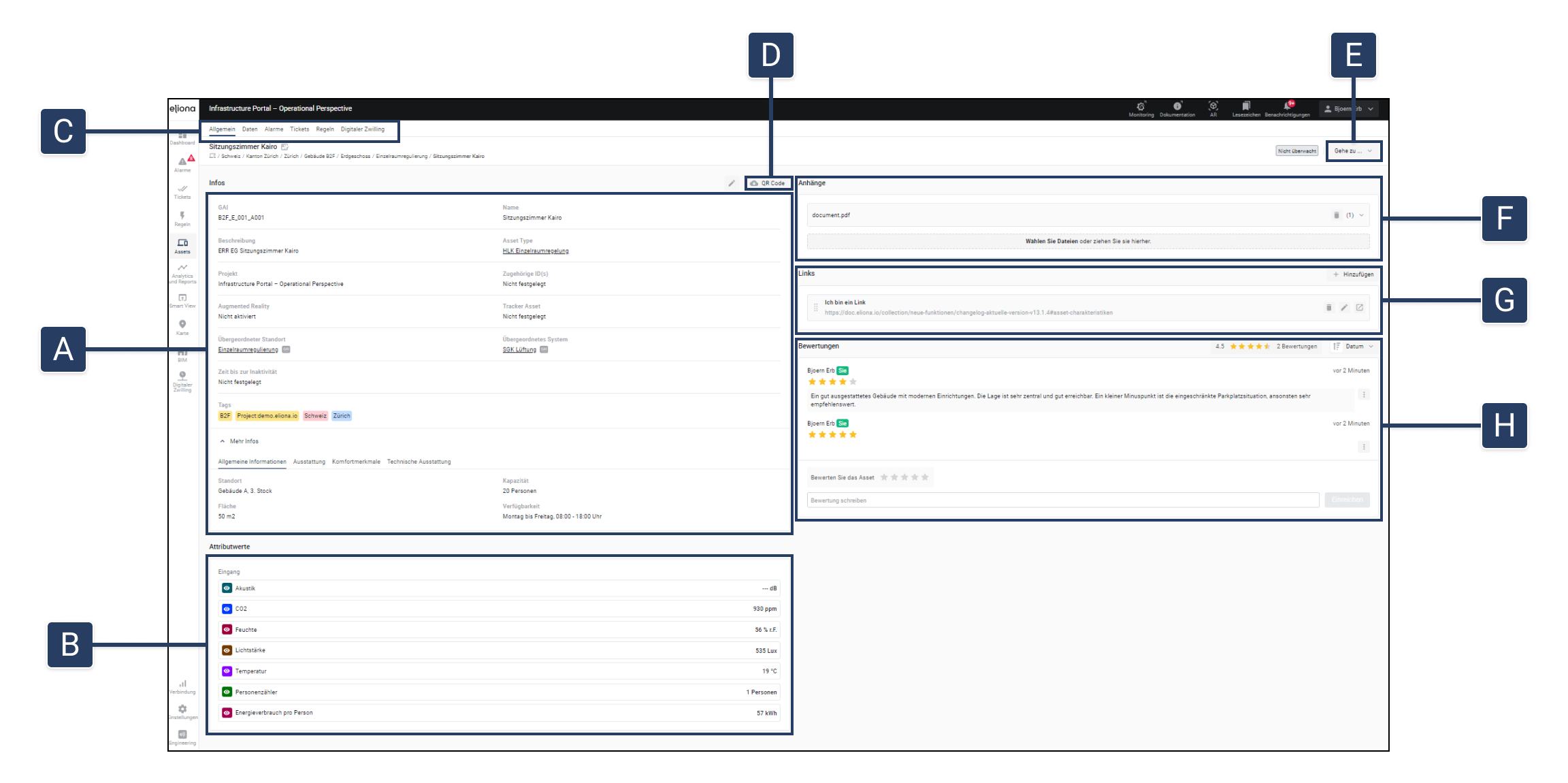
<figure><img src="https://content.gitbook.com/content/Nyvwhz1kEMXcHf4HLuZ8/blobs/FwmzBV0eNlQQ7gIFrKOp/Charakteristics.png" alt=""><figcaption><p>Fig. 1 – The Asset Details, tab "General"</p></figcaption></figure>

<table data-full-width="true"><thead><tr><th width="95.33333333333331"></th><th width="182"></th><th></th></tr></thead><tbody><tr><td><strong>[A]</strong></td><td><a href="configure-an-asset">-> Information</a></td><td>This section lets you configure the selected asset</td></tr><tr><td><strong>[B]</strong></td><td>Attributes</td><td><p>Displays the attributes of the asset. </p><p>You can learn more about attributes in the chapter <a href="asset-modeling-create-templates">-> Asset Modeling</a></p></td></tr><tr><td><strong>[C]</strong></td><td>Quick access tab</td><td><p>Quick access to information and settings related to the respective asset</p><ul><li>General</li><li>Data</li><li><a href="../alarms-rules-and-escalations">-> Alarms</a></li><li><a href="../tickets">-> Tickets</a></li><li><a href="../alarms-rules-and-escalations/rules">-> Rules</a></li><li><a href="../digital-twin">-> Digital Twins</a></li></ul></td></tr><tr><td><strong>[D]</strong></td><td>QR code</td><td>A <a href="generate-qr-codes">-> QR code</a> generate</td></tr><tr><td><strong>[E]</strong></td><td>Go to...</td><td><p>Quick access to</p><ul><li><a href="../map-and-floor">-> Map and Floor</a></li><li>-> Data</li><li><a href="../tickets">-> Create ticket</a></li><li><a href="../analytics-and-reports">-> Analytics</a></li></ul></td></tr><tr><td><strong>[F]</strong></td><td>Attachments</td><td>Using these, you can <a href="attach-documents-to-assets">-> attach documents</a></td></tr><tr><td><strong>[G]</strong></td><td>Links</td><td>Using these, you can <a href="add-links-to-an-asset">-> add links</a></td></tr><tr><td><strong>[H]</strong></td><td>Ratings</td><td>Here,<a href="ratings"> -> ratings</a> for the asset can be viewed and created.</td></tr></tbody></table>

## Open asset details

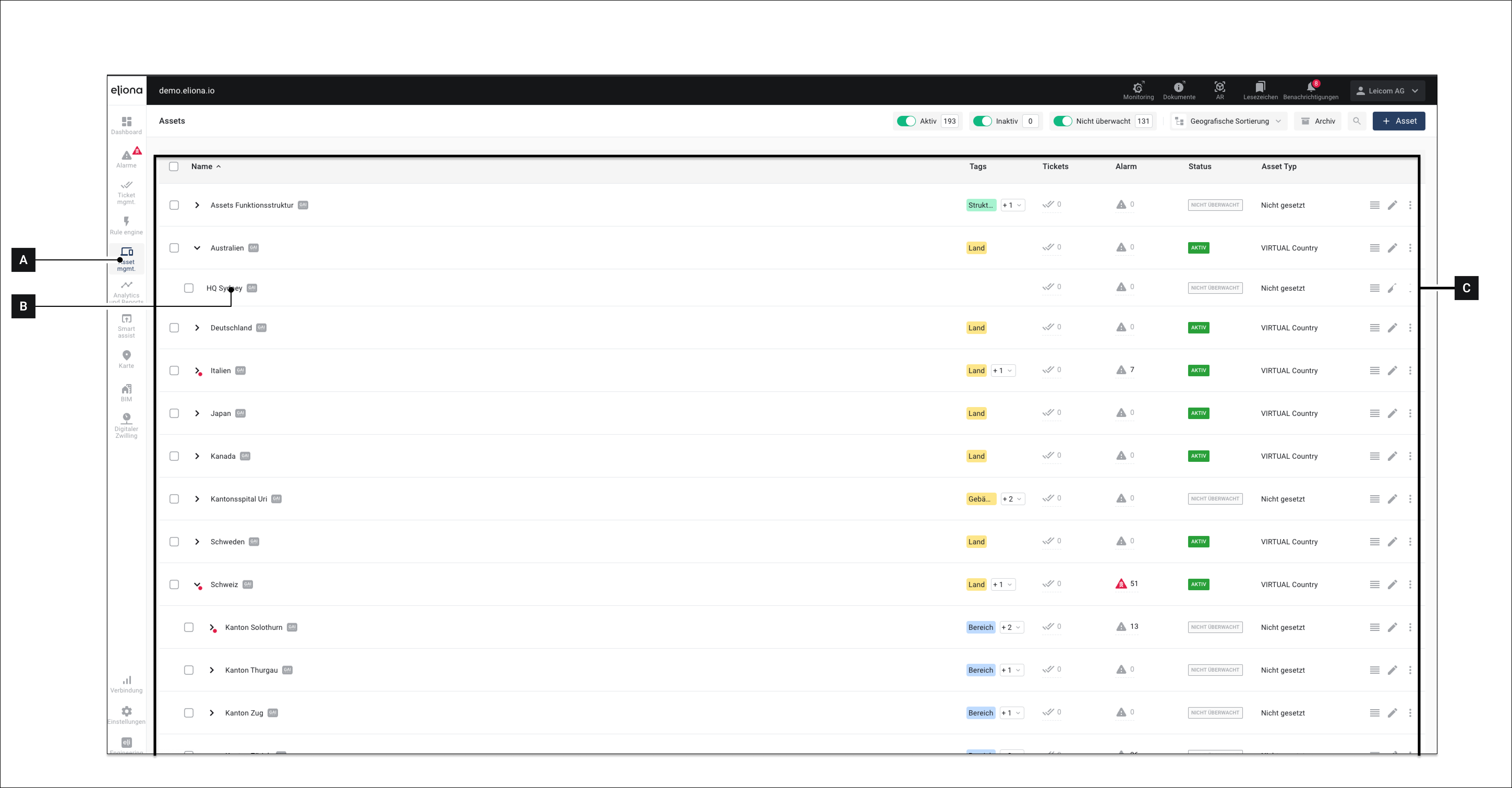
<div data-full-width="true"><figure><img src="https://content.gitbook.com/content/Nyvwhz1kEMXcHf4HLuZ8/blobs/rEiXjaL7F4uRaAFl4AwB/F50B2A4C-63FC-47F0-946C-1E254889BFEA.png" alt=""><figcaption><p>Fig. 2 – The asset menu with the asset list </p></figcaption></figure></div>

1. In the menu bar, click **Assets \[A]**\
   ▷ The "Assets" menu with the **asset list \[C]** appears
2. Click the name of the asset you want to configure **\[B]**\
   ▷ The [-> "Asset details"](https://docs.buildings.ability.abb/collection/english-v14/documentation/assets/asset-details) open (Fig. 1)