# BIM

BIM stands for ***B**uilding **I**nformation **M**odel* and refers to the interactive multidimensional representation of a building or infrastructure. &#x20;

In a BIM, you can interact with a virtual representation of your building, place assets, and much more.

## Overview

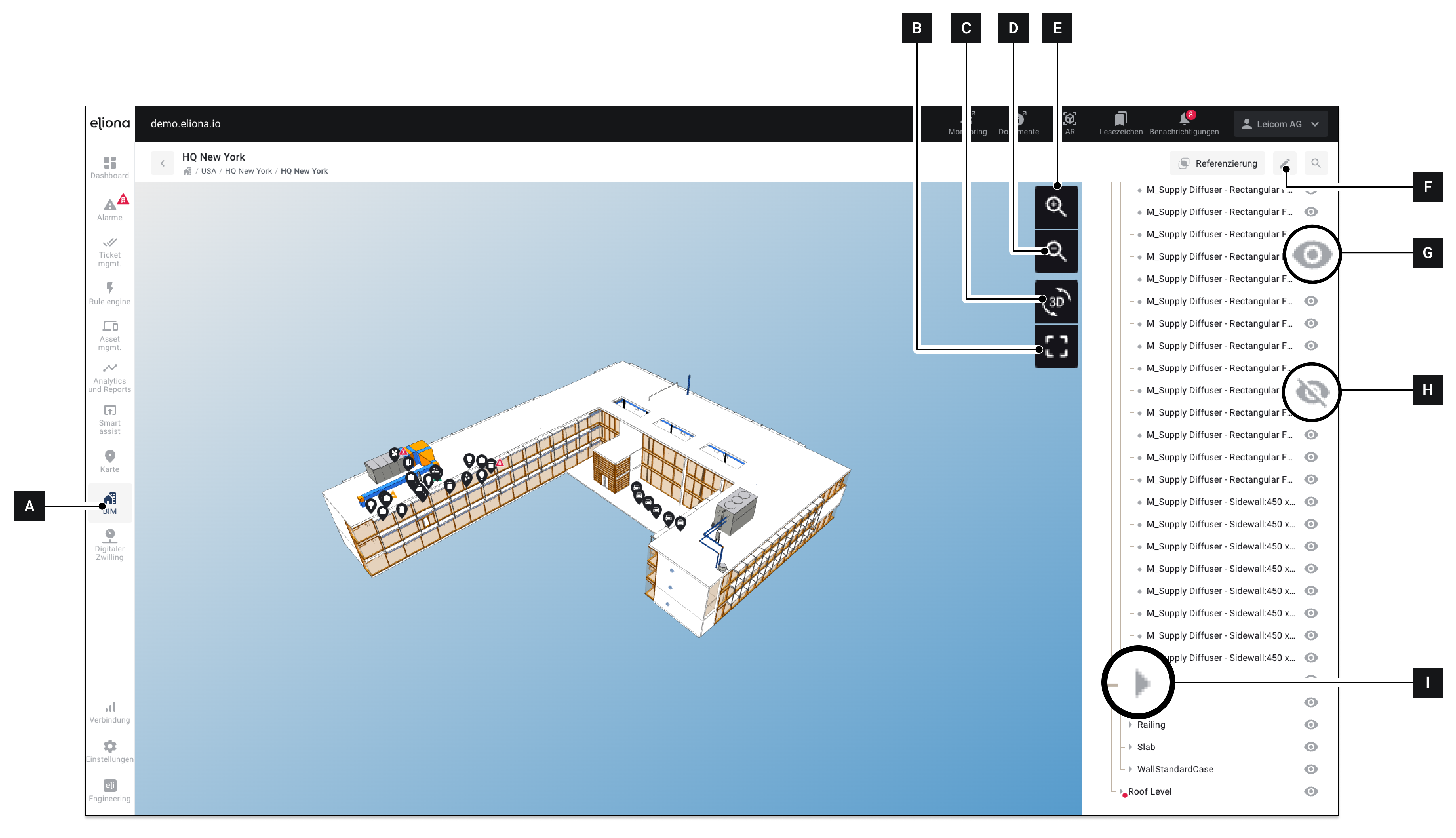
<div data-full-width="true"><figure><img src="https://content.gitbook.com/content/Nyvwhz1kEMXcHf4HLuZ8/blobs/EZxPXE3ZAEDjqppaa1V4/C1C78460-D300-478C-BEAF-AEB9A045B5AC.png" alt=""><figcaption><p>Fig. 1 – A BIM</p></figcaption></figure></div>

<table><thead><tr><th width="87.33333333333331"></th><th width="247"></th><th></th></tr></thead><tbody><tr><td><strong>[A]</strong></td><td>Menu item "BIM"</td><td>Click here to open the "BIM" menu</td></tr><tr><td><strong>[B]</strong></td><td>Center</td><td>Centers the model. <br>If you ever get "lost" in the model, you can use this to bring the entire model back into view.</td></tr><tr><td><strong>[C]</strong></td><td>Toggle between 3D/2D</td><td>Switches the model between a perspective three-dimensional view and a two-dimensional top view.</td></tr><tr><td><strong>[D]</strong></td><td>Zoom out</td><td>Click to zoom out</td></tr><tr><td><strong>[E]</strong></td><td>Zoom in</td><td>Click to zoom in</td></tr><tr><td><strong>[F]</strong></td><td>Place assets</td><td>Opens the <a href="bim/place-assets-in-a-bim">-> Place asset</a> mode</td></tr><tr><td><strong>[G]</strong></td><td>Indicator "Displayed component"</td><td>Components marked with this symbol are displayed and visible. Click this symbol to -> hide the corresponding component</td></tr><tr><td><strong>[H]</strong></td><td>Indicator "Hidden component"</td><td>Components marked with this symbol are currently hidden and not visible. Click this symbol to -> display the corresponding component</td></tr><tr><td><strong>[I]</strong></td><td>Expand</td><td>Components with this symbol contain subordinate components. Click this symbol to show the subordinate components.</td></tr></tbody></table>


---

# Agent Instructions: Querying This Documentation

If you need additional information that is not directly available in this page, you can query the documentation dynamically by asking a question.

Perform an HTTP GET request on the current page URL with the `ask` query parameter:

```
GET https://docs.buildings.ability.abb/collection/english-v14/documentation/bim.md?ask=<question>
```

The question should be specific, self-contained, and written in natural language.
The response will contain a direct answer to the question and relevant excerpts and sources from the documentation.

Use this mechanism when the answer is not explicitly present in the current page, you need clarification or additional context, or you want to retrieve related documentation sections.
