> For the complete documentation index, see [llms.txt](https://docs.buildings.ability.abb/collection/llms.txt). Markdown versions of documentation pages are available by appending `.md` to page URLs; this page is available as [Markdown](https://docs.buildings.ability.abb/collection/english-v14/documentation/engineering/skript-engine.md).

# Script Engine

The Script Engine offers you the possibility to process data in Eliona using Python and SQL scripts.

The special thing about scripts is that scripts are applied repeatedly and at regular intervals to the data.

{% hint style="info" %}
For simple data manipulations, e.g. adding values, the ↗ Calculator can be used.
{% endhint %}

## Application scenarios

Here are some typical and advanced use cases in which scripts can be used effectively:

* #### Evaluate and reset counters

  Counters, such as people counters, must be reset regularly to ensure accurate values. Scripts can be programmed to automatically reset these counters at specified times.
* #### Determine maximum values

  Scripts can be used to determine the highest value from a series of values and highlight it or process it further.
* #### Machine learning models and predictions

  An advanced use case involves integrating machine learning models. Scripts can be used to make predictions based on historical data, perform optimizations, or identify correlations between different datasets.
* #### Processing attachments

  Scripts can be programmed so that when attachments are uploaded, they automatically scan them and write the extracted data directly to the corresponding asset.
* #### Plausibility checks

  Another application is the plausibility check of data. A script can check whether the data lies within certain limits. If the data is plausible, the value 0 is set; otherwise 1.

## Accepted languages

Scripts can be written in *Python* or *SQL* written.

## Open script overview

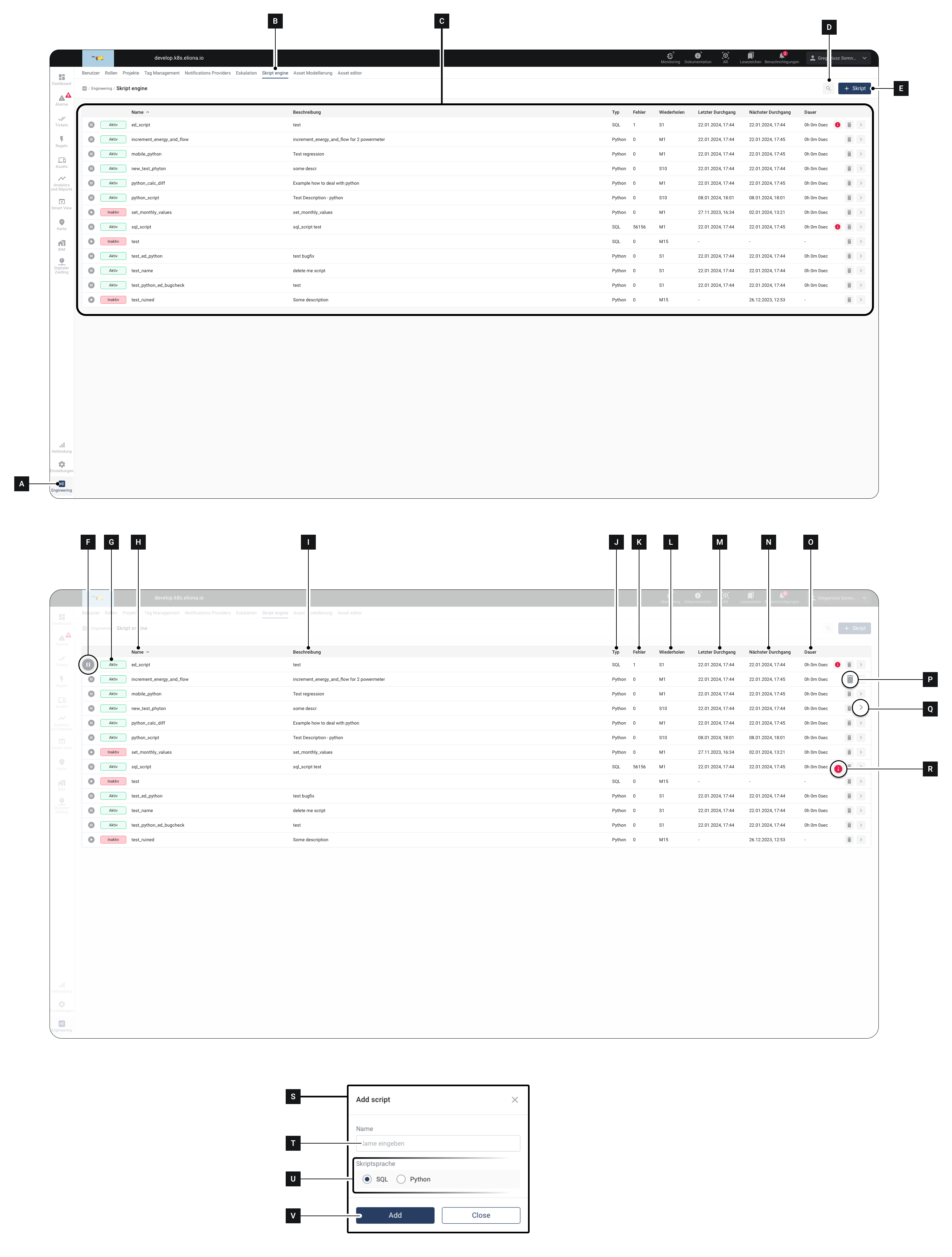
<div data-full-width="true"><figure><img src="https://content.gitbook.com/content/Nyvwhz1kEMXcHf4HLuZ8/blobs/imImeb474XcgH2XZECYj/Docs%20ScriptEngine%201.png" alt=""><figcaption></figcaption></figure></div>

1. Click on **Engineering** **\[A]**
2. Click on **Script Engine** **\[B]**\
   ▷The script overview opens

{% hint style="info" %}
Eliona comes with integrated scripts out of the box, so-called *system scripts*.

These scripts are exclusively for [system owner](/collection/english-v14/documentation/rollen.md#systemrollen) visible.

For all other users, these system scripts do not appear in the script overview. System scripts can be recognized by the fact that the option to edit **\[Q]** is grayed out and not available.
{% endhint %}

### Details

In the script engine you have the following options:

<table data-full-width="true"><thead><tr><th>Element</th><th>Title</th><th>Details</th></tr></thead><tbody><tr><td><strong>[C]</strong></td><td>Scripts section</td><td>Shows an overview of all scripts already created</td></tr><tr><td><strong>[D]</strong></td><td>Search</td><td>Opens the «Search» sidebar. There you can search specifically for individual scripts</td></tr><tr><td><strong>[E]</strong></td><td>Create new script</td><td>Click to create a new script</td></tr><tr><td><strong>[F]</strong></td><td>Pause/activate script</td><td>Click to pause a running script or reactivate a paused script</td></tr><tr><td><strong>[G]</strong></td><td>Script status</td><td>Shows whether a script is activated («Active») or paused («Inactive»)</td></tr><tr><td><strong>[H]</strong></td><td>Name</td><td>Shows the name of the script. The name of the script is assigned by the user when the script is created. The name can be changed later.</td></tr><tr><td><strong>[I]</strong></td><td>Shows the description of the script.</td><td>The name of the script is assigned by the user when they create the script. The name can be changed later.</td></tr><tr><td><strong>[J]</strong></td><td>Type</td><td>Shows whether the script was created in SQL or Python.</td></tr><tr><td><strong>[K]</strong></td><td>errors</td><td>Shows whether there are errors in the script</td></tr><tr><td><strong>[L]</strong></td><td>Repeat</td><td>Shows the <a href="/collection/english-v14/documentation/engineering/skript-engine/skripte-konfigurieren.md#raster">↗ Grid</a> selected for this script.</td></tr><tr><td><strong>[M]</strong></td><td>Last run</td><td>Shows when the script last ran.</td></tr><tr><td><strong>[N]</strong></td><td>Next run</td><td>Shows when the script will run next.</td></tr><tr><td><strong>[O]</strong></td><td>Duration</td><td>Shows how long the last run took.</td></tr><tr><td><strong>[P]</strong></td><td>Delete</td><td>Delete the selected script.</td></tr><tr><td><strong>[Q]</strong></td><td>Edit</td><td>Click to edit the script. Opens the menu <a href="/collection/english-v14/documentation/engineering/skript-engine/skripte-konfigurieren.md">↗ Configure script</a> .</td></tr><tr><td><strong>[R]</strong></td><td>errors</td><td>Indicates that there is an error with the script.</td></tr></tbody></table>

## Create new script

1. Open the script overview as in [↗ Open script overview](#skript-uebersicht-oeffnen) described
2. Click on **\[E]**\
   ▷ The window **\[S]** opens
3. Give the script a name in field **\[T]** a name.\
   ◈ This name will later appear in field **\[H]** displayed
4. Select in field **\[U]**, whether the script is written in Python or SQL
5. Click on **\[V]**, to create the script\
   ▷The «Configure Script» menu opens
6. Continue as in chapter [↗ Configure scripts](/collection/english-v14/documentation/engineering/skript-engine/skripte-konfigurieren.md) described


---

# Agent Instructions
This documentation is published with GitBook. GitBook is the documentation platform designed so that both humans and AI agents can read, navigate, and reason over technical content effectively. Learn more at gitbook.com.

## Querying This Documentation
If you need additional information that is not directly available in this page, you can query the documentation by asking a question.

Perform an HTTP GET request on the following URL with the `ask` and `goal` query parameters:

```
GET https://docs.buildings.ability.abb/collection/english-v14/documentation/engineering/skript-engine.md?ask=<question>&goal=<user_goal>
```

`ask` is the immediate question: it should be specific, self-contained, and written in natural language.
`goal` is what the user is ultimately trying to achieve, the reason they need the answer. Sharing it helps GitBook give you a better, more relevant answer. A goal is most helpful when it describes the outcome the user wants rather than restating the question. For example, with `ask=how do I create an API token`, a goal like `automate deployments from our CI pipeline` lets GitBook tailor the answer to that use case.

The response will contain a direct answer to the question and relevant excerpts and sources from the documentation.

Use this mechanism when the answer is not explicitly present in the current page, you need clarification or additional context, or you want to retrieve related documentation sections.