> For the complete documentation index, see [llms.txt](https://docs.buildings.ability.abb/collection/llms.txt). Markdown versions of documentation pages are available by appending `.md` to page URLs; this page is available as [Markdown](https://docs.buildings.ability.abb/collection/english-v14/documentation/karte-und-stockwerk/stockwerk/localino-anker-konfigurieren.md).
# Configure Localino anchors
{% hint style="info" %}
You only need this chapter if you use the Localino app.
{% endhint %}
## Configure Localino anchors
1. Open a floor
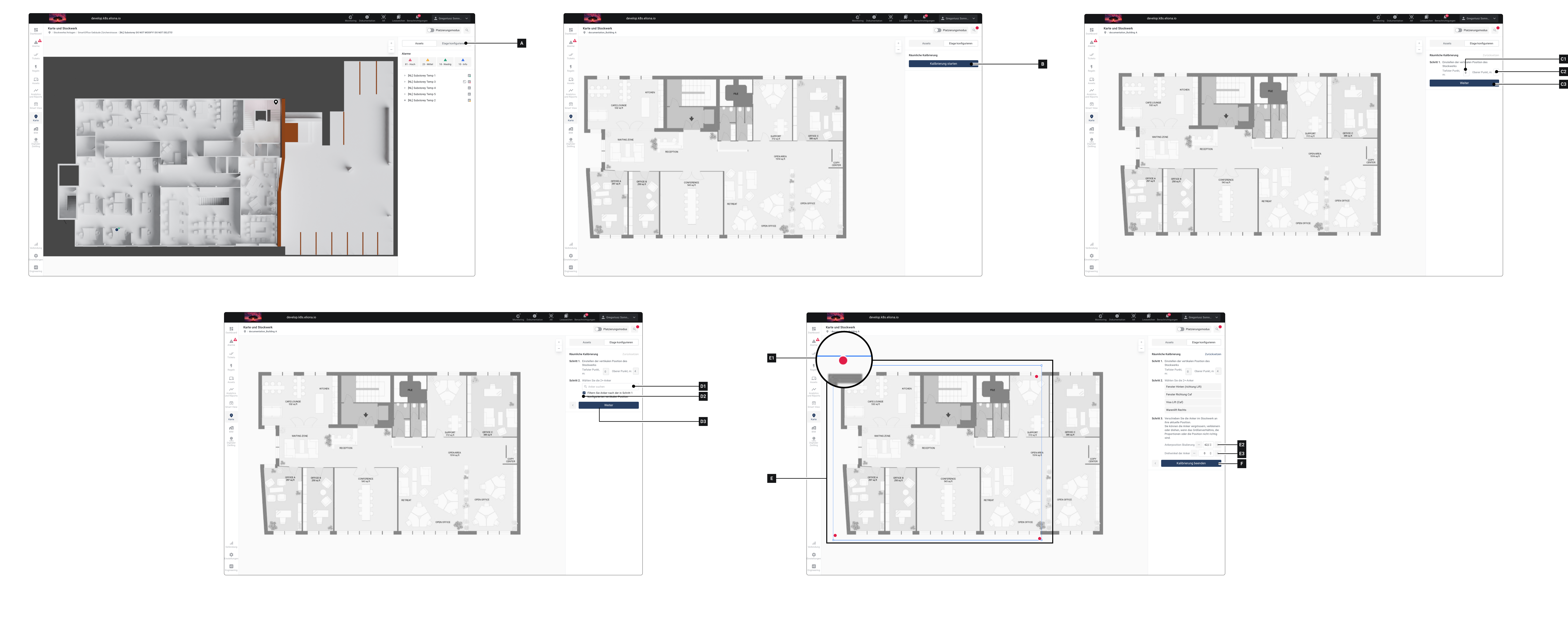
2. Click on **Configure floor \[A]**\
▷ The sidebar changes.
3. Click on **Start calibration \[B]**\
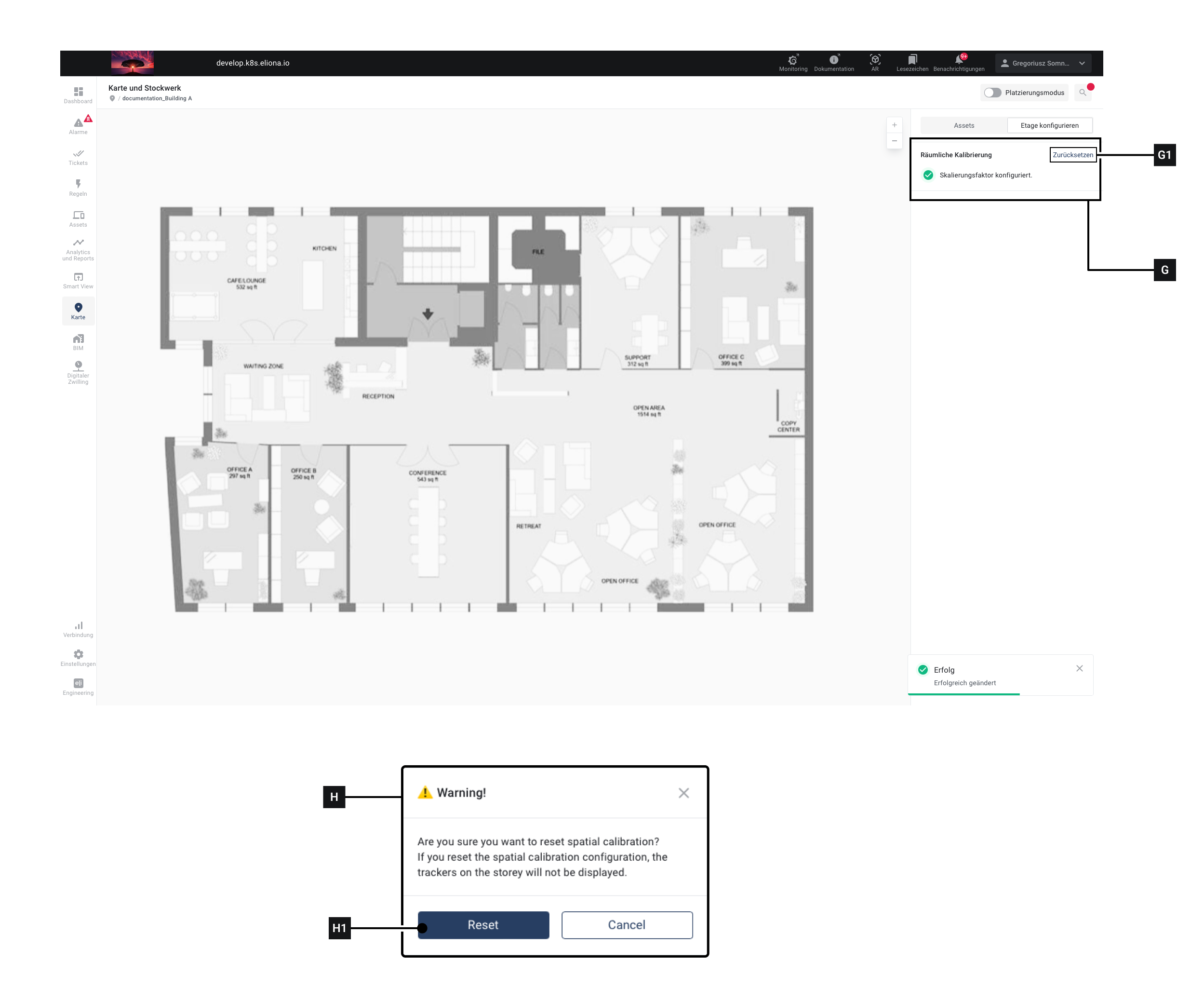
▷ Note: If you see the message **\[G]** you have already configured anchors for this floor.
4. In field **\[C1]** enter how high (in meters) the floor of the selected level is above the ground.
5. In field **\[C2]** enter how high (in meters) the ceiling of the selected level is above the ground.
6. Click on **\[C3]**\
▷ The options for the next step appear
7. Select in **\[D1]** at least 2 anchors from
8. Optional: Enable **\[D2]**, to filter the list of anchors so that only anchors compatible with the information entered previously are shown.
9. Click on **\[D3]**\
▷ The anchors appear in the viewport **\[E]**. Individual anchors are shown as red dots **\[E1]**
10. Move the anchors to the desired position using drag and drop. The position of the anchors in Eliona should match the position of the hardware devices as closely as possible.\
▷ You can only move/rotate/scale the anchors as a whole. You cannot edit individual anchors. The relative positions of the anchor points to one another were defined beforehand in the Localino app.\
▷ You can also rotate and scale the anchor arrangement. If necessary, use **\[E2]** and **\[E3]**, to make the fine adjustments.
11. Click on **Save \[F]**\
▷ The settings are applied
## Adjust Localino anchors later
You can adjust the configuration of the Localino anchors later.
1. Open a floor
2. Click on **Configure floor \[A]**\
▷ The message **\[G]** appears in the sidebar. If this message is missing, no anchor calibration has been performed yet.
3. Click on **Reset \[G1]**\
▷ The message **\[H]** appears
4. Click on **\[H1]**\
▷ The position of the anchors is reset.\
▷ Any connected Localino trackers will no longer be displayed.
5. Continue as described in the chapter [↗ Localino](/collection/english-v14/documentation/karte-und-stockwerk/stockwerk/localino-anker-konfigurieren.md) Configure anchors.
---
# Agent Instructions
This documentation is published with GitBook. GitBook is the documentation platform designed so that both humans and AI agents can read, navigate, and reason over technical content effectively. Learn more at gitbook.com.
## Querying This Documentation
If you need additional information that is not directly available in this page, you can query the documentation dynamically by asking a question.
Perform an HTTP GET request on the current page URL with the `ask` query parameter, and the optional `goal` query parameter:
```
GET https://docs.buildings.ability.abb/collection/english-v14/documentation/karte-und-stockwerk/stockwerk/localino-anker-konfigurieren.md?ask=&goal=
```
`ask` is the immediate question: it should be specific, self-contained, and written in natural language.
`goal` is optional and describes the broader end goal you are ultimately trying to accomplish on behalf of the user. GitBook uses it to tailor the answer towards what is most useful for that goal.
The response will contain a direct answer to the question and relevant excerpts and sources from the documentation.
Use this mechanism when the answer is not explicitly present in the current page, you need clarification or additional context, or you want to retrieve related documentation sections.