

Customize a project's appearance
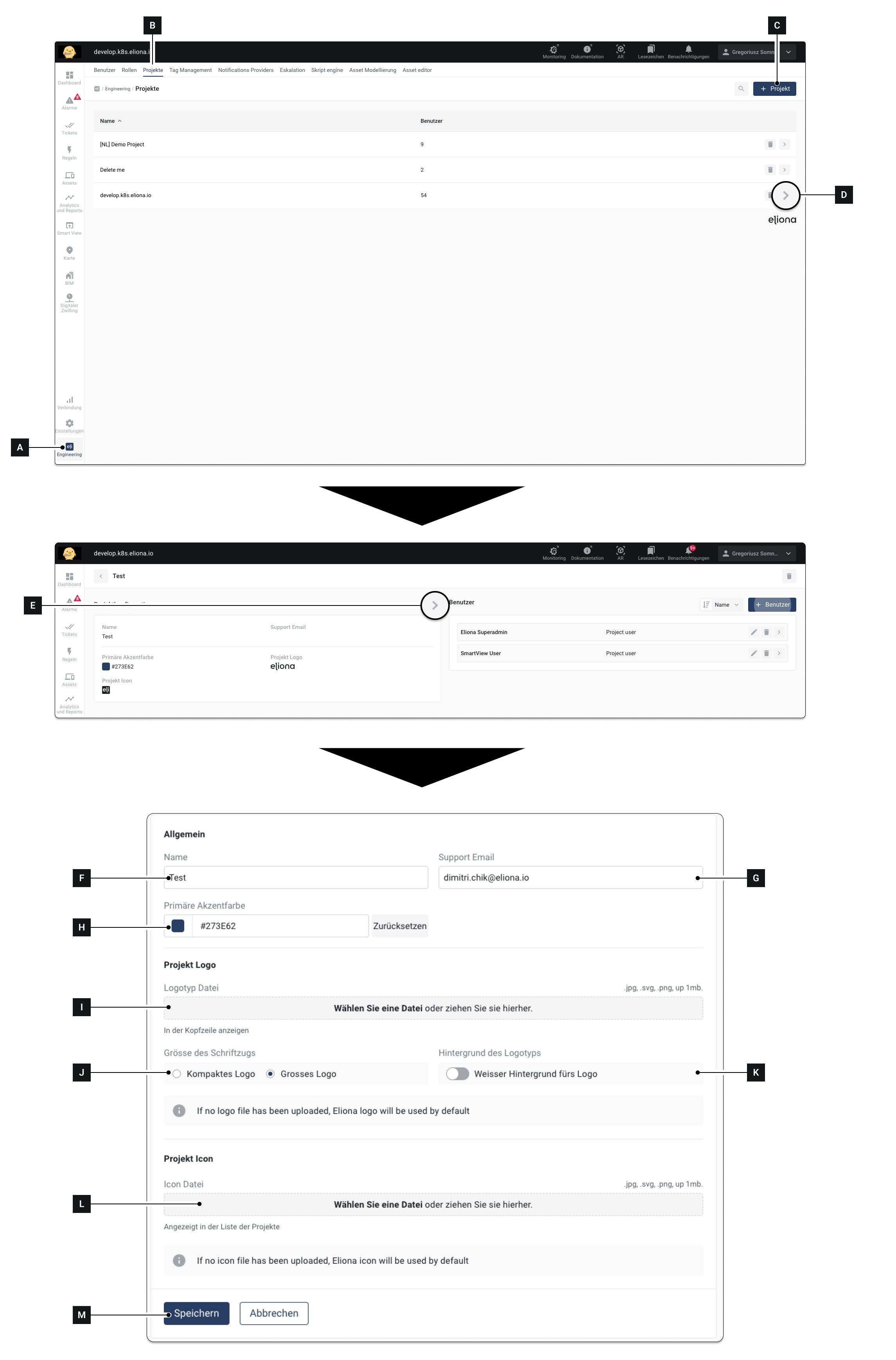
Click in the sidebar on Engineering [A]
Click in the context bar on Projects [B]
Open the desired project [D]
Click on [E]
Configure the settings as desired
[F]
Name
Project name
[G]
The email address to which notifications are sent
[H]
Primary accent color
Determines the color in which, for example, buttons appear
[I]
Project logo
You can see the project logo at the top left in the title bar. Click to select a new logo.
[J]
Logo size
Choose how large the logo should be displayed
[K]
Background
Choose whether the logo should be displayed with a white background. Does not work with .jpg files
[L]
Project icon
Choose an image file for the project icon. The project icon is displayed in the project list. The project list appears when you click your name in the title bar
[M]
Save
Apply and save settings
Last updated
Was this helpful?