

➗Calculate values: The calculator
The Calculator is a service that enables incoming data to be transformed, recalculated, and summarized. For example, values can be converted from watts to kilowatts by dividing them by 1000 upon receipt. The converted value is then displayed in the corresponding attribute where the calculation was performed.
Examples
Convert values
Watts to kW:
{value}/1000Degrees Celsius to degrees Fahrenheit [F=(1.8×C)+32]
(1.8*{value})+32
Calculate new values
Calculate comfort using formulas
(0.8 * {temperature}) + (0.2 * {humidity})Add People Counter
[10.input.count] + [11.input.count] + [12.input.count]Add consumption of multiple meters
[10.input.power] + [11.input.power] + [12.input.power]If value is between 1 and 80 then status "0 = Ok" otherwise "1 = Alarm"
not(inrange(1, {value}, 80))Turn heating on or off based on the temperature (map 0 to "off" map 1 to "on")
{temperature} < 20 ? 1 : 0
Syntax
To perform calculations with attributes, put the names of the attributes in curly braces. This gives you access to the values of these attributes.
Accessing attributes within an asset
You can directly access the values of attributes that are of the same type. For example:
Accessing attributes of different types within an asset
If you want to access attributes of different types within the same asset, use the following syntax:
{input.temperature}: Access the "temperature" attribute of the input type{status.temperature}: Access the "temperature" attribute of the status type{output.temperature}: Access the "temperature" attribute of the output type
Accessing attributes from other assets
To access the values of attributes of other assets, use the following syntax:
Example
In this example, the values of the "power" attribute of the assets with IDs 10, 11, and 12 are added together.
Perform calculations
You can perform calculations with attributes in 2 places in Eliona:
In the asset template
In the individual asset
In the asset template, default calculations are defined that are applied to all assets created with this template. However, these calculations can be individually overwritten in the individual assets if needed.
Perform a calculation in an asset template
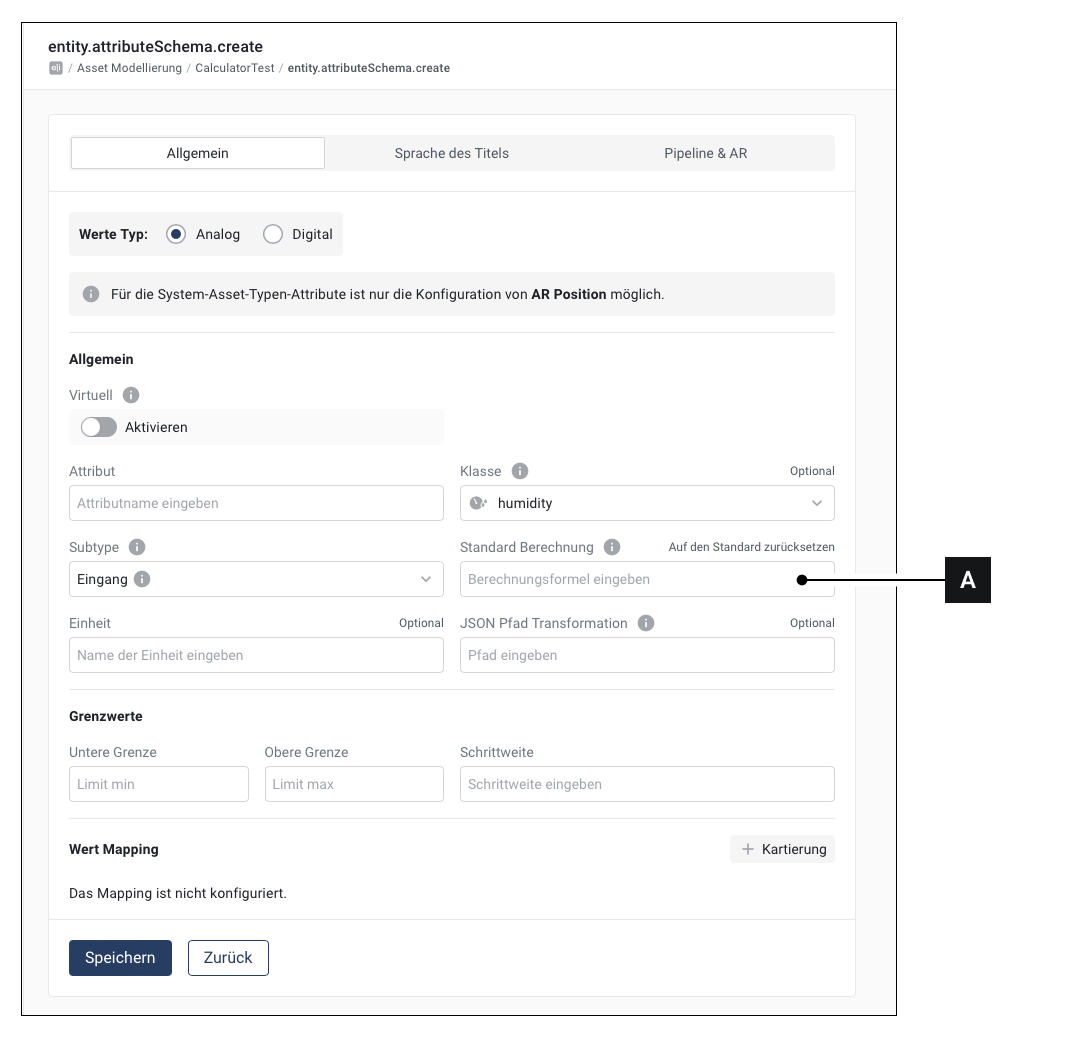
Open an existing asset template or create a new asset template
Open an existing attribute or create a new attribute
You can [A] perform calculations in this field. These calculations then apply to all assets of this type, but can also be overwritten in the individual asset.
Perform a calculation in an asset
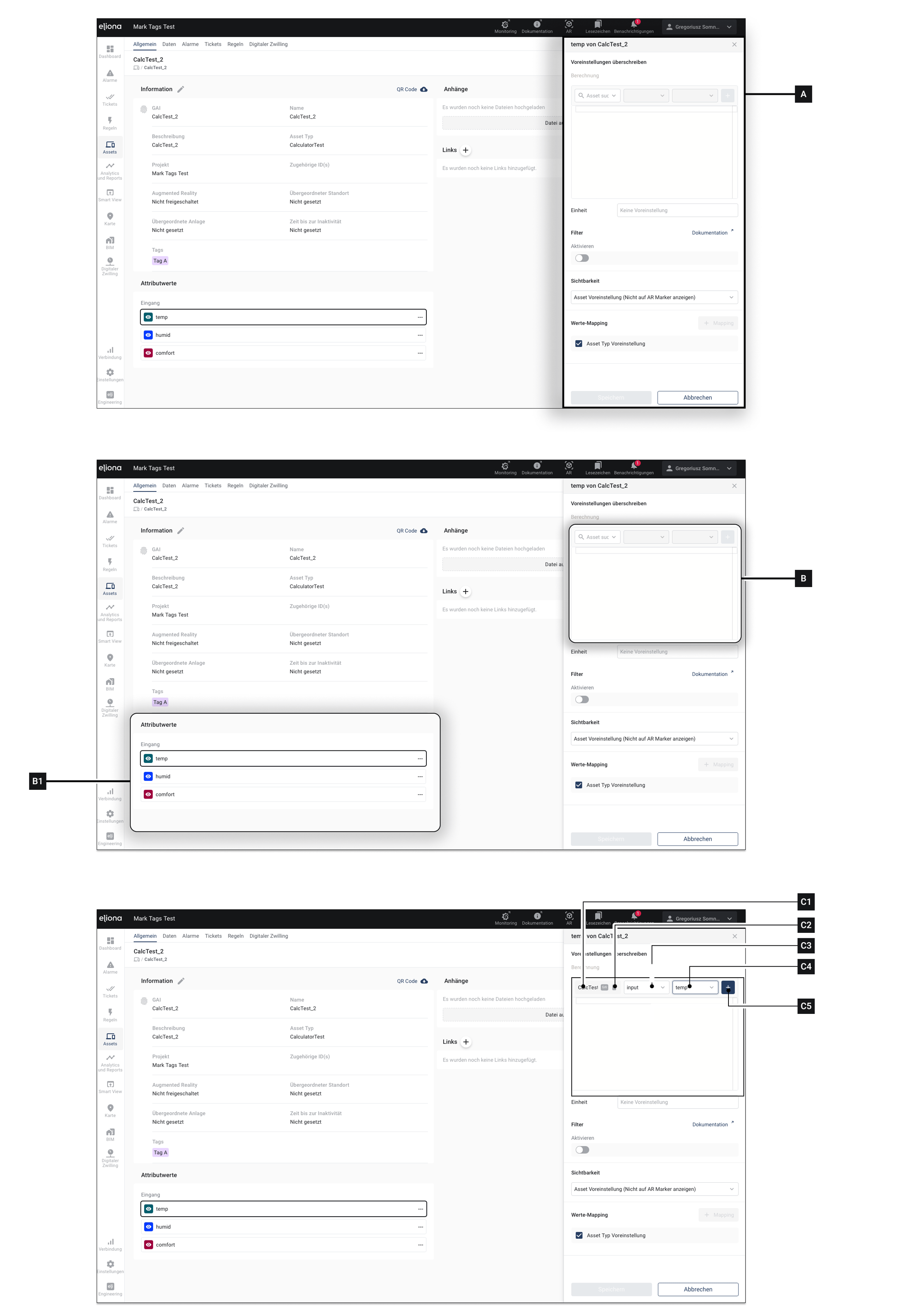
Open the ↗ Asset details
Click on the attribute whose values you want to calculate. ▷ The sidebar [A] opens
Enter the desired value into the field [B] enter your calculation.
Click on Save [X]
Use attributes of another asset (foreign values) in a calculation
This functionality is only possible when you perform calculations in an asset.
Open the ↗ Asset details
Click on the attribute whose values you want to calculate. ▷ The sidebar [A] opens
Enter the desired value into the field [B] enter your calculation.
Click on [C1], to select the asset whose values you want to use in the calculation.
Click on [C3], to specify the subtype of the asset.
Click on [C4], to specify the attribute you want to use.
Click on [C5], to confirm your selection. ▷ The details now appear in square brackets in field [B]
If you want to include additional foreign values in the calculation: 8.1. Click on [C2] 8.2. Repeat steps 4 to 8
Click on Save [X]
Reset output attribute
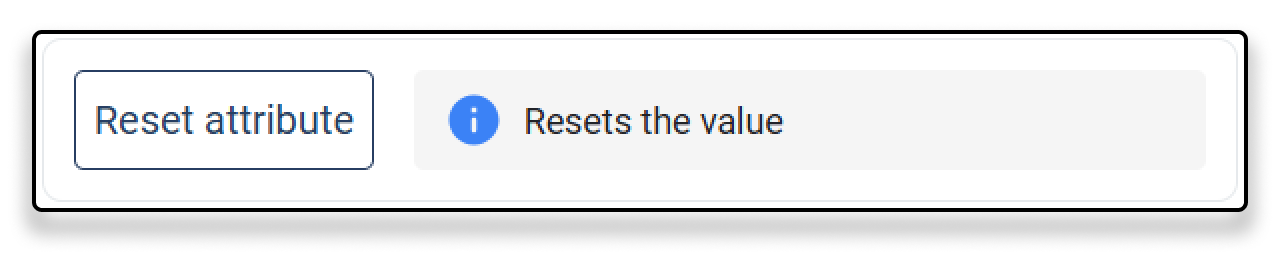
If a output attribute is selected, there is the option to reset the value.
When clicking "Reset attribute" a zero is written to the attribute.
This corresponds to the state as if no data were stored in the heap.
Calculation chains
Calculation chains are created automatically, when you create calculations, both within an asset and across multiple assets. A calculation chain exists when, for example, "Asset A depends on a value from Asset B, Asset B depends on a value from Asset C, and Asset C depends on a value from Asset D".
Whenever a value in Asset A that is used in Asset B changes, a calculation is triggered for Asset B. Any change to a value in Asset B that is referenced in Asset C results in a calculation in Asset C.
The chain is broken, if a step of the calculation fails or does not pass the Filter . This reduces the number of events in the system.
Operators and functions
The available operators and functions are listed here.
Operators
Arithmetic
+, -, *, /, % (modulus operator), ^ (exponent)
Comparison
==, !=, <, >, <=, >=
Logical
not or !, and or &&, or or
Condition
? (ternary operator - condition ? value if true : value if false)
Features
Functions can be used in the syntax avg({value1},{value2},{value3})
avg
Returns the average of a list of values (any number of float values)
max
Returns the maximum value of a list of values (any number of float values)
min
Returns the minimum value of a list of values (any number of float values)
abs
Returns the absolute value of a value (single float)
round
Rounds a value to the nearest whole number (single float)
pow
Exponentiation (2 arguments, the 2nd is the power)
sin
Sine of a value in radians
cos
Cosine of a value in radians
cosh
Hyperbolic cosine of a value in radians
cot
Cotangent of a value in radians
csc
Cosecant of a value in radians
sec
Secant of a value in radians
equal
Compares two numbers with a tolerance of 0.001
not
Inverts a boolean value
rad2deg
Converts radians to degrees
deg2rad
Converts degrees to radians
inrange
Checks whether a value lies within a range (left boundary, value, right boundary)
history(reference, back_step)
Returns a historical value of an attribute. reference is the normal reference of the attribute (e.g. [asset_id.subtype.attribute]), and back_step is a negative number indicating which value from history you want to retrieve. Example: -1 returns the previous value, -2 the one before that.
These functions and operators enable a wide range of calculations and logical operations in your calculations.
Last updated
Was this helpful?