> For the complete documentation index, see [llms.txt](https://docs.buildings.ability.abb/collection/llms.txt). Markdown versions of documentation pages are available by appending `.md` to page URLs; this page is available as [Markdown](https://docs.buildings.ability.abb/collection/english-v14/documentation/weitere-funktionen/attribut-funktionen/werte-berechnen-der-calculator.md).

# Calculate values: The calculator

The Calculator is a service that enables incoming data to be **transformed, recalculated, and summarized**. For example, values can be converted from watts to kilowatts by dividing them by 1000 upon receipt. The converted value is then displayed in the corresponding attribute where the calculation was performed.

## Examples

### Convert values

* Watts to kW:

  ```calculatorlang
  {value}/1000
  ```
* Degrees Celsius to degrees Fahrenheit \[F=(1.8×C)+32]

  ```calculatorlang
  (1.8*{value})+32
  ```

### Calculate new values

* Calculate comfort using formulas

  ```calculatorlang
  (0.8 * {temperature}) + (0.2 * {humidity})
  ```
* Add People Counter

  ```calculatorlang
  [10.input.count] + [11.input.count] + [12.input.count]
  ```
* Add consumption of multiple meters

  ```calculatorlang
  [10.input.power] + [11.input.power] + [12.input.power]
  ```
* If value is between 1 and 80 then status "0 = Ok" otherwise "1 = Alarm"

  ```calculatorlang
  not(inrange(1, {value}, 80))
  ```
* Turn heating on or off based on the temperature (map 0 to "off" map 1 to "on")

  ```calculatorlang
  {temperature} < 20 ? 1 : 0
  ```

### Syntax

To perform calculations with attributes, put the names of the attributes in curly braces. This gives you access to the values of these attributes.

**Accessing attributes within an asset**

You can directly access the values of attributes that are of the same type. For example:

```
{temperature} + {humidity}
```

**Accessing attributes of different types within an asset**

If you want to access attributes of different types within the same asset, use the following syntax:

* `{input.temperature}`: Access the "temperature" attribute of the input type
* `{status.temperature}`: Access the "temperature" attribute of the status type
* `{output.temperature}`: Access the "temperature" attribute of the output type

**Accessing attributes from other assets**

To access the values of attributes of other assets, use the following syntax:

```plaintext
[asset_id.attribute_type.attribute_name]
```

**Example**

```plaintext
[10.input.power] + [11.input.power] + [12.input.power]
```

In this example, the values of the "power" attribute of the assets with IDs 10, 11, and 12 are added together.

## Perform calculations

You can perform calculations with attributes in 2 places in Eliona:

* In the asset template
* In the individual asset

In the asset template, default calculations are defined that are applied to all assets created with this template. However, these calculations can be individually overwritten in the individual assets if needed.

{% hint style="info" %}
Avoid accessing attributes of other assets in the asset template, because if they change, this leads to problems and all calculations have to be recreated.
{% endhint %}

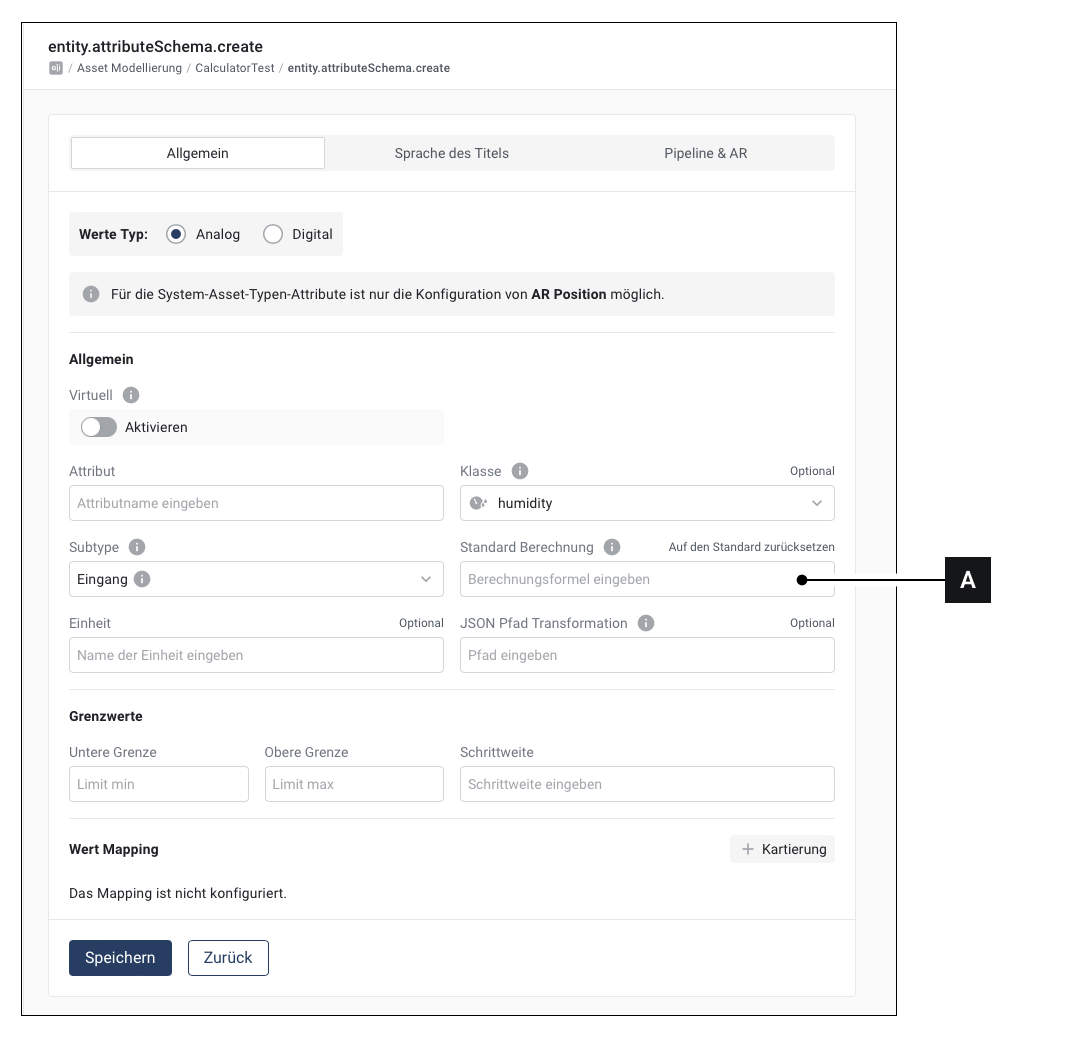
### Perform a calculation in an asset template

<figure><img src="https://content.gitbook.com/content/Nyvwhz1kEMXcHf4HLuZ8/blobs/mW6OgO9eARKovJB6ApwJ/Docs_Calculator%202.png" alt=""><figcaption></figcaption></figure>

1. Open an existing asset template or create a new asset template
2. Open an existing attribute or create a new attribute
3. You can **\[A]** perform calculations in this field. These calculations then apply to all assets of this type, but can also be overwritten in the individual asset.

### Perform a calculation in an asset

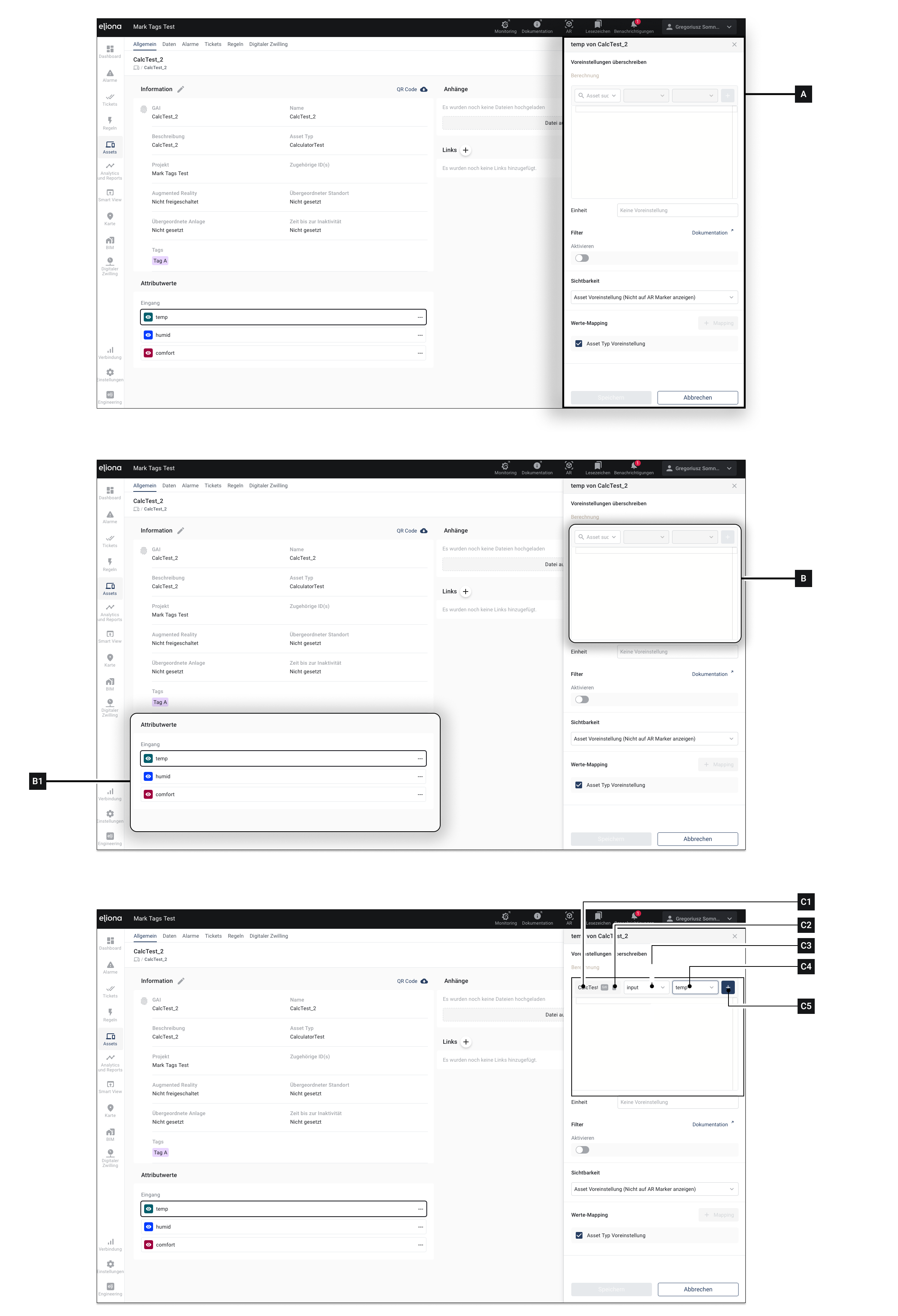
<figure><img src="https://content.gitbook.com/content/Nyvwhz1kEMXcHf4HLuZ8/blobs/r6Dqt5ONxsUrolegy06y/Docs_Calculator%201.png" alt=""><figcaption></figcaption></figure>

1. Open the [↗ Asset details](/collection/english-v14/documentation/assets/asset-details.md)
2. Click on the attribute whose values you want to calculate. ▷ The sidebar **\[A]** opens
3. Enter the desired value into the field **\[B]** enter your calculation.
4. Click on **Save \[X]**

#### Use attributes of another asset (foreign values) in a calculation

This functionality is only possible when you perform calculations in an asset.

1. Open the [↗ Asset details](/collection/english-v14/documentation/assets/asset-details.md)
2. Click on the attribute whose values you want to calculate. ▷ The sidebar **\[A]** opens
3. Enter the desired value into the field **\[B]** enter your calculation.
4. Click on **\[C1]**, to select the asset whose values you want to use in the calculation.
5. Click on **\[C3]**, to specify the subtype of the asset.
6. Click on **\[C4]**, to specify the attribute you want to use.
7. Click on **\[C5]**, to confirm your selection. ▷ The details now appear in square brackets in field **\[B]**
8. If you want to include additional foreign values in the calculation: 8.1. Click on **\[C2]** 8.2. Repeat steps 4 to 8
9. Click on **Save \[X]**

### **Reset output attribute**

If a **output attribute** is selected, there is the option to reset the value.

* When **clicking "Reset attribute"** a **zero is written to the attribute**.
* This corresponds to the state as if **no data were stored in the heap**.

<div align="left"><figure><img src="https://content.gitbook.com/content/Nyvwhz1kEMXcHf4HLuZ8/blobs/yUIV97KoPS7QKJEJ5PcU/Reset%20Attribute.png" alt="" width="375"><figcaption></figcaption></figure></div>

### Calculation chains

**Calculation chains are created automatically,** when you create calculations, both within an asset and across multiple assets. A calculation chain exists when, for example, "Asset A depends on a value from Asset B, Asset B depends on a value from Asset C, and Asset C depends on a value from Asset D".

Whenever a value in Asset A that is used in Asset B changes, a calculation is triggered for Asset B. Any change to a value in Asset B that is referenced in Asset C results in a calculation in Asset C.

The chain is **broken**, if a step of the **calculation fails or does not pass the** [**Filter**](/collection/english-v14/documentation/weitere-funktionen/attribut-funktionen/filter.md) **.** This reduces the number of events in the system.

### Operators and functions

The available operators and functions are listed here.

**Operators**

| Group      | Operators                                                         |
| ---------- | ----------------------------------------------------------------- |
| Arithmetic | +, -, \*, /, % (modulus operator), ^ (exponent)                   |
| Comparison | ==, !=, <, >, <=, >=                                              |
| Logical    | not or !, and or &&, or or                                        |
| Condition  | ? (ternary operator - condition ? value if true : value if false) |

**Features**

Functions can be used in the syntax avg({value1},{value2},{value3})

<table><thead><tr><th width="202">Function</th><th>Description</th></tr></thead><tbody><tr><td>avg</td><td>Returns the average of a list of values (any number of float values)</td></tr><tr><td>max</td><td>Returns the maximum value of a list of values (any number of float values)</td></tr><tr><td>min</td><td>Returns the minimum value of a list of values (any number of float values)</td></tr><tr><td>abs</td><td>Returns the absolute value of a value (single float)</td></tr><tr><td>round</td><td>Rounds a value to the nearest whole number (single float)</td></tr><tr><td>pow</td><td>Exponentiation (2 arguments, the 2nd is the power)</td></tr><tr><td>sin</td><td>Sine of a value in radians</td></tr><tr><td>cos</td><td>Cosine of a value in radians</td></tr><tr><td>cosh</td><td>Hyperbolic cosine of a value in radians</td></tr><tr><td>cot</td><td>Cotangent of a value in radians</td></tr><tr><td>csc</td><td>Cosecant of a value in radians</td></tr><tr><td>sec</td><td>Secant of a value in radians</td></tr><tr><td>equal</td><td>Compares two numbers with a tolerance of 0.001</td></tr><tr><td>not</td><td>Inverts a boolean value</td></tr><tr><td>rad2deg</td><td>Converts radians to degrees</td></tr><tr><td>deg2rad</td><td>Converts degrees to radians</td></tr><tr><td>inrange</td><td>Checks whether a value lies within a range (left boundary, value, right boundary)</td></tr><tr><td>history(reference, back_step)</td><td>Returns a historical value of an attribute. <code>reference</code> is the normal reference of the attribute (e.g. <code>[asset_id.subtype.attribute]</code>), and <code>back_step</code> is a negative number indicating which value from history you want to retrieve. Example: <code>-1</code> returns the previous value, <code>-2</code> the one before that.</td></tr></tbody></table>

These functions and operators enable a wide range of calculations and logical operations in your calculations.


---

# Agent Instructions
This documentation is published with GitBook. GitBook is the documentation platform designed so that both humans and AI agents can read, navigate, and reason over technical content effectively. Learn more at gitbook.com.

## Querying This Documentation
If you need additional information that is not directly available in this page, you can query the documentation by asking a question.

Perform an HTTP GET request on the following URL with the `ask` and `goal` query parameters:

```
GET https://docs.buildings.ability.abb/collection/english-v14/documentation/weitere-funktionen/attribut-funktionen/werte-berechnen-der-calculator.md?ask=<question>&goal=<user_goal>
```

`ask` is the immediate question: it should be specific, self-contained, and written in natural language.
`goal` is what the user is ultimately trying to achieve, the reason they need the answer. Sharing it helps GitBook give you a better, more relevant answer. A goal is most helpful when it describes the outcome the user wants rather than restating the question. For example, with `ask=how do I create an API token`, a goal like `automate deployments from our CI pipeline` lets GitBook tailor the answer to that use case.

The response will contain a direct answer to the question and relevant excerpts and sources from the documentation.

Use this mechanism when the answer is not explicitly present in the current page, you need clarification or additional context, or you want to retrieve related documentation sections.