

🤳Augmented Reality
What is augmented reality?
"Augmented reality" is the computer-assisted enhancement of the perception of reality. For example, information is displayed in the form of visual representations on the smartphone's camera screen.
Use of augmented reality in Eliona
In the asset details of every asset in your Eliona project, an AR code can be unlocked.
To unlock the AR code, click the "Augmented Reality" checkbox:
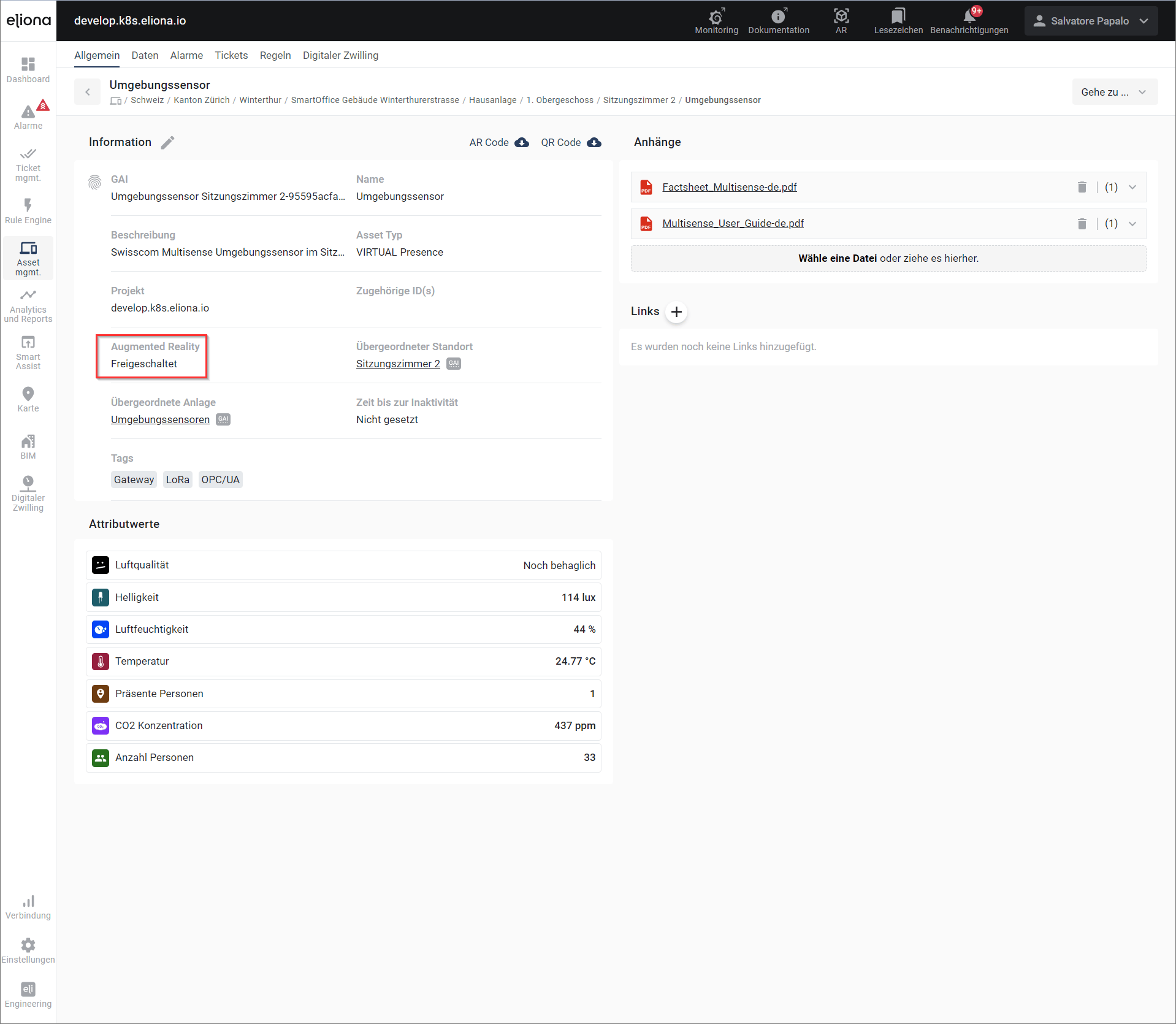
3. The augmented reality code can now be asset details downloaded:
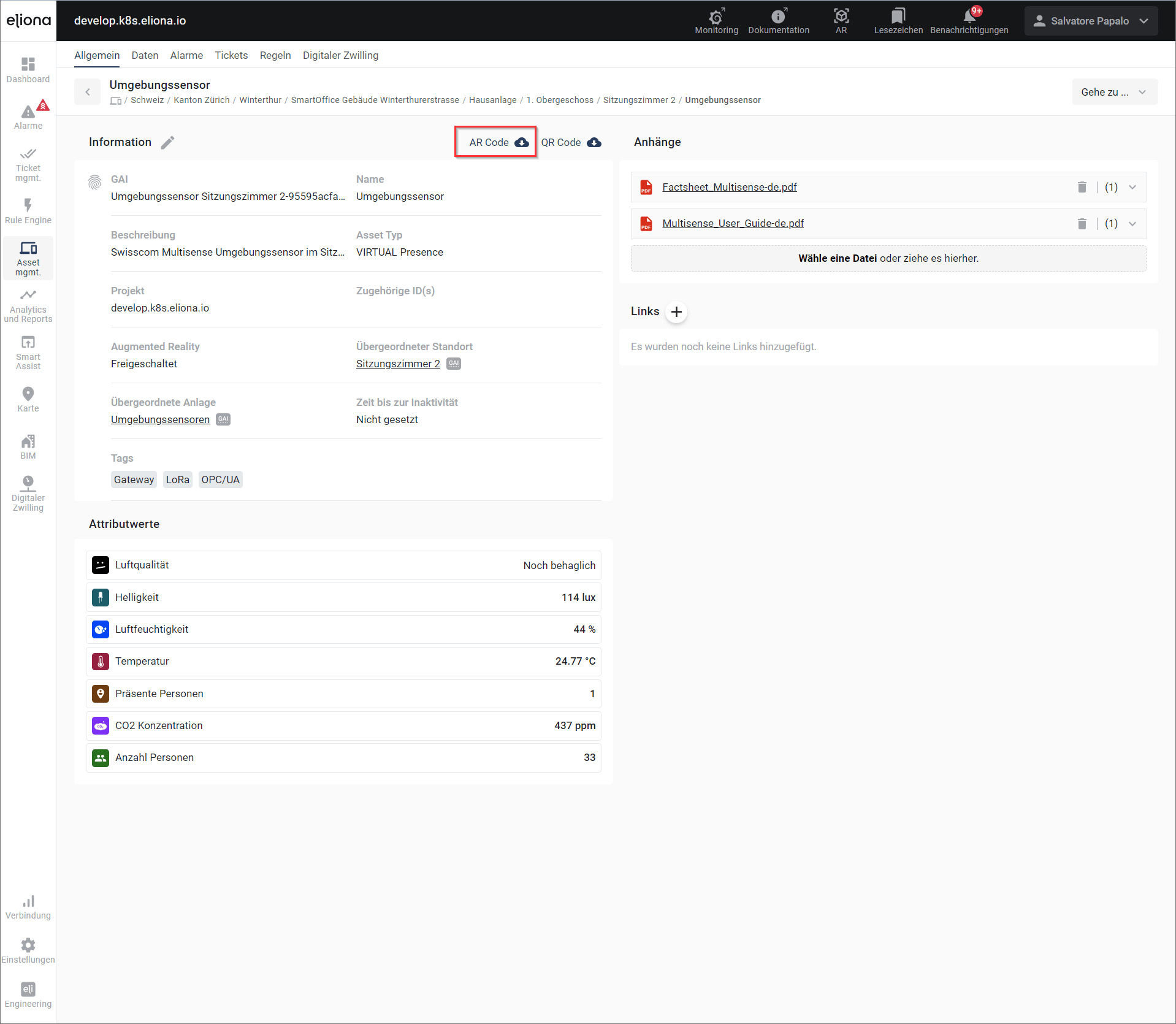
4. The AR code is saved locally as a ".svg" file. You can now open the downloaded AR code and print it if necessary. Example of an AR code:

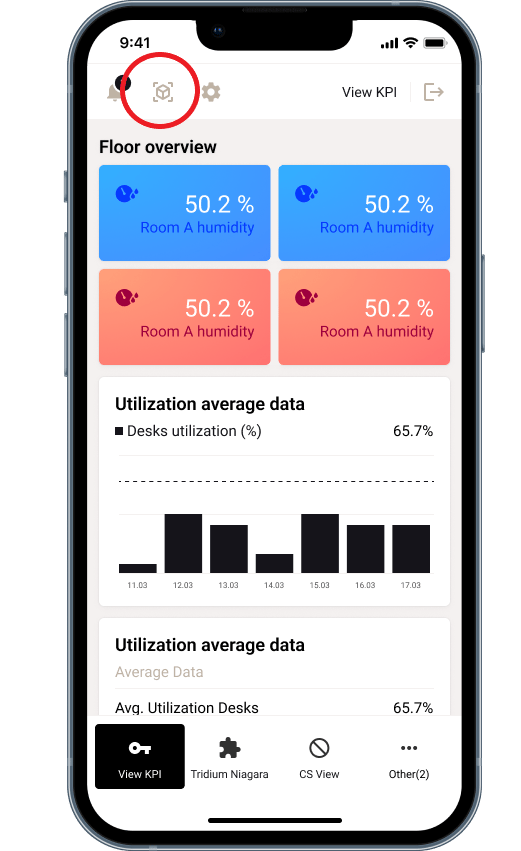
5. Open the augmented reality function on your smartphone. You can either open it in the normal Eliona menu in the header or in SmartAssist.
6. To scan an AR code, hold the point in the camera view on the AR code. You will now see the data of the corresponding Assets on your camera screen:
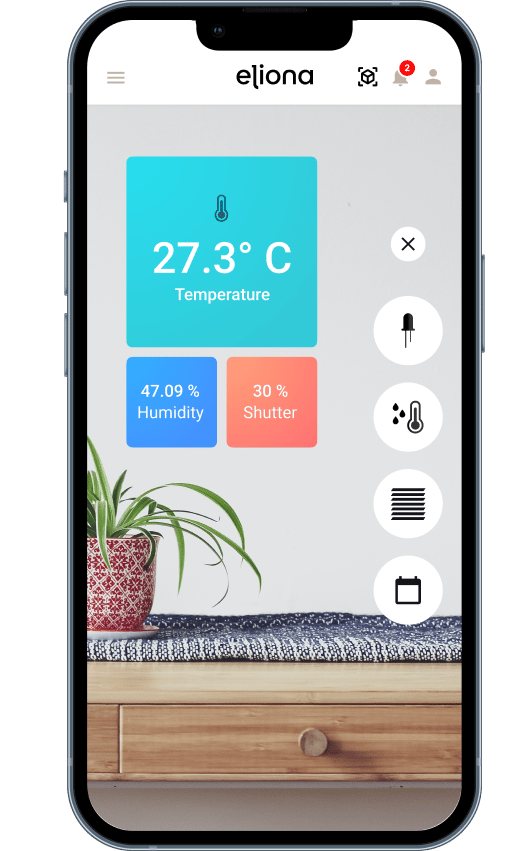
AR marker position
The positions of the various attributes can be asset details configured. Follow the steps below:
Open the asset details of the corresponding Assets. Click in the asset management on the asset.
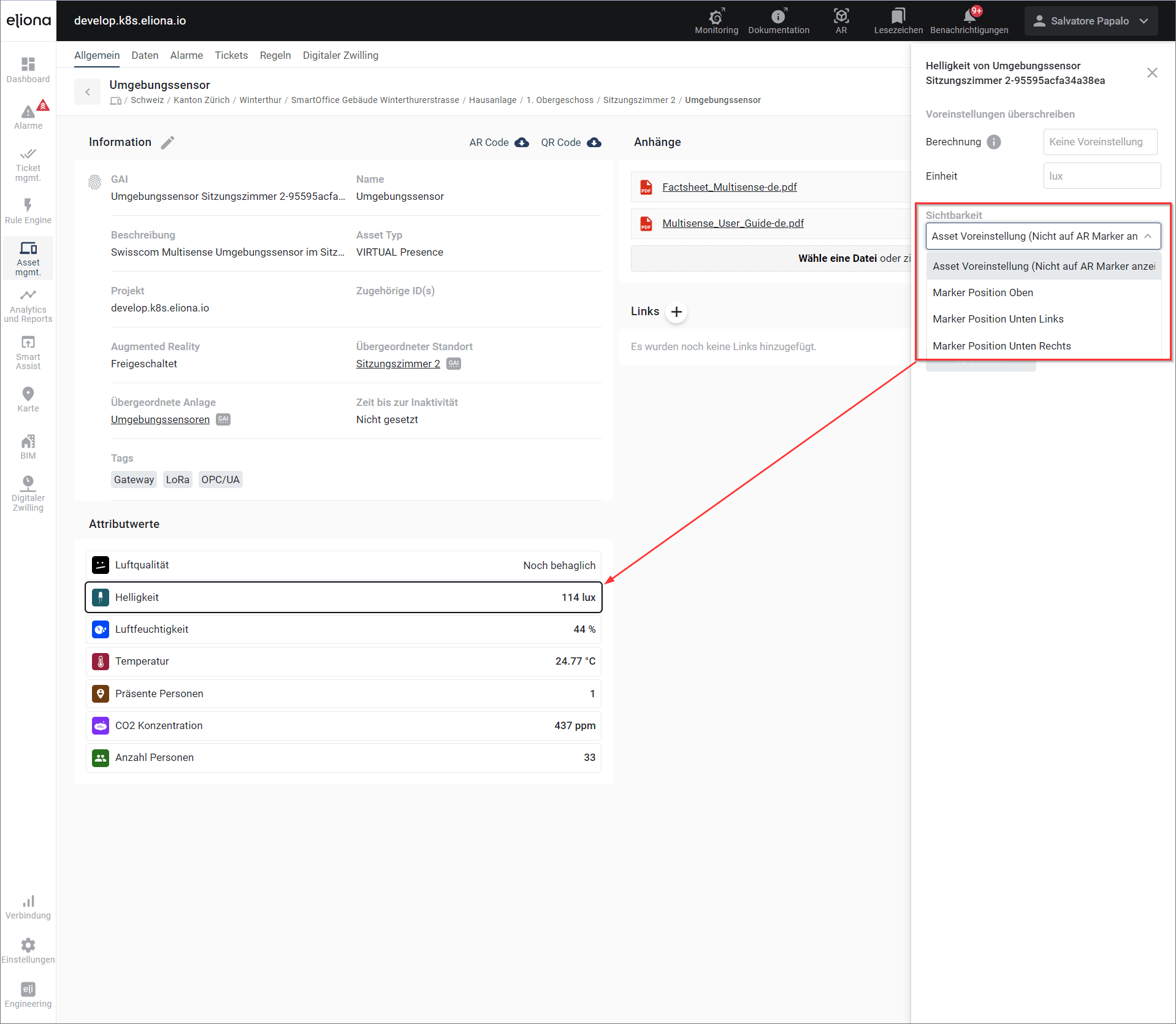
Click on the attribute that you want to display at a specific position on the AR marker.
The attribute details are shown on the right side. Under the "Visibility" setting, you can determine the position on the AR marker:
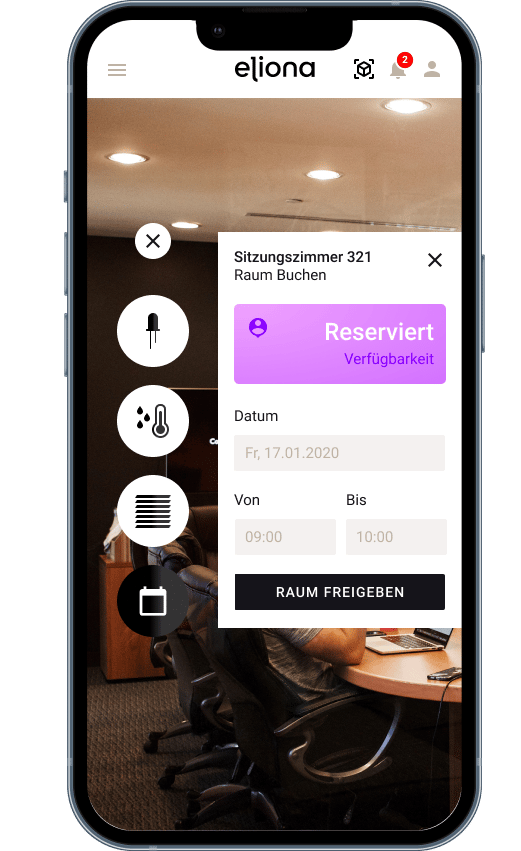
Example room occupancy
You have several meeting rooms in your building. You have printed the AR code and attached it at the room entrance. Eliona users can scan the AR code and receive information about room occupancy or can reserve the room for any period of time:
Example air quality
In a meeting room there is an ambience sensor that measures air quality. You attach the AR code to the sensor and by scanning the code, you see all data about the room's air quality on your camera screen.
Last updated
Was this helpful?