> For the complete documentation index, see [llms.txt](https://docs.buildings.ability.abb/collection/llms.txt). Markdown versions of documentation pages are available by appending `.md` to page URLs; this page is available as [Markdown](https://docs.buildings.ability.abb/collection/english-v14/documentation/weitere-funktionen/augmented-reality.md).
# Augmented Reality
### What is augmented reality?
"Augmented reality" is the computer-assisted enhancement of the perception of reality. For example, information is displayed in the form of visual representations on the smartphone's camera screen.
### Use of augmented reality in Eliona
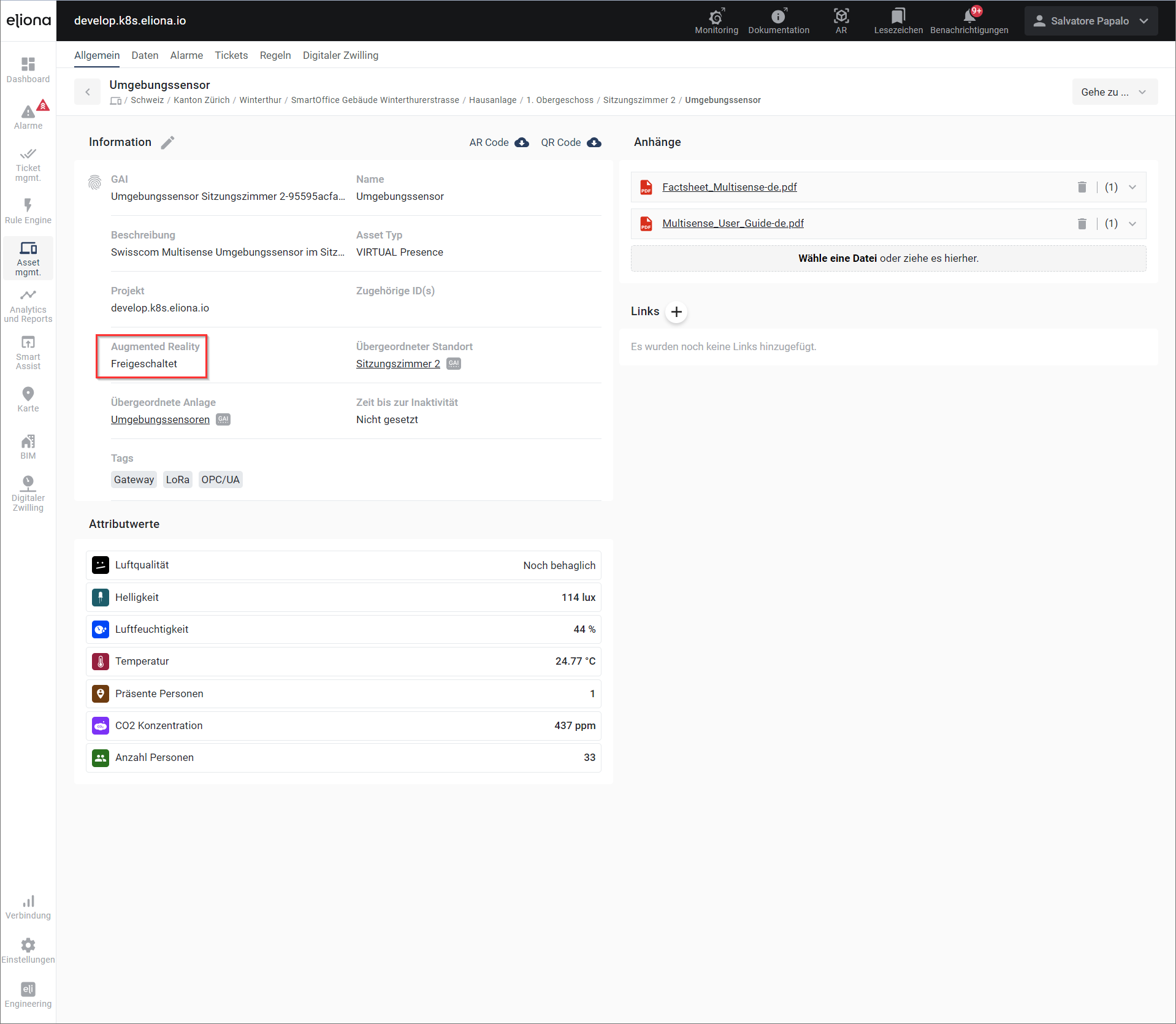
1. In the [asset details](/collection/english-v14/documentation/assets/asset-details.md) of every [asset ](/collection/english-v14/documentation/assets.md)in your Eliona [project](/collection/english-v14/documentation/systeme-und-projekte.md), an AR code can be unlocked.
2. To unlock the AR code, click the "Augmented Reality" checkbox:
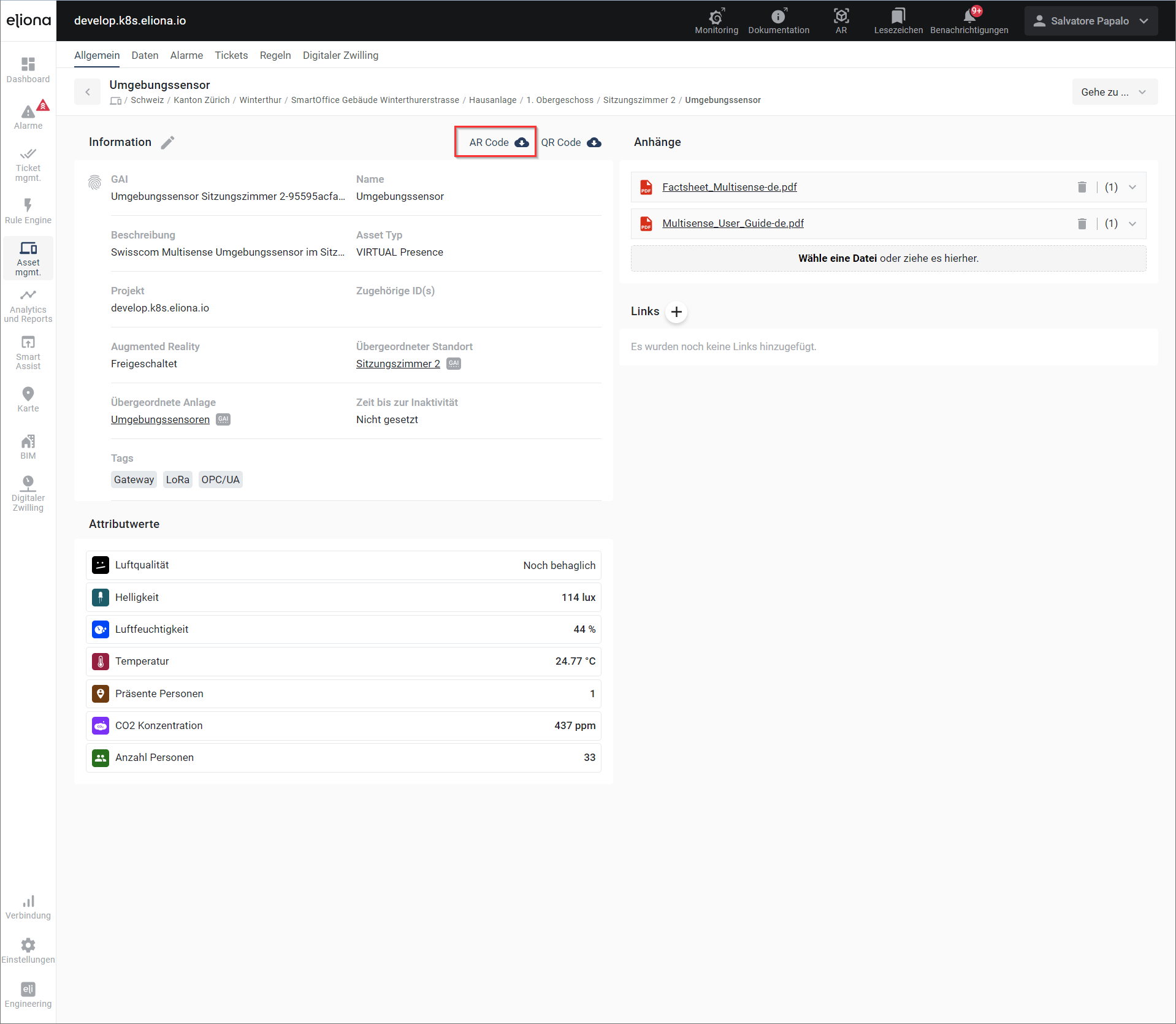
3\. The augmented reality code can now be [asset details](/collection/english-v14/documentation/assets/asset-details.md) downloaded:
4\. The AR code is saved locally as a ".svg" file. You can now open the downloaded AR code and print it if necessary. Example of an AR code:
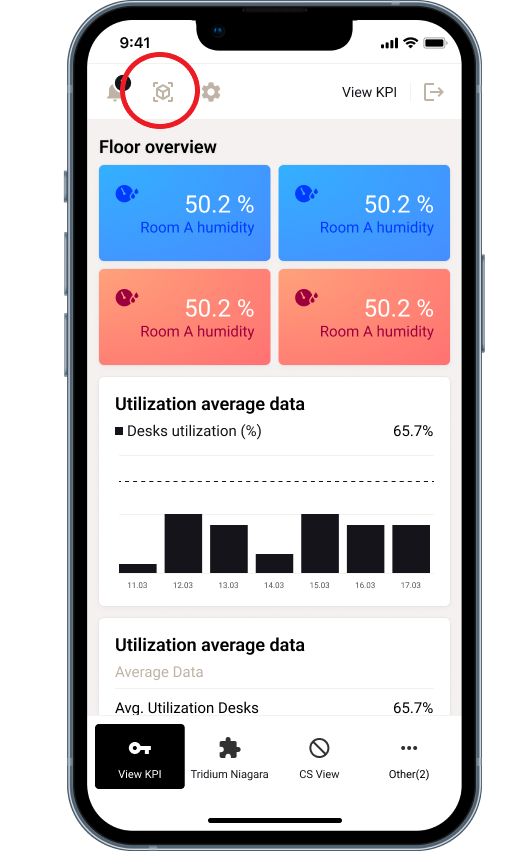
5\. Open the augmented reality function on your smartphone. You can either open it in the normal Eliona menu in the header or in SmartAssist.
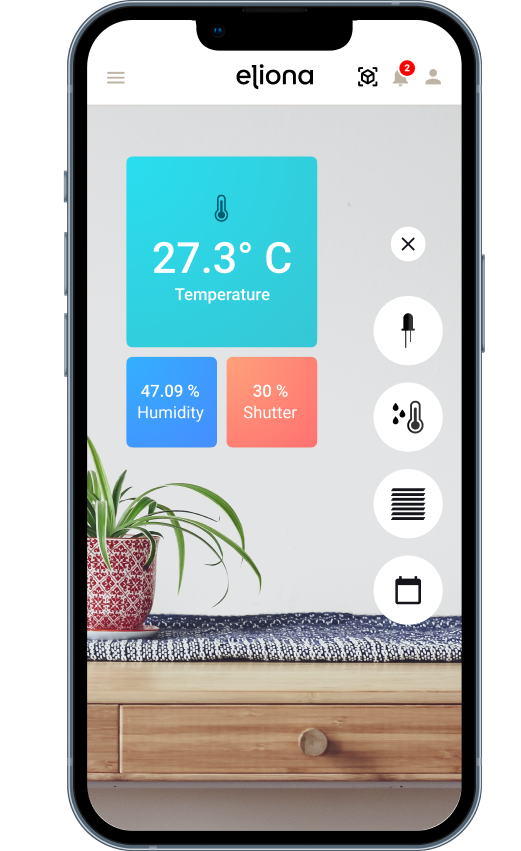
6\. To scan an AR code, hold the point in the camera view on the AR code. You will now see the data of the corresponding [Assets ](/collection/english-v14/documentation/assets.md)on your camera screen:
### AR marker position
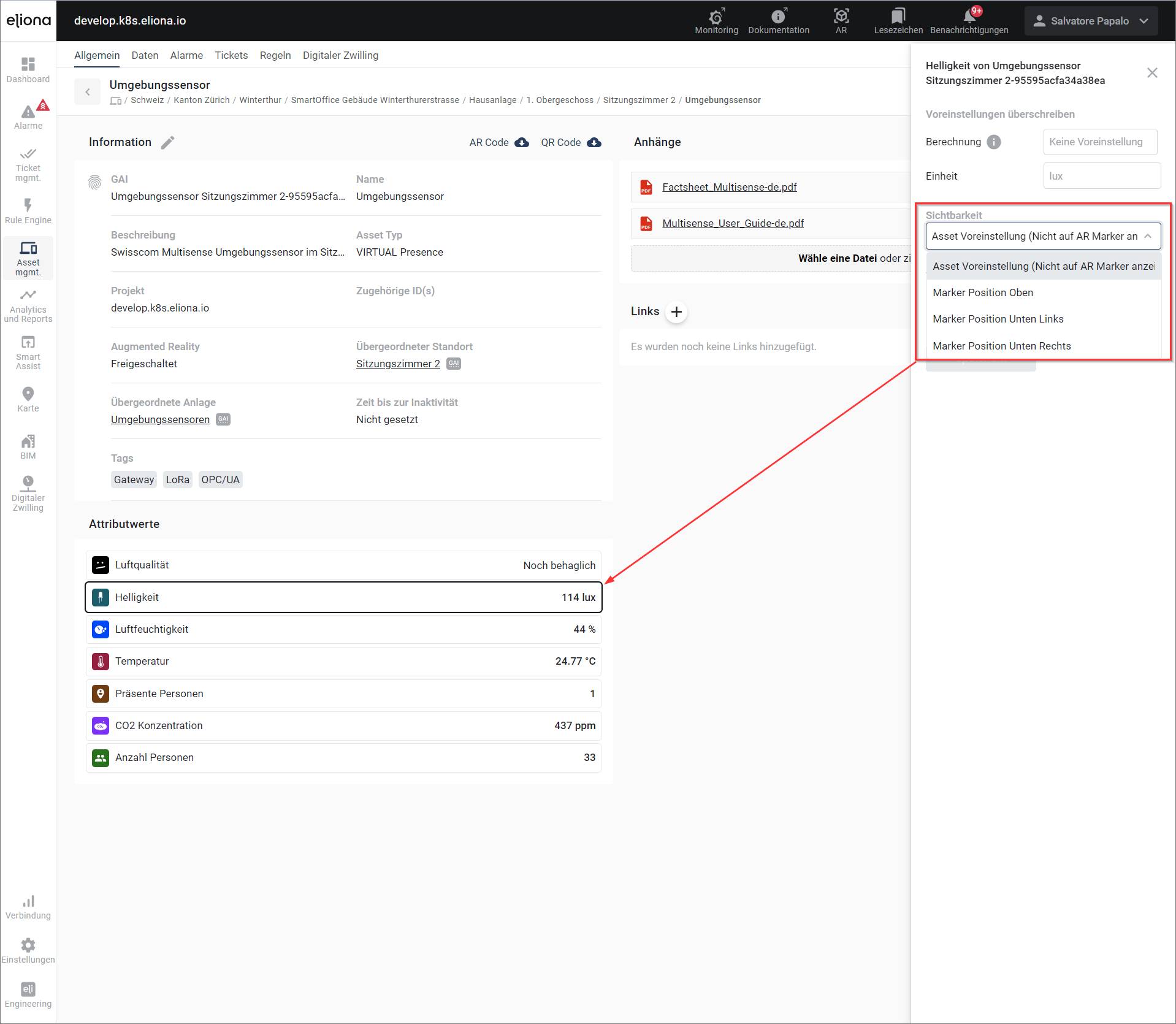
The positions of the various attributes can be [asset details](/collection/english-v14/documentation/assets/asset-details.md) configured. Follow the steps below:
1. Open the [asset details](/collection/english-v14/documentation/assets/asset-details.md) of the corresponding [Assets](broken://pages/1d38303448cff2ac1e61bf4545a0caf6bcaa05be). Click in the [asset management](/collection/english-v14/documentation/assets/ein-asset-konfigurieren.md) on the [asset](/collection/english-v14/documentation/assets.md).
2. Click on the attribute that you want to display at a specific position on the AR marker.
3. The attribute details are shown on the right side. Under the "Visibility" setting, you can determine the position on the AR marker:
### Example room occupancy
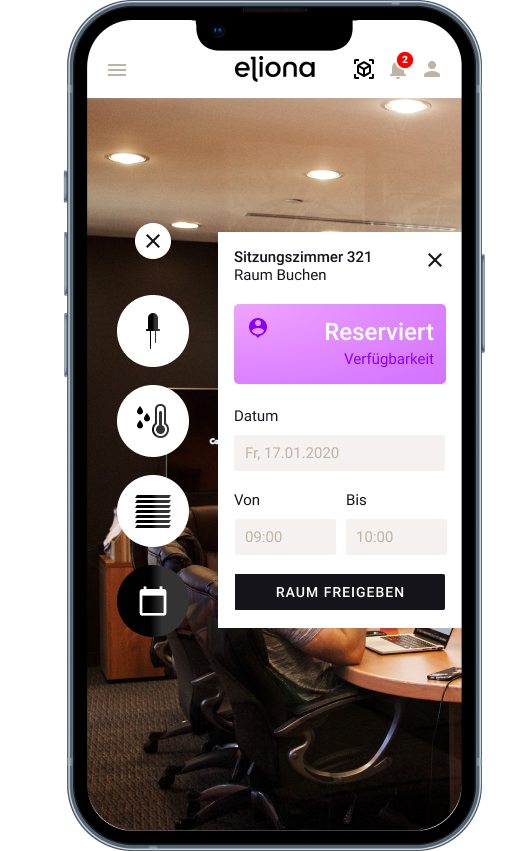
You have several meeting rooms in your building. You have printed the AR code and attached it at the room entrance. Eliona users can scan the AR code and receive information about room occupancy or can reserve the room for any period of time:
### Example air quality
In a meeting room there is an ambience sensor that measures air quality. You attach the AR code to the sensor and by scanning the code, you see all data about the room's air quality on your camera screen.
---
# Agent Instructions
This documentation is published with GitBook. GitBook is the documentation platform designed so that both humans and AI agents can read, navigate, and reason over technical content effectively. Learn more at gitbook.com.
## Querying This Documentation
If you need additional information that is not directly available in this page, you can query the documentation dynamically by asking a question.
Perform an HTTP GET request on the current page URL with the `ask` query parameter, and the optional `goal` query parameter:
```
GET https://docs.buildings.ability.abb/collection/english-v14/documentation/weitere-funktionen/augmented-reality.md?ask=&goal=
```
`ask` is the immediate question: it should be specific, self-contained, and written in natural language.
`goal` is optional and describes the broader end goal you are ultimately trying to accomplish on behalf of the user. GitBook uses it to tailor the answer towards what is most useful for that goal.
The response will contain a direct answer to the question and relevant excerpts and sources from the documentation.
Use this mechanism when the answer is not explicitly present in the current page, you need clarification or additional context, or you want to retrieve related documentation sections.