> For the complete documentation index, see [llms.txt](https://docs.buildings.ability.abb/collection/llms.txt). Markdown versions of documentation pages are available by appending `.md` to page URLs; this page is available as [Markdown](https://docs.buildings.ability.abb/collection/english-v14/documentation/weitere-funktionen/bulk-import.md).
# Bulk import
Via the bulk import, you can import large quantities of assets, users, and other entities into Eliona all at once.
## Procedure
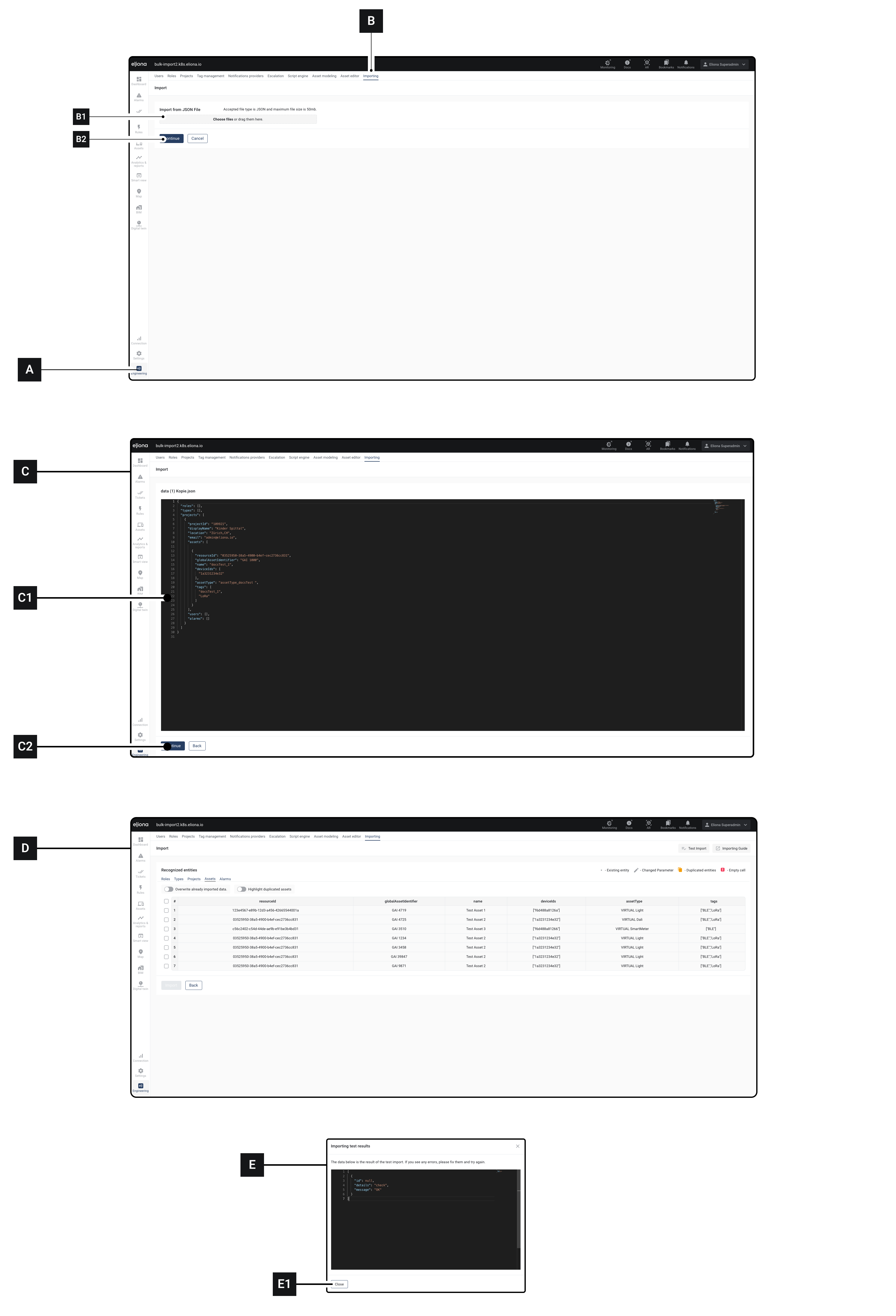
1. Click on Engineering **\[A]**
2. Click on Importing **\[B]**
3. Drag a .json file into **\[B1]**
4. Click on **\[B2]**\
▷ The window **\[C]** opens
5. Check in **\[C1]** the entered .json file
6. Click on **\[C2]**
7. The window **\[D]** opens
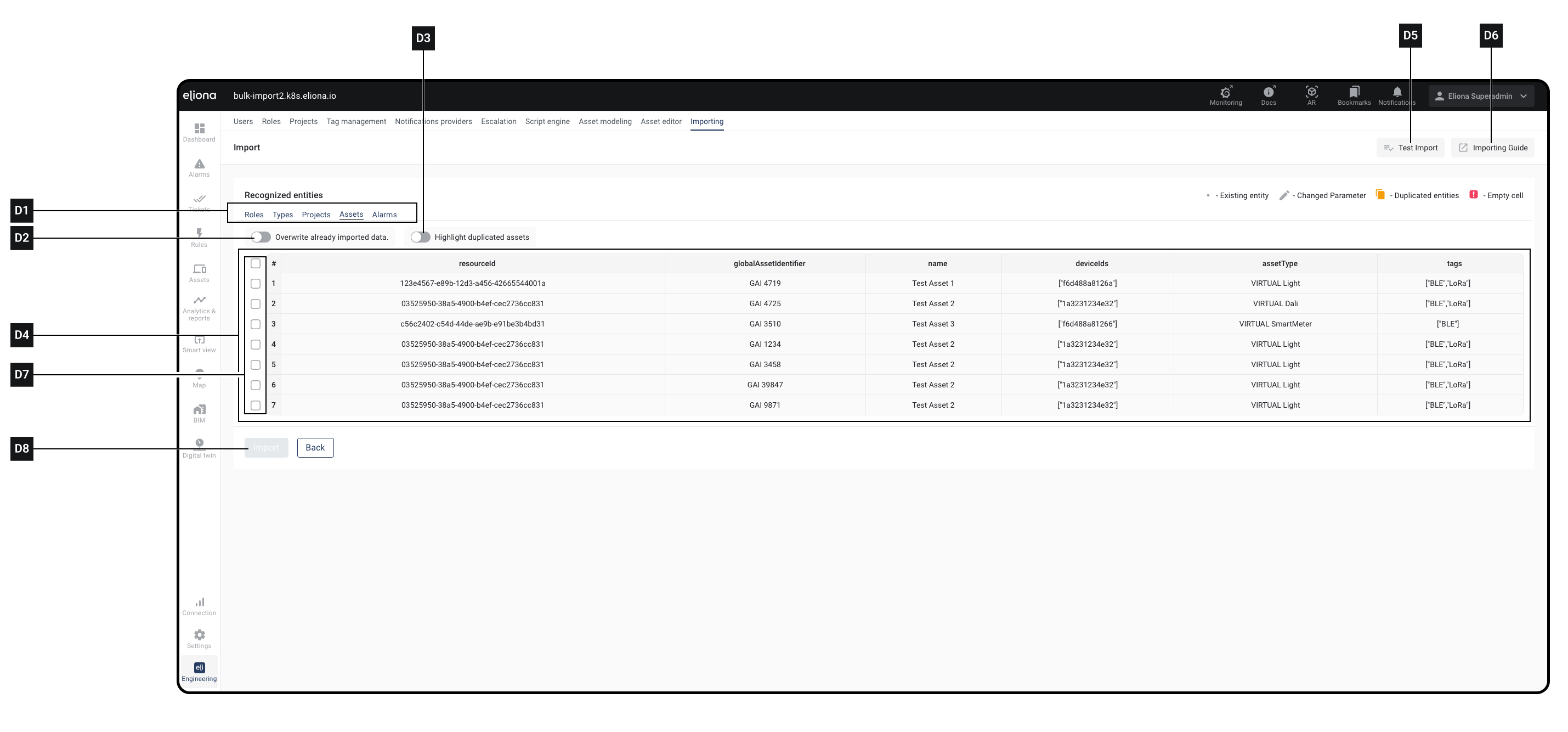
8. Select via **\[D1]** and **\[D7]** the entities you want to import.\
✙ Details about these options can be found below.
9. Click on Test Import **\[D5]**\
▷ The window **\[E]** opens.\
✙ In the window **\[E]** you will see any error messages.
10. Click on **\[E1]**\
▷ The window **\[E]** closes.
11. Optional: Fix any error messages in the .json file.
12. Click on **\[D7]**\
▷ The import is started
## Import options
| Element | Title | Details |
| --------- | ------------------------------ | ------------------------------------------------------------------------------------------------ |
| **\[D1]** | Entity type | Displays the entities recognized in the .json file filtered by type. |
| **\[D2]** | Toggle "Overwrite" | When this toggle is enabled, duplicate entries are overwritten |
| **\[D3]** | Toggle "Mark duplicate assets" | When this toggle is enabled, duplicate entries are marked |
| **\[D4]** | Test import | Click to perform a test import. A test import must be performed before each test import. |
| **\[D5]** | Guide | Open online help |
| **\[D6]** | Recognized entities | Entities recognized in the .json file. |
| **\[D7]** | Entity selection | Mark to enable an asset for import. Only marked entities will be imported. |
| **\[D8]** | Import | Click to start the import. This option is only available after a test import has been performed. |
## Notes on how it works and syntax
### Example syntax
{% code overflow="wrap" fullWidth="true" %}
```json
{
"roles": [],
"types": [],
// Adds a project. Several assets are added within this project
"projects": [
{ /*Start of the project details.
If there is NOT YET a project with these details, it will be created.
If a project with this data already exists, the import options can be used to determine whether the project should be overwritten. */
"projectId": "1234567",
"displayName": "An example project",
"location": "Zurich,CH",
"email": "admin@eliona.io",
/* End of the project details */
/* Several assets follow, which are added to the project specified above. */
"assets": [
/* An asset. */
{
"resourceId": "123e4567-e89b-12d3-a456-42665544001a",
"globalAssetIdentifier": "GAI 4719",
"name": "Test Asset 1",
"deviceIds": [
"f6d488a8126a"
],
/* The asset type must already exist in the project, otherwise the import will fail. */
"assetType": "VIRTUAL Light",
/* All specified tags must already exist in the project, otherwise the import will fail. */
"tags": [
"BLE",
"LoRa"
]
},
{ /* An asset. */
"resourceId": "03525950-38a5-4900-b4ef-cec2736cc831",
"globalAssetIdentifier": "GAI 4725",
"name": "Test Asset 2",
"deviceIds": [
"1a3231234e32"
],
"assetType": "VIRTUAL Dali",
"tags": [
"BLE",
"LoRa"
]
},
/* An asset. */
{
"resourceId": "c56c2402-c54d-44de-ae9b-e91be3b4bd31",
"globalAssetIdentifier": "GAI 3510",
"name": "Test Asset 3",
"deviceIds": [
"f6d488a81266"
],
"assetType": "VIRTUAL SmartMeter",
"tags": [
"BLE"
]
},
{
"resourceId": "03525950-38a5-4900-b4ef-cec2736cc831",
"globalAssetIdentifier": "GAI 1234",
"name": "Test Asset 2",
"deviceIds": [
"1a3231234e32"
],
"assetType": "VIRTUAL Light",
"tags": [
"BLE",
"LoRa"
]
},
{
"resourceId": "03525950-38a5-4900-b4ef-cec2736cc831",
"globalAssetIdentifier": "GAI 3458",
"name": "Test Asset 2",
"deviceIds": [
"1a3231234e32"
],
"assetType": "VIRTUAL Light",
"tags": [
"BLE",
"LoRa"
]
},
{
"resourceId": "03525950-38a5-4900-b4ef-cec2736cc831",
"globalAssetIdentifier": "GAI 39847",
"name": "Test Asset 2",
"deviceIds": [
"1a3231234e32"
],
"assetType": "VIRTUAL Light",
"tags": [
"BLE",
"LoRa"
]
},
{
"resourceId": "03525950-38a5-4900-b4ef-cec2736cc831",
"globalAssetIdentifier": "GAI 9871",
"name": "Test Asset 2",
"deviceIds": [
"1a3231234e32"
],
"assetType": "VIRTUAL Light",
"tags": [
"BLE",
"LoRa"
]
}
],
"users": [],
"alarms": []
}
]
}
```
{% endcode %}
### Asset type and tags
In the .json file, you have the option to specify an asset type and tags for each asset to be added.
The asset type and tags must already be created in the project. Asset types and tags cannot be created via bulk import. If the asset types and tags specified in the .json file do not exist, an error will occur during import. The import will be aborted.
## Find out the project ID
You must specify the project ID in the .json file. Proceed as follows to find out the project ID.
1. [↗ Open a project](/collection/english-v14/documentation/systeme-und-projekte/benutzer-zu-einem-projekt-hinzufugen.md)
2. At the end of the URL bar you will find a number at the end of the URL. This is the project ID
Example: The project URL is `https://yoursystem.eliona.io/engineering/projects/1337` The project ID is `1337`
---
# Agent Instructions
This documentation is published with GitBook. GitBook is the documentation platform designed so that both humans and AI agents can read, navigate, and reason over technical content effectively. Learn more at gitbook.com.
## Querying This Documentation
If you need additional information that is not directly available in this page, you can query the documentation dynamically by asking a question.
Perform an HTTP GET request on the current page URL with the `ask` query parameter, and the optional `goal` query parameter:
```
GET https://docs.buildings.ability.abb/collection/english-v14/documentation/weitere-funktionen/bulk-import.md?ask=&goal=
```
`ask` is the immediate question: it should be specific, self-contained, and written in natural language.
`goal` is optional and describes the broader end goal you are ultimately trying to accomplish on behalf of the user. GitBook uses it to tailor the answer towards what is most useful for that goal.
The response will contain a direct answer to the question and relevant excerpts and sources from the documentation.
Use this mechanism when the answer is not explicitly present in the current page, you need clarification or additional context, or you want to retrieve related documentation sections.