> For the complete documentation index, see [llms.txt](https://docs.buildings.ability.abb/collection/llms.txt). Markdown versions of documentation pages are available by appending `.md` to page URLs; this page is available as [Markdown](https://docs.buildings.ability.abb/collection/english-v14/documentation/weitere-funktionen/tracking.md).
# Tracking
Eliona offers comprehensive tracking functionality that enables real-time localization and tracking of assets. This functionality is supported by the integration of Localino, an indoor localization system, and the use of a tracking widget. The following sections summarize the key functions and configurations required to use these capabilities.
***
## **Activating the tracker function**
To register an asset as a tracker in the system and connect it to a Localino tracker, you must enable the tracker option in asset modeling. This is done by configuring an asset template.
* **Step 1: Open template configuration**\
Go to *Engineering -> Asset Modeling* and select the desired asset template. Edit the template settings to enable the tracker option.
* **Step 2: Enable tracker option**\
Enable the tracker option to register the asset as a tracker in the system. Detailed steps can be found on the page [Activate tracker function](/collection/english-v14/documentation/assets/asset-modellierung-templates-erstellen/ein-neues-template-erstellen.md#tracker-funktion-aktivieren).
***
## Attach tracker to an asset
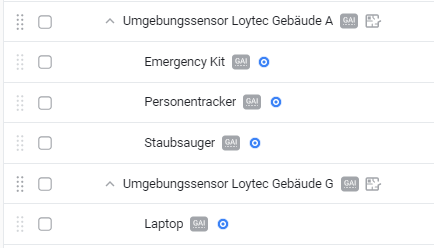
The function **"Attach tracker to an asset"** offers you the ability to map the physical position of an asset precisely and automatically in the geographic asset structure. Once a tracker is attached to an asset, it is marked in the structure with a blue dot marked, making it immediately recognizable as a tracked asset.
### Assigning a tracker
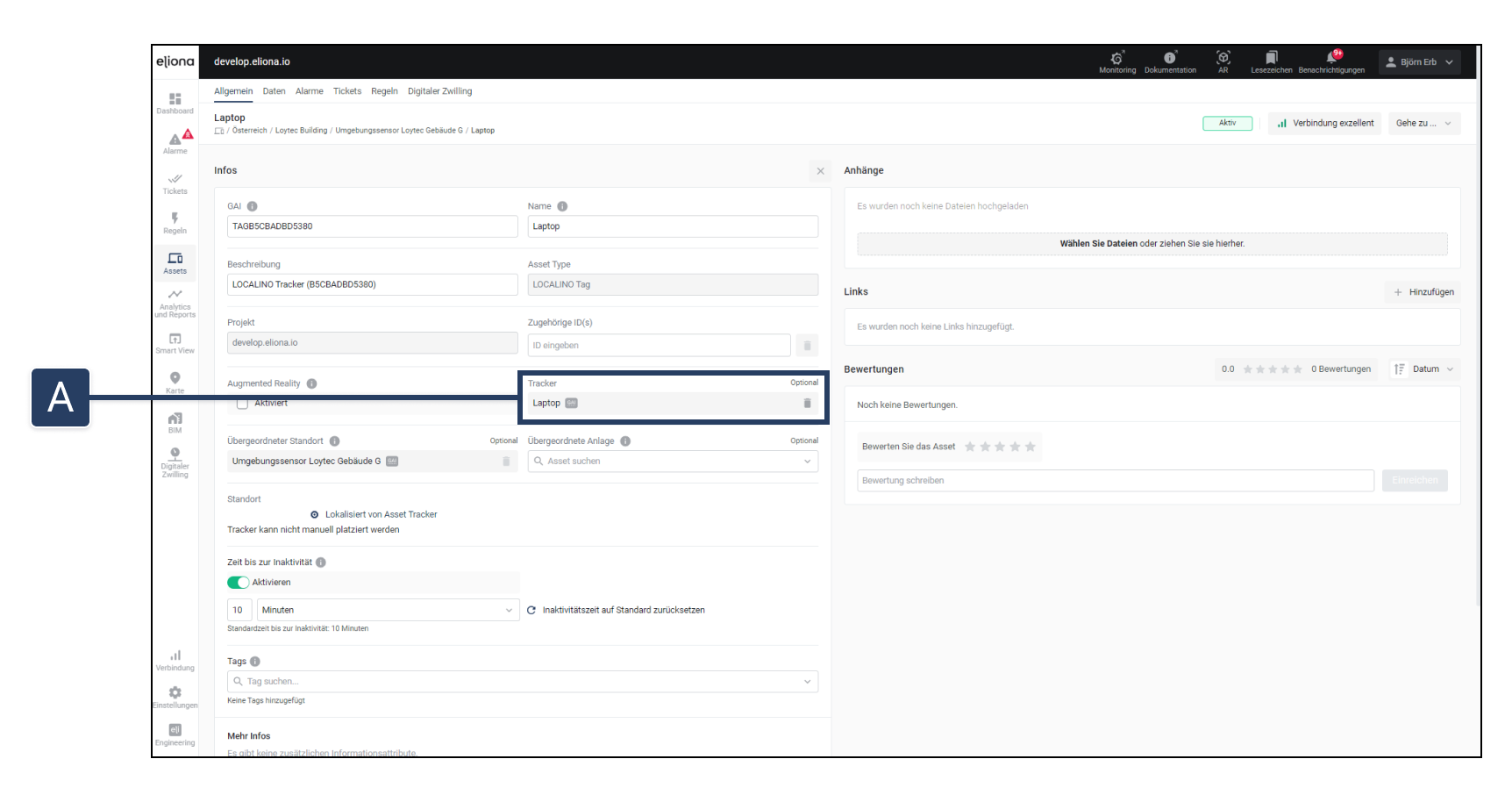
In the [asset details ](/collection/english-v14/documentation/assets/asset-details.md)find the option **"Tracker" \[A]**, which can be used to assign a tracker to an asset. After assignment, the asset is automatically displayed under the parent asset in the geographic structure, based on its actual physical position.
### Dynamic position adjustment
A key aspect of this feature is that the position of the tracked asset cannot be changed manually in the geographic structure. Instead, the position of the asset adjusts automatically depending on where it is physically located. This dynamic adjustment ensures that the asset is always displayed at its **current**, **real position in the structure is displayed** .
***
## **Localino integration**
Localino enables tracking of assets on a floor plan in real time. The implementation of Localino data is done at the database level and is carried out by the Eliona support team.
* **Configuration of the Localino system**\
Once the Localino service is configured, all devices can be linked to assets in your Eliona system and then used in the project. More information can be found under [Localino configuration](/collection/english-v14/apps/apps/localino.md).
***
## **Configuration of Localino anchors**
The exact positioning of the Localino anchors is crucial for the proper functioning of the tracking system. Anchors can be adjusted later to ensure that their position matches physical reality.
* **Calibrate and position anchors**\
The calibration and positioning of the anchors is done via the floor configuration. A detailed guide can be found under [Configure Localino anchors](/collection/english-v14/documentation/karte-und-stockwerk/stockwerk/localino-anker-konfigurieren.md).
***
## **Create and manage rooms**
The exact localization of trackers in individual rooms is made possible by configuring rooms within the floors.
* **Create and assign room assets**\
Create a room asset and assign it to a floor. Then define the room on the map. Detailed steps for this can be found under [Set up rooms](/collection/english-v14/documentation/karte-und-stockwerk/stockwerk/raume-erstellen.md).
***
## **Using the tracking widget**
The tracking widget enables visualization of tracker positions on the dashboard. It offers functions such as zooming in and out of the floor view, selecting a floor, and searching for and tracking trackers.
* **Widget configuration**\
To configure the tracking widget, add it to the dashboard, select the desired floor, and configure the display options. Detailed instructions can be found on the page [Configure tracking widget](/collection/english-v14/documentation/widgets/vordefinierte-widgets/asset-tracking.md).
---
# Agent Instructions
This documentation is published with GitBook. GitBook is the documentation platform designed so that both humans and AI agents can read, navigate, and reason over technical content effectively. Learn more at gitbook.com.
## Querying This Documentation
If you need additional information that is not directly available in this page, you can query the documentation dynamically by asking a question.
Perform an HTTP GET request on the current page URL with the `ask` query parameter, and the optional `goal` query parameter:
```
GET https://docs.buildings.ability.abb/collection/english-v14/documentation/weitere-funktionen/tracking.md?ask=&goal=
```
`ask` is the immediate question: it should be specific, self-contained, and written in natural language.
`goal` is optional and describes the broader end goal you are ultimately trying to accomplish on behalf of the user. GitBook uses it to tailor the answer towards what is most useful for that goal.
The response will contain a direct answer to the question and relevant excerpts and sources from the documentation.
Use this mechanism when the answer is not explicitly present in the current page, you need clarification or additional context, or you want to retrieve related documentation sections.