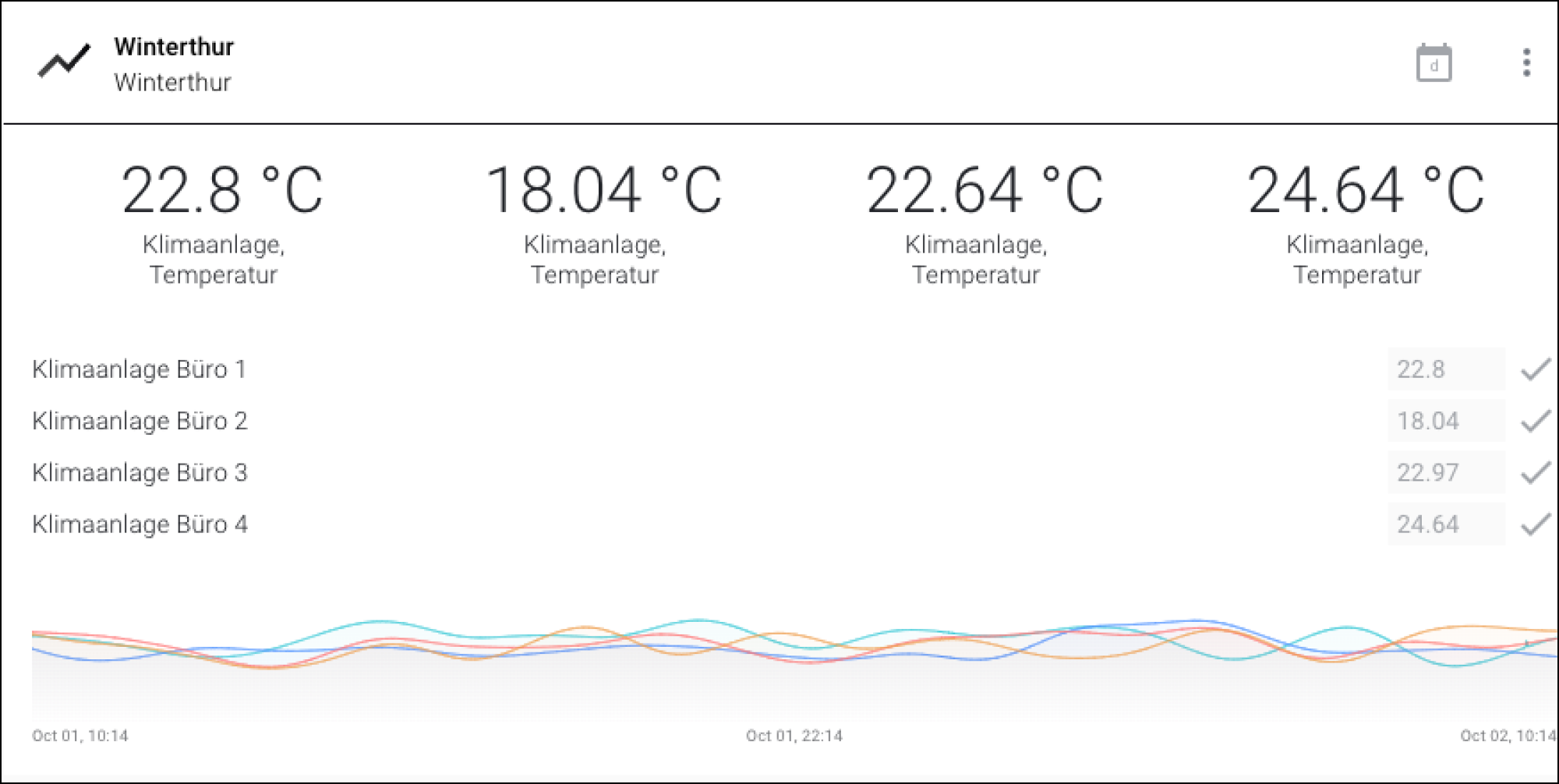
The "Analog Input" widget with 4 connected assets
The "Analog Input" widget with 4 connected assets
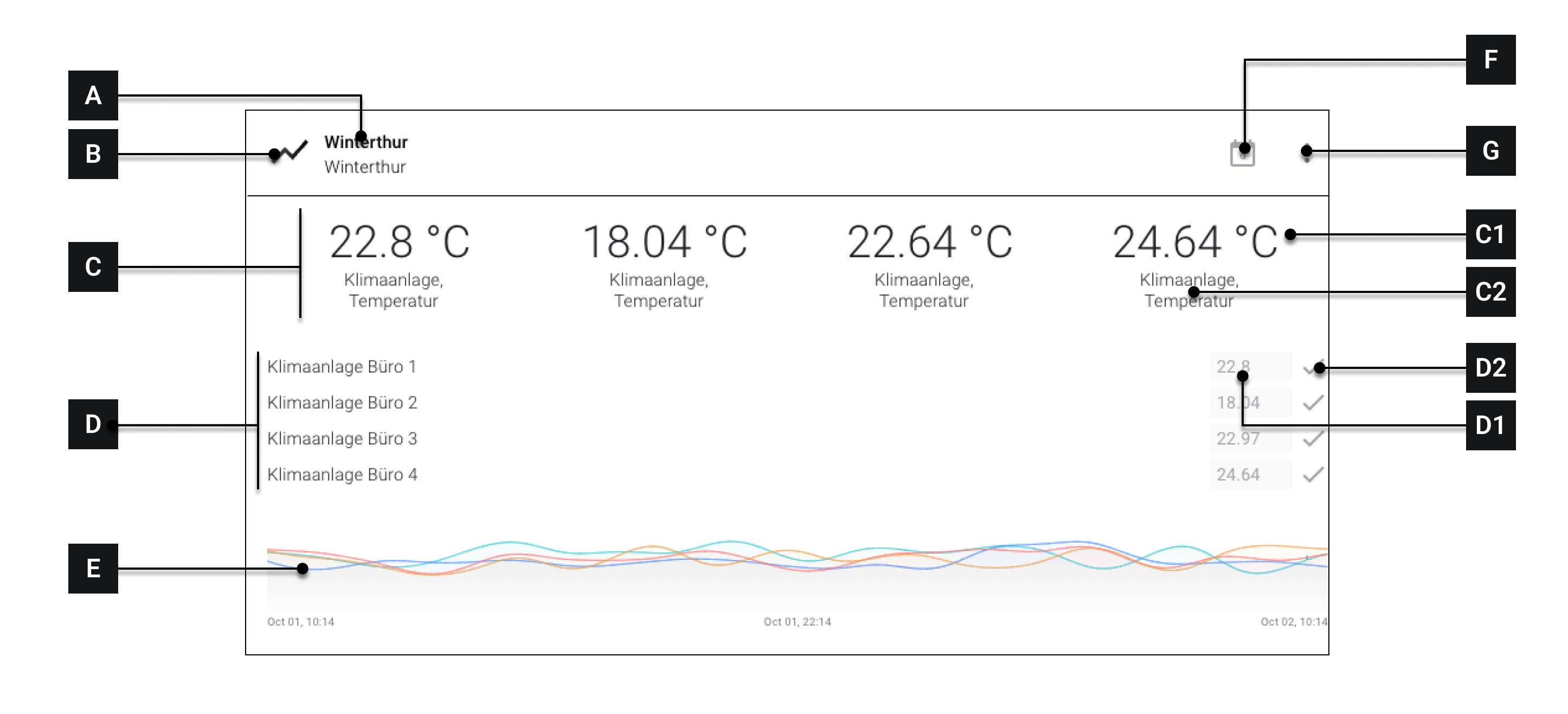
Overview of the "Analog Input" widget
| [A] | Title | Widget title. Influenced by the selection of the "Primary Asset" (see below.) |
| [B] | Icon | Widget icon |
| [C] | Section "Values" | This section displays the values of the assets linked to the widget. In the example image, 4 values are displayed. |
| [C1] | Value | The respective value of the asset |
| [C2] | Name | The respective name of the asset. The name can be freely chosen when configuring the widget [I5] |
| [D] | Section "Inputs" | Here all assets added during configuration under "Input" are listed. The inputs can be used to change the values of the selected assets. |
| [D1] | Input field | Values for the selected assets can be entered here |
| [D2] | Button "Apply input" | Click this button to apply the value entered in the input field |
| [E] | Section "Trends" | Displays the value history of linked assets as an analog trend. |
| [F] | Set scaling | Click to select whether a day, a week, or a month should be displayed. |
| [G] | More options | See -> Navigate through widgets |
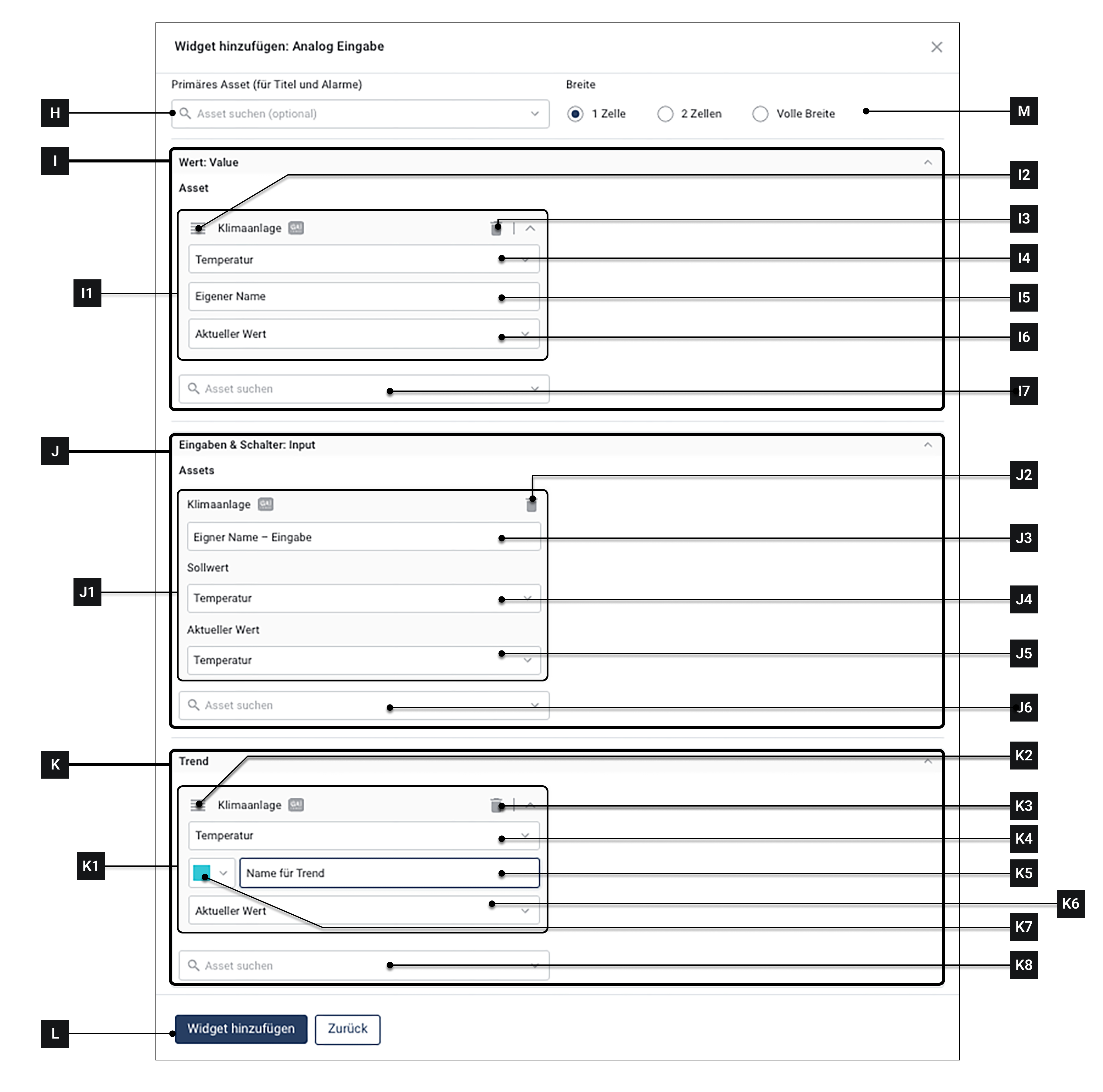
The configuration window in detail
| [H] | Primary asset | Select primary asset. This selection determines which title [A] appears in the widget |
| [I] | Value | Here you can link one or more assets that are displayed in the "Value" section [C] displayed |
| [I1] | Linked asset | A linked asset. The data of this asset are displayed in the "Value" section [C] displayed |
| [I2] | Handle | If multiple assets are present: Use this handle to reorder assets via drag and drop |
| [I3] | Remove | Remove the respective asset from the widget. This only affects the display in the widget. The actual asset is not deleted. |
| [I4] | Attribute | Here you can select the attribute |
| [I5] | Name (This field only appears once field [I4] has been filled in) | You can assign an individual name to the linked asset. This name will be displayed in the widget under [C2] displayed |
| [I6] | Current value / Aggregated value (This field only appears once field [I4] has been filled in) | You can choose whether the current value or an aggregated value should appear in the widget. |
| [I7] | Add another asset | Click here to add another asset that should appear in the "Value" section |
| [J] | Input | Here you can link one or more assets that are displayed in the "Input" section [D] displayed. You can configure these assets directly via the widget. |
| [J1] | Linked asset | A linked asset. The data of this asset are displayed in the "Value" section [D] displayed and can also be controlled there |
| [J2] | Remove | Remove the respective asset from the widget. This only affects the display in the widget. The actual asset is not deleted. |
| [J3] | Name | You can assign an individual name. This name will be shown in the widget under [D] displayed |
| [J4] | Setpoint | Enter an attribute |
| [J5] | Current value | Enter an attribute |
| [J6] | Add another asset | Click here to add another asset that should appear under "Input" |
| [K] | Trend | Here you can link one or more assets that are displayed in the "Trend" section [E] displayed |
| [K1] | Linked asset | A linked asset. The data of this asset are displayed in the "Trend" section [E] displayed |
| [K2] | Handle | If multiple assets are present: Use this handle to reorder assets via drag and drop |
| [K3] | Remove | Remove the respective asset from the widget. This only affects the display in the widget. The actual asset is not deleted. |
| [K4] | Attribute | Select an attribute for which the trend should be created |
| [K5] | Name | Enter an individual name for the trend |
| [K6] | Value | Select whether the current or an aggregated value should be used |
| [K7] | Trend color | Select a color in which the trend for this asset should be displayed |
| [K8] | Add another asset | Click here to add another asset that should appear under "Trend" [E] appear |
| [L] | Add | Apply settings and add widget |
| [M] | Width | Select how much space the widget should take up on the dashboard. |