> For the complete documentation index, see [llms.txt](https://docs.buildings.ability.abb/collection/llms.txt). Markdown versions of documentation pages are available by appending `.md` to page URLs; this page is available as [Markdown](https://docs.buildings.ability.abb/collection/english-v14/documentation/widgets/vordefinierte-widgets/buchung.md).

# Booking

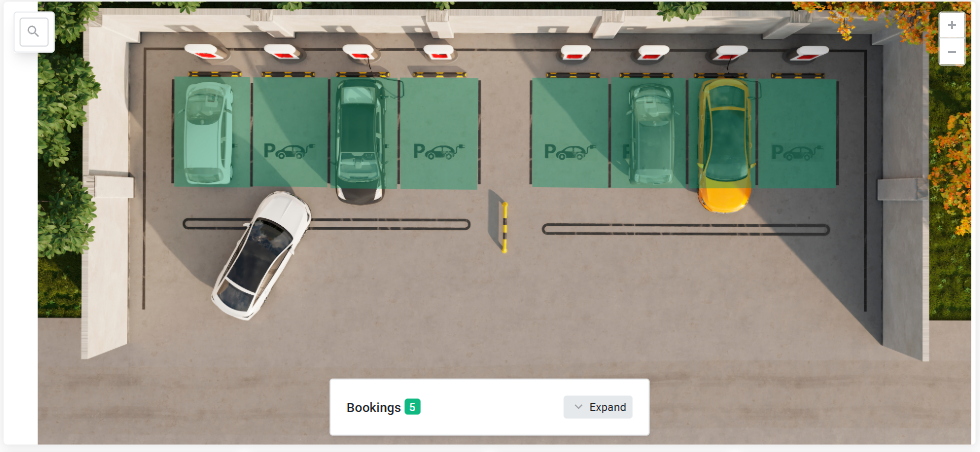
About **Booking widget** you can book your assets directly in the dashboard or in Smartview.

<figure><img src="https://content.gitbook.com/content/Nyvwhz1kEMXcHf4HLuZ8/blobs/lIPZlO7rmHpxXHQTjK6X/image.png" alt=""><figcaption></figcaption></figure>

{% hint style="info" %}
The booking widget is not a predefined widget and must first be created as a custom widget.
{% endhint %}

## Operation

The widget provides a clear overview of current bookings and makes it easy to manage bookings directly in the view.

### Booking overview

<figure><img src="https://content.gitbook.com/content/Nyvwhz1kEMXcHf4HLuZ8/blobs/HSni4BuRlDO3AAu8e3hS/Buchung.png" alt=""><figcaption></figcaption></figure>

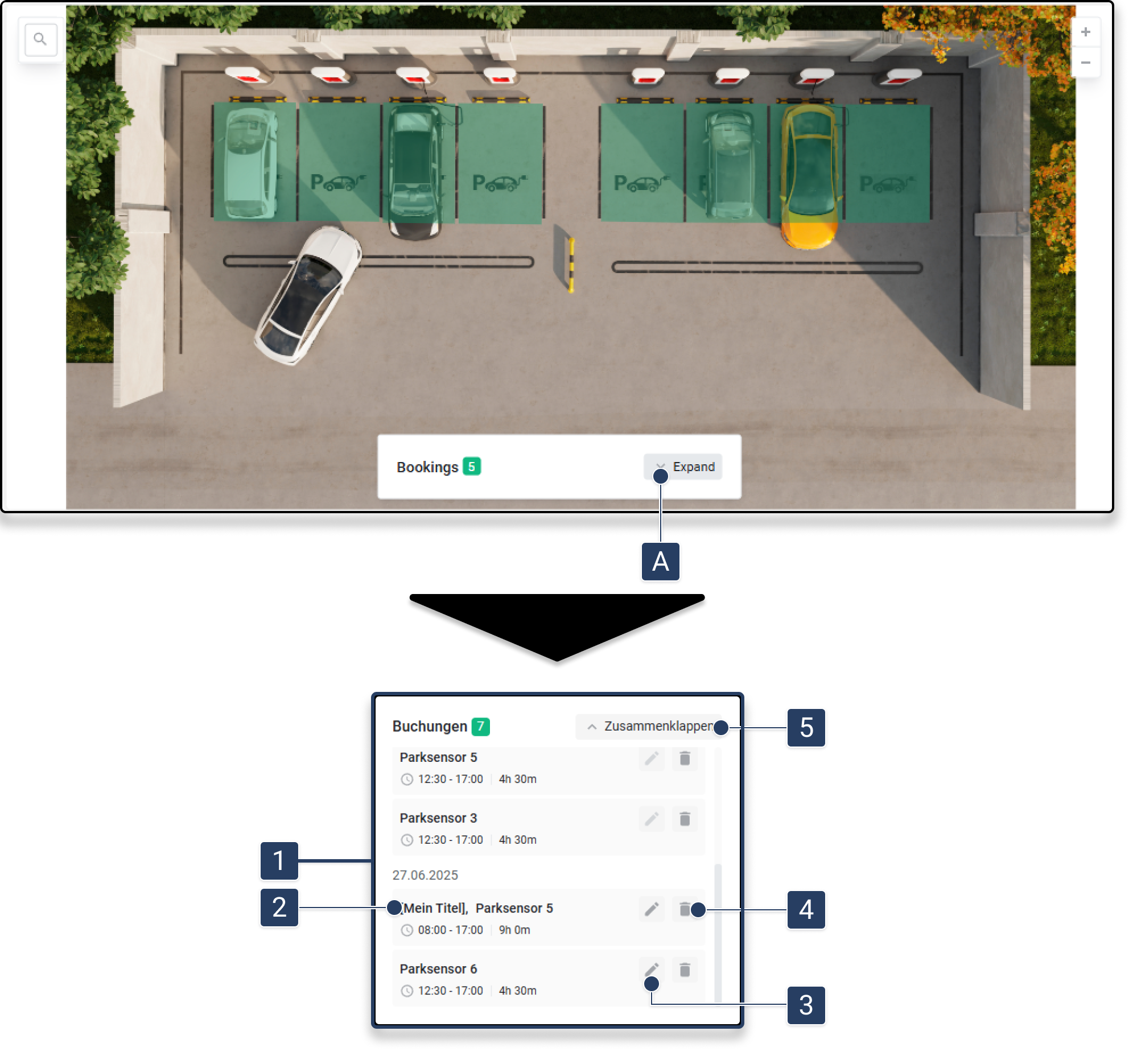
In the widget, you can see an overview of all active bookings.

1. Click on **\[A]**, to display the detailed booking list.\
   ▷ The booking list **\[1]** will expand and show all current bookings with time details.
2. In the list, the **Title** and asset are displayed **\[2]**.
3. Click on **\[3]**, to edit a booking.\
   ▷ The edit window opens.
4. Click on **\[4]**, to delete a booking.\
   ▷ The booking is removed immediately.
5. Click on **\[5]**, to collapse the window again.

### Start booking process

<div data-full-width="true"><figure><img src="https://content.gitbook.com/content/Nyvwhz1kEMXcHf4HLuZ8/blobs/Ytu1DLN6ZNHukSLqSMZl/booking%20bedienung%201%20(2).png" alt=""><figcaption></figcaption></figure></div>

To switch to the booking view:

1. Click on **\[A1]**, to search for an asset.
2. Alternatively: In the floor plan, click directly on the asset **\[A2]**.

<table data-full-width="true"><thead><tr><th width="87">Element</th><th width="247">Title</th><th>Details</th></tr></thead><tbody><tr><td>[B]</td><td>More options</td><td>Access additional options.</td></tr><tr><td>[C1]</td><td>Zoom in</td><td>Enlarge the floor view.</td></tr><tr><td>[C2]</td><td>Zoom out</td><td>Reduce the floor view.</td></tr><tr><td>[D]</td><td>Reserved bookings</td><td>Bookings already made are shown here.</td></tr><tr><td>[D1]</td><td>Edit booking</td><td>Opens the booking for editing.</td></tr><tr><td>[D2]</td><td>Delete booking</td><td>Deletes the booking immediately.</td></tr><tr><td>[E]</td><td>Close</td><td>Closes the asset detail window.</td></tr><tr><td>[F]</td><td>Book more</td><td>Opens the booking view for more entries.</td></tr></tbody></table>

### Booking options

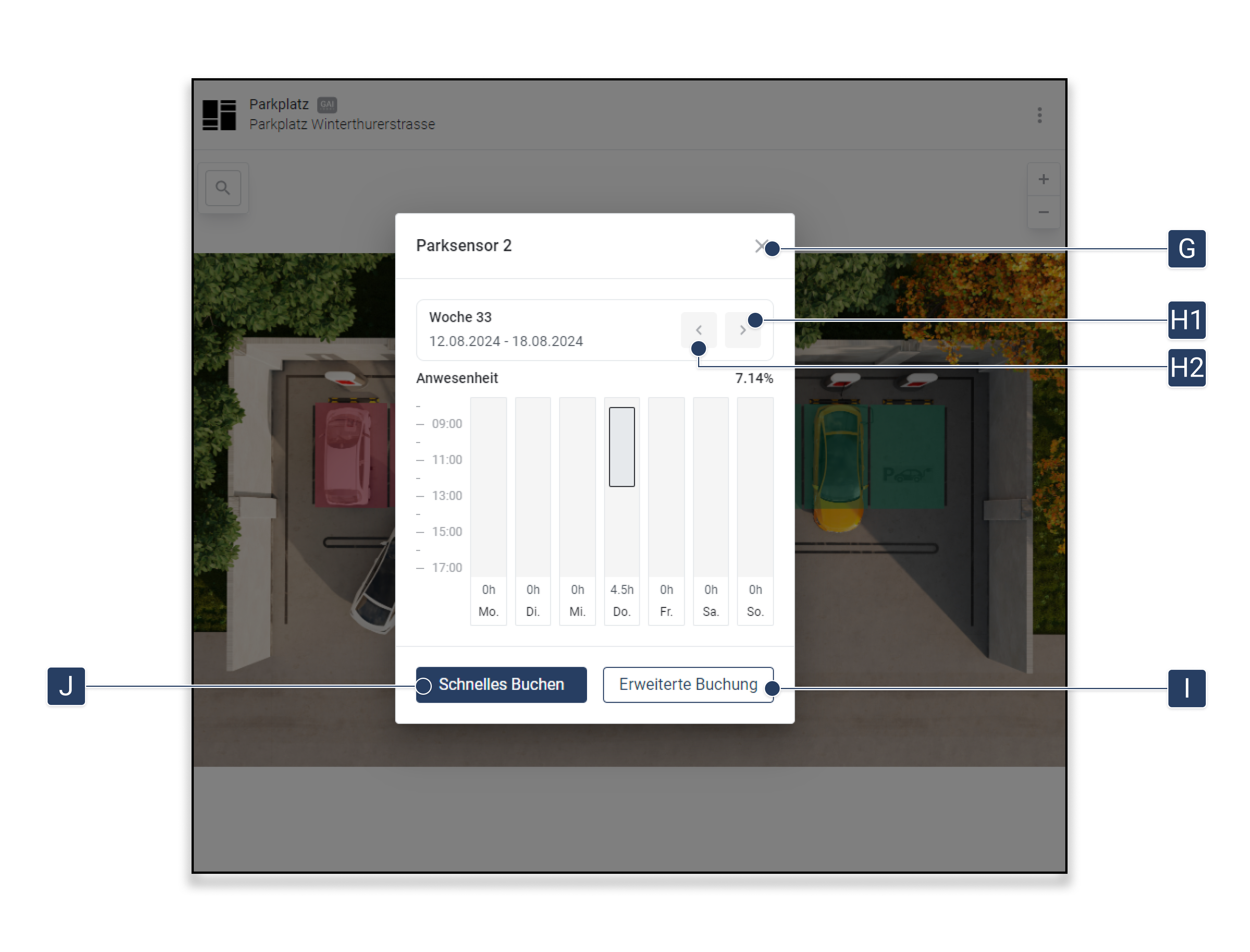
After you have selected an asset, several options are available to further customize your booking.

<figure><img src="https://content.gitbook.com/content/Nyvwhz1kEMXcHf4HLuZ8/blobs/5uGZfj754WTLpTeFb0ms/booking%20bedienung%202.png" alt=""><figcaption></figcaption></figure>

| Element   | Title            | Details                                                                                                                                |
| --------- | ---------------- | -------------------------------------------------------------------------------------------------------------------------------------- |
| **\[G]**  | Close            | End the booking process early.                                                                                                         |
| **\[H1]** | Next week        | Jump to the next week.                                                                                                                 |
| **\[H2]** | Previous week    | Go back one week.                                                                                                                      |
| **\[I]**  | Advanced booking | Switch to the view where you can book a detailed time slot                                                                             |
| **\[J]**  | Quick booking    | Book the entire day, morning or afternoon quickly. The times can be in the [App ](/collection/english-v14/apps/apps/buchung.md)changed |

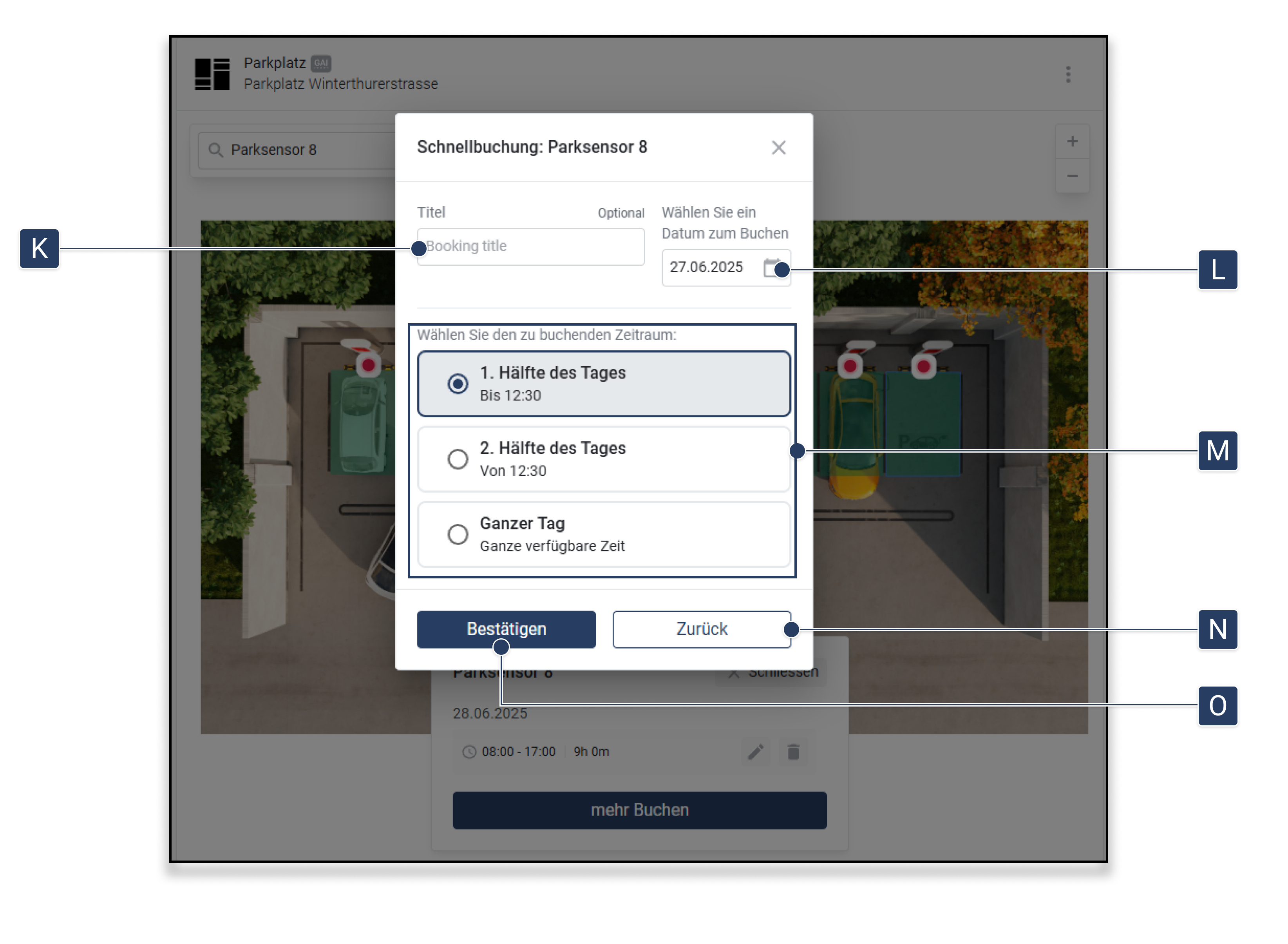
### Quick booking

With the "Quick booking" function, you can quickly and efficiently select a specific period for your booking.

<figure><img src="https://content.gitbook.com/content/Nyvwhz1kEMXcHf4HLuZ8/blobs/xh7OdDeQhzl1nM36ByPC/booking%20bedienung%203.png" alt=""><figcaption></figcaption></figure>

<table><thead><tr><th width="74">Element</th><th width="193">Title</th><th>Details</th></tr></thead><tbody><tr><td><strong>[K]</strong></td><td>Title</td><td>Give the booking a title.</td></tr><tr><td><strong>[L]</strong></td><td>Select date</td><td>Select the date for which you want to book.</td></tr><tr><td><strong>[M]</strong></td><td>Select period</td><td>Choose whether you want to book the first half of the day, the second half, or the whole day. The exact periods can be configured in the Booking <a href="/collection/english-v14/apps/apps/buchung.md">App</a> configured.</td></tr><tr><td><strong>[N]</strong></td><td>Back</td><td>Return to the booking options.</td></tr><tr><td><strong>[O]</strong></td><td>Confirm</td><td>Complete the booking by clicking "Confirm".</td></tr></tbody></table>

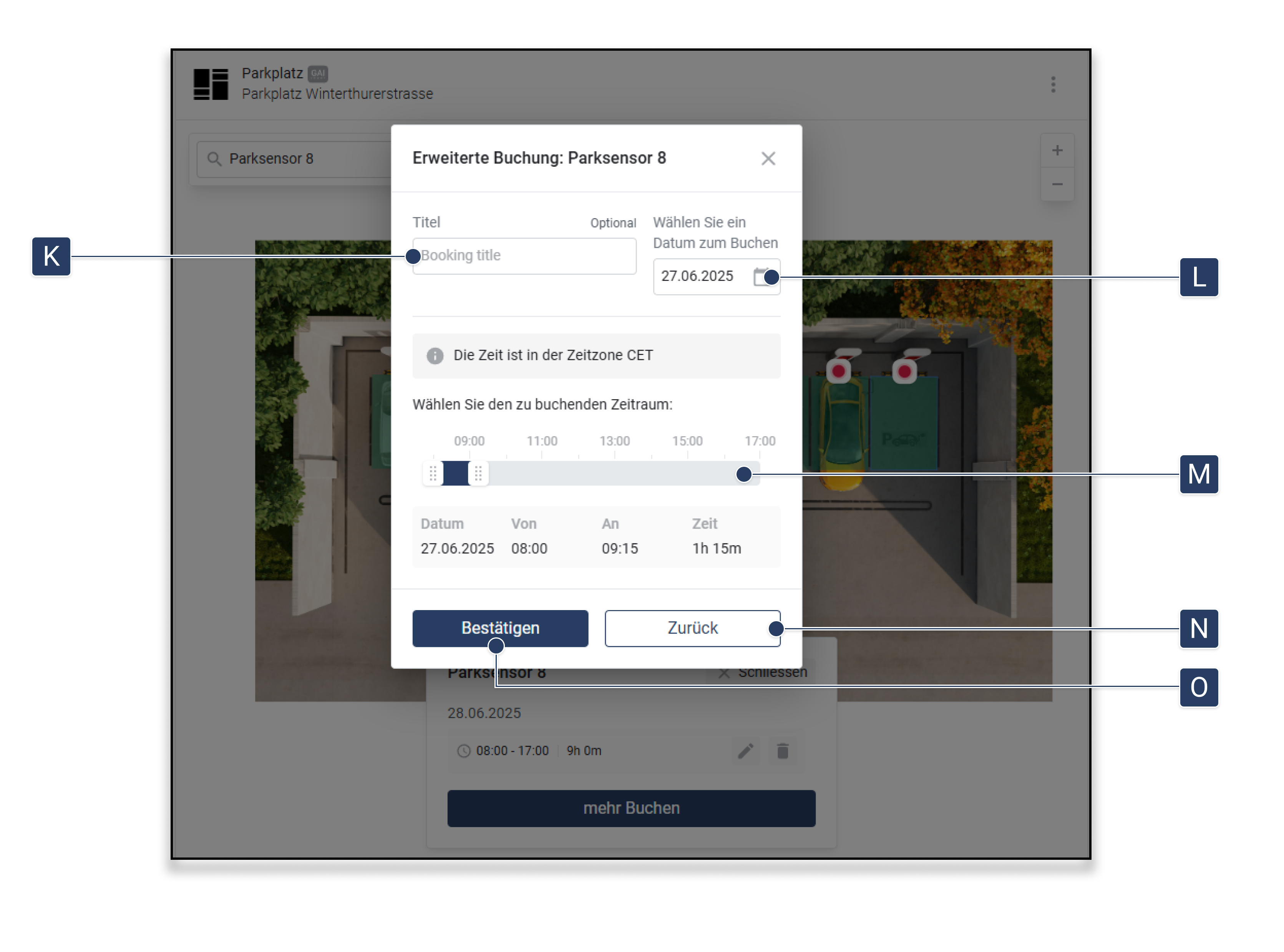
### Advanced booking

For detailed bookings, you can use the advanced booking option to specify specific periods.

<figure><img src="https://content.gitbook.com/content/Nyvwhz1kEMXcHf4HLuZ8/blobs/gDVsvpjtNrMG6urZ1VDG/booking%20bedienung%204.png" alt=""><figcaption></figcaption></figure>

<table><thead><tr><th width="85">Element</th><th width="191">Title</th><th>Details</th></tr></thead><tbody><tr><td><strong>[K]</strong></td><td>Title</td><td>Give the booking a title.</td></tr><tr><td><strong>[L]</strong></td><td>Select date</td><td>Select the date for which you want to book.</td></tr><tr><td><strong>[M]</strong></td><td>Select period</td><td>Set the exact period you want to book. Use the sliders to determine the period. Red-marked areas are already booked.</td></tr><tr><td><strong>[N]</strong></td><td>Back</td><td>Return to the booking options.</td></tr><tr><td><strong>[O]</strong></td><td>Confirm</td><td>Complete the booking by clicking "Confirm".</td></tr></tbody></table>

## Configure widget

<figure><img src="https://content.gitbook.com/content/Nyvwhz1kEMXcHf4HLuZ8/blobs/T3Vx47mgCewoFx2InlF0/booking%20bedienung%205%20(1).png" alt=""><figcaption></figcaption></figure>

Make sure you are in the *Dashboard* menu.

1. Click on **«Add widget»**.
2. Click on **«View»**.
3. Click on **«Booking»**.\
   ▷ The window **\[A]** appears.
4. Optional: Select a **\[A1]** in *Primary asset* of your choice.\
   ◈ This will be used for the title and possible alerts.
5. Select in **\[A2]** the *floor*, which should be displayed in the widget.
6. Select in **\[A3]** select how much space the widget should take up on the dashboard (*1 cell*, *2 cells*, *full width*).
7. Click on **\[A4]**, to *all bookable assets* add automatically.
8. Alternatively: In **\[A5]** manually add individual assets by selecting them via the search field.
9. Click on **\[A6]**, to save the widget.\
   ▷ The widget now appears on the dashboard.

{% hint style="info" %}
So that the assets in **\[A5]** are visible, the option [**"Asset can be booked"**](/collection/english-v14/documentation/karte-und-stockwerk/stockwerk/assets-auf-einem-stockwerk-platzieren.md#detail-einstellungen-fur-polygone) must first have been activated for the respective asset on the floor.
{% endhint %}


---

# Agent Instructions
This documentation is published with GitBook. GitBook is the documentation platform designed so that both humans and AI agents can read, navigate, and reason over technical content effectively. Learn more at gitbook.com.

## Querying This Documentation
If you need additional information that is not directly available in this page, you can query the documentation dynamically by asking a question.

Perform an HTTP GET request on the current page URL with the `ask` query parameter, and the optional `goal` query parameter:

```
GET https://docs.buildings.ability.abb/collection/english-v14/documentation/widgets/vordefinierte-widgets/buchung.md?ask=<question>&goal=<endgoal>
```

`ask` is the immediate question: it should be specific, self-contained, and written in natural language.
`goal` is optional and describes the broader end goal you are ultimately trying to accomplish on behalf of the user. GitBook uses it to tailor the answer towards what is most useful for that goal.

The response will contain a direct answer to the question and relevant excerpts and sources from the documentation.

Use this mechanism when the answer is not explicitly present in the current page, you need clarification or additional context, or you want to retrieve related documentation sections.