For the complete documentation index, see llms.txt. This page is also available as Markdown.

Switch

The "Switch" widget makes it possible to switch one or more devices between two states.

When should this widget be used?

Switches should be used if you want to switch an asset exclusively between two states (e.g. "On" and "Off"). A likely use case is lamps.

However, if you want to control dimmable lamps, use the widget -> Lamp control.

Configure Widget

spinner
  1. Make sure you are in the "Dashboard" menu

  2. Click "Add widget"

  3. Click "Input"

  4. Click on "Switch"

  5. Select the primary asset. The name of this asset will appear in the widget title bar.

  6. Select the asset you want to control via the switch.

  7. (Optional) Give the asset a name

  8. Select the target value

  9. Select the current value

  10. (Optional) Repeat the previous steps to create switches for additional assets

  11. Optional: Choose how much space your new widget should take up on the dashboard.

  12. Click "Add widget"

Using the widget

Overview

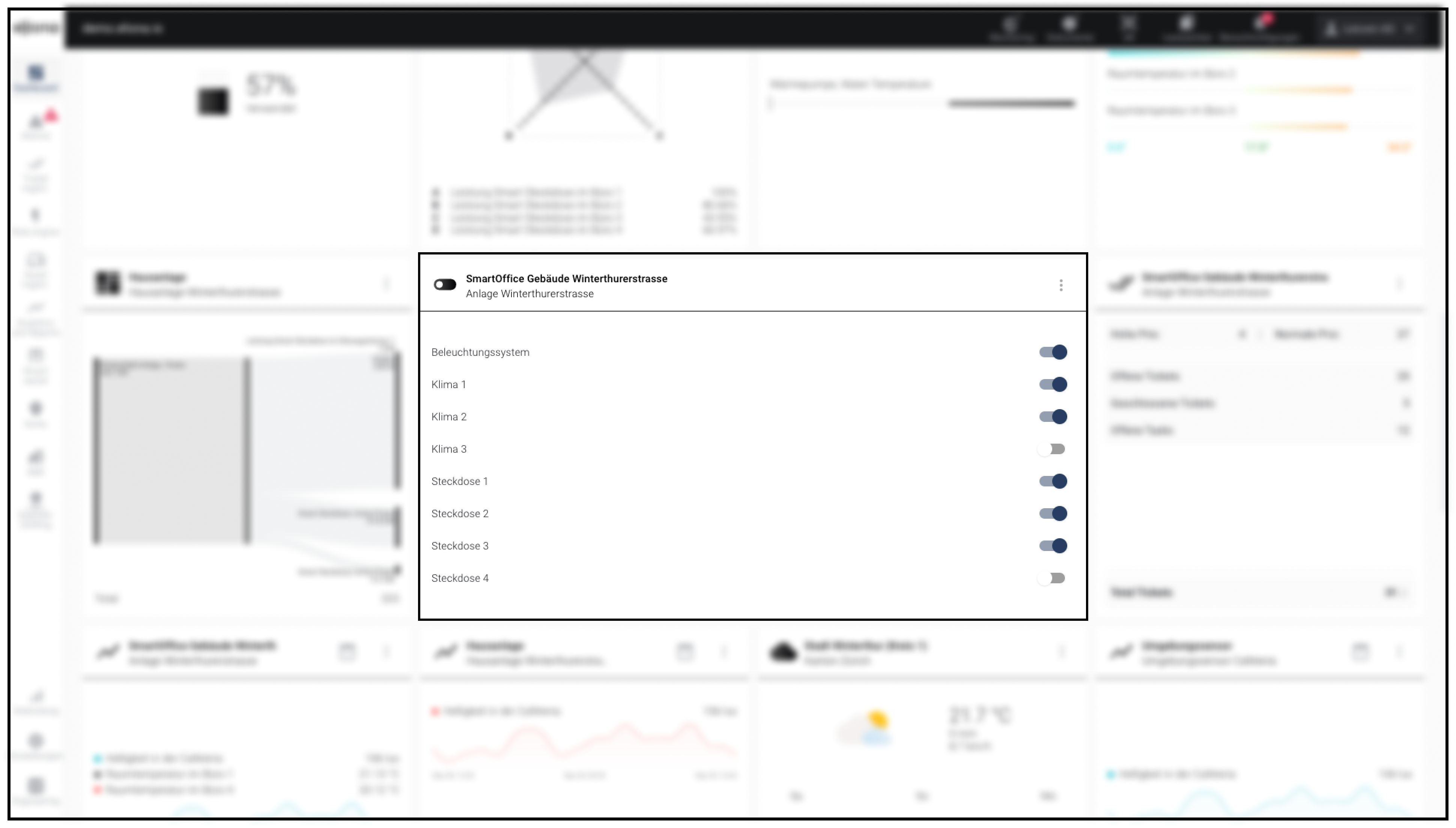
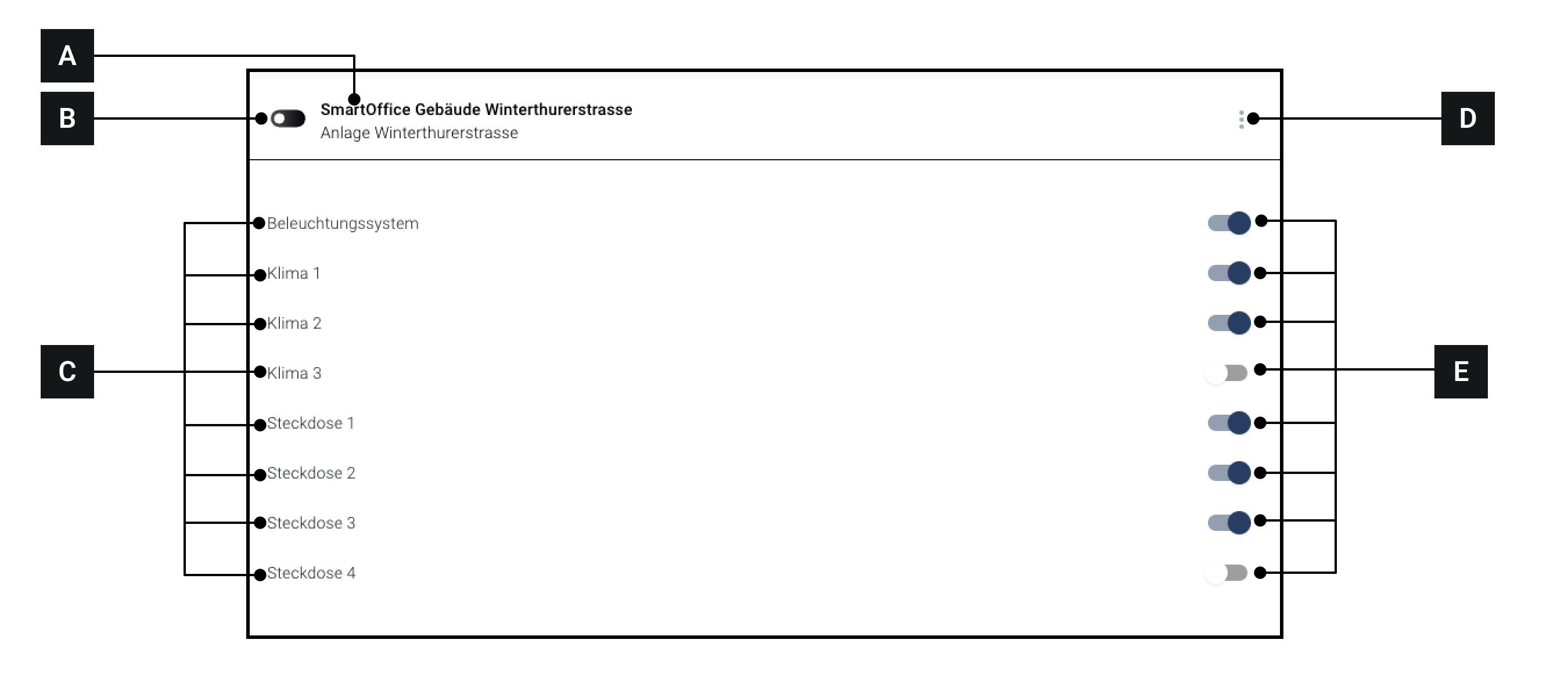
The "Switch" widget in detail

[A]

Widget title

Title of the widget. Is influenced by the selection of the "primary asset".

[B]

Icon

[C]

Individual assets

The individual assets that were added to the widget

[D]

More options

[E]

Individual switches

Operate Widget

Each added individual asset [C] is its own switch [E] assigned.

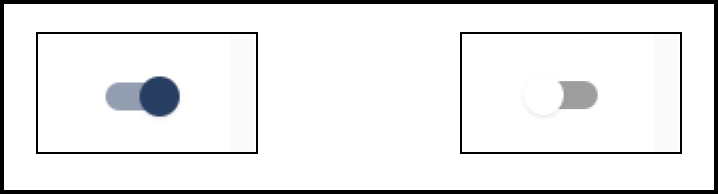
Left: switch in the "ON" state Right: switch in the "OFF" state
  • Click a switch that is in the "ON" state to set this switch to "OFF"

  • Click a switch that is in the "OFF" state to set this switch to "ON".

Last updated

Was this helpful?