> For the complete documentation index, see [llms.txt](https://docs.buildings.ability.abb/collection/llms.txt). Markdown versions of documentation pages are available by appending `.md` to page URLs; this page is available as [Markdown](https://docs.buildings.ability.abb/collection/english-v14/preface/bedienelemente.md).

# Controls

When working with ABB BuildingPro, you will encounter recurring controls.

## Switch

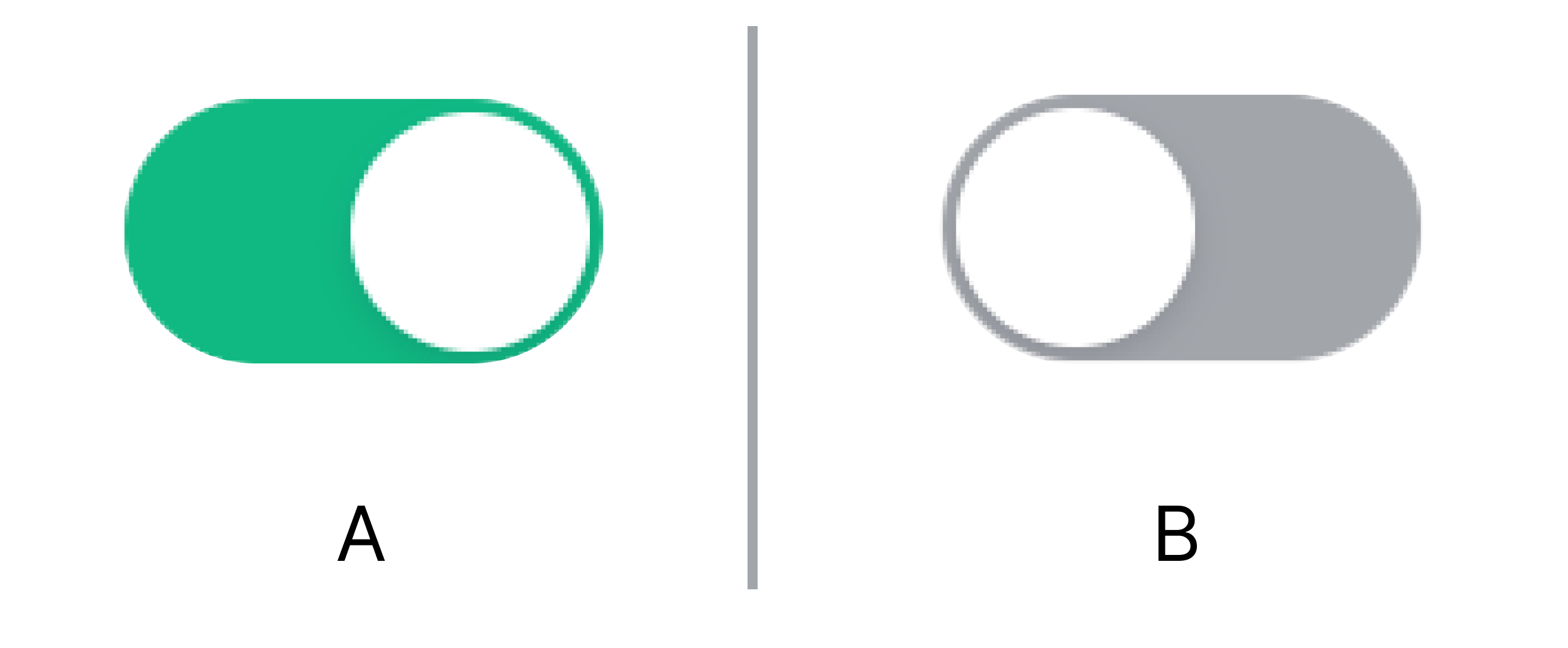
<figure><img src="https://content.gitbook.com/content/Nyvwhz1kEMXcHf4HLuZ8/blobs/vXQLI6CUgfFkD5yp6Zpy/Docs_Interface%20-%20Schalter.png" alt="" width="375"><figcaption><p>A – switch in the "ON" state, B – switch in the "OFF" state</p></figcaption></figure>

Switches can switch between two states.

Click on a switch to change its state.

## Search function

<div data-full-width="true"><figure><img src="https://content.gitbook.com/content/Nyvwhz1kEMXcHf4HLuZ8/blobs/x3kXZfXP897fn5L9zmQL/Docs%20-%20Search%20Maps.png" alt=""><figcaption></figcaption></figure></div>

## Search function

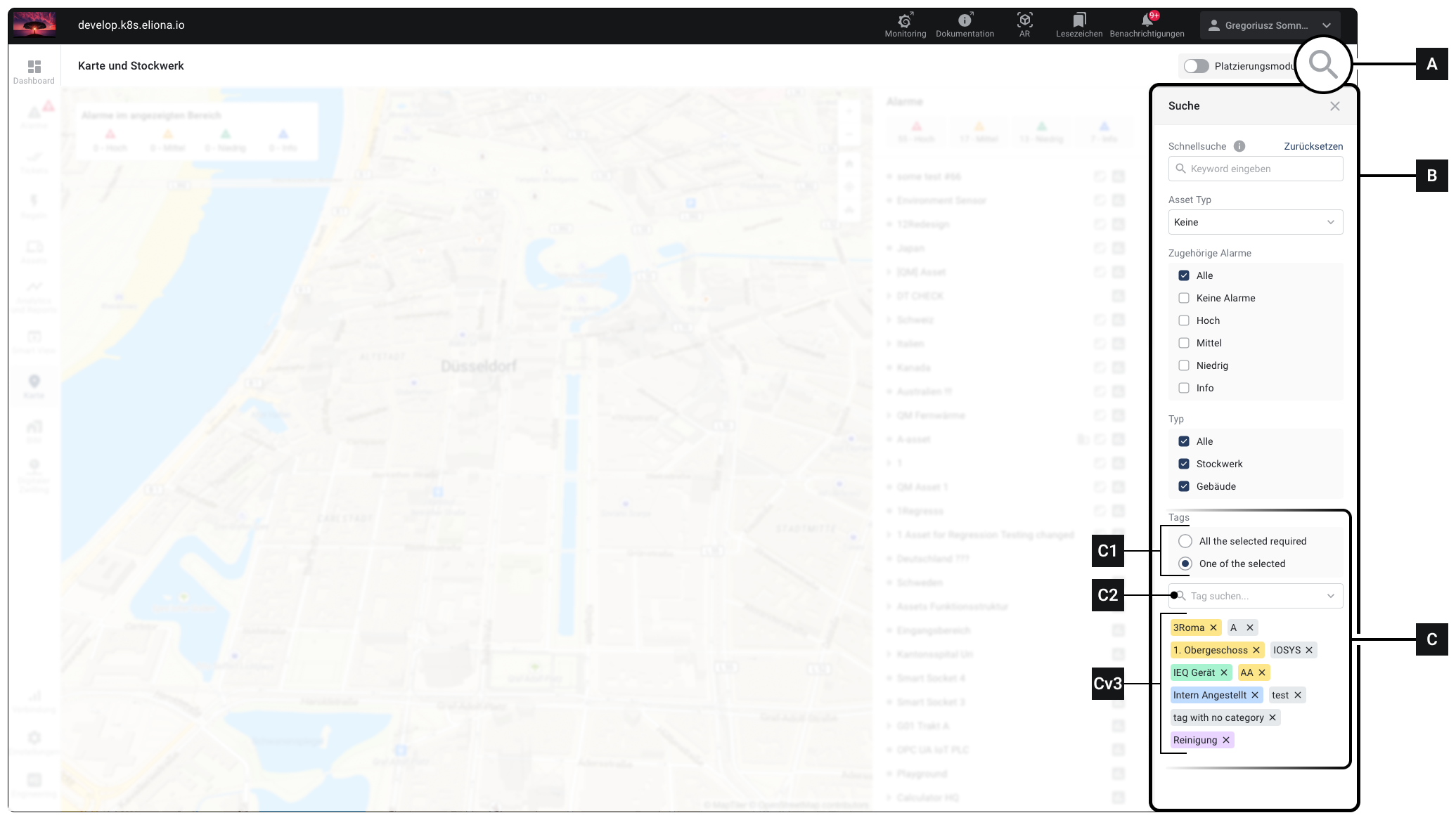
ABB BuildingPro has a powerful and very useful search function. You can access the search function at any time by clicking in the [↗ context bar](/collection/english-v14/preface/das-interface.md#kontextleiste) on **\[A]** click.

This opens the search bar **\[B]**. In the search bar, you can search the contents of the corresponding menu.

The exact content of the search bar depends on the menu you are in.

### Tags Filtering

If you [↗ Entities](/collection/english-v14/preface/glossar.md#entitaeten) browse items that are tagged, you can filter the search results by one or more tags. In this case, only such search results are displayed to which the selected tags apply.

If you have selected multiple tags, in field **\[B1]** select which logic is used for filtering:

* One of the Selected: All entities are displayed to which a single one of the selected tags applies.
* All of the Selected: Only those entities are displayed to which *all* of the selected tags apply.

<table><thead><tr><th width="97.33333333333331">Element</th><th>Title</th><th>Details</th></tr></thead><tbody><tr><td><strong>[A]</strong></td><td>Open search/Close search</td><td>When the search bar <em>not</em> is open: Open search bar<br>If the search bar is open: Close search bar</td></tr><tr><td><strong>[B]</strong></td><td>Search bar</td><td>Enter search parameters</td></tr><tr><td><strong>[C]</strong></td><td>Section «Tags Filtering»</td><td>Filter search by tags</td></tr><tr><td><strong>[C1]</strong></td><td>Select logic</td><td>See above</td></tr><tr><td><strong>[C2]</strong></td><td>Select tag(s)</td><td>Select the tags here by which you want to filter</td></tr><tr><td><strong>[C3]</strong></td><td>Selected tags</td><td>The selected tags are displayed here</td></tr></tbody></table>

## Drag elements

<figure><img src="https://content.gitbook.com/content/Nyvwhz1kEMXcHf4HLuZ8/blobs/zDjmmB3OPq3Vcc1s2Aai/Docs_Interface%20-%20Hamburger.png" alt="" width="188"><figcaption></figcaption></figure>

If you see this symbol, you can move an item by ↗[ Drag'n'Drop ](#dragn-drop)drag.

## Arrange elements

<figure><img src="https://content.gitbook.com/content/Nyvwhz1kEMXcHf4HLuZ8/blobs/WoddaVLBozVlwoqG5cEi/Docs_Interface%20-%20Sortieren.png" alt=""><figcaption></figcaption></figure>

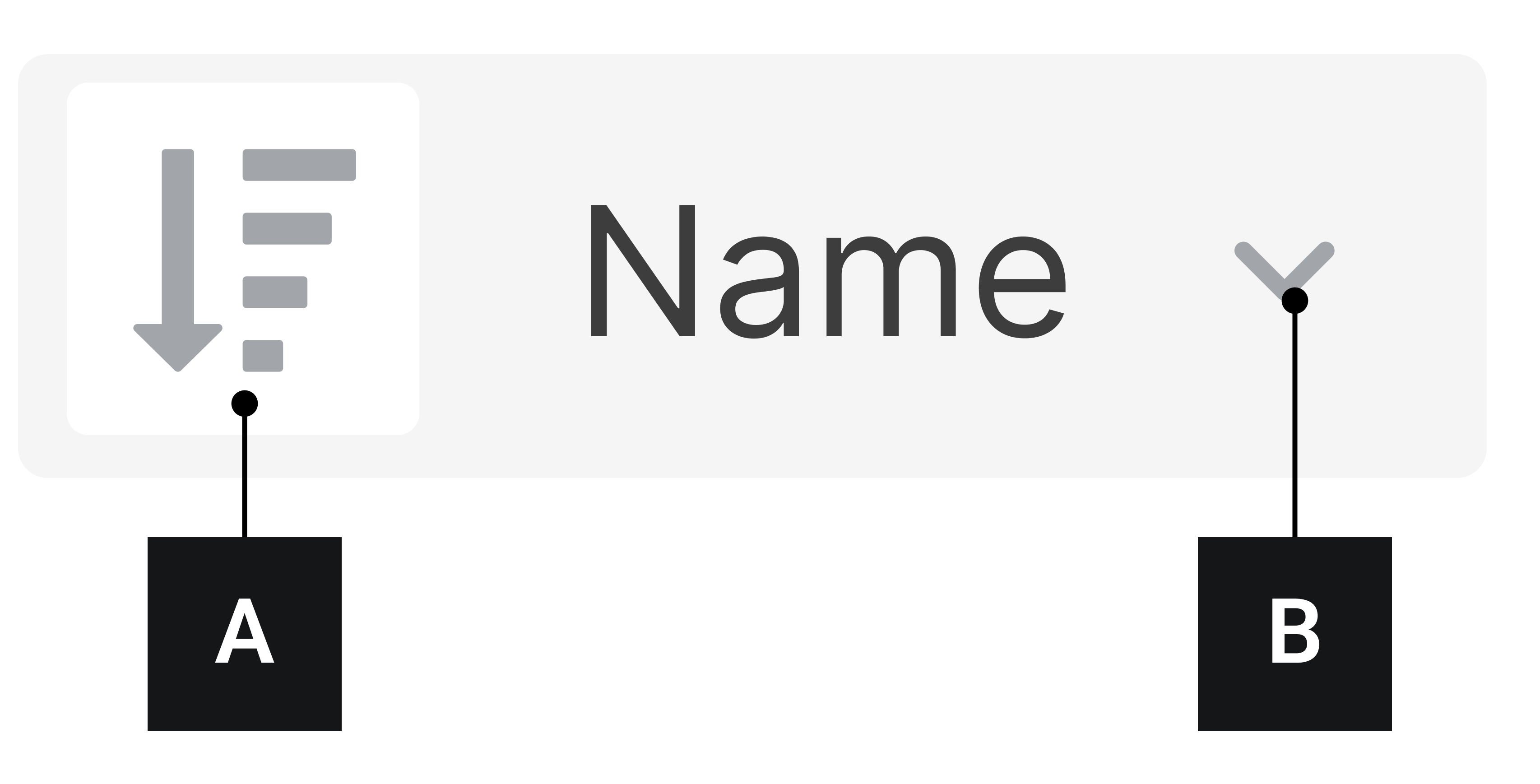
If you see this symbol, you can sort a list of elements by various properties.

Click on **\[A]** to determine whether to sort ascending or descending.

Click on **\[B]** to define which criterion is used for sorting.

## Edit

<figure><img src="https://content.gitbook.com/content/Nyvwhz1kEMXcHf4HLuZ8/blobs/dpmqZxbWcLPT34n7lIYL/Docs_Interface%20-%20Bearbeiten.png" alt="" width="188"><figcaption></figcaption></figure>

This symbol indicates that you can edit an item's data.

Click this symbol to edit an item's data.

## More options (meatball menu)

<figure><img src="https://content.gitbook.com/content/Nyvwhz1kEMXcHf4HLuZ8/blobs/5OnGdnvcx3rAMGbktSXP/Docs_Interface%20-%20MehrOptionen.png" alt="" width="188"><figcaption></figcaption></figure>

The meatball menu indicates that more options are available for an item.

Click the meatball menu to open a list of available options.

## GAI

<figure><img src="https://content.gitbook.com/content/Nyvwhz1kEMXcHf4HLuZ8/blobs/Bt1TP58Cu31xsKNAAROe/Docs_Interface%20-%20GAI.png" alt="" width="188"><figcaption></figcaption></figure>

Click this symbol to display the ↗[ GAI](/collection/english-v14/preface/glossar.md#gai) of an item.

## Trash can

<figure><img src="https://content.gitbook.com/content/Nyvwhz1kEMXcHf4HLuZ8/blobs/WmsYlaDAJiBLPhD9vB7e/Docs_Interface%20-%20Tonne.png" alt="" width="188"><figcaption></figcaption></figure>

Click this symbol to delete an item, or to [-> archive](/collection/english-v14/documentation/assets/assets-archivieren.md).

## Expand elements

<figure><img src="https://content.gitbook.com/content/Nyvwhz1kEMXcHf4HLuZ8/blobs/lGLBfo1fARaWzuWfLKad/Docs_Interface%20-%20Aufklappen.png" alt="" width="188"><figcaption></figcaption></figure>

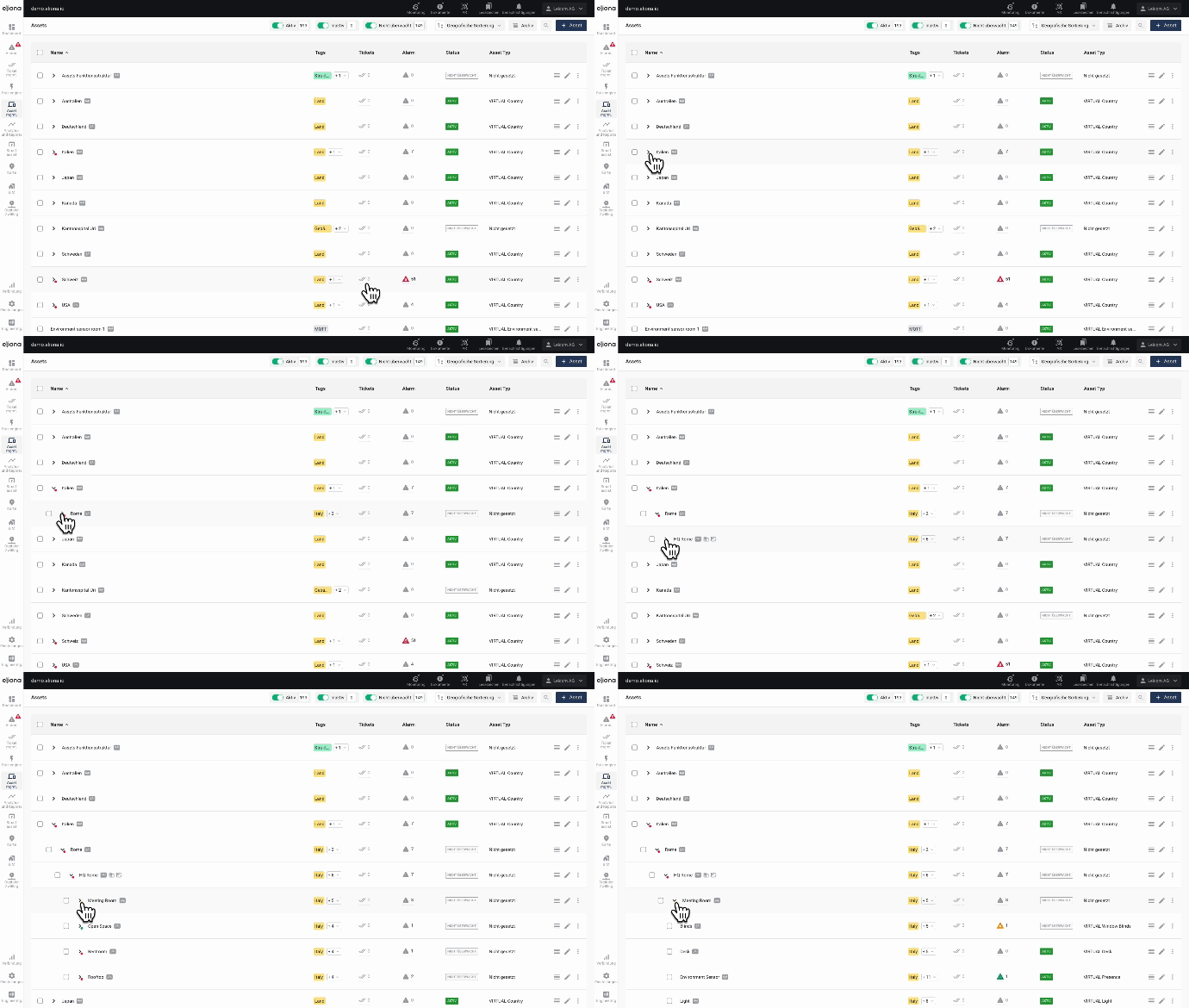
Elements with this symbol contain child elements. Such elements can be expanded to display the child elements.

Click this symbol to expand an element.

<div data-full-width="true"><figure><img src="https://content.gitbook.com/content/Nyvwhz1kEMXcHf4HLuZ8/blobs/y3d552kU0BgQzVXOLY99/aufklappen.gif" alt=""><figcaption></figcaption></figure></div>

## Folder

<figure><img src="https://content.gitbook.com/content/Nyvwhz1kEMXcHf4HLuZ8/blobs/qoo823O7UW3xAKTTe31F/Docs_Interface%20-%20Ordner.png" alt="" width="188"><figcaption></figcaption></figure>

Folders in ABB BuildingPro work like folders in your operating system. You can organize assets in folders by [-> Drag'n'Drop](#dragn-drop) dragging them into the folders.

You can also drag folders into other folders.

## Floors

This symbol indicates that an asset is a ↗[ floor](/collection/english-v14/documentation/karte-und-stockwerk.md) is.

Click this symbol to open the floor.

<figure><img src="https://content.gitbook.com/content/Nyvwhz1kEMXcHf4HLuZ8/blobs/OgvmIrVSpg2T4kQ8ficP/Docs_Interface%20-%20Stockwerk.png" alt="" width="188"><figcaption></figcaption></figure>

## Drag'n'Drop

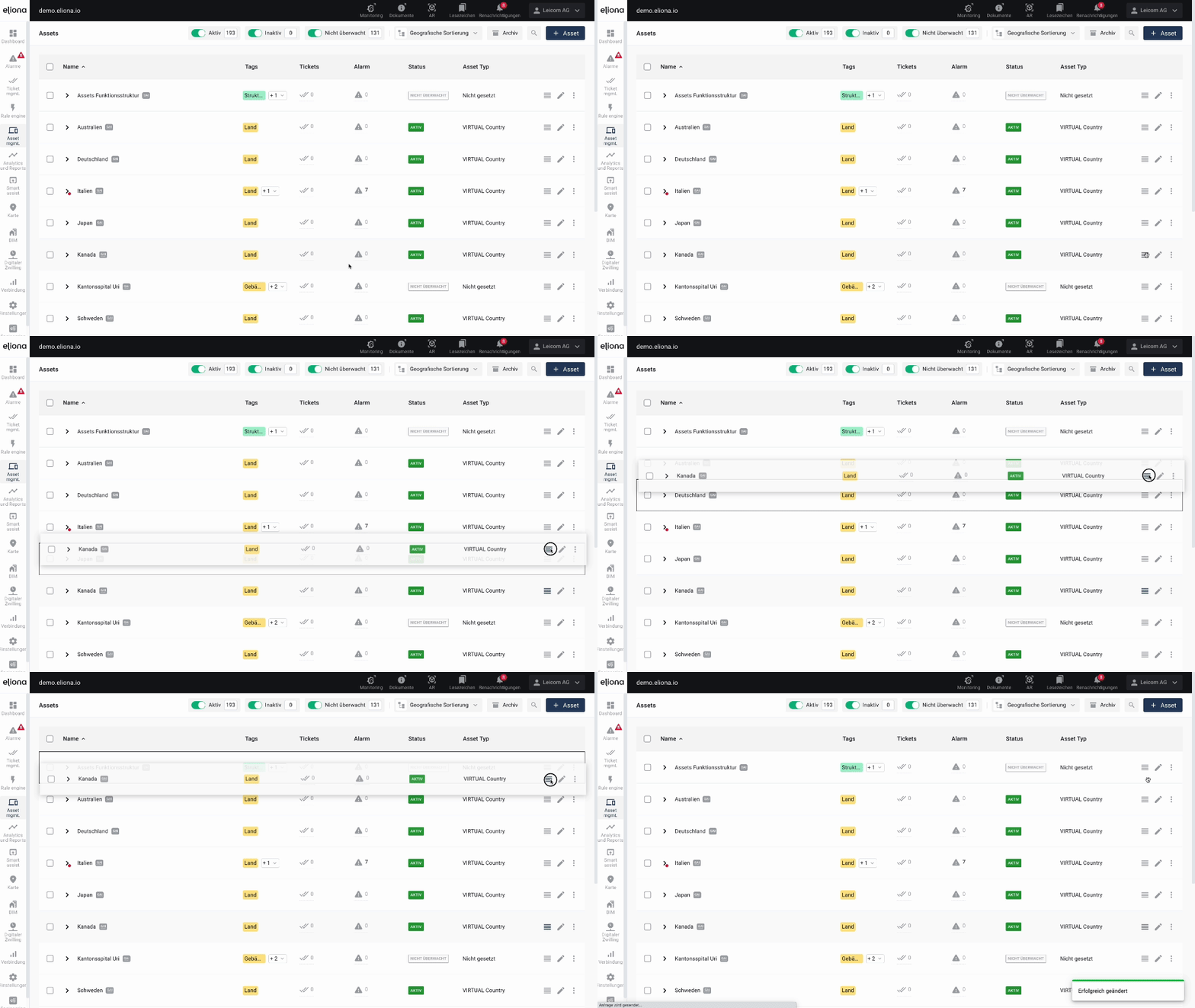
<div data-full-width="true"><figure><img src="https://content.gitbook.com/content/Nyvwhz1kEMXcHf4HLuZ8/blobs/9raAoBVB4dLKOylftd5n/Drag%20n%20drop.gif" alt=""><figcaption><p>With Drag'n'Drop, an asset is dragged onto another asset.</p></figcaption></figure></div>

Click the left mouse button on the ↗[ symbol "Hamburger"](#elemente-ziehen). Hold down the mouse button and drag the item. Release the mouse button to place the item.

## Asset search

<figure><img src="https://content.gitbook.com/content/Nyvwhz1kEMXcHf4HLuZ8/blobs/00Iv2bGS4NcWG3N5qRkX/image.png" alt=""><figcaption></figcaption></figure>

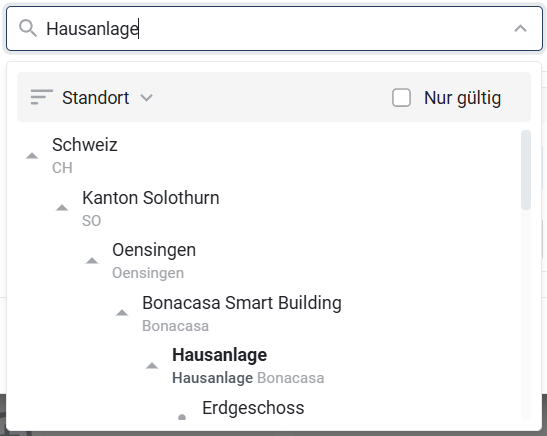
At many places in ABB BuildingPro, assets can be searched for and selected. A convenient asset search is available for this. In it, the **asset name** and below it the corresponding **GAI** displayed.

The assets are displayed in a **geographical structure** which can be expanded by clicking the triangle symbol. With the option **Only valid** only those assets that are relevant for the selection can be displayed. Non-selectable assets are **greyed out** and thus clearly recognizable.

## Breadcrumbs

<div data-full-width="true"><figure><img src="https://content.gitbook.com/content/Nyvwhz1kEMXcHf4HLuZ8/blobs/HEk4ibk2A5hLLZAJOaEL/Docs-Breadcrumbs.png" alt=""><figcaption></figcaption></figure></div>

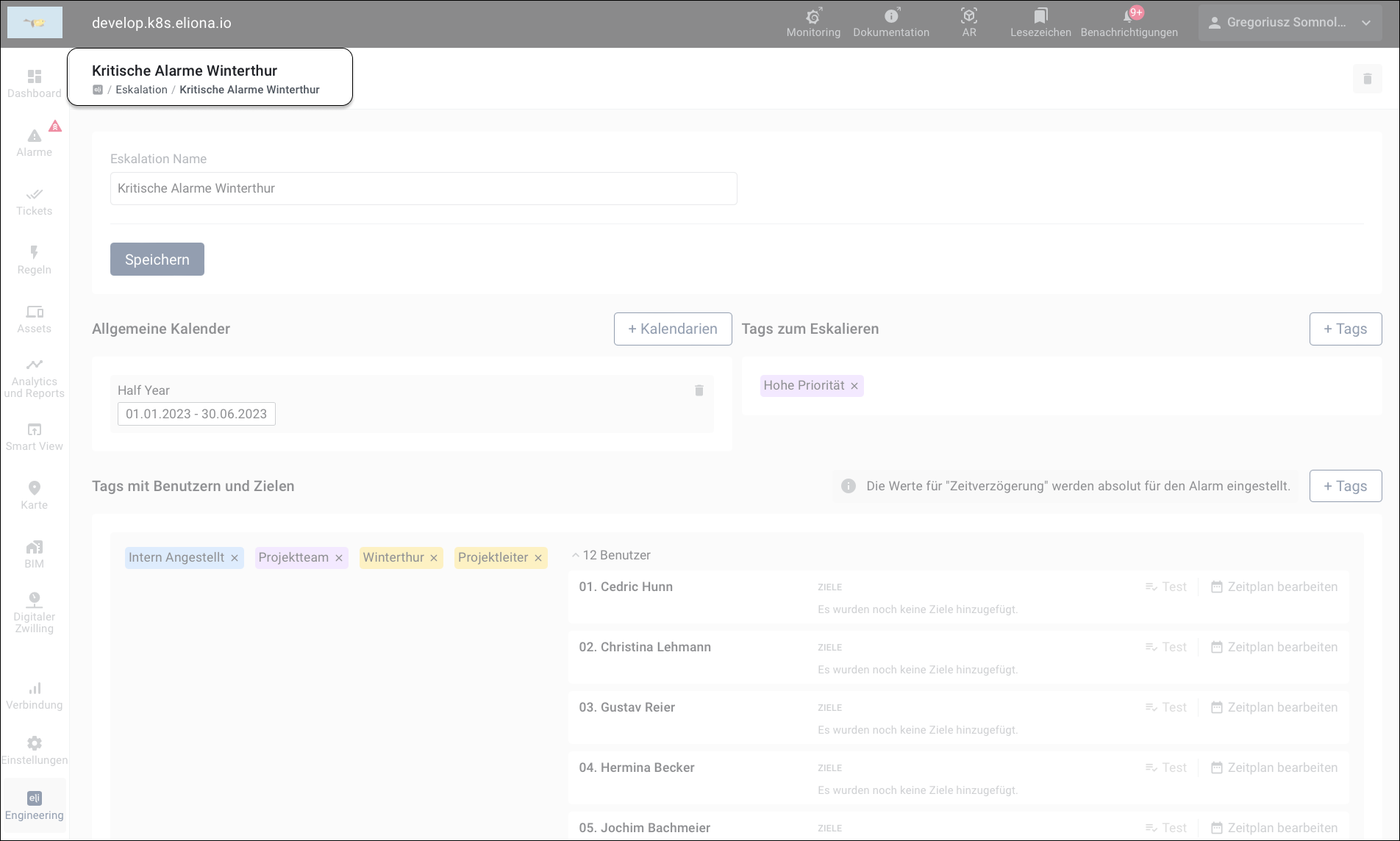
"Breadcrumbs" (English for "breadcrumbs") show you where you currently are within the website structure. Breadcrumbs are a horizontal row of text links in the [↗ context bar](/collection/english-v14/preface/das-interface.md#kontextleiste). Click a link to go to the corresponding menu.


---

# Agent Instructions
This documentation is published with GitBook. GitBook is the documentation platform designed so that both humans and AI agents can read, navigate, and reason over technical content effectively. Learn more at gitbook.com.

## Querying This Documentation
If you need additional information that is not directly available in this page, you can query the documentation dynamically by asking a question.

Perform an HTTP GET request on the current page URL with the `ask` query parameter, and the optional `goal` query parameter:

```
GET https://docs.buildings.ability.abb/collection/english-v14/preface/bedienelemente.md?ask=<question>&goal=<endgoal>
```

`ask` is the immediate question: it should be specific, self-contained, and written in natural language.
`goal` is optional and describes the broader end goal you are ultimately trying to accomplish on behalf of the user. GitBook uses it to tailor the answer towards what is most useful for that goal.

The response will contain a direct answer to the question and relevant excerpts and sources from the documentation.

Use this mechanism when the answer is not explicitly present in the current page, you need clarification or additional context, or you want to retrieve related documentation sections.