> For the complete documentation index, see [llms.txt](https://docs.buildings.ability.abb/collection/llms.txt). Markdown versions of documentation pages are available by appending `.md` to page URLs; this page is available as [Markdown](https://docs.buildings.ability.abb/collection/german-14.2-freezed/dokumentation/widgets/vordefinierte-widgets/bild.md).
# Bild
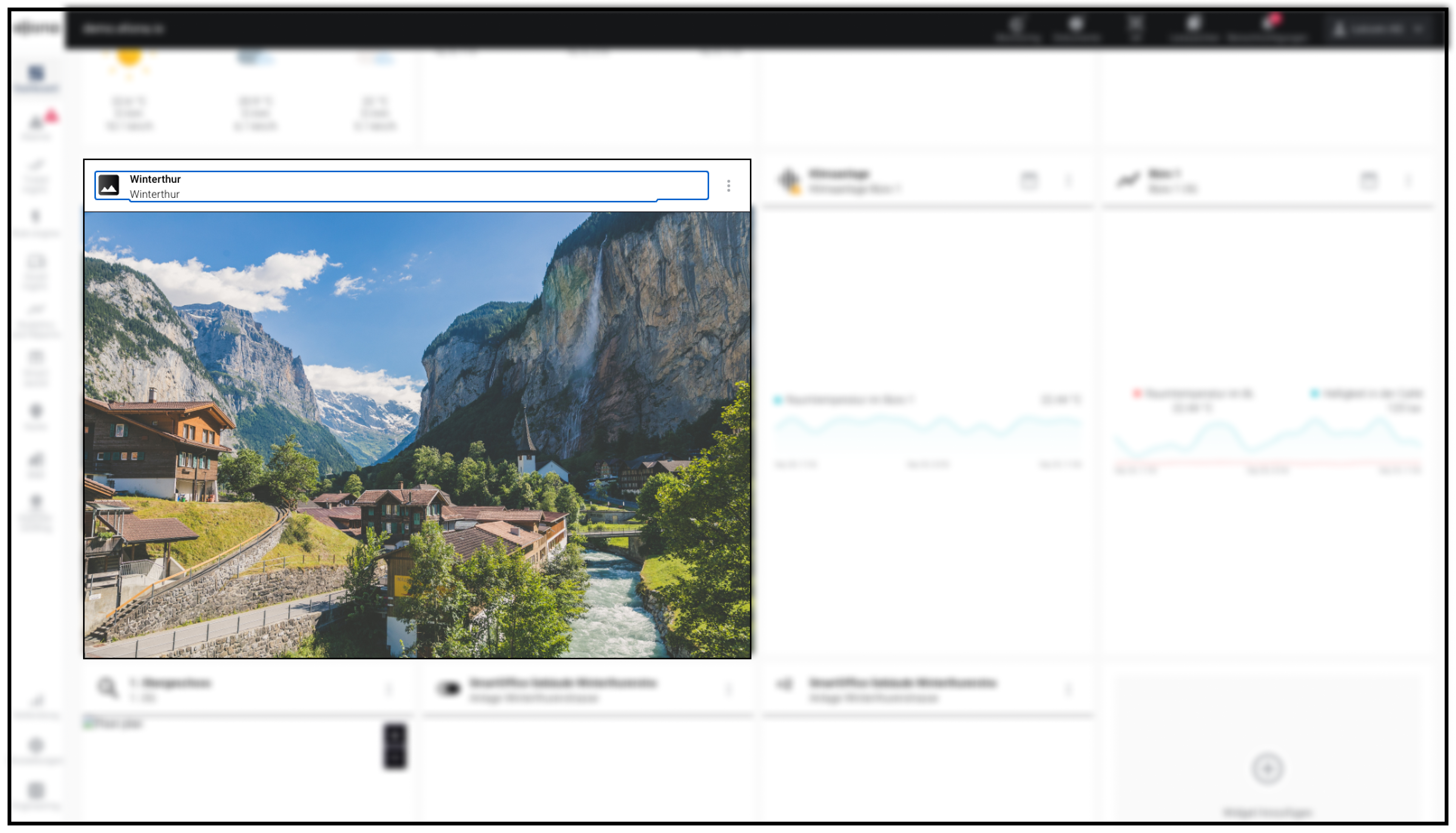
Mit dem Widget "Bild" können Sie ein lokal gespeichertes Bild hochladen und im Dashboard anzeigen.
Ein Widget "Bild" im Dashboard
## Widget konfigurieren
{% @supademo/embed url="" demoId="i\_SW8nAOyhQI48q1Y2xZ2" fullWidth="true" %}
1. Vergewissern Sie sich, dass Sie sich im Menü Dashboard befinden.
2. Klicken Sie auf "Widget hinzufügen"
3. Klicken Sie auf "Bild"
4. Wählen Sie das Primäre Asset. Der Name dieses Assets erscheint in der Titelzeile des Widgets.
5. Wählen Sie das Asset für das Sie ein Bild hinzufügen möchten
6. Wenn dem ausgewählten Asset weitere [-> Dateien zugeordnet](/collection/german-14.2-freezed/dokumentation/assets/dokumente-an-assets-anhangen.md) sind, werden diese angezeigt.
7. Klicken Sie auf das Feld "Datei hochladen" und laden Sie eine Bilddatei hoch. Alternativ können Sie Bilddateien auch per Drag and Drop ablegen. Unterstützte Formate: .jpg, .png
8. Optional: Wiederholen Sie den Vorgang, um weitere Bilder hochzuladen.
9. Wenn mehrere Bilder hochgeladen wurden: Sie können auswählen, welches Bild im Widget angezeigt wird. Klicken Sie auf ein Bild um es auszuwählen. Das ausgewählte Bild wird mit einem schwarzen Rahmen markiert.
10. Optional: Wählen Sie, wie viel Raum Ihr neues Widget auf dem Dashboard einnehmen soll.
11. Klicken Sie auf "Widget hinzufügen"
---
# Agent Instructions
This documentation is published with GitBook. GitBook is the documentation platform designed so that both humans and AI agents can read, navigate, and reason over technical content effectively. Learn more at gitbook.com.
## Querying This Documentation
If you need additional information that is not directly available in this page, you can query the documentation dynamically by asking a question.
Perform an HTTP GET request on the current page URL with the `ask` query parameter, and the optional `goal` query parameter:
```
GET https://docs.buildings.ability.abb/collection/german-14.2-freezed/dokumentation/widgets/vordefinierte-widgets/bild.md?ask=&goal=
```
`ask` is the immediate question: it should be specific, self-contained, and written in natural language.
`goal` is optional and describes the broader end goal you are ultimately trying to accomplish on behalf of the user. GitBook uses it to tailor the answer towards what is most useful for that goal.
The response will contain a direct answer to the question and relevant excerpts and sources from the documentation.
Use this mechanism when the answer is not explicitly present in the current page, you need clarification or additional context, or you want to retrieve related documentation sections.