> For the complete documentation index, see [llms.txt](https://docs.buildings.ability.abb/collection/llms.txt). Markdown versions of documentation pages are available by appending `.md` to page URLs; this page is available as [Markdown](https://docs.buildings.ability.abb/collection/getting-started/1.-create-users-and-tenants/check-license-and-access-status.md).
# Activate a Voucher
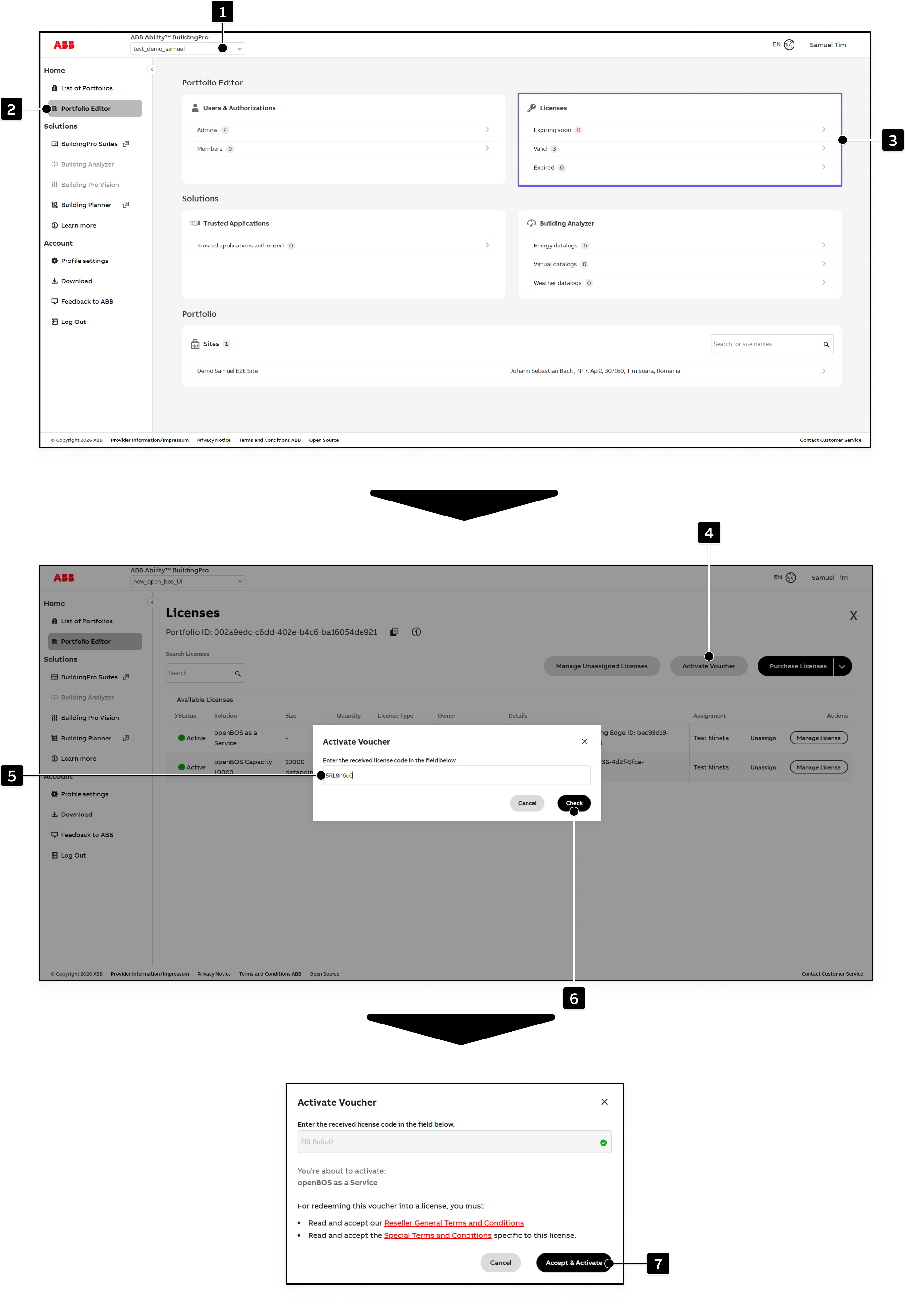
After purchasing a license, activate the received voucher in the tenant where the license should be used.
1. Select the tenant for which you want to activate the voucher under **\[1]**.
2. Open *Portfolio Editor* under **\[2]**.
3. Click **Licenses \[3]**.
4. Click **Activate Voucher \[4]**.
5. Enter the received voucher in the field under **\[5]**.
6. Click **Check \[6]** to validate the voucher.\
▷ The voucher details are displayed.
7. Review the voucher details and accept the required terms and conditions. Then click **Accept & Activate \[7]**.
▷ The voucher is activated for the selected tenant and the corresponding license becomes available. You can now continue with the remaining setup steps for the licensed solution.
## Check License and Access Status
After activating the voucher, verify that the license is available and that you can access BuildingPro Suites from the selected tenant.
### What to check
* In ABB Ability BuildingPro, make sure you are working in the correct portfolio.
* Open **BuildingPro Suites** from that portfolio.
* In BuildingPro Suites, review the license information under *Settings -> License*.
* Confirm that the activated license is listed and available for the tenant.
* If a license warning is shown, check the remaining time and coordinate the renewal in time.
### Typical user flow
* If a portfolio is already available to you, select it and open BuildingPro Suites from there.
* If no portfolio is available yet, create a portfolio first and then open BuildingPro Suites.
* If the selected tenant has valid access, continue with user invitations, roles, assets, and data onboarding.
### If access is not available
If the BuildingPro Suites entry is not available for the selected portfolio, or if the license has not been activated, verify that the voucher was entered for the correct tenant. If the license has expired or the voucher cannot be activated, the administrator must assign, renew, or purchase the required license before continuing.
---
# Agent Instructions
This documentation is published with GitBook. GitBook is the documentation platform designed so that both humans and AI agents can read, navigate, and reason over technical content effectively. Learn more at gitbook.com.
## Querying This Documentation
If you need additional information that is not directly available in this page, you can query the documentation dynamically by asking a question.
Perform an HTTP GET request on the current page URL with the `ask` query parameter, and the optional `goal` query parameter:
```
GET https://docs.buildings.ability.abb/collection/getting-started/1.-create-users-and-tenants/check-license-and-access-status.md?ask=&goal=
```
`ask` is the immediate question: it should be specific, self-contained, and written in natural language.
`goal` is optional and describes the broader end goal you are ultimately trying to accomplish on behalf of the user. GitBook uses it to tailor the answer towards what is most useful for that goal.
The response will contain a direct answer to the question and relevant excerpts and sources from the documentation.
Use this mechanism when the answer is not explicitly present in the current page, you need clarification or additional context, or you want to retrieve related documentation sections.