# Log In and Open BuildingPro Suites

{% hint style="info" %}
Use ABB Ability BuildingPro as the starting point. The selected portfolio defines which tenant you open in BuildingPro Suites.
{% endhint %}

<div data-full-width="true"><figure><img src="/files/iNGf3tVEKrBfk0nLvZEG" alt=""><figcaption></figcaption></figure></div>

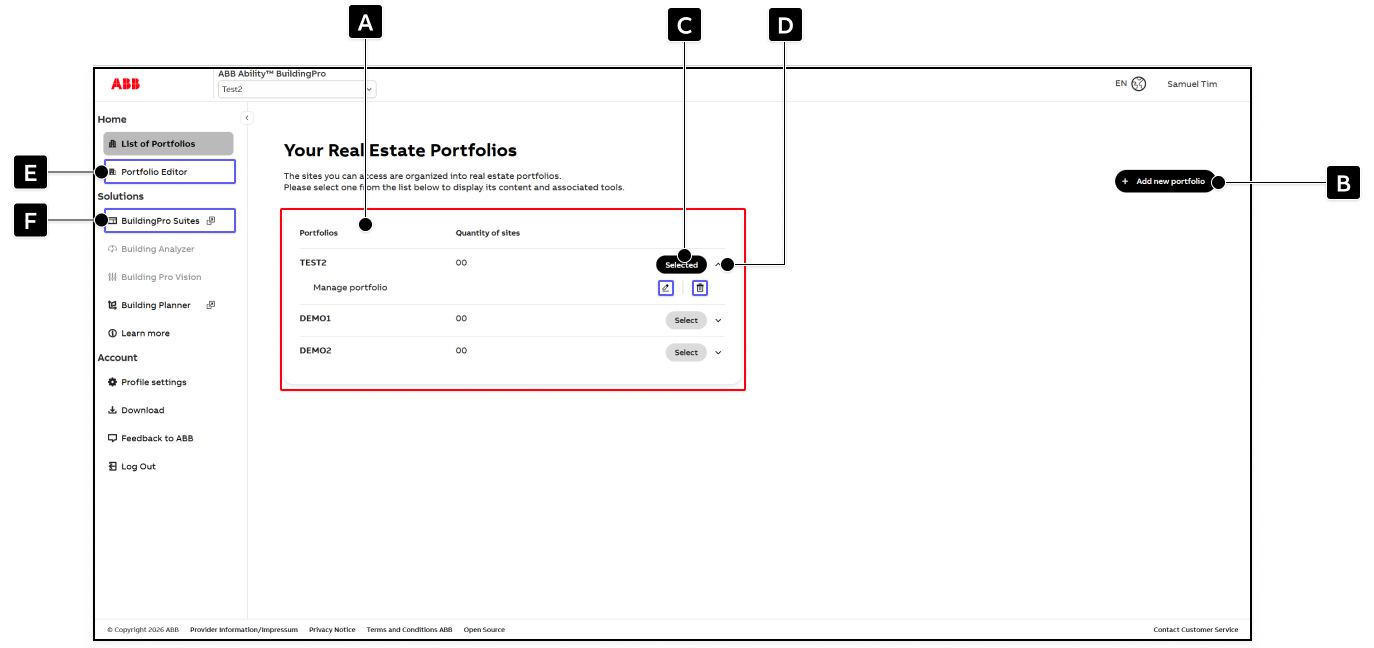
<div data-full-width="true"><figure><img src="/files/YKhVZQFlAaaoXiiMlPXx" alt=""><figcaption><p>Portfolio list in ABB Ability BuildingPro</p></figcaption></figure></div>

<table data-header-hidden data-full-width="true"><thead><tr><th width="67">Element</th><th width="195">Title</th><th>Details</th></tr></thead><tbody><tr><td><strong>[A]</strong></td><td>Portfolio list</td><td>Displays the portfolios available to the current user.</td></tr><tr><td><strong>[B]</strong></td><td>Add new portfolio</td><td>Open the page for creating a new portfolio.</td></tr><tr><td><strong>[C]</strong></td><td>Select portfolio</td><td>Select the portfolio you want to work with.</td></tr><tr><td><strong>[D]</strong></td><td>Expand portfolio actions</td><td>Open additional actions for the selected portfolio, such as editing or deleting it.</td></tr><tr><td><strong>[E]</strong></td><td>Portfolio Editor</td><td>Open the Portfolio Editor for the selected portfolio.</td></tr><tr><td><strong>[F]</strong></td><td>BuildingPro Suites</td><td>Open BuildingPro Suites for the selected portfolio.</td></tr></tbody></table>

1. Open <https://buildings.ability.abb/>.
2. Use **\[1]** to log in if you already have an account.

   ▷ The sign-in flow opens

   **⇄ OR**
3. Use **\[2]** to sign up if you need a new account.

   ▷ The registration flow opens
4. In the portfolio overview, select the required portfolio in **\[3]**.

   ▷ The selected portfolio becomes active

   **⇄ OR**
5. Click **\[B]** to create a new portfolio if no portfolio is available yet.

   ▷ The page for creating a new portfolio opens
6. If necessary, open the additional portfolio actions in **\[D]**.

   ▷ Additional actions such as editing or deleting the portfolio become visible
7. Open **BuildingPro Suites \[F]** for the selected portfolio.

   ▷ BuildingPro Suites opens in the context of the selected portfolio

   ▷ The corresponding tenant is used automatically

   ▷ You can continue with role management, asset setup, and data onboarding in the correct workspace

If you need to work in a different tenant later, switch to the corresponding portfolio in ABB Ability BuildingPro first and then open BuildingPro Suites again.


---

# Agent Instructions: Querying This Documentation

If you need additional information that is not directly available in this page, you can query the documentation dynamically by asking a question.

Perform an HTTP GET request on the current page URL with the `ask` query parameter:

```
GET https://docs.buildings.ability.abb/collection/getting-started/1.-create-users-and-tenants/log-in-and-open-buildingpro-suites.md?ask=<question>
```

The question should be specific, self-contained, and written in natural language.
The response will contain a direct answer to the question and relevant excerpts and sources from the documentation.

Use this mechanism when the answer is not explicitly present in the current page, you need clarification or additional context, or you want to retrieve related documentation sections.
