> For the complete documentation index, see [llms.txt](https://docs.buildings.ability.abb/collection/llms.txt). Markdown versions of documentation pages are available by appending `.md` to page URLs; this page is available as [Markdown](https://docs.buildings.ability.abb/collection/getting-started/2.-configure-edge-and-connect-via-openbos/check-edge-configuration.md).
# Check the Building Edge Configuration
Before connecting a preconfigured Building Edge to BuildingPro Suites, verify that the Edge has the required network, cloud, organization, license, asset, and API settings.
For complete instructions on configuring the Building Edge, see the [User Manual - Edge Editor](https://library.abb.com/d/9AKK108467A9325). This page provides the checks that are most important for the BuildingPro Suites and *openBOS* connection.
## Check the network configuration
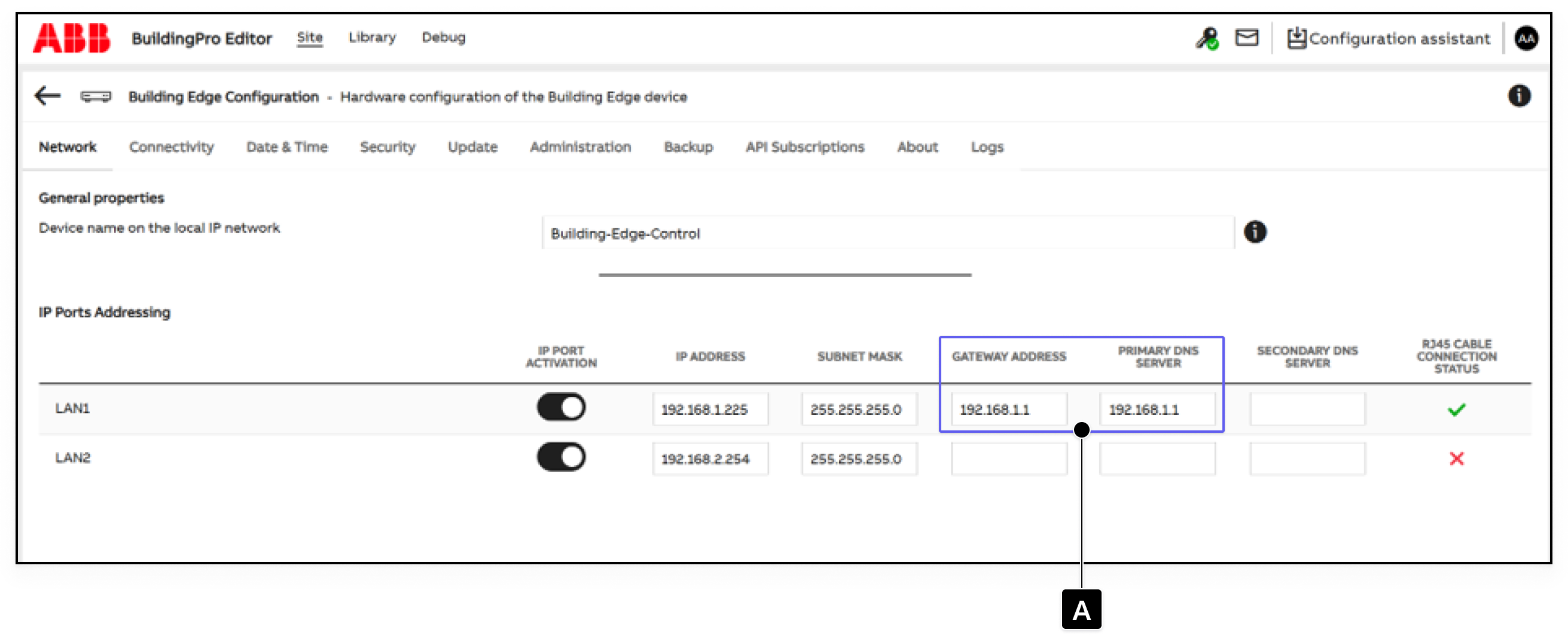
Make sure that the active IP port has both a gateway address and a DNS server configured.
* **\[A] Gateway address and primary DNS server:** Confirm that both values are configured for the active IP port. Without these settings, the Edge cannot reliably reach cloud services.
## Check the cloud connection
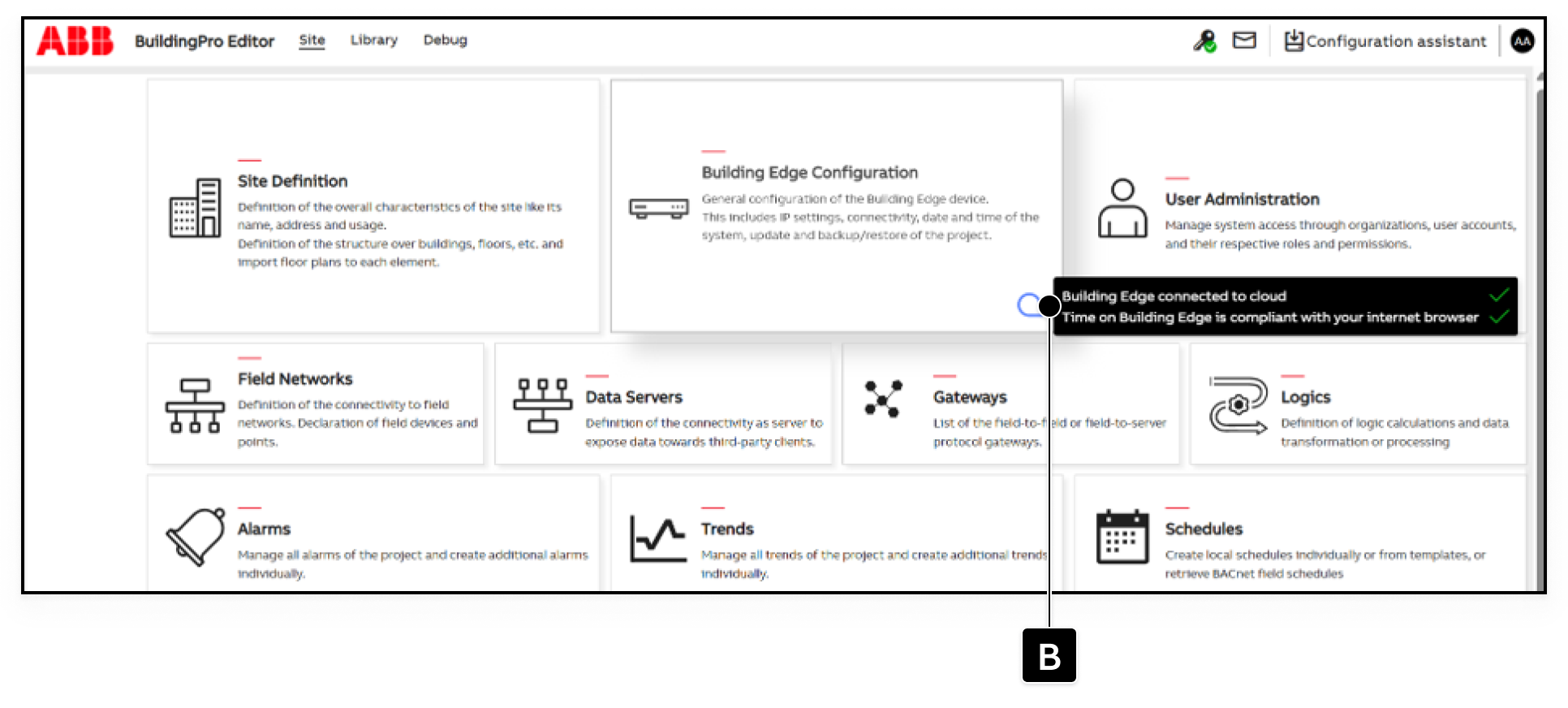
Confirm that the Edge is connected to the cloud services.
* **\[B] Cloud connection status:** Confirm that the status shows that the Building Edge is connected to the cloud.
## Check the organization connection
Make sure that the organization on the Edge is connected to the cloud portfolio that you want to use in BuildingPro.
* **\[C] Organization:** Confirm that a cloud icon is displayed next to the organization. The icon indicates that the organization is connected to the cloud portfolio.
## Check the licenses
Confirm that the Edge has both the required cloud license and the *oBaaS* license.
* **\[D] License Administration:** Open the license administration view to review the license status and effective licenses.
* **\[E] License details and event history:** Confirm that the cloud and *oBaaS* license entries are present and valid. The event history shows when the licenses were mapped.
The Edge must be licensed before it can provide data to BuildingPro Suites. If a required license is missing or expired, resolve the licensing issue before continuing.
## Check the assets
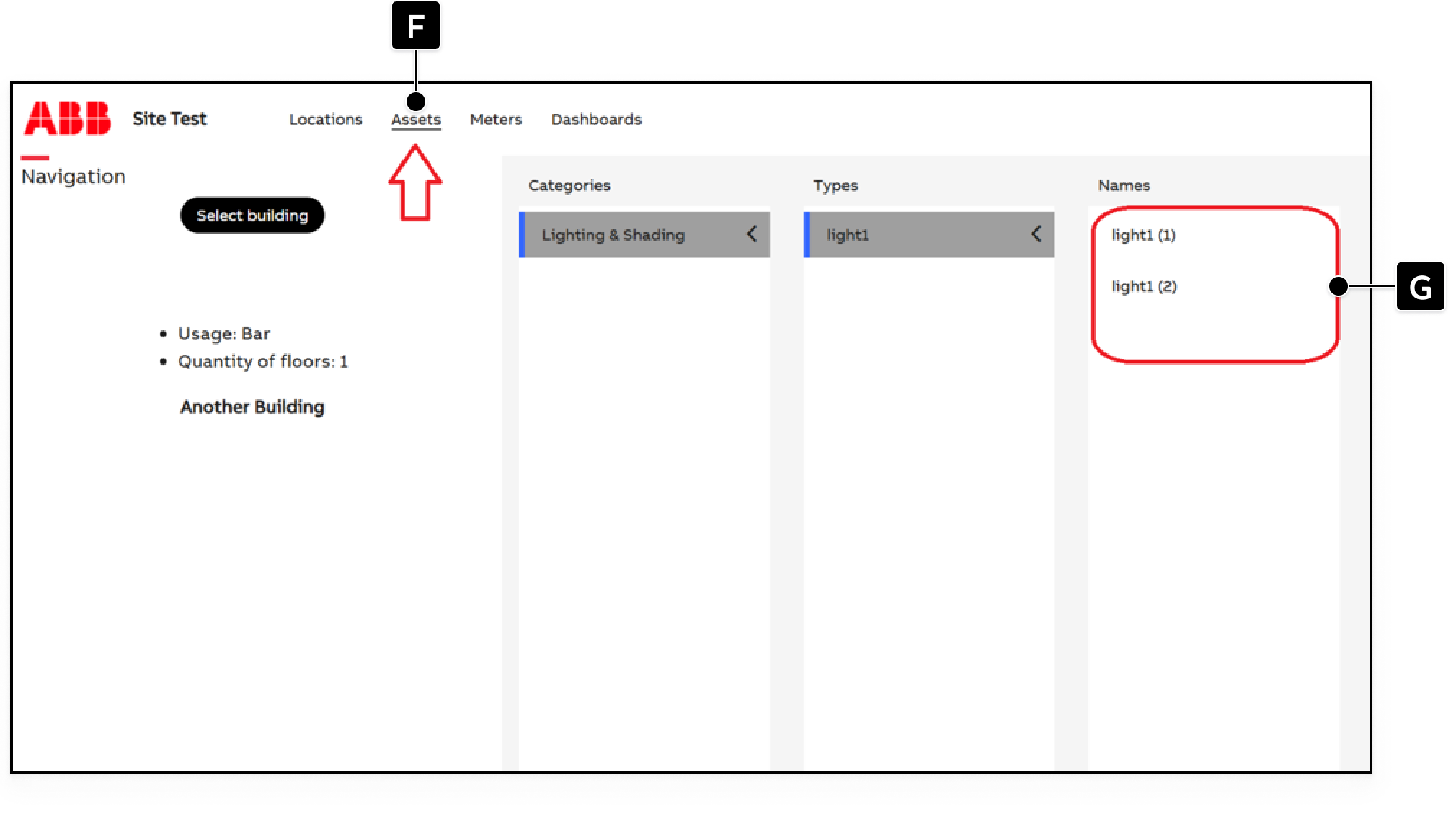
Make sure that the project contains asset instances, not only asset and device templates. Assets must be used in the project before their data can be synchronized to BuildingPro Suites.
After signing in, select **BuildingPro Vision** from **Select the tool to open**. Then open **Assets**.
*
* **\[G] Asset instances:** Confirm that the asset list contains the assets used in the project.
If no assets are listed, return to the BuildingPro Editor and place the required assets on the floor plans. Meters are an exception: meters only need to be added to the **Meters** panel.
## Activate API subscriptions
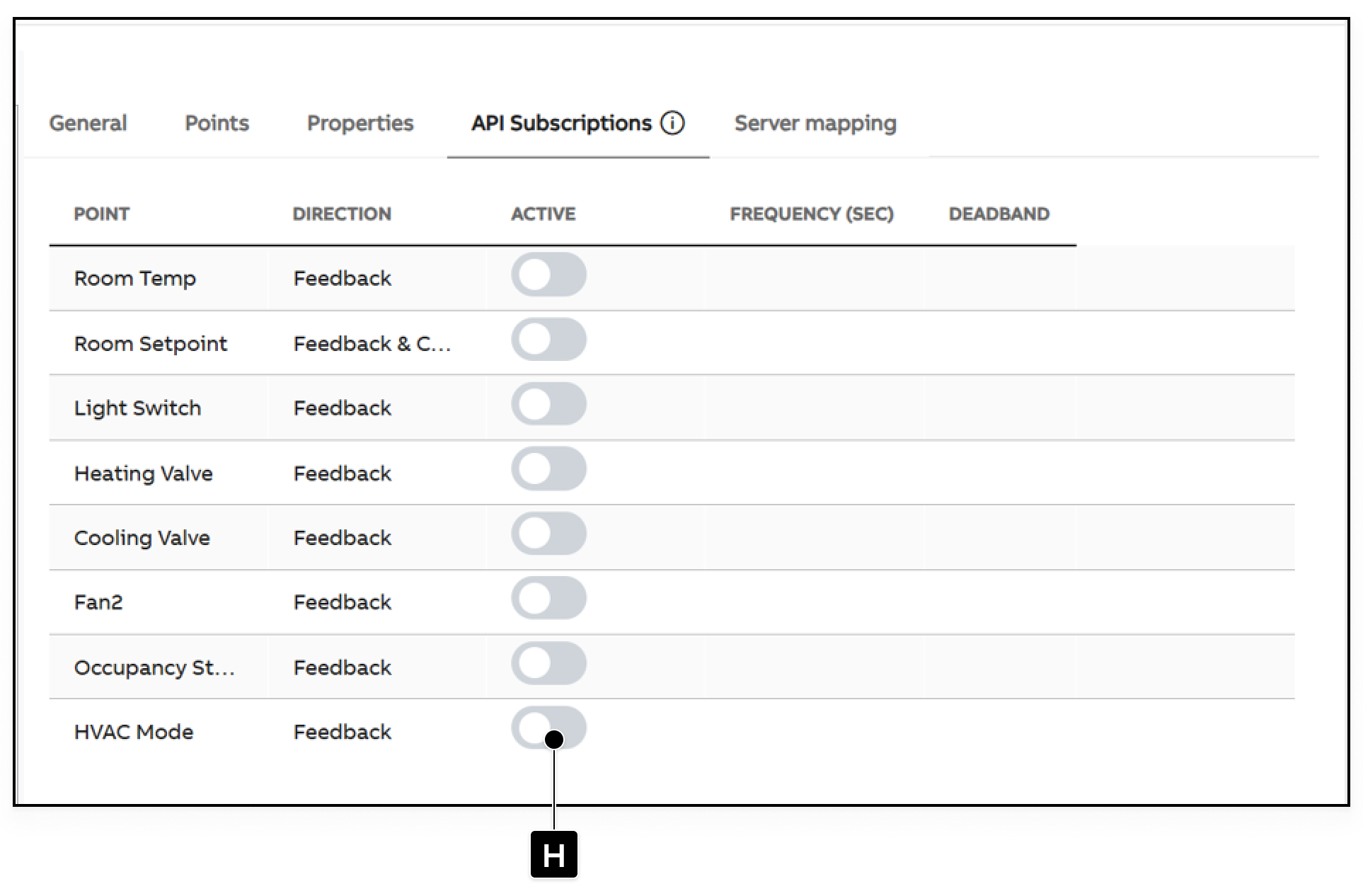
To receive attribute data in BuildingPro Suites, activate the API Subscription for each attribute or point that should be available to the client API. This is required when the Edge should regularly provide the values to BuildingPro Suites.
1. Open the asset that contains the attribute or point.
2. Open the **API Subscriptions** tab.
3. Activate the required point under **\[H]**.
4. Configure the frequency and deadband if required.
5. Save the API Subscription settings.\
▷ Only attributes with an active API Subscription are regularly fetched and sent to BuildingPro Suites. If an API Subscription is not activated, the point can still be available through the API, but the Edge fetches its value only when the client requests it. The value may therefore take longer to retrieve.
## Continue with the setup
After all checks are successful, continue with [Connect a Building Edge to BuildingPro as a Site](/collection/getting-started/2.-configure-edge-and-connect-via-openbos/associate-site.md). Then assign the OpenBOS licenses and configure the *openBOS* app.
---
# Agent Instructions
This documentation is published with GitBook. GitBook is the documentation platform designed so that both humans and AI agents can read, navigate, and reason over technical content effectively. Learn more at gitbook.com.
## Querying This Documentation
If you need additional information that is not directly available in this page, you can query the documentation by asking a question.
Perform an HTTP GET request on the following URL with the `ask` and `goal` query parameters:
```
GET https://docs.buildings.ability.abb/collection/getting-started/2.-configure-edge-and-connect-via-openbos/check-edge-configuration.md?ask=&goal=
```
`ask` is the immediate question: it should be specific, self-contained, and written in natural language.
`goal` is what the user is ultimately trying to achieve, the reason they need the answer. Sharing it helps GitBook give you a better, more relevant answer. A goal is most helpful when it describes the outcome the user wants rather than restating the question. For example, with `ask=how do I create an API token`, a goal like `automate deployments from our CI pipeline` lets GitBook tailor the answer to that use case.
The response will contain a direct answer to the question and relevant excerpts and sources from the documentation.
Use this mechanism when the answer is not explicitly present in the current page, you need clarification or additional context, or you want to retrieve related documentation sections.