> For the complete documentation index, see [llms.txt](https://docs.buildings.ability.abb/collection/llms.txt). Markdown versions of documentation pages are available by appending `.md` to page URLs; this page is available as [Markdown](https://docs.buildings.ability.abb/collection/getting-started/2.-configure-edge-and-connect-via-openbos/configure-openbos.md).

# Configure OpenBOS

Use this procedure to configure the connection between a Building Edge site and BuildingPro Suites. First retrieve the Edge Identification Number from ABB Ability BuildingPro, then configure the Edge connection and the tree structure in the *openBOS* app.

## Get the Edge Identification Number

Retrieve the Edge Identification Number from the BuildingPro site before configuring the site in the *openBOS* app.

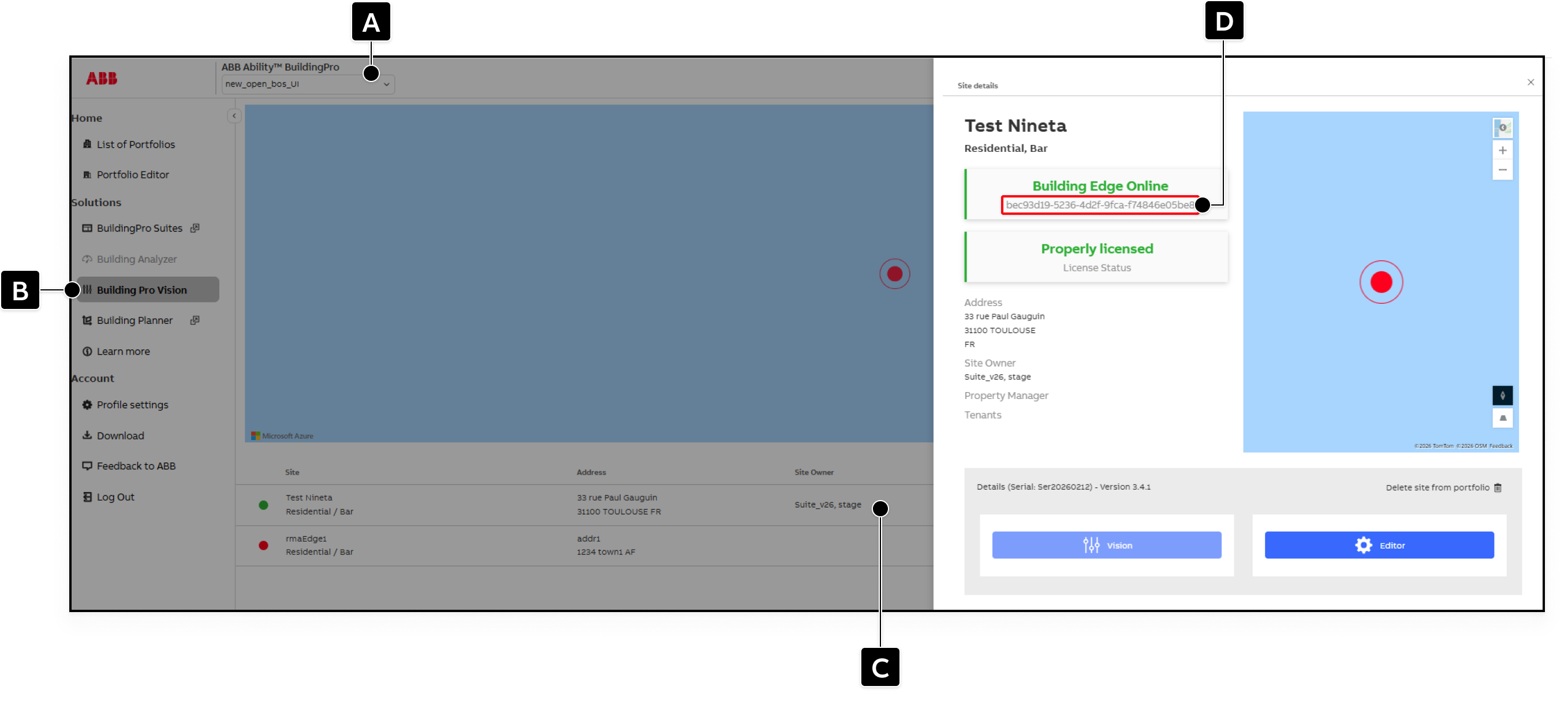
<figure><img src="https://2013058394-files.gitbook.io/~/files/v0/b/gitbook-x-prod.appspot.com/o/spaces%2FOqGnkz52o2zVUsEGEZGk%2Fuploads%2Fgit-blob-f741da32a0d41f481bf238664b7ef36019298b16%2FGet%20the%20Edge%20Identification%20Number.png?alt=media" alt="Get the Edge Identification Number from BuildingPro"><figcaption></figcaption></figure>

1. Select the portfolio that contains the required Building Edge under **\[A]**.
2. Open **Building Pro Vision \[B]**.
3. Click on the required Building Edge or site under **\[C]**.
4. Copy the **Edge Identification Number \[D]**.\
   ◈ You need this number in the Edge Configuration section of the *openBOS* site configuration.

## Configure the Edge connection

Open the site configuration as described in [Open openBOS config](/collection/getting-started/2.-configure-edge-and-connect-via-openbos/open-openbos-config.md). Then configure the Edge connection and select the data that should be synchronized.

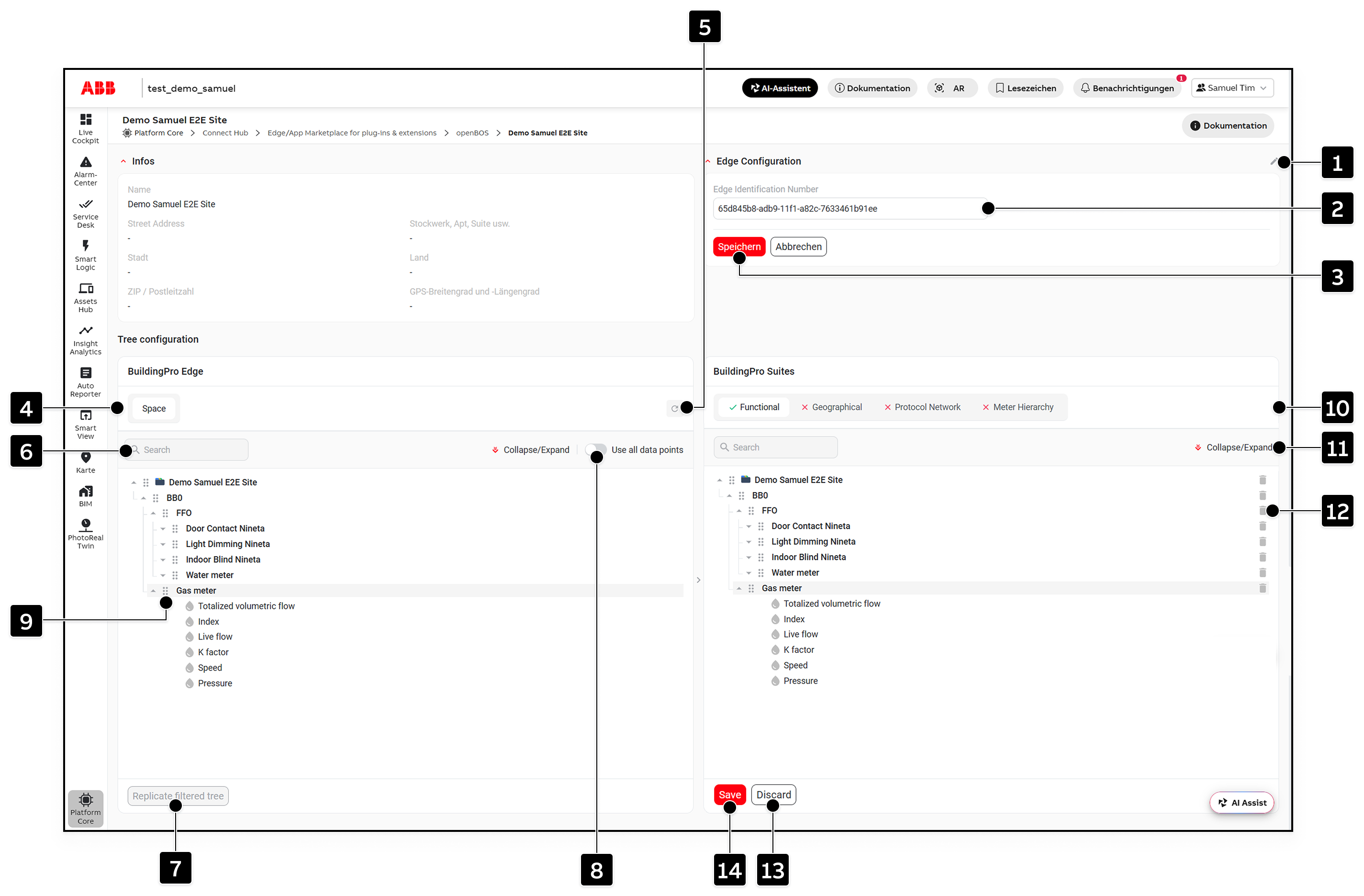
<figure><img src="https://2013058394-files.gitbook.io/~/files/v0/b/gitbook-x-prod.appspot.com/o/spaces%2FOqGnkz52o2zVUsEGEZGk%2Fuploads%2Fgit-blob-4861daac7b8807a303d8d84389fc6edbb7815076%2FopenBOS%20Config.png?alt=media" alt="Configure the openBOS Edge connection and tree structure"><figcaption></figcaption></figure>

<table data-header-hidden data-full-width="true" data-search="false"><thead><tr><th width="66.800048828125"></th><th width="240"></th><th></th></tr></thead><tbody><tr><td><strong>[1]</strong></td><td>Edit Edge Configuration</td><td>Enables editing of the Edge Configuration section.</td></tr><tr><td><strong>[2]</strong></td><td>Edge Identification Number</td><td>Enter the Edge Identification Number copied from BuildingPro.</td></tr><tr><td><strong>[3]</strong></td><td>Save</td><td>Saves the Edge Identification Number.</td></tr><tr><td><strong>[4]</strong></td><td>BuildingPro Edge trees</td><td>Shows the trees and data available from the Building Edge.</td></tr><tr><td><strong>[5]</strong></td><td>Refresh</td><td>Refreshes the tree from the Building Edge.</td></tr><tr><td><strong>[6]</strong></td><td>Search</td><td>Searches the Building Edge tree. Only the part of the tree that matches the search is displayed.</td></tr><tr><td><strong>[7]</strong></td><td>Replicate filtered tree</td><td>Copies the filtered tree from the Building Edge to the BuildingPro Suites tree.</td></tr><tr><td><strong>[8]</strong></td><td>Use all data points</td><td>Mirrors the complete Building Edge tree in the BuildingPro Suites tree.</td></tr><tr><td><strong>[9]</strong></td><td>Drag and drop</td><td>Moves individual assets from the Building Edge tree to the BuildingPro Suites tree. Drag and drop can also be used in the BuildingPro Suites tree to change its structure.</td></tr><tr><td><strong>[10]</strong></td><td>BuildingPro Suites trees</td><td>Shows the trees configured for BuildingPro Suites.</td></tr><tr><td><strong>[11]</strong></td><td>Expand and collapse</td><td>Expands or collapses the tree on either side.</td></tr><tr><td><strong>[12]</strong></td><td>Delete</td><td>Removes an individual asset from the BuildingPro Suites tree.</td></tr><tr><td><strong>[13]</strong></td><td>Discard</td><td>Discards the current tree configuration and removes unsaved changes.</td></tr><tr><td><strong>[14]</strong></td><td>Save</td><td>Saves the tree configuration.</td></tr></tbody></table>

1. Click **\[1]** to edit the Edge Configuration.\
   ▷ The Edge Identification Number field becomes editable.
2. Enter the copied Edge Identification Number under **\[2]**.
3. Click **\[3]** to save the Edge Identification Number.
4. Review the tree available from the Edge under **\[4]**.
5. Click **\[5]** to refresh the tree from the Building Edge.\
   ▷ The current tree structure from the Building Edge is loaded.
6. Enter a search term under **\[6]** to search the Edge tree.\
   ▷ Only the part of the tree that matches the search is displayed.
7. Click **\[7]** to replicate the filtered tree.\
   ▷ The filtered tree is copied to the BuildingPro Suites tree.
8. Activate **\[8]** to use all data points.\
   ▷ The complete Edge tree is mirrored in the BuildingPro Suites tree.
9. Drag individual assets from the Edge tree to the BuildingPro Suites tree under **\[9]**.\
   ◈ You can also use drag and drop in the BuildingPro Suites tree to change the structure of the tree.
10. Review the configured BuildingPro Suites trees under **\[10]**.
11. Use **\[11]** to expand or collapse the tree on either side.
12. Click the delete control at **\[12]** to remove an individual asset from the BuildingPro Suites tree.
13. Click **\[13]** to discard the current tree configuration.\
    ▷ Unsaved changes to the tree configuration are removed.
14. Click **\[14]** to save the tree configuration.\
    ▷ The configured tree is saved.

After the tree configuration is saved, the *openBOS* app creates the required asset types and assets in BuildingPro Suites according to the mirrored tree. The assets receive the data sent by the Building Edge.

Reload the page to display the newly created asset types and assets in BuildingPro Suites.

For the complete OpenBOS reference, including Edge preparation, API Subscriptions, gateway configuration, and Continuous Asset Creation, see [OpenBOS](/collection/mandatory-base/platform-core/connect-hub/edge-app-marketplace-for-plug-ins-and-extentions/apps/openbos.md).


---

# Agent Instructions
This documentation is published with GitBook. GitBook is the documentation platform designed so that both humans and AI agents can read, navigate, and reason over technical content effectively. Learn more at gitbook.com.

## Querying This Documentation
If you need additional information that is not directly available in this page, you can query the documentation by asking a question.

Perform an HTTP GET request on the following URL with the `ask` and `goal` query parameters:

```
GET https://docs.buildings.ability.abb/collection/getting-started/2.-configure-edge-and-connect-via-openbos/configure-openbos.md?ask=<question>&goal=<user_goal>
```

`ask` is the immediate question: it should be specific, self-contained, and written in natural language.
`goal` is what the user is ultimately trying to achieve, the reason they need the answer. Sharing it helps GitBook give you a better, more relevant answer. A goal is most helpful when it describes the outcome the user wants rather than restating the question. For example, with `ask=how do I create an API token`, a goal like `automate deployments from our CI pipeline` lets GitBook tailor the answer to that use case.

The response will contain a direct answer to the question and relevant excerpts and sources from the documentation.

Use this mechanism when the answer is not explicitly present in the current page, you need clarification or additional context, or you want to retrieve related documentation sections.