# Calculate Values: The Calculator

The Calculator is a service that allows you to **transform, recalculate, and summarize** incoming data using mathematical expressions. For example, values in watts can be converted to kilowatts by dividing them by 1000 upon receipt. The converted value is then displayed in the corresponding attribute where the calculation was performed.

## Examples

### Convert values

* Watt to kW:

  ```calculatorlang
  {Wert}/1000
  ```
* Degrees Celsius to Degrees Fahrenheit \[F=(1.8×C)+32]

  ```
  (1.8*{Wert})+32
  ```

### Calculate new values

* Calculate comfort using formulas

  Code-Snippet

  ```
  (0.8 * {temperature}) + (0.2 * {humidity})
  ```
* Add People Counters

  Code-Snippet

  ```
  [10.input.count] + [11.input.count] + [12.input.count]
  ```
* Add consumption of multiple meters

  Code-Snippet

  ```
  [10.input.power] + [11.input.power] + [12.input.power]
  ```
* Value is between 1 and 80 then status "0 = Ok" otherwise "1 = Alarm"

  Code-Snippet

  ```
  not(inrange(1, {Wert}, 80))
  ```
* Turn heating on or off based on temperature (map 0 to "off" and 1 to "on")

  Code-Snippet

  ```
  {temperature} < 20 ? 1 : 0
  ```

### Syntax

To perform calculations with attributes, you enclose the names of the attributes in curly braces. This allows you to access the values of these attributes.

Accessing attributes within an asset

You can directly access the values of attributes that are of the same type. For example:

```
{temperature} + {humidity}
```

#### Accessing attributes of different types within an asset

If you want to access attributes of different types within the same asset, use the following syntax:

* `{input.temperature}`: Access the "temperature" attribute of the input type
* `{status.temperature}`: Access the "temperature" attribute of the status type
* `{output.temperature}`: Access the "temperature" attribute of the output type

#### Accessing attributes of other assets

To access the values of attributes of other assets, use the following syntax:

```
[asset_id.attribut_type.attribut_name]
```

#### Example

```
[10.input.power] + [11.input.power] + [12.input.power]
```

In this example, the values of the "power" attribute of assets with the IDs 10, 11, and 12 are added together.

## Execute Calculations

You can execute calculations with attributes in 2 places in BuildingPro Suites:

* In the Asset Template
* In the individual asset

In the Asset Template, standard calculations are set that are applied to all assets created with this template. However, these calculations can be individually overridden in the individual assets if needed.

{% hint style="info" %}
Avoid accessing attributes of other assets in the Asset Template, because if they change, this leads to problems and all calculations have to be recreated.
{% endhint %}

### Execute a Calculation in an Asset Template

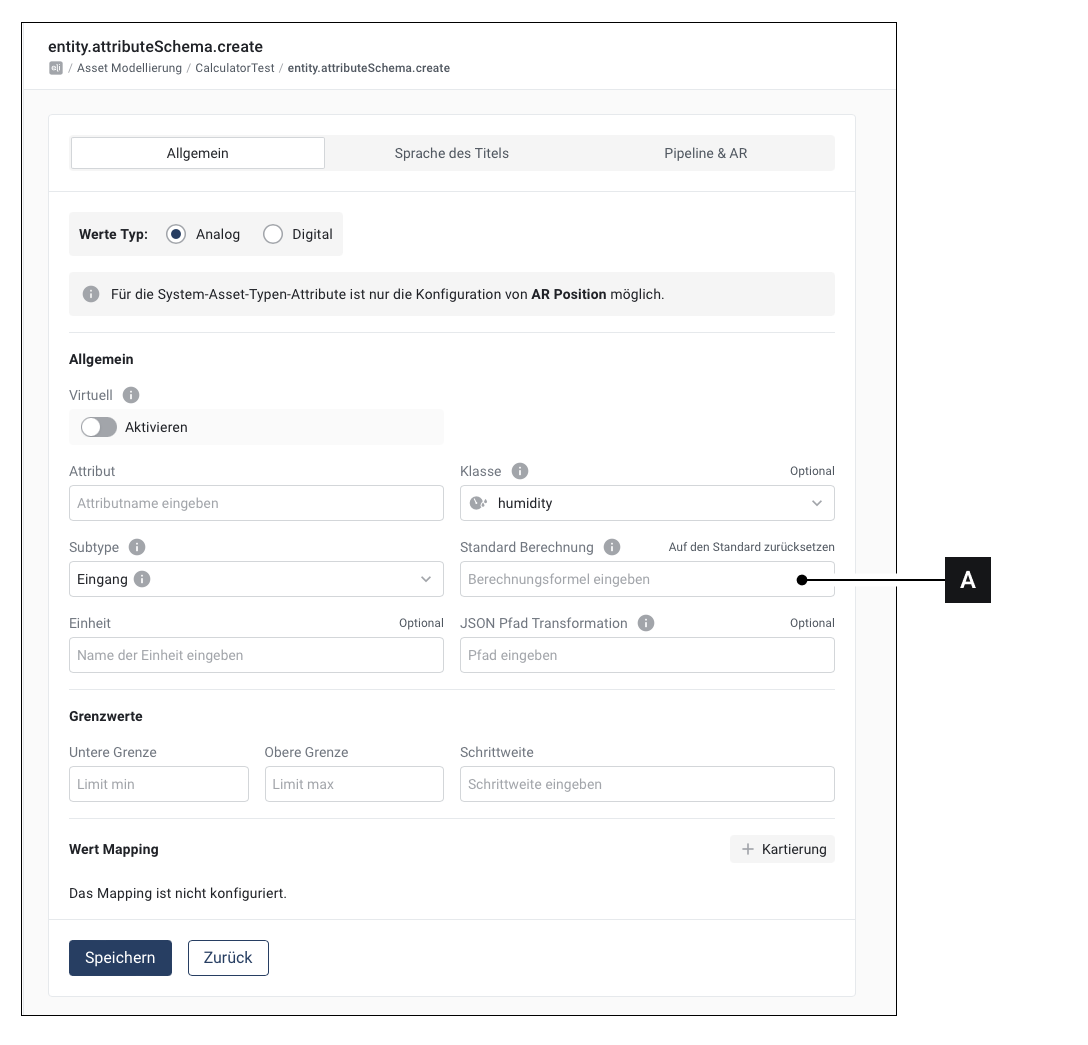
<figure><img src="https://3489494878-files.gitbook.io/~/files/v0/b/gitbook-x-prod.appspot.com/o/spaces%2F9GvUpaatBiReR43XFSMg%2Fuploads%2Fq12omkIRPY6Vo3ylXjeF%2FDocs_Calculator%202.png?alt=media&#x26;token=1c0d02bf-3f73-43f3-9d53-ccc5276175c6" alt=""><figcaption></figcaption></figure>

1. Open an existing asset template or create a new one
2. Open an existing attribute or create a new attribute
3. You can execute calculations in field \[A]. These calculations then apply to all assets of this type, but can also be overridden in the individual asset.

### Execute a Calculation in an Asset

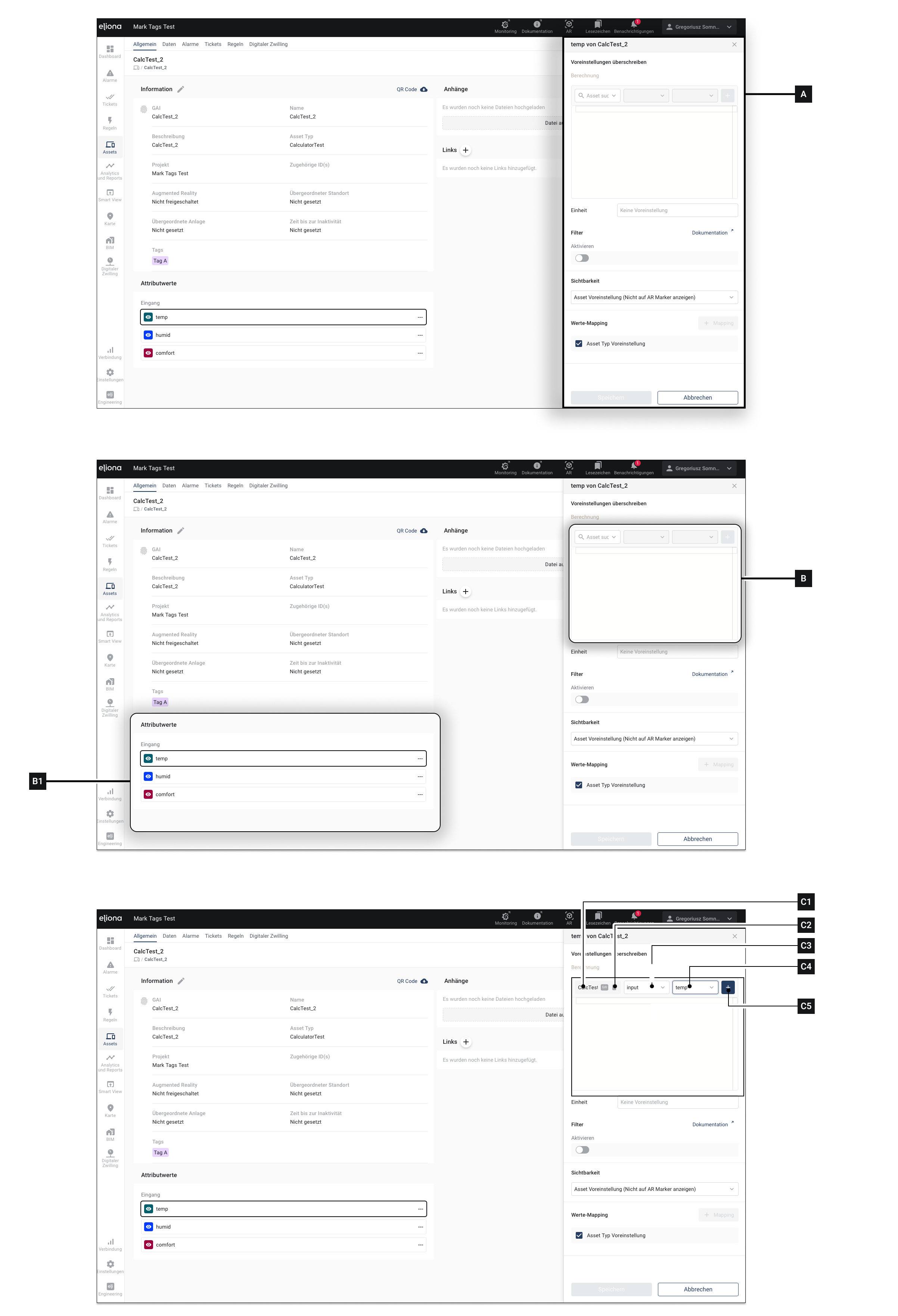
<figure><img src="https://3489494878-files.gitbook.io/~/files/v0/b/gitbook-x-prod.appspot.com/o/spaces%2F9GvUpaatBiReR43XFSMg%2Fuploads%2F0tSv36XSXCprmr01joZb%2FDocs_Calculator%201.png?alt=media&#x26;token=ed1df66f-48df-4833-80bc-b333ade7b5c7" alt=""><figcaption></figcaption></figure>

1. Open the [-> Asset Details](https://docs.buildings.ability.abb/collection/mandatory-base/assets/asset-details)
2. Click on the attribute whose values you want to calculate.

   ▷ The sidebar \[A] opens
3. In field \[B], enter your calculation.
4. Click on Save \[X]

#### Use attributes of another asset (external values) in a calculation

This functionality is only possible if you execute calculations in an asset.

1. Open the [-> Asset Details](https://docs.buildings.ability.abb/collection/mandatory-base/assets/asset-details)
2. Click on the attribute whose values you want to calculate.

   ▷ The sidebar \[A] opens
3. In field \[B], enter your calculation.
4. Click on \[C1] to select the asset whose values you want to use in the calculation.
5. Click on \[C3] to specify the subtype of the asset.
6. Click on \[C4] to specify the attribute you want to use.
7. Click on \[C5] to confirm your selection.

   ▷ The information now appears in square brackets in field \[B]
8. If you want to include more external values in the calculation: 8.1. Click on \[C2] 8.2. Repeat steps 4 to 8
9. Click on Save \[X]

### Reset Output Attribute

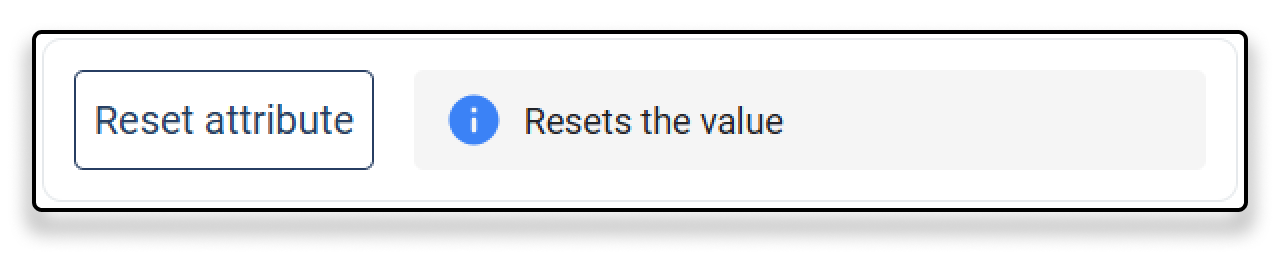
When an output attribute is selected, there is an option to reset the value.

* Clicking on "Reset attribute" writes a null to the attribute.
* This corresponds to the state as if no data were stored in the heap.

<div align="left"><figure><img src="https://3489494878-files.gitbook.io/~/files/v0/b/gitbook-x-prod.appspot.com/o/spaces%2F9GvUpaatBiReR43XFSMg%2Fuploads%2F53DVlUloLTrPAICNHxO0%2FReset%20Attribute.png?alt=media&#x26;token=30a56d9e-0b78-4057-af01-d37a44b27a50" alt="" width="375"><figcaption></figcaption></figure></div>

### Calculation Chains

Calculation chains are created automatically when you create calculations, both within a single asset and across multiple assets. A calculation chain exists, for example, when "Asset A depends on a value from Asset B, Asset B depends on a value from Asset C, and Asset C depends on a value from Asset D".

Every time a value changes in Asset A, which is used in Asset B, a calculation is triggered for Asset B. Every change of a value in Asset B, which is referenced in Asset C, leads to a calculation in Asset C.

The chain is interrupted if a step of the calculation fails or does not pass the [filter](https://www.google.com/search?q=filter). This reduces the number of events in the system.

### Operators and Functions

Here are the available operators and functions listed.

Operators

| Group       | Operators                                                         |
| ----------- | ----------------------------------------------------------------- |
| Arithmetic  | +, -, \*, /, % (Modulus operator), ^ (Exponent)                   |
| Comparison  | ==, !=, <, >, <=, >=                                              |
| Logical     | not or !, and or &&, or or                                        |
| Conditional | ? (ternary operator - condition ? value if true : value if false) |

**Functions**

Functions can be used in the syntax avg({Value1},{Value2},{Value3})<br>

<table><thead><tr><th width="108.4000244140625">Function</th><th>Description</th></tr></thead><tbody><tr><td>avg</td><td>Returns the average of a list of values (any number of float values)</td></tr><tr><td>max</td><td>Returns the maximum value of a list of values (any number of float values)</td></tr><tr><td>min</td><td>Returns the minimum value of a list of values (any number of float values)</td></tr><tr><td>abs</td><td>Returns the absolute value of a value (single float)</td></tr><tr><td>round</td><td>Rounds a value to the nearest integer (single float)</td></tr><tr><td>pow</td><td>Exponentiation (2 arguments, the 2nd is the power)</td></tr><tr><td>sin</td><td>Sine of a value in radians</td></tr><tr><td>cos</td><td>Cosine of a value in radians</td></tr><tr><td>cosh</td><td>Hyperbolic cosine of a value in radians</td></tr><tr><td>cot</td><td>Cotangent of a value in radians</td></tr><tr><td>csc</td><td>Cosecant of a value in radians</td></tr><tr><td>sec</td><td>Secant of a value in radians</td></tr><tr><td>equal</td><td>Compares two numbers with a tolerance of 0.001</td></tr><tr><td>not</td><td>Inverts a boolean value</td></tr><tr><td>rad2deg</td><td>Converts radians to degrees</td></tr><tr><td>deg2rad</td><td>Converts degrees to radians</td></tr><tr><td>inrange</td><td>Checks whether a value is within a range (left limit, value, right limit)</td></tr><tr><td>history(reference, back_step)</td><td>Returns a historical value of an attribute. <code>reference</code> is the normal reference of the attribute (e.g. <code>[asset_id.subtype.attribute]</code>), and <code>back_step</code> is a negative number that specifies which value from the history you want to retrieve. Example: <code>-1</code> returns the previous value, <code>-2</code> the one before that.</td></tr></tbody></table>

These functions and operators enable a variety of calculations and logical operations in your calculations.