# Connection Details

<div data-full-width="true"><figure><img src="https://3489494878-files.gitbook.io/~/files/v0/b/gitbook-x-prod.appspot.com/o/spaces%2F9GvUpaatBiReR43XFSMg%2Fuploads%2FxqsyqzKg8WeThhIMmqgY%2FDocs%20OPCUA_3.png?alt=media&#x26;token=3dee8102-a0bd-4d2a-955f-e8f9d5126bdc" alt=""><figcaption></figcaption></figure></div>

## Overview

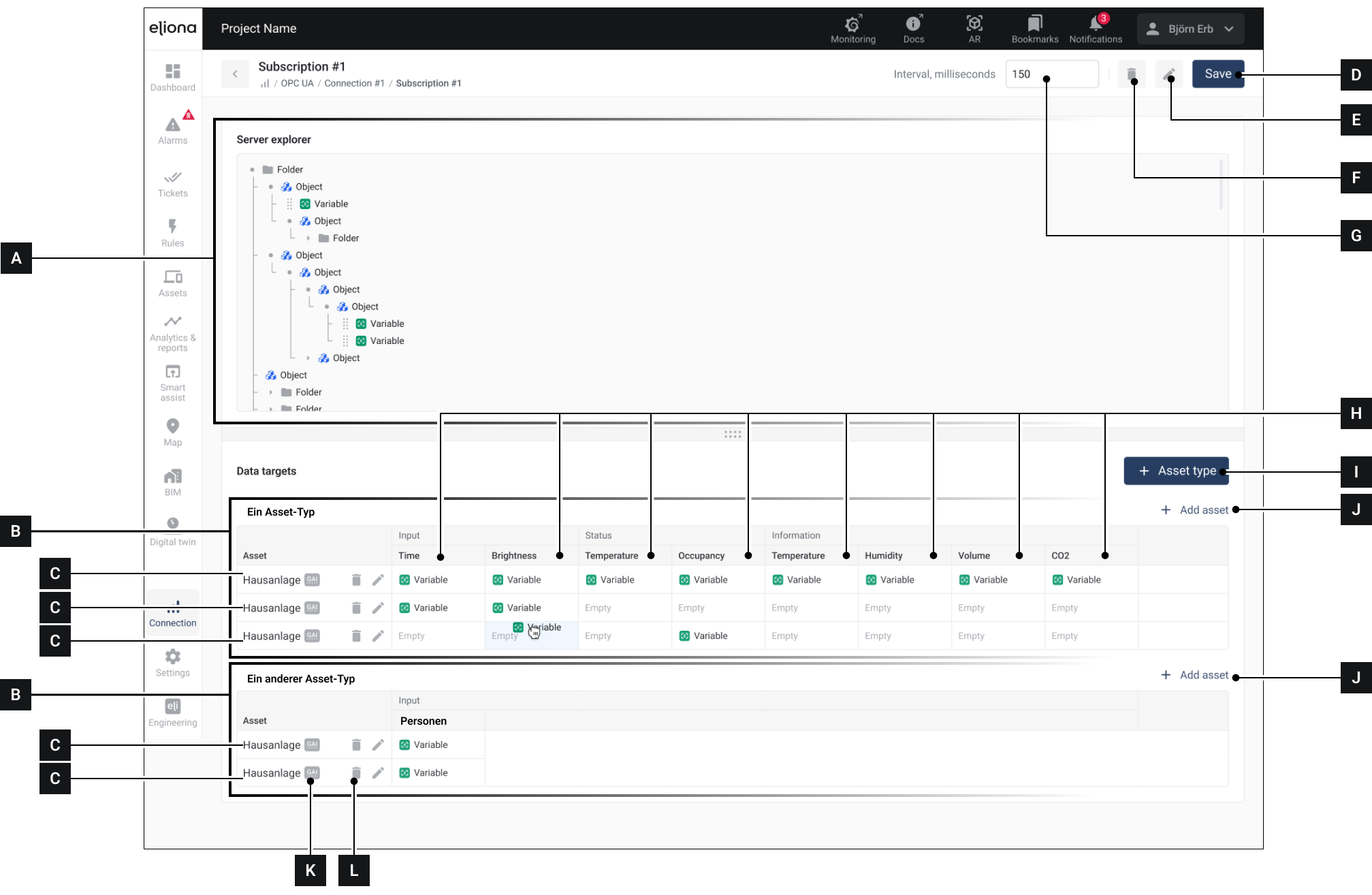
<table data-full-width="true"><thead><tr><th width="62.53331502278644">No.</th><th width="152.20001220703125">Name</th><th>Details</th></tr></thead><tbody><tr><td><strong>[A]</strong></td><td>Server Explorer</td><td>The incoming data is displayed here.</td></tr><tr><td><strong>[B]</strong></td><td>Asset Type</td><td>An added asset type</td></tr><tr><td><strong>[C]</strong></td><td>Assets</td><td>Individual assets.</td></tr><tr><td><strong>[D]</strong></td><td>Save</td><td>Apply and save entries</td></tr><tr><td><strong>[E]</strong></td><td>Edit</td><td>Edit the name of the subscription</td></tr><tr><td><strong>[F]</strong></td><td>Delete</td><td>Delete subscription</td></tr><tr><td><strong>[G]</strong></td><td>Interval</td><td>Specifies in milliseconds how often BuildingPro Suites requests new data from the endpoint</td></tr><tr><td><strong>[H]</strong></td><td>Attributes</td><td>The asset attributes. Which attributes are displayed depends on which asset type was added</td></tr><tr><td><strong>[I]</strong></td><td>Add Asset Type</td><td>Add a new asset type</td></tr><tr><td><strong>[J]</strong></td><td>Add Asset</td><td>Add a new asset of the respective asset type</td></tr><tr><td><strong>[K]</strong></td><td>Show GAI</td><td>Click to show the GAI of an asset</td></tr><tr><td><strong>[L]</strong></td><td>Remove</td><td>Remove asset from the list</td></tr></tbody></table>

## Procedure

1. Open the [↗ Connection Details](https://docs.buildings.ability.abb/collection/mandatory-base/platform-core/connect-hub/connectivity-as-a-service/connect-devices-via-opc-ua/connection-details)
2. Click on **\[I]** to add a new asset type. The attributes of this asset type should correspond to the incoming data.
3. Optional: Repeat step 1 to add more asset types
4. Click on **\[J]** to add individual assets. Only assets that correspond to the selected asset type are displayed.
5. Drag individual variables from the **Server Explorer \[A]** to the corresponding **variables \[H]** of the respective **assets \[C]**
6. Click on **\[D]** to save.