# Configure a Encoder/Decoder Format

Using a *format*, incoming data in BuildingPro Suites is assigned to the individual attributes of an asset of any asset. In simple terms: formats assign incoming data to individual BuildingPro Suites assets.

## Create a Format

There are two ways to create a format:

1. When configuring a connection
2. Via the "Format" menu

### Option 1 - When Configuring a Connection

When you configure a connection, you have the option to select an existing format or to create a new format. The corresponding menu item is noted in the documentation of the respective connection method.

{% hint style="success" %}
This is the recommended option to create a new format.
{% endhint %}

### Option 2 - In the "Format" Menu

In the "Formats" menu, you will see an overview of all existing formats. There you can edit existing formats and create new formats.

{% hint style="warning" %}
Note: Only use this option to edit existing formats. We recommend **NOT** creating new formats in this way for now.
{% endhint %}

## Configure Format

### Overview

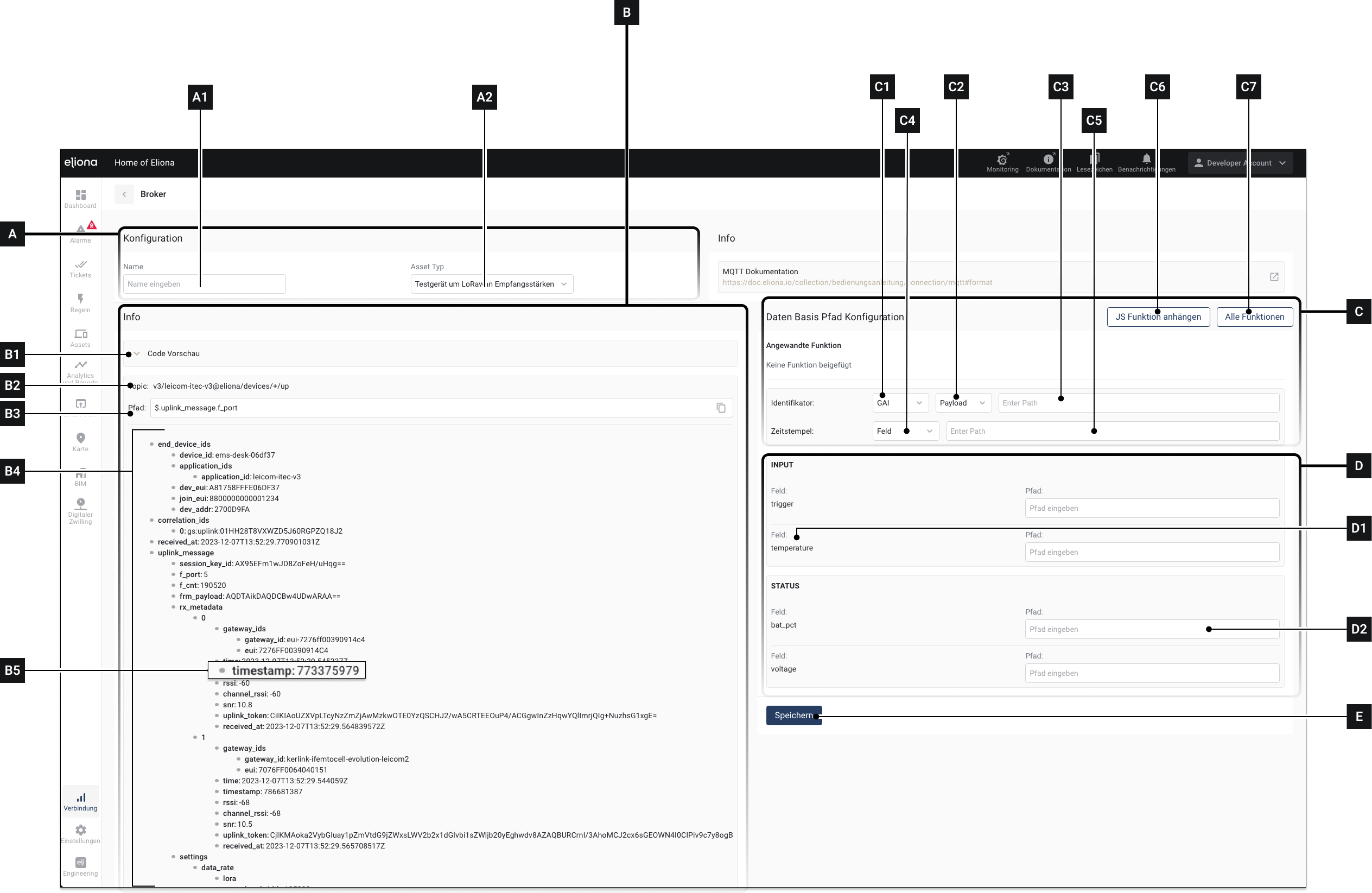
<div data-full-width="true"><figure><img src="https://3489494878-files.gitbook.io/~/files/v0/b/gitbook-x-prod.appspot.com/o/spaces%2F9GvUpaatBiReR43XFSMg%2Fuploads%2F1HizkUAv1Mq9Jb0DzmJ6%2FDocsVerbindungen%20-%20Formate%201.png?alt=media&#x26;token=58718296-7922-41fc-8dc6-e73b1de74d98" alt=""><figcaption></figcaption></figure></div>

<table data-full-width="true"><thead><tr><th width="70.93333943684894">Element</th><th width="213">Title</th><th>Details</th></tr></thead><tbody><tr><td><strong>[A]</strong></td><td>Section "Configuration"</td><td>In this section, details about the format are configured</td></tr><tr><td><strong>[A1]</strong></td><td>Name</td><td>Give the format a name in this field</td></tr><tr><td><strong>[A2]</strong></td><td>Asset type</td><td>Choose for which asset type this format applies. This selection influences which values appear in section <strong>[D]</strong></td></tr><tr><td><strong>[B]</strong></td><td>Section "Payload"</td><td>In this section, a preview of the incoming data is displayed.</td></tr><tr><td><strong>[B1]</strong></td><td>Code Preview</td><td>Click here to open the code preview. The code preview displays the information from section <strong>[D]</strong> in the form of a payload.</td></tr><tr><td><strong>[B2]</strong></td><td>Topic</td><td>The topic</td></tr><tr><td><strong>[B3]</strong></td><td>Topic path</td><td>The path to the respective payload entry</td></tr><tr><td><strong>[B4]</strong></td><td>Payload</td><td>This is the transmitted payload. Drag values from the payload to the corresponding paths <strong>[D2]</strong>. If you create a format via Option 1, the payload appears in this area. If a format is edited afterward, the content of the ↗ Payload Preview appears here</td></tr><tr><td><strong>[B5]</strong></td><td>Payload entry</td><td>A single component of the payload. You can drag and drop these components to the paths in the attributes <strong>[D2]</strong></td></tr><tr><td><strong>[C]</strong></td><td>Section "Path Configuration"</td><td>In this section, you specify to which asset the incoming data is mapped.</td></tr><tr><td><strong>[C1]</strong></td><td>Identifier</td><td>Here you select the individual asset to which the incoming data is mapped. Options are: - GAI: The GAI is used to determine the asset to which the data is mapped - External: Instead of the GAI, the "Associated ID" of an asset is used. <a href="../../../../assets/configure-an-asset#available-settings">↗ <em>See <strong>[M1]</strong> in Asset -> Configure an asset -> Available settings</em></a></td></tr><tr><td><strong>[C2]</strong></td><td>Location of the identifier</td><td><p>Here you select where the identifier is taken from. Options are:</p><ul><li>Payload: The identifier is in the payload</li><li>Topic: The identifier is in the topic</li></ul></td></tr><tr><td><strong>[C3]</strong></td><td>Identifier</td><td>Enter the identifier here. If the identifier should be the topic, you can simply enter "<strong>#"</strong> in the path</td></tr><tr><td><strong>[C4]</strong></td><td>Timestamp selection</td><td>Choose how the timestamp should be recognized. Options are: - Auto: The timestamp is automatically recognized - Field: Drag a payload entry into field <strong>[C5]</strong></td></tr><tr><td><strong>[C5]</strong></td><td>Field for timestamp entry</td><td>If you have selected <em>Field</em> in <strong>[C4]</strong>: Simply drag the timestamp <strong>[B5]</strong> into the field</td></tr><tr><td><strong>[C6]</strong></td><td>Append function</td><td>click to append a JavaScript function</td></tr><tr><td><strong>[C7]</strong></td><td>All functions</td><td>View all existing functions</td></tr><tr><td><strong>[D]</strong></td><td>Input</td><td>In this section, the payload entries are assigned to the individual attributes.</td></tr><tr><td><strong>[D1]</strong></td><td>Attribute</td><td>This is one of the attributes that are set for this asset type.</td></tr><tr><td><strong>[D2]</strong></td><td>Path to the payload entry</td><td>This is one of the attributes that are set for this asset type.</td></tr><tr><td><strong>[E]</strong></td><td>Save</td><td>Click here to save the settings</td></tr></tbody></table>

### Procedure

{% file src="<https://2013058394-files.gitbook.io/~/files/v0/b/gitbook-x-prod.appspot.com/o/spaces%2FOqGnkz52o2zVUsEGEZGk%2Fuploads%2FdL7oTcY525dPUDQNoPHT%2FFormat%20Drag%20and%20Drop.mp4?alt=media&token=263891d3-95a0-417a-8ea3-5810a75d815e>" %}

1. Give the format a name in **\[A1]**
2. In **\[A2]**, select an asset type

   ▷ The attributes belonging to the respective format appear in **\[D]**
3. In section **\[C]**, specify which individual asset the data should be mapped to.
4. Drag the individual payload entries **\[B2]** to the respective fields \[D2] using drag and drop
5. Repeat step 4 until all desired attributes have been assigned to the respective payload entries.

You assign individual entries from the payload using drag and drop.

## Edit an existing format

Proceed as follows to edit an already existing format afterward.

<div data-full-width="true"><figure><img src="https://3489494878-files.gitbook.io/~/files/v0/b/gitbook-x-prod.appspot.com/o/spaces%2F9GvUpaatBiReR43XFSMg%2Fuploads%2FX5qJkIpqnagiA5kGaalu%2FDocsVerbindungen%20-%20Formate%202.png?alt=media&#x26;token=a244d6be-404f-4663-ab1a-3309357ada29" alt=""><figcaption><p>Fig. 2 - Bottom the payload preview</p></figcaption></figure></div>

1. Click on **\[F]**
2. Click on **\[G]**

   ▷ A list of all formats appears
3. For the format you want to edit: Click on **\[H]**

   ▷ The payload preview **\[I]** opens. The payload preview contains an example payload. The content of the payload preview is displayed in field **\[B3]** in the next step.
4. Insert a payload into the payload preview.
5. Click on **\[J]**

   ▷ The format configuration opens
6. Make the settings as described in [↗ Procedure](#procedure)
