# All Apps

## What are Apps?

{% hint style="warning" %}
This chapter is for experienced users and administrators.

Incorrect settings in this chapter could damage the system or cause costs.
{% endhint %}

Apps are an integral part of BuildingPro Suites. With apps, the functionality of BuildingPro Suites can be expanded and BuildingPro Suites can be integrated with other systems.

However, apps are also demanding and sometimes require programming knowledge. If handled incorrectly, you can even damage the system with apps.

BuildingPro Suites offers *Internal Apps,* which are part of BuildingPro Suites by default (system applications). For tenant-specific requirements, *External Apps* can be written to meet them. For app development, go to the BuildingPro Suites [GitHub page](https://github.com/eliona-smart-building-assistant).

## Open App Overview

<div data-full-width="false"><figure><img src="https://3489494878-files.gitbook.io/~/files/v0/b/gitbook-x-prod.appspot.com/o/spaces%2F9GvUpaatBiReR43XFSMg%2Fuploads%2FVzWOcbjz6XYJ3gFRIwdQ%2FDocs%20-%20Apps%201.png?alt=media&#x26;token=a9c2c0dd-0e7e-4b0b-9926-c29f2a496612" alt=""><figcaption></figcaption></figure></div>

In the app overview, you will see all available apps. You can install and uninstall apps via the app overview.

1. Click on **Settings \[A]**
2. Click on **Apps \[B]**

   ▷ The app overview opens

<table><thead><tr><th width="63.133321126302064">Element</th><th width="160.4000244140625">Title</th><th>Details</th></tr></thead><tbody><tr><td><strong>[C]</strong></td><td>App Overview</td><td>All available apps are displayed here</td></tr><tr><td><strong>[D]</strong></td><td>Filter "Type"</td><td>Filter ↗ apps by type. Available are:</td></tr><tr><td><strong>[E]</strong></td><td>App Filter</td><td>Choose whether all or only installed or only uninstalled apps should be displayed in the app overview.</td></tr><tr><td><strong>[F]</strong></td><td>Search</td><td>click to open the search mask</td></tr></tbody></table>

## Install Apps

<figure><img src="https://3489494878-files.gitbook.io/~/files/v0/b/gitbook-x-prod.appspot.com/o/spaces%2F9GvUpaatBiReR43XFSMg%2Fuploads%2FgYiCJ3qEC6P64nninCCO%2FDocs%20-%20Apps%202.png?alt=media&#x26;token=507bf522-490d-4e8d-9d39-0cb99626ce5c" alt=""><figcaption></figcaption></figure>

{% hint style="info" %}
The exact information for installing apps can be found in the documentation for the individual apps
{% endhint %}

1. Open the [↗ App Overview](#open-app-overview)
2. For the app you want to install, click on **Install \[F]** ▷The "Install Pop-up" opens
3. Configure the app.

<table><thead><tr><th width="111.33333333333331" align="center">Element</th><th width="255">Title</th><th>Details</th></tr></thead><tbody><tr><td align="center"><strong>[K]</strong></td><td>Install App Window</td><td></td></tr><tr><td align="center"><strong>[L]</strong></td><td>General</td><td>General settings</td></tr><tr><td align="center"><strong>[L1]</strong></td><td>API Key</td><td>Enter the API key.</td></tr><tr><td align="center"><strong>[L2]</strong></td><td>Image Link</td><td>Optional: Add a link to an image</td></tr><tr><td align="center"><strong>[M]</strong></td><td>External Port</td><td></td></tr><tr><td align="center"><strong>[M1]</strong></td><td>Add Port</td><td>Click to add a port</td></tr><tr><td align="center"><strong>[M2]</strong></td><td>Target Port</td><td>Specify a target port</td></tr><tr><td align="center"><strong>[M3]</strong></td><td>Port Type</td><td>Select a port type</td></tr><tr><td align="center"><strong>[M4]</strong></td><td>External Port</td><td>Specify an external port</td></tr><tr><td align="center"><strong>[M5]</strong></td><td>Add note</td><td>Opens options <strong>[M6]</strong> and <strong>[M7]</strong>. Information on these options can be found in the documentation for the respective apps.</td></tr><tr><td align="center"><strong>[M6]</strong></td><td>Enter value</td><td>Enter a value.</td></tr><tr><td align="center"><strong>[M7]</strong></td><td>Enter key</td><td>Enter a key.</td></tr><tr><td align="center"><strong>[M8]</strong></td><td>Add label</td><td>Opens options <strong>[M9]</strong> and <strong>[M10]</strong>. Information on these options can be found in the documentation for the respective apps.</td></tr><tr><td align="center"><strong>[M9]</strong></td><td>Value</td><td>Enter a value</td></tr><tr><td align="center"><strong>[M10]</strong></td><td>Key</td><td>Enter a key</td></tr><tr><td align="center"><strong>[N]</strong></td><td>Environment Variables</td><td></td></tr><tr><td align="center"><strong>[N1]</strong></td><td>Add variable</td><td></td></tr><tr><td align="center"><strong>[N2]</strong></td><td>Enter value</td><td>Enter a value</td></tr><tr><td align="center"><strong>[N3]</strong></td><td>Enter key</td><td>Enter a key</td></tr></tbody></table>

## Uninstall App

<figure><img src="https://3489494878-files.gitbook.io/~/files/v0/b/gitbook-x-prod.appspot.com/o/spaces%2F9GvUpaatBiReR43XFSMg%2Fuploads%2Fmr5vbEDvrBGxFGaWzix4%2FDocs%20-%20Apps%203.png?alt=media&#x26;token=d7039d11-68c1-4ffa-b52c-82b541f80acf" alt=""><figcaption></figcaption></figure>

1. Open the [↗ App Overview](#open-app-overview)
2. For the app you want to uninstall, click on **Uninstall \[H]**

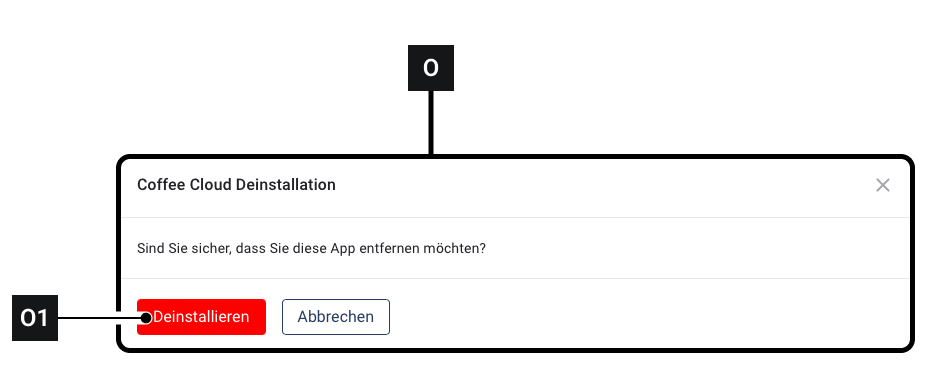
   ![](https://2013058394-files.gitbook.io/~/files/v0/b/gitbook-x-prod.appspot.com/o/spaces%2FOqGnkz52o2zVUsEGEZGk%2Fuploads%2FBvM5JS6IN0kGix0CnLFq%2Fimage.png?alt=media\&token=ddc7e816-77ba-4941-9c2b-fcc15bb89d98)▷The "Install" pop-up **\[O]** opens
3. Click on **\[O1]** to uninstall the app.

## Update App

When a new version is available for apps, the **Update \[I]** option appears.

## App Types

### Core Apps

{% hint style="warning" %}
Changes to the core apps can affect BuildingPro Suites's functionality. This area should only be accessed by very experienced users and administrators.
{% endhint %}

Core apps are integral components of BuildingPro Suites and are responsible for important basic functions.

### System Apps

System apps are delivered with BuildingPro Suites by default and allow connection to other services.

### Apps

Ordinary apps extend BuildingPro Suites's functionality. When apps are mentioned in this chapter, these apps are usually meant.

### Agents

Agents are responsible for communication with external devices. Most agent functions are now handled by core apps.

## Restart App

{% hint style="danger" %}
**Caution** When restarting an app, information from the app may be lost.
{% endhint %}

<figure><img src="https://3489494878-files.gitbook.io/~/files/v0/b/gitbook-x-prod.appspot.com/o/spaces%2F9GvUpaatBiReR43XFSMg%2Fuploads%2FMZVPUmuPb4NZbb2PNWAX%2FDocs_Apps%20Restart.png?alt=media&#x26;token=c5172a6c-ea7b-47fd-a1be-2b453cc2271c" alt=""><figcaption></figcaption></figure>

1. Click on **\[J]**

   ▷ The app settings **\[P]** open
2. Click on **\[P1]** to restart the app

   ▷ The window **\[P2]** opens
3. Click on **\[P3]** to confirm the restart

### App Configuration

Detailed instructions for configuring apps can be found on the app documentation page. Each app also has its own documentation page that contains specific configuration instructions for the app.

{% embed url="<https://drive.google.com/file/d/1JBRLqjZxhVZ8O_USArE3mRxrBuRk1DOE/view>" %}
App Configuration
{% endembed %}