> For the complete documentation index, see [llms.txt](https://docs.buildings.ability.abb/collection/llms.txt). Markdown versions of documentation pages are available by appending `.md` to page URLs; this page is available as [Markdown](https://docs.buildings.ability.abb/collection/platform/additional-features/weather.md).

# Weather

The Weather service provides current weather and forecast data for BuildingPro Suites. It uses the locations of sites and Weather Station assets to make weather information available throughout the platform.

The service is available in every tenant. No installation, external weather account, or API key configuration is required.

{% hint style="info" %}
Using the Weather service does not consume Infravolts.
{% endhint %}

## Where Weather Data Is Used

Weather data is used by:

* the weather display on the [Start Page](/collection/mandatory-base/platform-core/workspace-and-identity/home-page.md)
* the [Weather widget](/collection/platform/live-cockpit/widgets/predefined-widgets/weather.md)
* [Heating and Cooling Days](/collection/platform/platform-core/baseline-and-factors/heating-and-cooling-days.md), which calculates Heating Degree Days and Cooling Degree Days
* dashboards, calculations, analytics, reports, rules, and other platform features that use asset attributes

## How Locations Are Determined

The Weather service uses the location configured for the relevant site or asset.

### Sites

Site weather is based on the site's latitude and longitude. A site without coordinates does not receive an automatically created Weather Station asset.

### Weather Station Assets

For a Weather Station asset, the service uses the location configured directly on the asset. If the asset has no location of its own, it can use the location of its parent asset.

If neither the asset nor a parent asset has a location, the service cannot retrieve weather data. The asset displays a location status that explains the problem.

## Weather Station Asset Type

The following asset type is available in every tenant:

`Weather Station BuildingProSuites`

The asset type contains the current weather, forecast, weather-state, and location-status attributes described below. Using this asset type does not consume Infravolts.

<figure><img src="https://2013058394-files.gitbook.io/~/files/v0/b/gitbook-x-prod.appspot.com/o/spaces%2FOqGnkz52o2zVUsEGEZGk%2Fuploads%2Fgit-blob-32a26ebed8832b866612577ac7df59a1bf61972c%2FWeather%20asset%20type.png?alt=media" alt="Weather Station BuildingProSuites asset type"><figcaption></figcaption></figure>

### Automatic Site Weather Assets

For every site with a configured location, BuildingPro Suites automatically creates one active Weather Station asset below that site. The asset uses the site's location and provides current conditions and forecast data for that location.

If a site receives a location after it was created, the corresponding Weather Station asset is created automatically after the location becomes available. Sites without a configured location are skipped until one is added.

### Create a Weather Station for Another Location

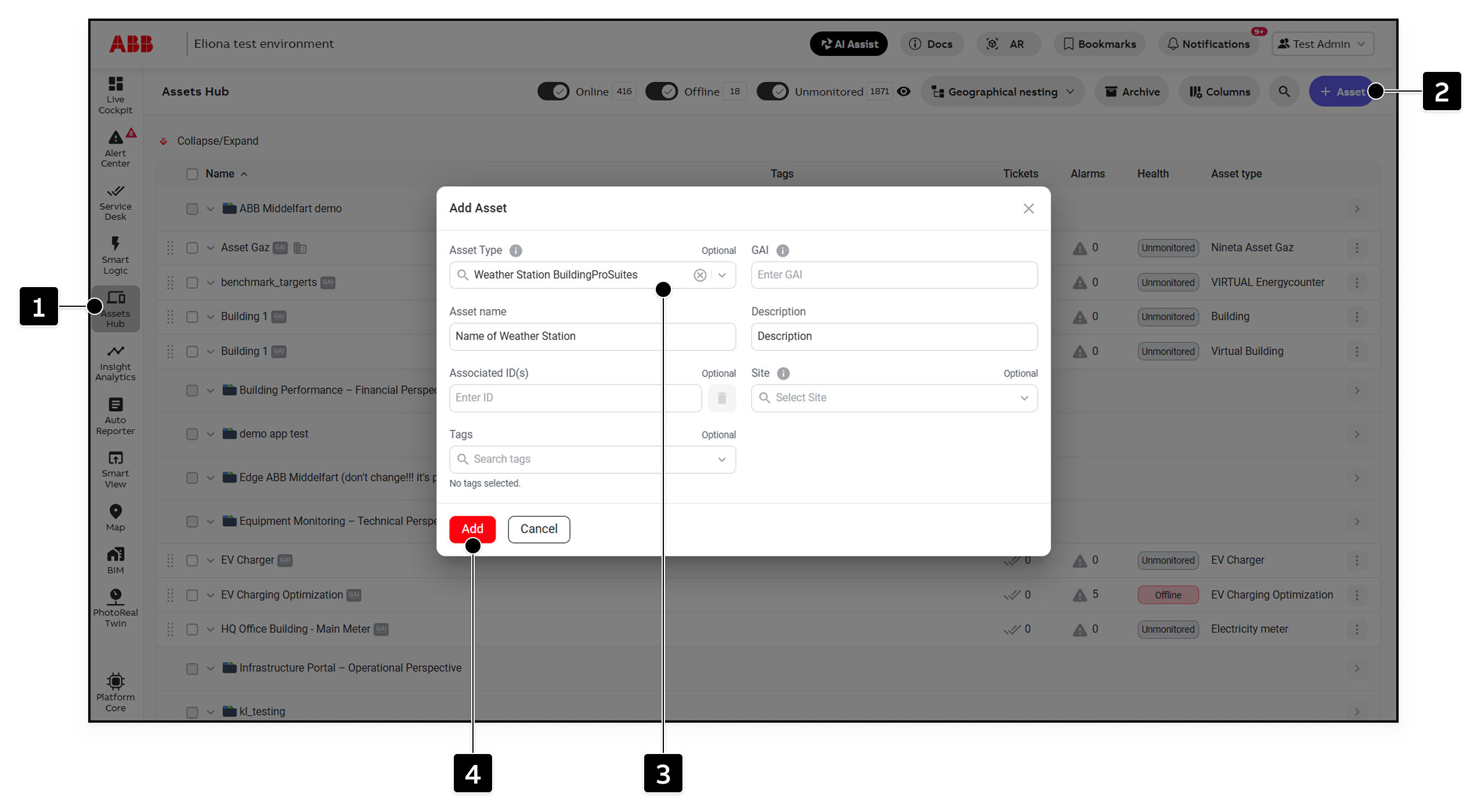
You can also create a Weather Station asset manually for a location that is not represented by a site.

<figure><img src="https://2013058394-files.gitbook.io/~/files/v0/b/gitbook-x-prod.appspot.com/o/spaces%2FOqGnkz52o2zVUsEGEZGk%2Fuploads%2Fgit-blob-e188cde75cd25d736f92243d31455c889bbc049d%2FCreate%20Weather%20asset.png?alt=media" alt="Create a Weather Station asset"><figcaption></figcaption></figure>

<table data-header-hidden data-full-width="true"><thead><tr><th width="66.800048828125">Element</th><th width="143.800048828125">Name</th><th>Description</th></tr></thead><tbody><tr><td><strong>[1]</strong></td><td>Assets Hub</td><td>Opens the Assets Hub, where you can view and manage assets.</td></tr><tr><td><strong>[2]</strong></td><td>Add Asset</td><td>Opens the dialog for creating a new asset.</td></tr><tr><td><strong>[3]</strong></td><td>Asset Type</td><td>Select <code>Weather Station BuildingProSuites</code> as the asset type.</td></tr><tr><td><strong>[4]</strong></td><td>Add</td><td>Creates the asset. Complete the remaining required fields, such as the asset name, before clicking <strong>Add</strong>. Optional fields can be filled in as needed.</td></tr></tbody></table>

1. Open [Assets](/collection/mandatory-base/assets/create-assets.md) and create a new asset.
2. Select `Weather Station BuildingProSuites` as the asset type.
3. Enter the asset's basic information and save it.
4. Open the asset settings and [place the asset on the map](/collection/mandatory-base/assets/placing-assets-on-a-map.md) at the required location.
5. Refresh the asset after the next weather update and open [Asset Data](/collection/mandatory-base/assets/asset-data.md) to view the values.

The map position provides the location for the asset. Alternatively, place the asset below a parent asset that has a location so that the Weather Station can use it. If the location of an existing Weather Station asset is changed, its weather data is refreshed automatically.

### Set the Asset Location

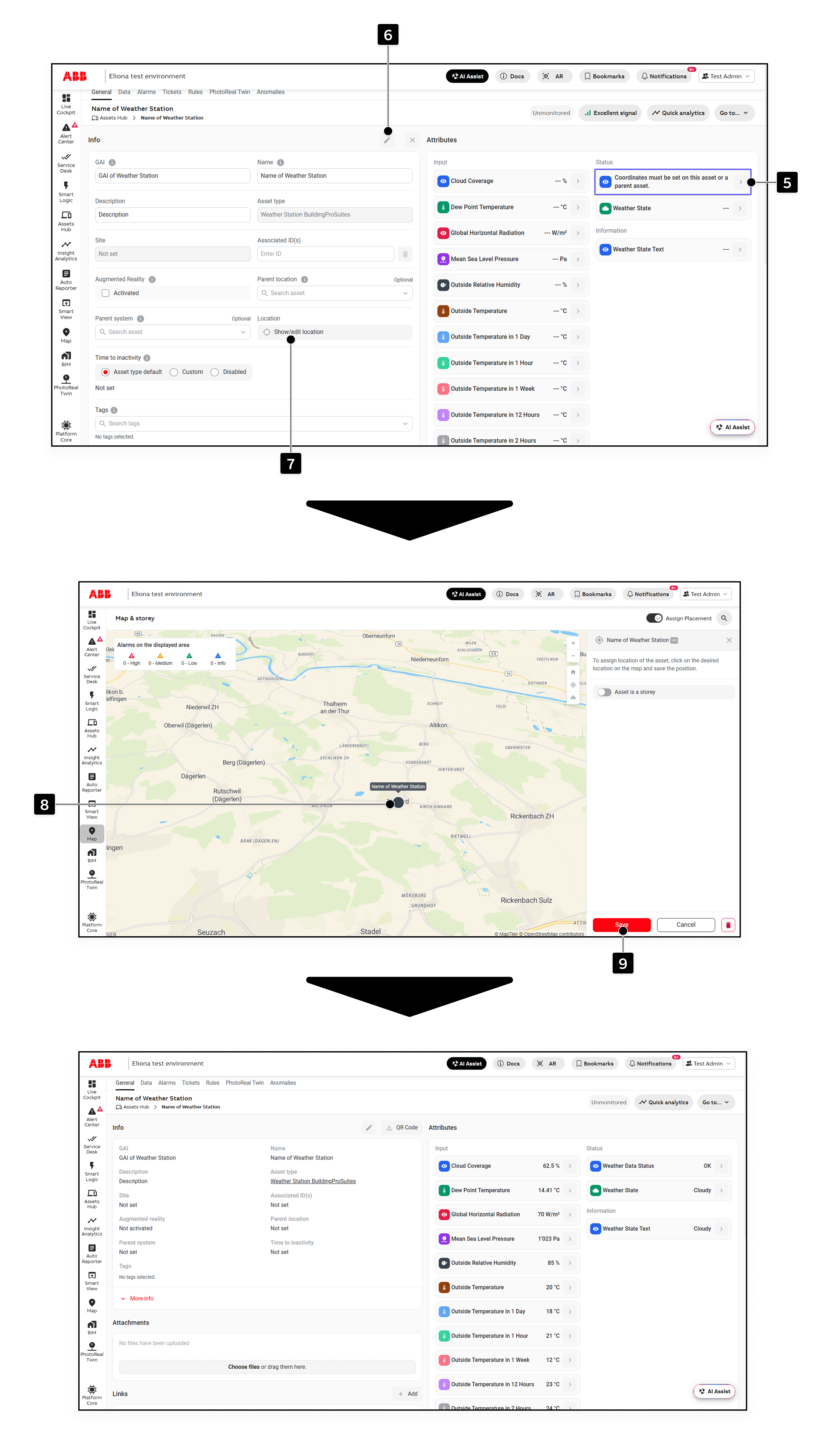
The Weather service needs a location before it can provide data for a Weather Station asset. To set the location directly on the asset:

1. Open the [Asset Details](/collection/mandatory-base/assets/asset-details.md) of the Weather Station asset.
2. Open the **General** tab and then open the asset settings.
3. Select **Location** to open the map.
4. Search for or navigate to the required location and click on the map.
5. Save the location.

<figure><img src="https://2013058394-files.gitbook.io/~/files/v0/b/gitbook-x-prod.appspot.com/o/spaces%2FOqGnkz52o2zVUsEGEZGk%2Fuploads%2Fgit-blob-5ea84a161b38485c5056c2ca49a136bcdfcf8bf5%2FPlace%20Weather%20Asset.png?alt=media" alt="Place a Weather Station asset and save its location"><figcaption></figcaption></figure>

<table data-header-hidden data-full-width="true"><thead><tr><th width="70.79998779296875">Element</th><th width="212.20001220703125">Name</th><th>Description</th></tr></thead><tbody><tr><td><strong>[5]</strong></td><td>Weather location status</td><td>Shows that coordinates must be set on the Weather Station asset or a parent asset before weather data is available.</td></tr><tr><td><strong>[6]</strong></td><td>Edit</td><td>Opens the asset settings so you can edit the asset configuration.</td></tr><tr><td><strong>[7]</strong></td><td>Show/edit location</td><td>Opens the map view where you can set or change the asset location.</td></tr><tr><td><strong>[8]</strong></td><td>Map location</td><td>Click the required position on the map to set the asset location.</td></tr><tr><td><strong>[9]</strong></td><td>Save</td><td>Saves the selected location. After the next weather update, the asset displays weather data for that location.</td></tr></tbody></table>

You can also assign the Weather Station below a parent asset that already has a location. In that case, the Weather Station uses the parent's location unless a location is set directly on the Weather Station. For more information, see [Placing Assets on a Map](/collection/mandatory-base/assets/placing-assets-on-a-map.md).

If no weather values appear after the next update, open the asset's data and check the `weather_location_status` attribute. It tells you whether a location is missing, unavailable, or cannot provide weather data.

## Weather Station Attributes

### Current Weather

The following attributes provide the current weather conditions:

<table data-search="false"><thead><tr><th width="335.60003662109375">Attribute</th><th width="399.0001220703125">Description</th><th>Unit</th></tr></thead><tbody><tr><td><code>weather_temperature</code></td><td>Outside temperature</td><td>°C</td></tr><tr><td><code>weather_humidity</code></td><td>Outside relative humidity</td><td>%</td></tr><tr><td><code>weather_wind_speed</code></td><td>Wind speed</td><td>m/s</td></tr><tr><td><code>weather_wind_direction</code></td><td>Wind direction</td><td>°</td></tr><tr><td><code>weather_wind_gusts</code></td><td>Wind gusts</td><td>m/s</td></tr><tr><td><code>weather_cloud_coverage</code></td><td>Cloud coverage</td><td>%</td></tr><tr><td><code>weather_solar_radiation</code></td><td>Global horizontal radiation</td><td>W/m²</td></tr><tr><td><code>weather_dewpoint_temperature</code></td><td>Dew point temperature</td><td>°C</td></tr><tr><td><code>weather_mean_sea_level_pressure</code></td><td>Mean sea level pressure</td><td>Pa</td></tr><tr><td><code>weather_precipitation_sum</code></td><td>Precipitation sum</td><td>mm</td></tr><tr><td><code>weather_precipitation_probability</code></td><td>Precipitation probability</td><td>%</td></tr></tbody></table>

### Forecast Temperatures

The following attributes provide forecast temperatures. Each value represents the forecast for the stated horizon; it is not a measurement taken at that future time.

<table data-search="false"><thead><tr><th>Attribute</th><th width="278">Forecast horizon</th><th>Unit</th></tr></thead><tbody><tr><td><code>weather_temperature_1h</code></td><td>1 hour</td><td>°C</td></tr><tr><td><code>weather_temperature_2h</code></td><td>2 hours</td><td>°C</td></tr><tr><td><code>weather_temperature_3h</code></td><td>3 hours</td><td>°C</td></tr><tr><td><code>weather_temperature_6h</code></td><td>6 hours</td><td>°C</td></tr><tr><td><code>weather_temperature_12h</code></td><td>12 hours</td><td>°C</td></tr><tr><td><code>weather_temperature_1d</code></td><td>1 day</td><td>°C</td></tr><tr><td><code>weather_temperature_3d</code></td><td>3 days</td><td>°C</td></tr><tr><td><code>weather_temperature_1w</code></td><td>1 week</td><td>°C</td></tr><tr><td><code>weather_temperature_2w</code></td><td>2 weeks</td><td>°C</td></tr></tbody></table>

### Weather State and Location Status

The following attributes provide the weather state and location status:

<table><thead><tr><th width="260.20001220703125">Attribute</th><th>Description</th></tr></thead><tbody><tr><td><code>weather_state</code></td><td>Mapped weather condition, such as sunny, cloudy, rain, snow, or thunderstorm.</td></tr><tr><td><code>weather_location_status</code></td><td>Indicates whether a location and weather data are available.</td></tr><tr><td><code>weather_state_text</code></td><td>Text representation of the weather condition.</td></tr></tbody></table>

The `weather_location_status` messages are:

<table><thead><tr><th width="247.4000244140625">Status</th><th>Meaning</th></tr></thead><tbody><tr><td>OK</td><td>Weather data is available.</td></tr><tr><td>Coordinates required</td><td>Set a location on the asset or a parent asset.</td></tr><tr><td>Location unavailable</td><td>No weather data could be found for the configured location.</td></tr><tr><td>Forecast unavailable</td><td>Weather forecast data is not available for the selected location.</td></tr></tbody></table>

## Update Behavior

Weather Station assets are normally updated once per hour. Current conditions and forecast values are refreshed automatically. The update interval can vary by platform configuration.

The values are available in Asset Details and [Asset Data](/collection/mandatory-base/assets/asset-data.md), and can be used like other asset attributes.

## Related Documentation

* [Weather widget](/collection/platform/live-cockpit/widgets/predefined-widgets/weather.md)
* [Start Page](/collection/mandatory-base/platform-core/workspace-and-identity/home-page.md)
* [Asset Data](/collection/mandatory-base/assets/asset-data.md)
* [Placing Assets on a Map](/collection/mandatory-base/assets/placing-assets-on-a-map.md)
* [Heating and Cooling Days](/collection/platform/platform-core/baseline-and-factors/heating-and-cooling-days.md)


---

# Agent Instructions
This documentation is published with GitBook. GitBook is the documentation platform designed so that both humans and AI agents can read, navigate, and reason over technical content effectively. Learn more at gitbook.com.

## Querying This Documentation
If you need additional information that is not directly available in this page, you can query the documentation dynamically by asking a question.

Perform an HTTP GET request on the current page URL with the `ask` query parameter, and the optional `goal` query parameter:

```
GET https://docs.buildings.ability.abb/collection/platform/additional-features/weather.md?ask=<question>&goal=<endgoal>
```

`ask` is the immediate question: it should be specific, self-contained, and written in natural language.
`goal` is optional and describes the broader end goal you are ultimately trying to accomplish on behalf of the user. GitBook uses it to tailor the answer towards what is most useful for that goal.

The response will contain a direct answer to the question and relevant excerpts and sources from the documentation.

Use this mechanism when the answer is not explicitly present in the current page, you need clarification or additional context, or you want to retrieve related documentation sections.