# Create a Rule

## Procedure

<figure><img src="https://3489494878-files.gitbook.io/~/files/v0/b/gitbook-x-prod.appspot.com/o/spaces%2F9GvUpaatBiReR43XFSMg%2Fuploads%2FMP1SPFrukwrOzex9BPfV%2FA5F985CD-E74B-4172-8E96-10432F822958.png?alt=media&#x26;token=135c7fcd-be66-4c07-ae3b-32a543bfe382" alt=""><figcaption></figcaption></figure>

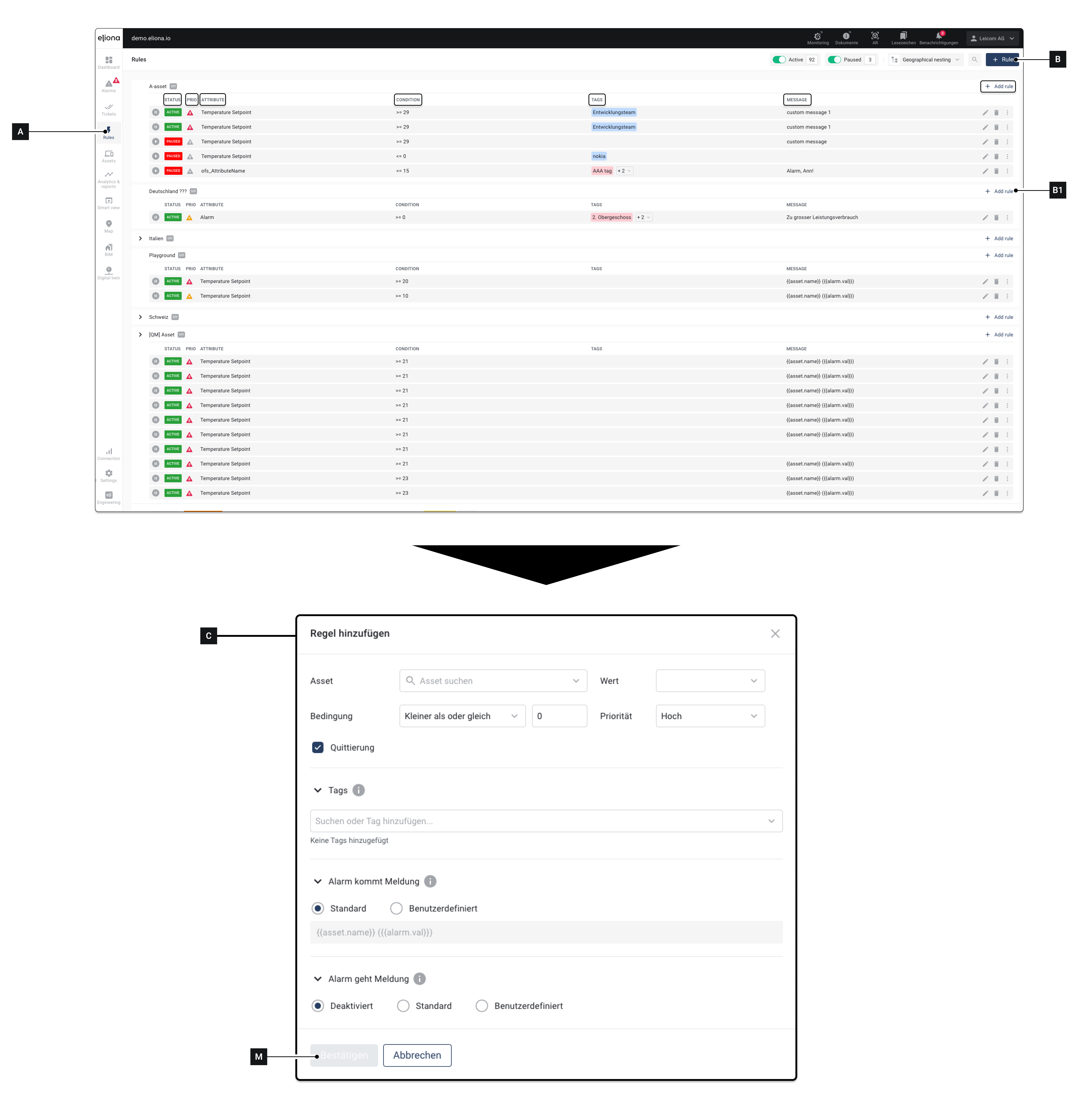
1. Click on **RULES \[A]**

   ▷ The rule overview opens
2. Click on **\[B]**

   ▷ The **Add Rules \[C]** window opens ◈ Alternatively, you can also click on one of the fields **\[B1]**. In this case, the rule is created directly in the corresponding asset. The **\[D]** field does not need to be filled out then.
3. Configure the rule

   ◈ See [↗ Details](#details) for more information on the individual options
4. Click on **Confirm \[M]** to save the rule

## Details

<figure><img src="https://3489494878-files.gitbook.io/~/files/v0/b/gitbook-x-prod.appspot.com/o/spaces%2F9GvUpaatBiReR43XFSMg%2Fuploads%2FNXoolJayvfaRtCYZgSFy%2FRegeln%20Rules.png?alt=media&#x26;token=ae7836de-37d2-4bff-af5f-7031f8109af4" alt=""><figcaption></figcaption></figure>

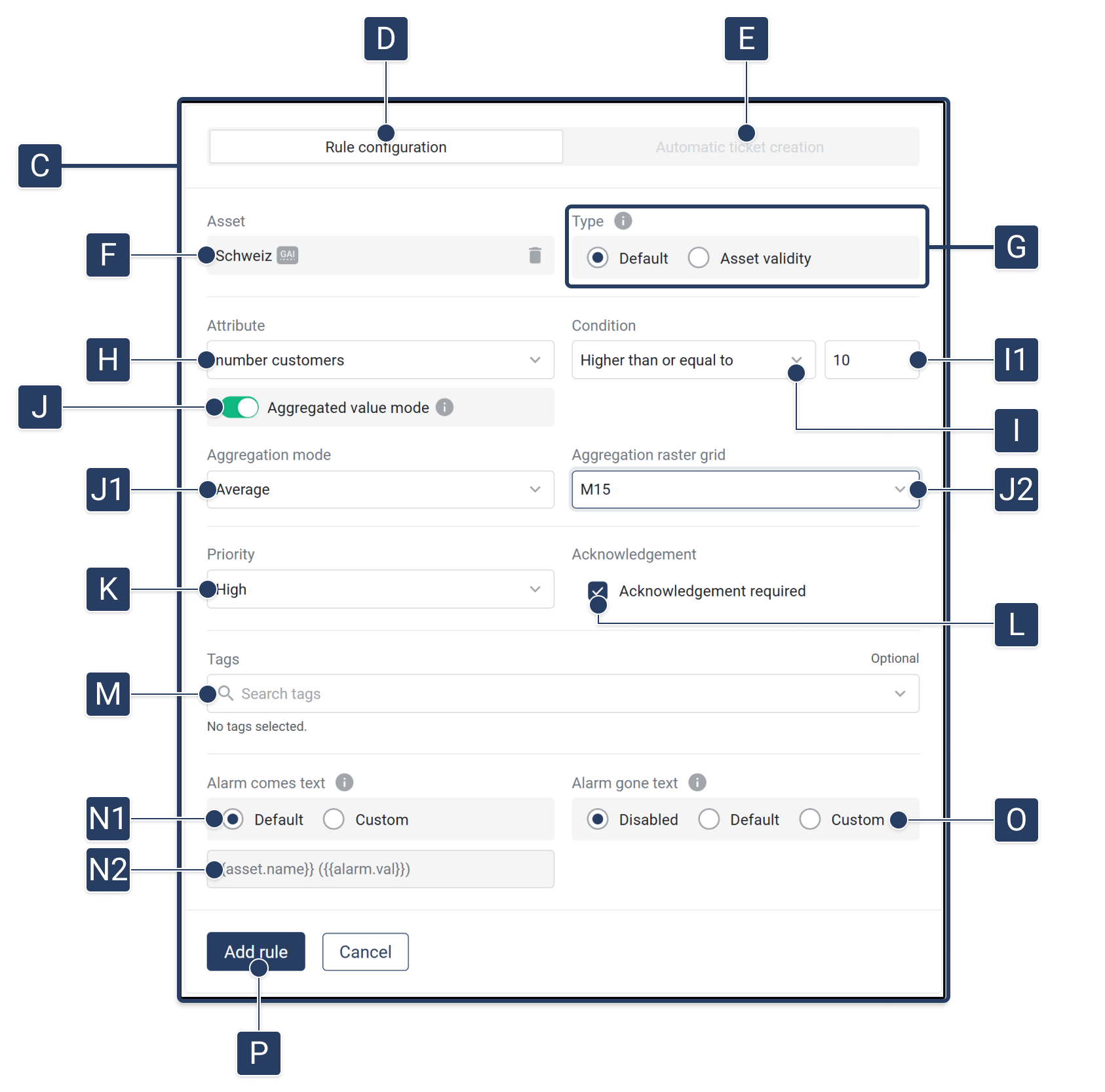
<table data-full-width="true"><thead><tr><th width="62.4000244140625">Element</th><th width="236.5999755859375">Title</th><th>Details</th></tr></thead><tbody><tr><td><strong>[C]</strong></td><td>"Add Rule" menu</td><td>In this menu, the rule is configured</td></tr><tr><td><strong>[D]</strong></td><td>Rule configuration</td><td>Configure a rule</td></tr><tr><td><strong>[E]</strong></td><td>Automatically create tickets</td><td>This function will be available soon.</td></tr><tr><td><strong>[F]</strong></td><td>Asset</td><td>Select the asset for which the rule should apply. If you created the rule via one of the fields [B1], this field is already filled out.</td></tr><tr><td><strong>[G]</strong></td><td>Type</td><td><p>Select the alarm type. Available options:</p><ul><li>Standard: An alarm is created when an asset attribute meets a certain condition.</li><li><a href="../../../mandatory-base/assets/asset-status-active-inactive-unmonitored-assets">↗ Asset Status</a>: an alarm is created when the asset has been inactive for a certain time.</li></ul></td></tr><tr><td><strong>[H]</strong></td><td>Attribute</td><td>Select the attribute for which the rule applies</td></tr><tr><td><strong>[I]</strong></td><td>Condition</td><td>In this field and in field [I1], you determine which condition must be met for an alarm to be triggered.</td></tr><tr><td><strong>[I1]</strong></td><td>Limit value</td><td>Here you enter the limit value.</td></tr><tr><td><strong>[J]</strong></td><td>Activate aggregation</td><td>Activate this switch if the rule should be based on <strong>aggregated values</strong>. This makes further aggregation options visible.</td></tr><tr><td><strong>[J1]</strong></td><td>Aggregation mode</td><td>Select how the values within the selected raster should be aggregated. Options include <em>Average</em>, <em>Min</em>, <em>Max</em>, <em>Sum</em>.</td></tr><tr><td><strong>[J2]</strong></td><td>Aggregation raster</td><td>Defines the time raster on which the aggregation is based (e.g., <em>15 minutes</em>, <em>1 hour</em>, <em>1 day</em>). This raster determines the evaluation depth of the rule.</td></tr><tr><td><strong>[K]</strong></td><td>Priority</td><td>Select the priority that an alarm triggered by this rule should have</td></tr><tr><td><strong>[L]</strong></td><td>Acknowledgment</td><td>If you activate this option: An alarm triggered by this rule is <a href="#acknowledgment-obligation">↗ subject to acknowledgment.</a></td></tr><tr><td><strong>[M]</strong></td><td>Tags</td><td>Give the rule one or more tags</td></tr><tr><td><strong>[N]</strong></td><td>"Alarm comes" message</td><td>This message is displayed when the alarm is triggered</td></tr><tr><td><strong>[N1]</strong></td><td>Standard</td><td>Use the message preset by BuildingPro Suites. The value is displayed under [M3]</td></tr><tr><td><strong>[N1]</strong></td><td>Custom</td><td>You can define your own message. The variables available to you can be found <a href="../../../academy/twig-templating-in-eliona">-> here</a></td></tr><tr><td><strong>[N2]</strong></td><td>Preview</td><td>Preview of the "alarm comes" message</td></tr><tr><td><strong>[O]</strong></td><td>"Alarm goes" message</td><td>This message is displayed when the alarm goes away</td></tr><tr><td><strong>[O]</strong></td><td>"Alarm goes" message: Standard</td><td>Use the message preset by BuildingPro Suites. The value is displayed under [L3]</td></tr><tr><td><strong>[NO]</strong></td><td>"Alarm goes" message: Custom</td><td>Create your own "alarm goes" message</td></tr><tr><td><strong>[O]</strong></td><td>"Alarm goes" input field</td><td>Displays the "alarm goes" message. If "Custom" [L3] is activated: The custom message can be entered in this field</td></tr><tr><td><strong>[P]</strong></td><td>Add rule</td><td>Save inputs and create rule</td></tr></tbody></table>

## Acknowledgment Obligation

You can activate the "Acknowledgment Obligation" option for rules. The acknowledgment obligation has the following effects:

As explained in the [↗ Introduction](https://docs.buildings.ability.abb/collection/platform/alarms-rules-and-escalations), an alarm is triggered when the conditions of a rule are met. The acknowledgment obligation regulates what happens when the conditions of a rule are NO longer met.

{% hint style="info" %}
**Example**

A rule is created that triggers an alarm as soon as the temperature rises above 25 °C. The acknowledgment obligation regulates what happens when the temperature drops below 25 °C again.
{% endhint %}

### Behavior of Alarms *Without* Acknowledgment Obligation

When the conditions for the alarm are no longer met, the alarm disappears from the [↗ Alarm Overview ](https://docs.buildings.ability.abb/collection/platform/alert-center/alarms)on its own.

The disappeared alarm is displayed in the [↗ Alarm History](https://docs.buildings.ability.abb/collection/alert-center/alarms#alarm-history).

### Behavior of Alarms *With* Acknowledgment Obligation

Even if the conditions for the alarm are no longer met, the alarm remains in the [↗ Alarm Overview](https://docs.buildings.ability.abb/collection/alert-center/alarms#the-alarm-overview).

For an alarm with an acknowledgment obligation to be removed from the Alarm Overview, the alarm must be acknowledged.

{% hint style="info" %}
See also: [↗ Alarms Subject to Acknowledgment and Dismissed Alarms.](https://docs.buildings.ability.abb/collection/platform/alert-center/alarms/acknowledgment-obligation-and-dismissed-alarms)

This explains how alarms can be acknowledged.
{% endhint %}
