# Links

With the "Links" widget, you can add one or more links to external resources.

<div data-full-width="true"><figure><img src="https://3489494878-files.gitbook.io/~/files/v0/b/gitbook-x-prod.appspot.com/o/spaces%2F9GvUpaatBiReR43XFSMg%2Fuploads%2FfiisFKXMmGtjyyy8ycgT%2F9694E39A-7625-4F5D-96BD-AD51B8867817.png?alt=media&#x26;token=35769df2-f98e-4af9-9477-9bb573f123cd" alt=""><figcaption><p>The "Links" widget with 3 links</p></figcaption></figure></div>

## Overview

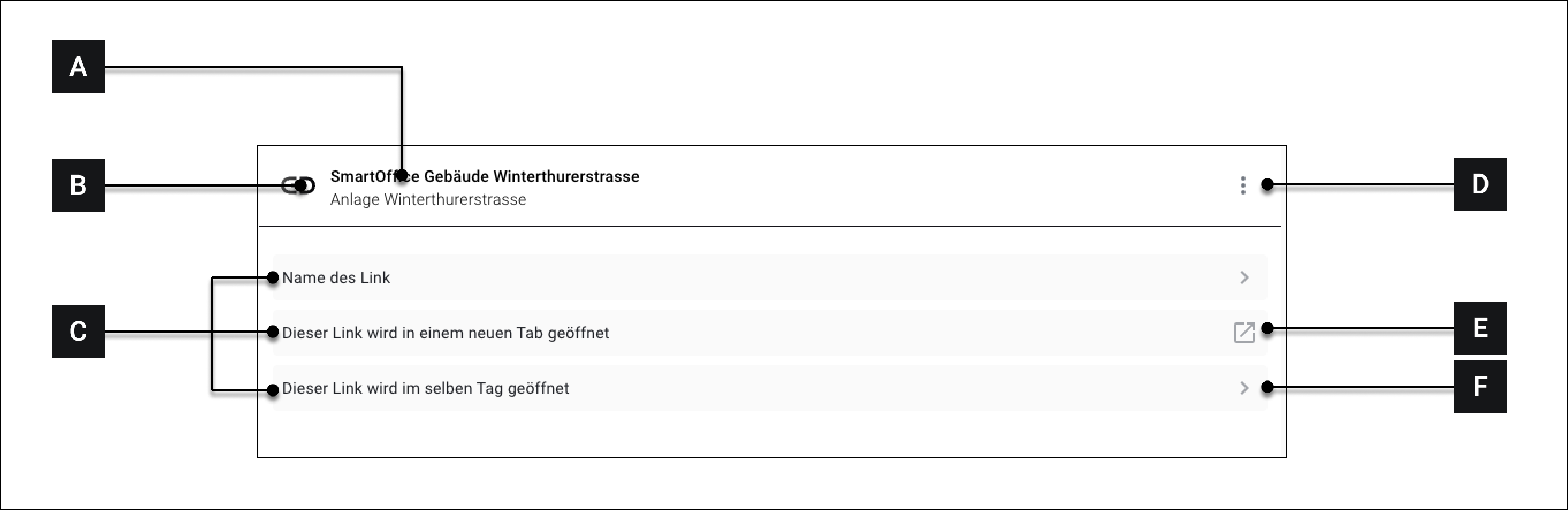
<div data-full-width="true"><figure><img src="https://3489494878-files.gitbook.io/~/files/v0/b/gitbook-x-prod.appspot.com/o/spaces%2F9GvUpaatBiReR43XFSMg%2Fuploads%2FWzEZqsYPLvXkTdeA4Sj5%2F9212CF50-9D61-470A-9A1E-9BB3F4E113E9.png?alt=media&#x26;token=8ac73b6e-088c-4f2c-b389-a7b6ee3c37b1" alt=""><figcaption></figcaption></figure></div>

<table data-full-width="true"><thead><tr><th width="77.13332112630206"></th><th width="207.4000244140625"></th><th></th></tr></thead><tbody><tr><td><strong>[A]</strong></td><td>Title</td><td>Title of the widget. Is influenced by the selection of the "Primary Asset" (see below).</td></tr><tr><td><strong>[B]</strong></td><td>Icon</td><td>Icon of the widget</td></tr><tr><td><strong>[C]</strong></td><td>Links</td><td>The individual links</td></tr><tr><td><strong>[D]</strong></td><td>More options</td><td>See -> Navigate via widgets</td></tr><tr><td><strong>[E]</strong></td><td>"New Tab" symbol</td><td>Links with this symbol open in a new tab.</td></tr><tr><td><strong>[F]</strong></td><td>"Same Tab" symbol</td><td>Links with this symbol open in the current tab.</td></tr></tbody></table>

## Configuration

<figure><img src="https://3489494878-files.gitbook.io/~/files/v0/b/gitbook-x-prod.appspot.com/o/spaces%2F9GvUpaatBiReR43XFSMg%2Fuploads%2F3MD8KlFKujRYLn32V4Bz%2FLinks%20(1).png?alt=media&#x26;token=1ed5df1f-3888-4c3b-b789-ed79ba782ca5" alt=""><figcaption></figcaption></figure>

<table data-full-width="true"><thead><tr><th width="65.93333943684894"></th><th width="165.39996337890625"></th><th></th></tr></thead><tbody><tr><td><strong>[G]</strong></td><td>Primary</td><td>Select the primary asset. This selection determines which title <strong>[A]</strong> appears in the widget</td></tr><tr><td><strong>[H]</strong></td><td>Open in...</td><td>Determines whether a link is opened in a new tab or the current tab. Can be set individually for each link. Additionally, links to smart views in Smart Assist can also be selected here. A link to a report can also be stored here. If such a report link is selected, clicking it will automatically start the download of the report instead of opening it in the browser.</td></tr><tr><td><strong>[I]</strong></td><td>Link title</td><td>Each individual link can be assigned its own title. The links appear under this title in the widget.</td></tr><tr><td><strong>[J]</strong></td><td>Add another link</td><td>Add another link</td></tr><tr><td><strong>[K]</strong></td><td>Add widget</td><td>Apply settings and add widget.</td></tr><tr><td><strong>[L]</strong></td><td>Choose width</td><td>Choose how much space the widget should occupy on the dashboard.</td></tr><tr><td><strong>[M]</strong></td><td>Delete link</td><td>Delete the corresponding link</td></tr><tr><td><strong>[N]</strong></td><td>Arrange links</td><td>If multiple links are present: Use this handle to rearrange links via drag and drop.</td></tr><tr><td><strong>[O]</strong></td><td>URL</td><td>Specify the URL for the entry</td></tr></tbody></table>