# Slider

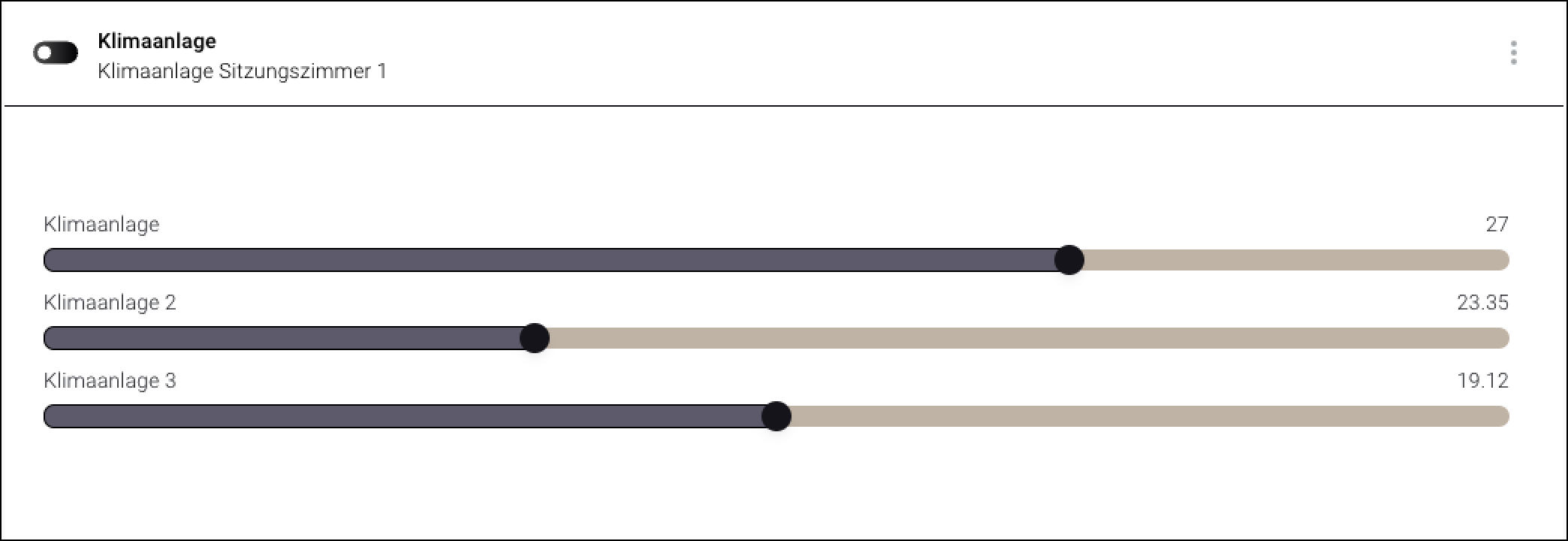
The "Slider" widget allows you to select the value range for one or more devices.

<div data-full-width="true"><figure><img src="https://3489494878-files.gitbook.io/~/files/v0/b/gitbook-x-prod.appspot.com/o/spaces%2F9GvUpaatBiReR43XFSMg%2Fuploads%2FmMV5ocPSOpUijmaf8aTC%2F84DE217C-C7A6-4428-8641-618A24BC6613.png?alt=media&#x26;token=4381e801-e07a-44c6-ae4e-a04dda1ae235" alt=""><figcaption><p>The "Slider" widget with 3 connected assets</p></figcaption></figure></div>

## When should this widget be used?

You should use the "Slider" widget when you want to control the value range of one or more assets.

## Configure Widget

{% @supademo/embed url="<https://app.supademo.com/demo/sYnOhWE0h-mFk374TWf_e>" demoId="sYnOhWE0h-mFk374TWf\_e" fullWidth="true" %}

1. Make sure you are in the "Dashboard" menu
2. Click on "Add widget"
3. Click on "Input"
4. Click on "Slider"
5. Select the primary asset. The name of this asset will appear in the title bar of the widget.
6. Select the asset that you want to control via the slider.
7. (Optional) Give the asset an individual name
8. Select an attribute for the setpoint
9. Select an attribute for the current value
10. (Optional) Repeat the previous steps to create sliders for other assets
11. Optional: Select how much space your new widget should occupy on the dashboard.
12. Click on "Add widget"

## Operate Widget

### Overview

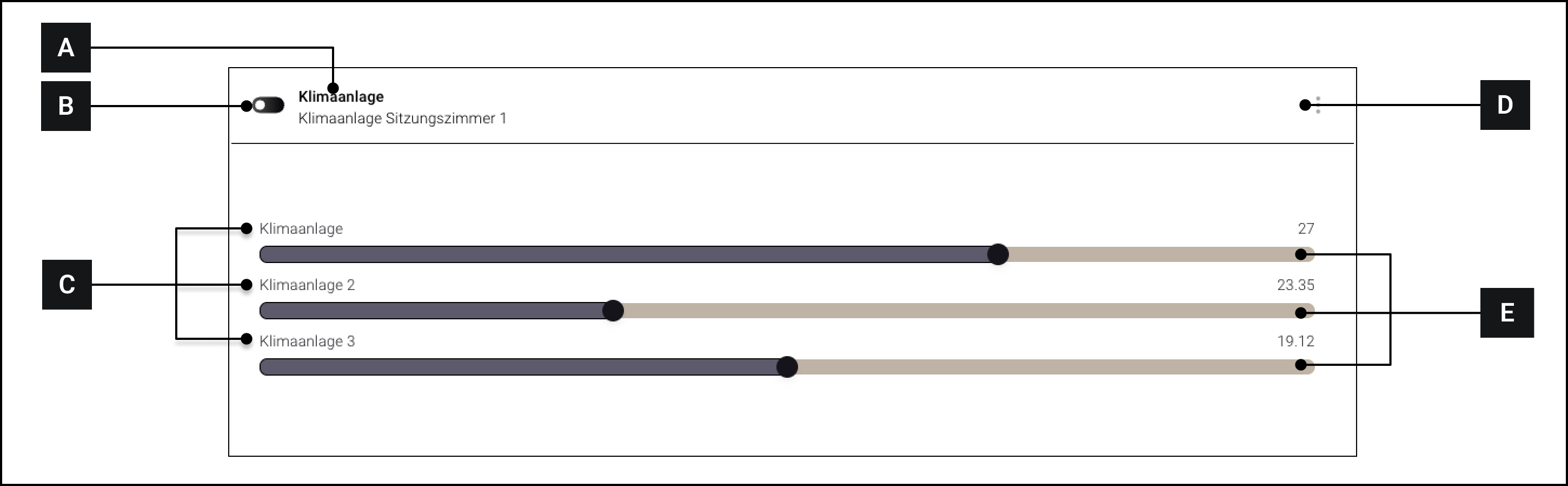
<div data-full-width="true"><figure><img src="https://3489494878-files.gitbook.io/~/files/v0/b/gitbook-x-prod.appspot.com/o/spaces%2F9GvUpaatBiReR43XFSMg%2Fuploads%2FSSMkNukFlA442n5DGNzB%2FC2BABD17-BBC3-4541-B423-F486D505E4C8.png?alt=media&#x26;token=119e347d-f865-47f4-911d-7ddce0ce7b1a" alt=""><figcaption><p>The "Slider" widget in detail</p></figcaption></figure></div>

<table data-full-width="true"><thead><tr><th width="71.73335774739581"></th><th width="264.60003662109375"></th><th></th></tr></thead><tbody><tr><td><strong>[A]</strong></td><td>Widget Title</td><td>Title of the widget. Is influenced by the selection of the "Primary Asset."</td></tr><tr><td><strong>[B]</strong></td><td>Icon</td><td>Icon of the widget</td></tr><tr><td><strong>[C]</strong></td><td>Name of the individual assets</td><td>The individual assets that were added to the widget</td></tr><tr><td><strong>[D]</strong></td><td>More options</td><td>See -> Widget Options</td></tr><tr><td><strong>[E]</strong></td><td>Slider</td><td></td></tr></tbody></table>

### Operate Widget

Each individual asset **\[C]** that has been added is assigned its own slider **\[E]**.

Drag the slider to a desired value to adjust the value of the corresponding asset.