# Placing Assets on a Floor

Follow these steps to place assets on a floor.

## Assign an Asset to a Floor

Before assets can be placed on a floor, the assets must be subordinated to the floor.

This is done in the settings of the asset that you want to assign to the floor.

1. Open the Assets menu item
2. Select the asset that you want to assign to a floor.
3. Click on Edit Information
4. In the Parent Location item – Select the floor that you want to assign the asset to.

## Place Assets on a Floor

### Place an Asset on a Floor

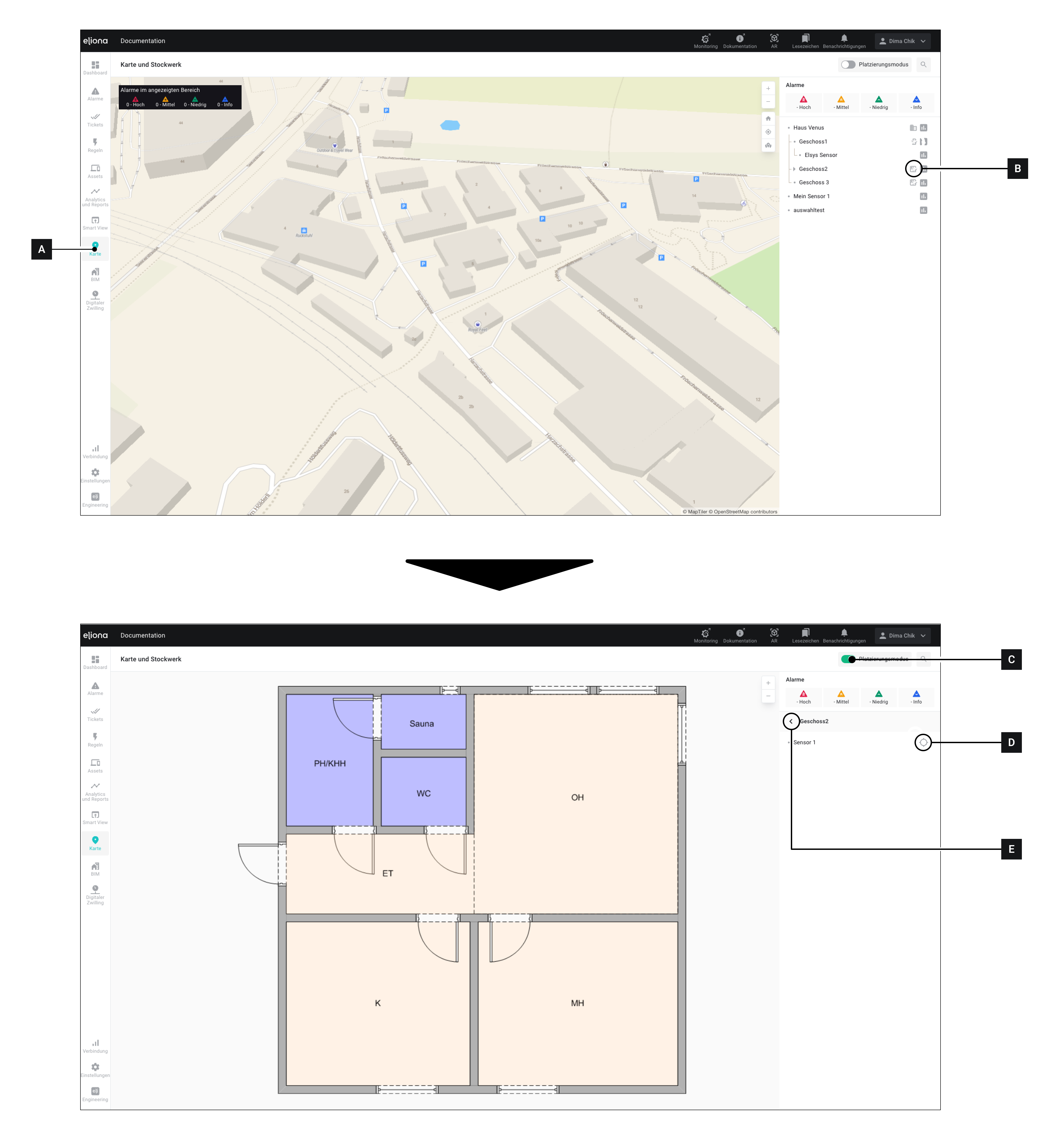
<figure><img src="https://3489494878-files.gitbook.io/~/files/v0/b/gitbook-x-prod.appspot.com/o/spaces%2F9GvUpaatBiReR43XFSMg%2Fuploads%2FaqRASv2od5I87PIKQzPX%2FF9A14B62-AC19-4811-BC20-7FE9155C115D.png?alt=media&#x26;token=2992645e-ed26-44b0-abbd-a3566ee447b0" alt=""><figcaption></figcaption></figure>

1. Make sure the asset has been added to the floor [-> Assign an Asset to a Floor](#place-an-asset-on-a-floor)
2. Open the **Map \[A]**
3. Click on the **symbol \[B]** of the floor where you want to place the asset.
4. Activate the **placement mode \[C]**
5. Click on the **icon \[D]** of the asset you want to place&#x20;

   ▷ The "Place selection" opens.&#x20;

   ▷ If you want to place a polygon: Continue with[ -> Place a Polygon ](#place-a-polygon)

   ▷ If you want to place a point: Continue with [-> Place a Point](#place-a-point)

#### Place a Point

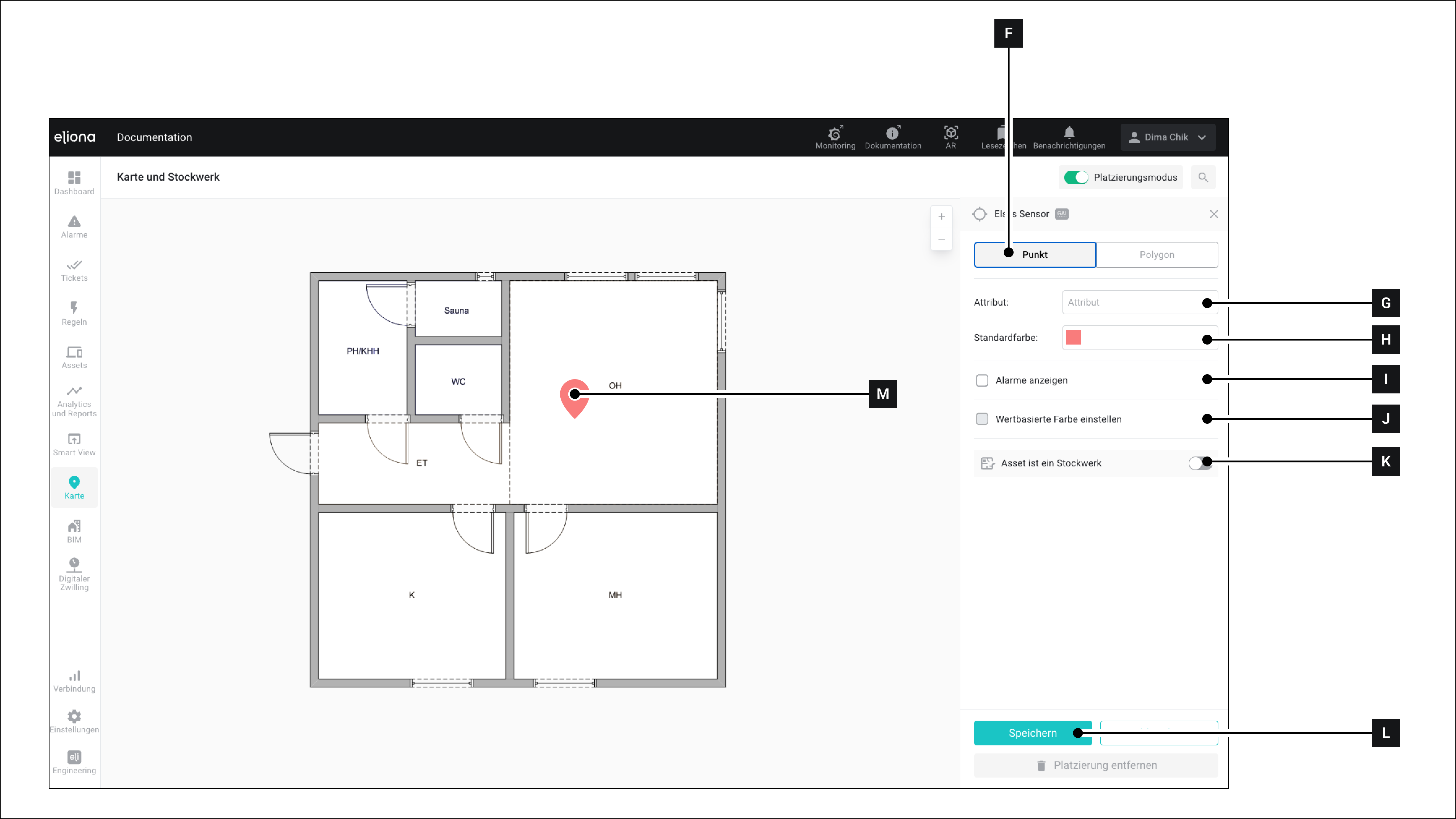
<figure><img src="https://3489494878-files.gitbook.io/~/files/v0/b/gitbook-x-prod.appspot.com/o/spaces%2F9GvUpaatBiReR43XFSMg%2Fuploads%2FBHwckaLnBUar0V9YXmaQ%2FAC80D864-A1AB-418C-A532-ABE9605560FC.png?alt=media&#x26;token=26cb5b09-2b5a-48de-a994-0dc598e2fc88" alt=""><figcaption><p>The "Place selection" for a point</p></figcaption></figure>

1. Click on **Point \[F]**
2. Click on any location on the map to place a point there **\[M]**
3. Select the attribute **\[G]**
4. Select the color in which the point should be displayed **\[G]**
5. Click on **Save \[G]**&#x20;

   ▷ The point is saved

#### Place a Polygon

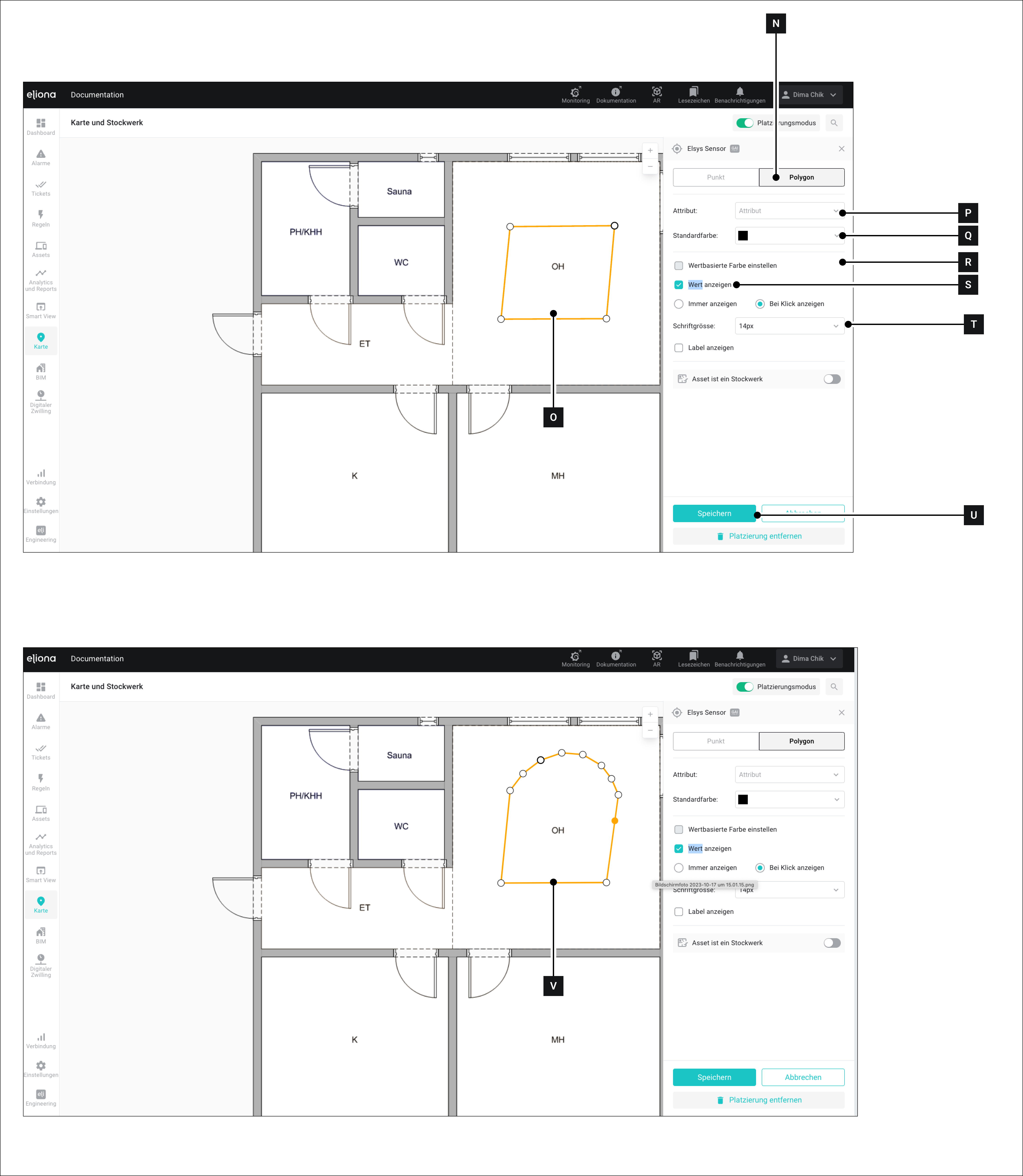
<figure><img src="https://3489494878-files.gitbook.io/~/files/v0/b/gitbook-x-prod.appspot.com/o/spaces%2F9GvUpaatBiReR43XFSMg%2Fuploads%2F1NbSujMkl2TLQY39VjKV%2F94DAC49D-87A7-4C55-A69A-890F42C12982.png?alt=media&#x26;token=6b9e65f9-0162-4de8-831e-cee618351926" alt=""><figcaption><p>The "Place selection" for a polygon</p></figcaption></figure>

1. Click on **Polygon \[N]**
2. Click on any location on the map to place a polygon there **\[O]**&#x20;

   ▷ At the corners of the polygon are white dots (nodes). Drag these dots to arrange the polygon.&#x20;

   ▷ Click on the lines between the dots to create another node there.&#x20;

   ▷ By adding multiple nodes, you can create round shapes **\[V]**
3. Select the attribute **\[P]**
4. Select the color **\[Q]**
5. Click on **Save \[G]**&#x20;

   ▷ The polygon is saved

#### Detailed Settings for Polygons

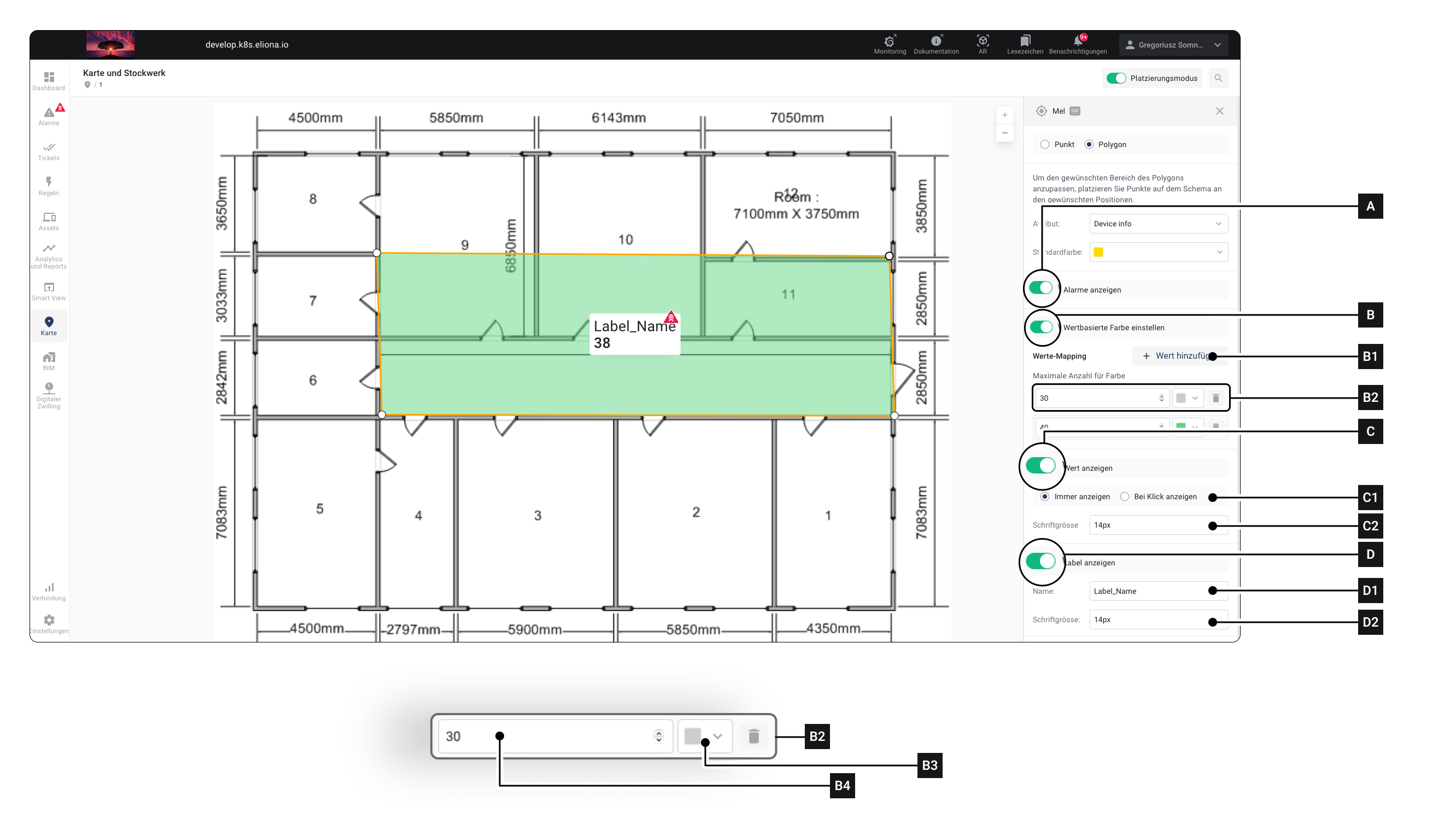
<figure><img src="https://3489494878-files.gitbook.io/~/files/v0/b/gitbook-x-prod.appspot.com/o/spaces%2F9GvUpaatBiReR43XFSMg%2Fuploads%2F7t8MaBgI9XWZzbP9z1ez%2FDetailEinstellungen%20Polygone.png?alt=media&#x26;token=bc31582f-ac5e-42b0-b91d-9251ec4d14b3" alt=""><figcaption></figcaption></figure>

<figure><img src="https://3489494878-files.gitbook.io/~/files/v0/b/gitbook-x-prod.appspot.com/o/spaces%2F9GvUpaatBiReR43XFSMg%2Fuploads%2F5jrYU21G4p9ujC82IjZO%2FPolygon%20details%20(2).png?alt=media&#x26;token=23b4cb32-292a-4e85-8438-42a126465047" alt="" width="375"><figcaption></figcaption></figure>

When displaying as a polygon, you can display additional values. The following options are available to you:

<table data-full-width="true"><thead><tr><th width="71.80001831054688">Element</th><th width="260.79998779296875">Title</th><th>Details</th></tr></thead><tbody><tr><td><strong>[A]</strong></td><td>"Alarms" switch</td><td>Activate this switch if an alarm should be displayed in the polygon.</td></tr><tr><td><strong>[B]</strong></td><td>"Set value-based color" switch</td><td>Activate this switch to change the color of the polygon depending on the value of the connected asset. <a href="../../../academy/value-mapping-in-eliona">-> Value Mapping</a></td></tr><tr><td><strong>[B1]</strong></td><td>Add new value</td><td>Click to add a new limit value</td></tr><tr><td><strong>[B2]</strong></td><td>Value</td><td>An entry for a limit value.</td></tr><tr><td><strong>[B3]</strong></td><td>Value specification</td><td>Here you can enter the desired limit value.</td></tr><tr><td><strong>[B4]</strong></td><td>Choose color</td><td>As long as the value is within the range defined in <strong>[B3]</strong>, the polygon is displayed in the selected color.</td></tr><tr><td><strong>[C]</strong></td><td>"Show value" switch</td><td>Activate this switch so that the current value of the asset is displayed in the polygon.</td></tr><tr><td><strong>[C1]</strong></td><td>Selection</td><td>Choose whether the value is always displayed or only after a click.</td></tr><tr><td><strong>[C2]</strong></td><td>Font size</td><td>Set the font size of the value.</td></tr><tr><td><strong>[D]</strong></td><td>"Label" switch</td><td>Activate this switch so that the current value of the asset is displayed in the polygon.</td></tr><tr><td><strong>[D1]</strong></td><td>Label name</td><td>Enter the text to be displayed in the label here</td></tr><tr><td><strong>[D2]</strong></td><td>Font size</td><td>Set the font size of the label.</td></tr><tr><td><strong>[E]</strong></td><td>"Asset is a floor" switch</td><td>Asset is now seen as a floor</td></tr><tr><td><strong>[E1]</strong></td><td>Floor schema</td><td>Upload a floor plan here</td></tr><tr><td><strong>[E2]</strong></td><td>Floor number</td><td>Select the number of the floor here.</td></tr><tr><td><strong>[F]</strong></td><td>"Set polygon as room boundaries" switch</td><td>Here, the room boundaries for the trackers can be determined.</td></tr><tr><td><strong>[G]</strong></td><td>"Asset can be booked" switch</td><td>When the switch is activated, the asset can be booked in the <a href="../../live-cockpit/widgets/predefined-widgets/booking">Booking Widget. </a>To enable this, the <strong>"</strong><a href="../../../../mandatory-base/assets/asset-modeling-create-templates/create-a-new-template#activate-booking-function"><strong>Bookable</strong></a><strong>"</strong> option must be activated in the asset template.</td></tr></tbody></table>