# Map

## Overview

With the "Map" function, you can place assets on an interactive map. This allows you to trace the geographical distribution of all assets.

<div data-full-width="true"><figure><img src="https://3489494878-files.gitbook.io/~/files/v0/b/gitbook-x-prod.appspot.com/o/spaces%2F9GvUpaatBiReR43XFSMg%2Fuploads%2F6ihJk0e7vvqihBHhlf3c%2F2F7EC9F5-B06A-4A9E-8D6E-5E4B61E8C0B5.png?alt=media&#x26;token=c2426ed2-2f8d-4151-adb8-7470f9ee5162" alt=""><figcaption><p>Fig. 1 – Overview of the "Map" menu</p></figcaption></figure></div>

<div data-full-width="true"><figure><img src="https://3489494878-files.gitbook.io/~/files/v0/b/gitbook-x-prod.appspot.com/o/spaces%2F9GvUpaatBiReR43XFSMg%2Fuploads%2FPYZJFlMoo1vmSpGpoGoq%2F0CC5329E-683C-4164-959D-837CEF190D29.png?alt=media&#x26;token=bdc25a08-c4a1-4783-83f7-e6ba73d1b8d4" alt=""><figcaption><p>Fig. 2 – Overview of the symbols used in the map</p></figcaption></figure></div>

<table data-full-width="true"><thead><tr><th width="62"></th><th width="160"></th><th></th></tr></thead><tbody><tr><td><strong>[A]</strong></td><td>Map</td><td>Interactive map</td></tr><tr><td><strong>[B]</strong></td><td>"Map" menu</td><td>Click to open the "Map" menu</td></tr><tr><td><strong>[C]</strong></td><td>Alarms in the displayed area</td><td>Shows an overview of all alarms in the currently visible map section. Not to be confused with [G]!</td></tr><tr><td><strong>[D]</strong></td><td>Navigation</td><td>See <a href="#navigate-on-the-map">-> Navigate on the map</a></td></tr><tr><td><strong>[E]</strong></td><td>Placement mode</td><td><a href="#placing-an-asset-on-the-map">-> Turn placement mode on/off</a></td></tr><tr><td><strong>[F]</strong></td><td>Search</td><td>Activate search, which not only illustrates the search in the asset tree but also only displays the points on the map that match the search.</td></tr><tr><td><strong>[G]</strong></td><td>All alarms</td><td>Displays all alarms present in the current tenant to which the user has access.</td></tr><tr><td><strong>[H]</strong></td><td>Sidebar</td><td>Context-sensitive sidebar. The content varies depending on what is currently selected.<br><br>When the "Map" menu is opened, a list of all assets that are in the tenant and to which the respective user has access is displayed by default.</td></tr><tr><td><strong>[I]</strong></td><td>"Building" icon</td><td>This icon indicates that the respective asset has the "Building" type.</td></tr><tr><td><strong>[W]</strong></td><td>"Floor" icon</td><td>This icon indicates that the respective asset has the "Floor" type.</td></tr><tr><td><strong>[J]</strong></td><td>Details</td><td>Click to view details of the respective asset</td></tr><tr><td><strong>[K]</strong></td><td>Asset</td><td>Asset name.<br>Click on the asset name to jump to the location of the asset on the map.</td></tr><tr><td><strong>[L]</strong></td><td>Map symbol "Asset"</td><td>This symbol appears on the map and symbolizes an asset. Click on this symbol to get to the <a href="../../mandatory-base/assets/asset-details">-> Asset Details</a></td></tr><tr><td><strong>[M]</strong></td><td>Map symbol "Multiple Assets"</td><td>This symbol appears on the map and symbolizes multiple assets. This symbol is displayed,</td></tr><tr><td><strong>[N]</strong></td><td>Map symbol "Building"</td><td>This symbol appears on the map and symbolizes a building. Click on this symbol to get to the <a href="../../mandatory-base/assets/asset-details">-> Asset Details</a></td></tr><tr><td><strong>[O]</strong></td><td>Map symbol "Asset with subordinate alarm"</td><td>This symbol appears on the map and symbolizes an asset whose subordinate asset is marked with an alarm.</td></tr><tr><td><strong>[P]</strong></td><td>Map symbols "Assets with alarm"</td><td>This symbol appears on the map and symbolizes an asset for which an alarm is present. The colored triangle symbolizes the respective alarm level.<br>You can find more details in the chapter <a href="../alert-center/alarms">-> Alarms</a></td></tr><tr><td><strong>[Q]</strong></td><td>Map symbols "Buildings with alarm"</td><td>This symbol appears on the map and symbolizes a building for which an alarm is present. The colored triangle symbolizes the respective alarm level.<br>You can find more details in the chapter <a href="../alert-center/alarms">-> Alarms</a></td></tr></tbody></table>

## Open the map

Click on **Map \[B]** in the sidebar to open the map.

The default map section is opened.

{% hint style="info" %}
You can set your own default map section for each user.

Find out how under [-> Set default map section](#set-default-map-section)
{% endhint %}

## Navigate on the map

<div data-full-width="true"><figure><img src="https://3489494878-files.gitbook.io/~/files/v0/b/gitbook-x-prod.appspot.com/o/spaces%2F9GvUpaatBiReR43XFSMg%2Fuploads%2F3OnjTBjaxC7k1DmqDnoU%2FCE5D73C8-28DE-4126-AC1C-E7EE4BAB6230.png?alt=media&#x26;token=510e0d80-fed0-4cd0-b334-c0798ce3417b" alt=""><figcaption><p>Fig. 3 – Detail of navigation</p></figcaption></figure></div>

{% hint style="info" %}
An explanation of the abbreviations used can be found under [-> Typographical conventions](https://docs.buildings.ability.abb/collection/preface/typographical-conventions)
{% endhint %}

<table data-full-width="true"><thead><tr><th width="183"></th><th width="154.93336995442706"></th><th></th></tr></thead><tbody><tr><td><strong>LMT [drag]</strong></td><td>Move map</td><td>Move map section</td></tr><tr><td><strong>RMT [drag]</strong> <em>or</em><br><strong>Ctrl + LMT [drag]</strong></td><td>Rotate / angle map</td><td>Rotate map</td></tr><tr><td><strong>Shift + LMT [drag]</strong></td><td>Zoom area</td><td>With this command, you can draw a rectangle on the map. When you release the LMT, it zooms into this rectangle</td></tr><tr><td><strong>MOUSE WHEEL</strong></td><td>Zoom</td><td>Zoom in or out of the map</td></tr><tr><td><strong>[D1]</strong></td><td>Zoom in</td><td>Zooms into the center of the map</td></tr><tr><td><strong>[D2]</strong></td><td>Zoom out</td><td>Zooms out of the center of the map</td></tr><tr><td><strong>[D3]</strong></td><td>Home</td><td>Returns to the default map section</td></tr><tr><td><strong>[D4]</strong></td><td>Jump to current location</td><td>Jumps to the user's current location. To use this function, an additional permission may need to be granted via the web browser.</td></tr><tr><td><strong>[D5]</strong></td><td>Show all assets</td><td>Zooms out far enough to show all existing and placed assets on the map.</td></tr></tbody></table>

## Asset list

The asset list appears in the **sidebar \[H]** when the "Map" menu is opened.

In the asset list, you see all assets that are assigned to the tenant and to which you have access.

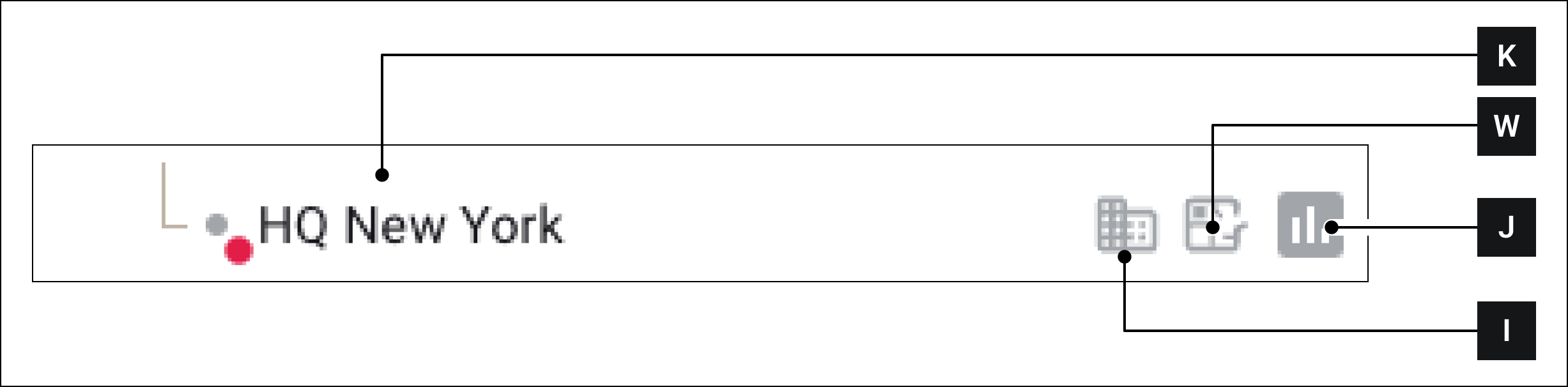
<figure><img src="https://3489494878-files.gitbook.io/~/files/v0/b/gitbook-x-prod.appspot.com/o/spaces%2F9GvUpaatBiReR43XFSMg%2Fuploads%2FGIZxHv0klwd3PO1zQmLY%2FF14BEC8F-5269-4F48-B6FF-7CEEE2287583.png?alt=media&#x26;token=fa306742-de25-47a2-b1ff-843b5b4a4f97" alt=""><figcaption><p>Fig. 4 - Asset in the asset list</p></figcaption></figure>

Click on the name of an asset **\[K]** to jump to its location on the map.

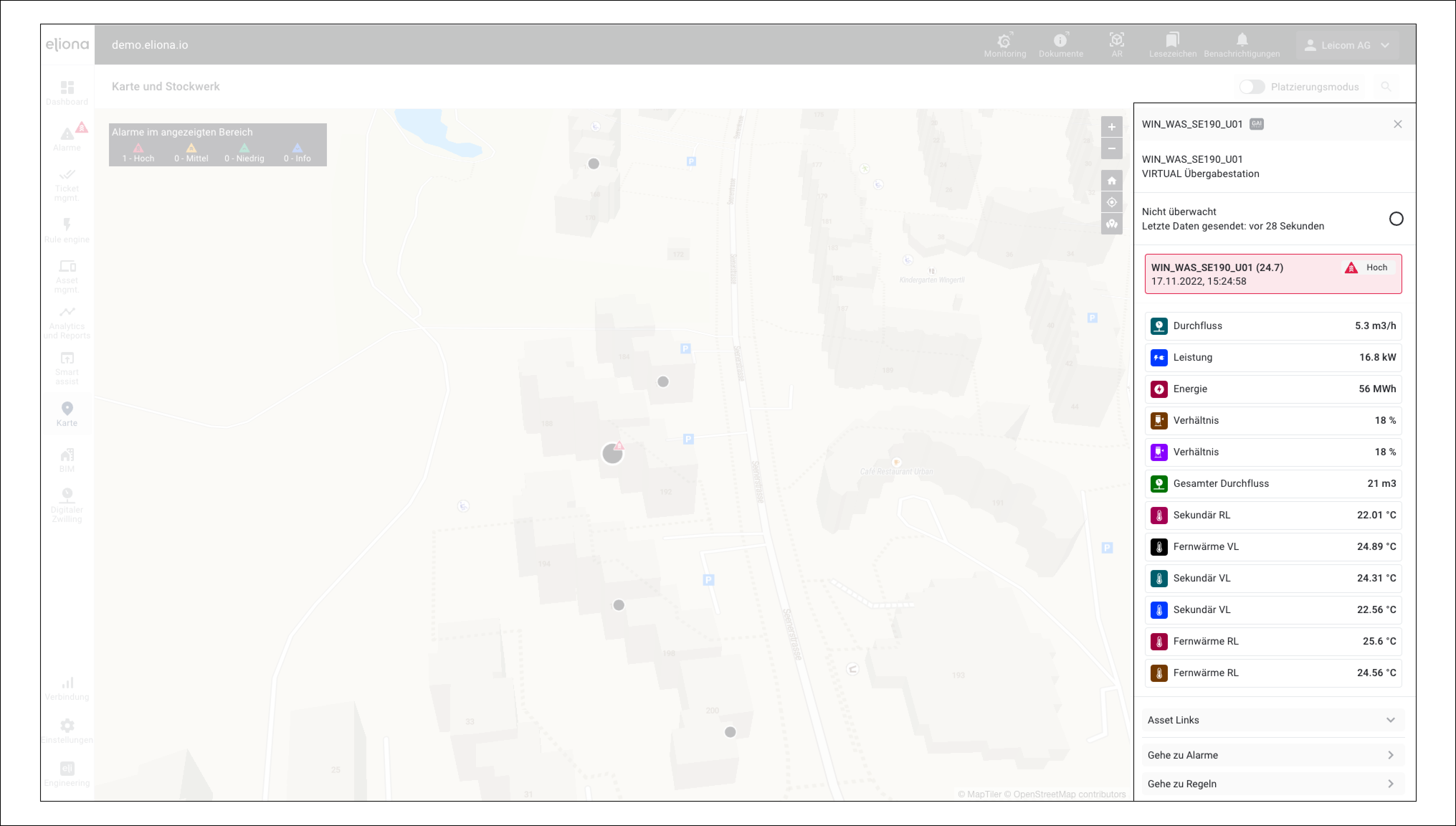
Click on the symbol **\[J]** to get to the Asset Details (Fig. 5).

In the Asset Details, you can:

* view the alarms of the asset,
* display the attribute values of the asset,

and from there, navigate to other functions such as:

* the rules of the asset,
* other alarms,
* the BIM model of the asset,
* the digital twin of the asset,
* and the asset links.

The symbol **\[W]** is only present if the asset is a floor. Click on **\[W]** to go directly to the "Floor Menu".

{% hint style="info" %}
You can find out more about floors in the chapter [-> Floors](https://docs.buildings.ability.abb/collection/platform/map-and-floor/floor)
{% endhint %}

The symbol **\[I]** is only present if the asset is a building.

<div data-full-width="true"><figure><img src="https://3489494878-files.gitbook.io/~/files/v0/b/gitbook-x-prod.appspot.com/o/spaces%2F9GvUpaatBiReR43XFSMg%2Fuploads%2FpKBuUSCzcYJAwVblRM2t%2F9AE06B26-AAB9-45C0-BEFB-043778969519.png?alt=media&#x26;token=91c1c01b-1ae1-45be-8787-e414a3e69389" alt=""><figcaption><p>Fig. 5 The "Asset Details" appear in the sidebar</p></figcaption></figure></div>

## Placing an asset on the map

<div data-full-width="true"><figure><img src="https://3489494878-files.gitbook.io/~/files/v0/b/gitbook-x-prod.appspot.com/o/spaces%2F9GvUpaatBiReR43XFSMg%2Fuploads%2Fm1jKolLZe91f85xzA7S0%2F97CF8D33-9FE2-4D34-BCF2-A2B6E7A85474.png?alt=media&#x26;token=903214c4-ad2e-4d47-be17-799f0af36799" alt=""><figcaption><p>Fig. 6 – Placement mode</p></figcaption></figure></div>

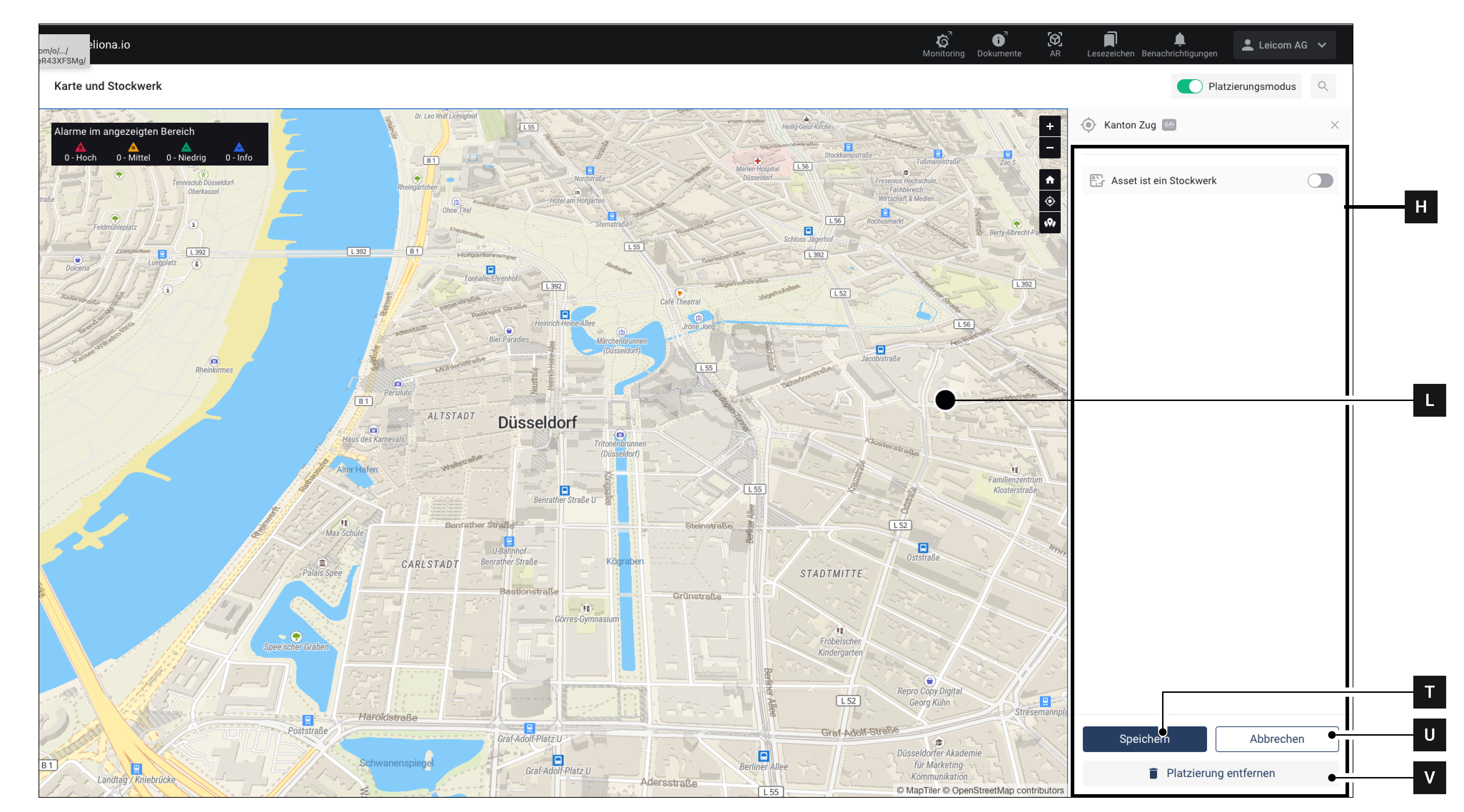
<div data-full-width="true"><figure><img src="https://3489494878-files.gitbook.io/~/files/v0/b/gitbook-x-prod.appspot.com/o/spaces%2F9GvUpaatBiReR43XFSMg%2Fuploads%2FofFyJVXu1fXhTg4VuMS9%2F76415A80-43F9-43DF-A90F-19FF66CFEBF9.png?alt=media&#x26;token=75b0e770-bb02-42dc-b36c-7bf781c41f5e" alt=""><figcaption><p>Fig. 7 – Advanced placement mode</p></figcaption></figure></div>

### Option 1 – Directly via the map

1. Make sure the **Map \[B]** menu is open
2. Activate the **placement mode \[E]**

   ▷ The sidebar **\[H]** switches to "placement mode" (see Fig 4)
3. Assets with the symbol **\[R]** have not been placed
4. Assets with the symbol **\[S]** have already been placed. Proceed to change the placement.
5. Click on the symbol **\[R]** or **\[S]** next to the asset you want to place.

   ▷ The sidebar **\[H]** switches to "advanced placement mode" (see Fig. 7)
6. Navigate on the map to the location where you want to place the asset
7. Click on the location where the asset should be placed.

   ▷ The selected location is marked with a particularly large "Asset" map symbol **\[L]**
8. Click on **Save \[T]** to place the asset.
9. If the asset was already placed: With **\[V]**, you can remove the placement.

Click on a map symbol **\[X]** to get to the asset details

### Option 2 – Via the asset menu

1. -> Create a new asset or [-> start editing an existing asset](https://docs.buildings.ability.abb/collection/mandatory-base/assets/configure-an-asset)
2. Click on \[X]

   ▷ The map opens

   ▷ Placement mode is automatically activated
3. If the asset to be placed is a floor: Activate the "Asset is a floor" switch
4. Navigate on the map to the location where you want to place the asset
5. Click on the location where the asset should be placed.

   ▷ The selected location is marked with a particularly large "Asset" map symbol **\[L]**
6. Click on **Save \[T]** to place the asset.
7. If the asset was already placed: With \[V], you can remove the placement.

## Set default map section

The default map section is the map section that is displayed by default when the "Map" menu is opened.

### Change for your user

Proceed as follows to change the default map section for your own user:

<figure><img src="https://3489494878-files.gitbook.io/~/files/v0/b/gitbook-x-prod.appspot.com/o/spaces%2F9GvUpaatBiReR43XFSMg%2Fuploads%2FSFH07tLjOrPryRGSiVMi%2FDocs_Karte%20-%20Standardspeicherort.png?alt=media&#x26;token=bb30f6e8-a943-48ee-a6c1-2ab8311402dc" alt=""><figcaption></figcaption></figure>

1. Click on your user name in the title bar **\[A]**
2. Click on **\[B]**

   ▷ Your user settings open
3. Click on **\[C]**
4. Click on Default save location **\[D]**

   ▷ A **map selection \[E]** opens
5. In **\[F]**, navigate to the point you want to set as the default save location.
6. Alternatively, you can search for a location via **\[G]**
7. Click on **Save \[H]**

   ▷ The default save location has been applied

{% hint style="info" %}
You must proceed as described to open your user settings.

It is not possible to change the default save location via *Engineering -> Users -> \[Your User]*.
{% endhint %}

{% hint style="info" %}
This way, you can NOT change the default map section for other users.

If you want to configure a default map section for other users, use the [-> Roles function](https://docs.buildings.ability.abb/collection/mandatory-base/platform-core/workspace-and-identity/roles/tenant-roles)
{% endhint %}

### Change via role

If you want to set a default map section for other users, you can do this via the [-> Role](https://docs.buildings.ability.abb/collection/mandatory-base/platform-core/workspace-and-identity/roles/tenant-roles).


---

# Agent Instructions: Querying This Documentation

If you need additional information that is not directly available in this page, you can query the documentation dynamically by asking a question.

Perform an HTTP GET request on the current page URL with the `ask` query parameter:

```
GET https://docs.buildings.ability.abb/collection/platform/map-and-floor/map.md?ask=<question>
```

The question should be specific, self-contained, and written in natural language.
The response will contain a direct answer to the question and relevant excerpts and sources from the documentation.

Use this mechanism when the answer is not explicitly present in the current page, you need clarification or additional context, or you want to retrieve related documentation sections.